MyGeoTab Drive App
This article will show you how to assign yourself as a driver to a vehicle when using a PBR vehicle to travel between sites.
- Install the "Geotab Drive" app on your mobile device. Found here:
Apple: Geotab Drive App - App Store
Android: Geotab Drive - Apps on Google Play
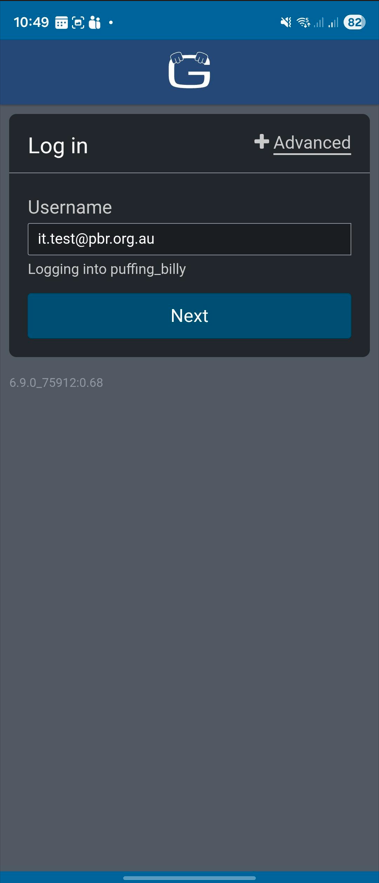
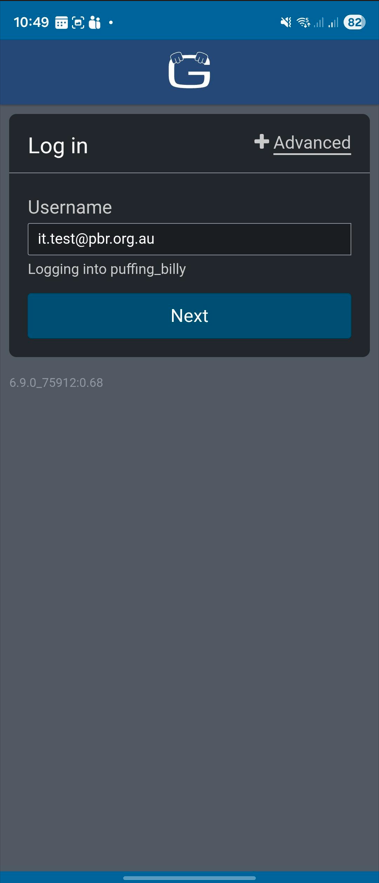
- You will then be greeted with a login screen. Enter your username. This will be your PBR email.
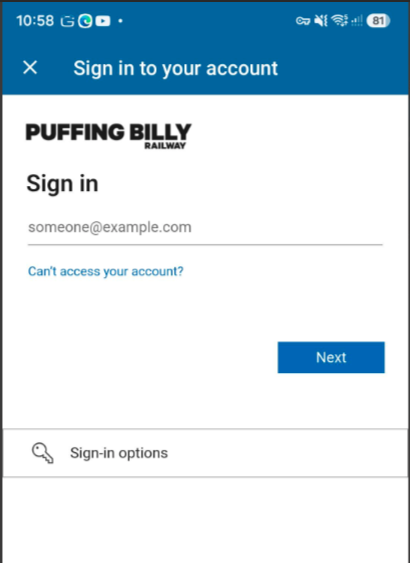
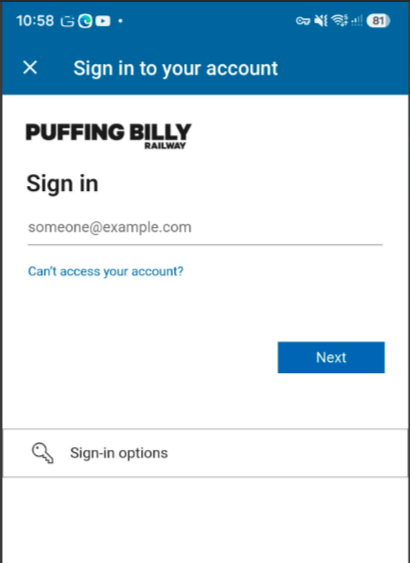
- Next step is to enter your Microsoft email & password. This is your PBR Microsoft account details, the same details you use to log into your PBR email/computer. Follow the prompts to fill in the password then MFA with Microsoft Authenticator.
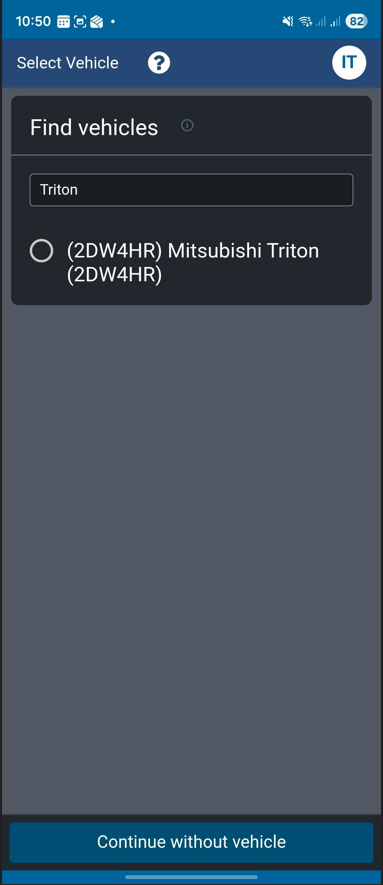
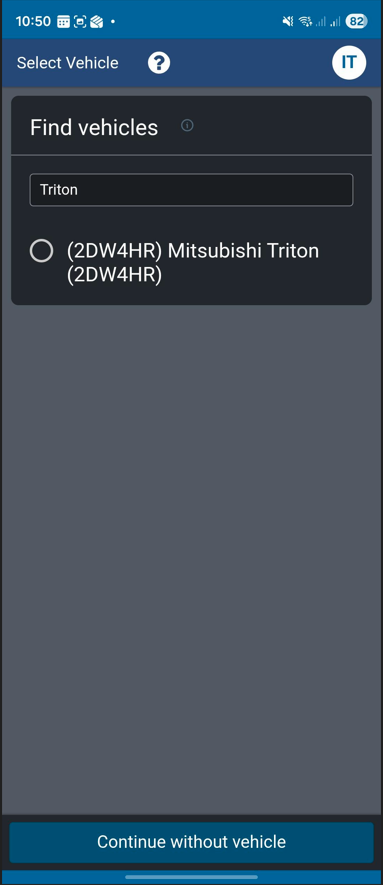
- The next screen you will select the vehicle you will be driving. You can search using the registration number, or the model of the car. If the car is nearby, it will automatically display.
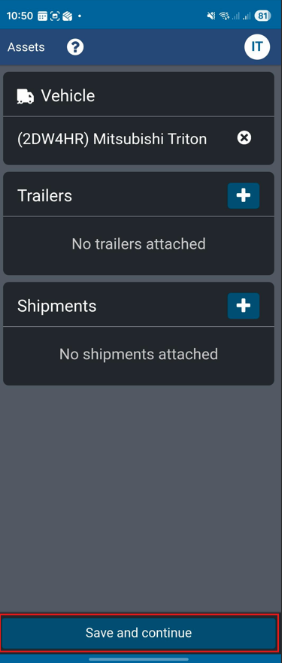
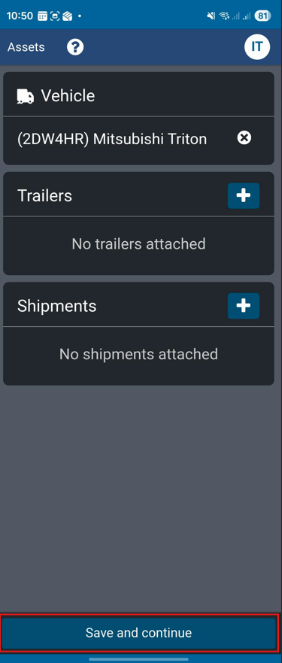
- Select "Save and Continue".
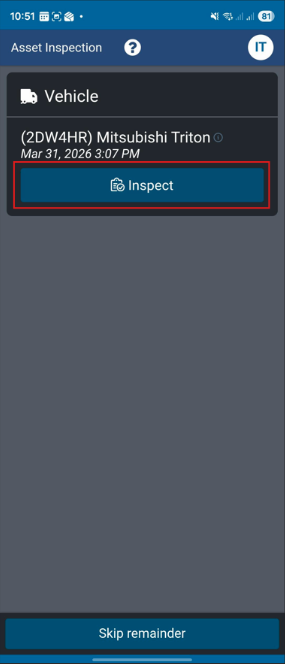
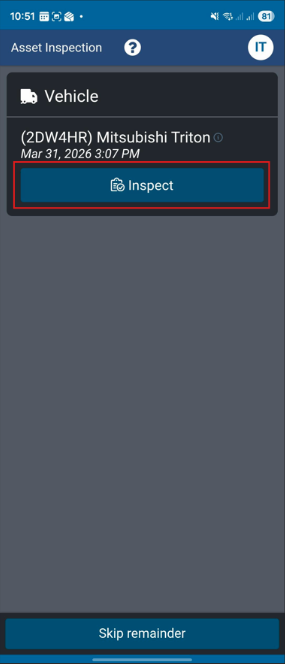
- The asset inspection screen will appear. This is where the pre-travel inspection will start. Select "Inspect".
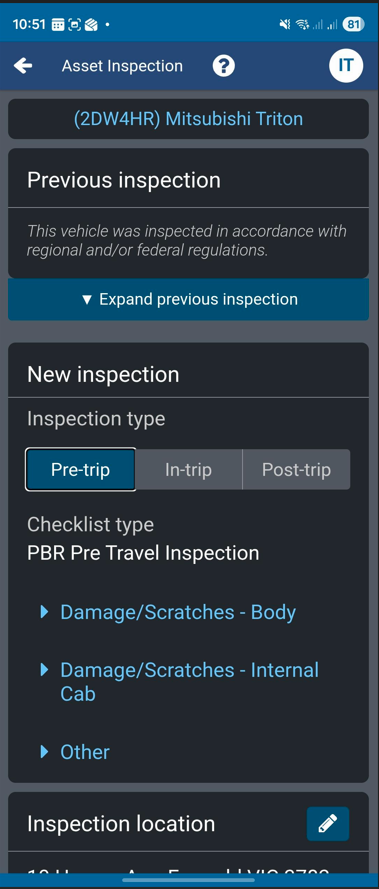
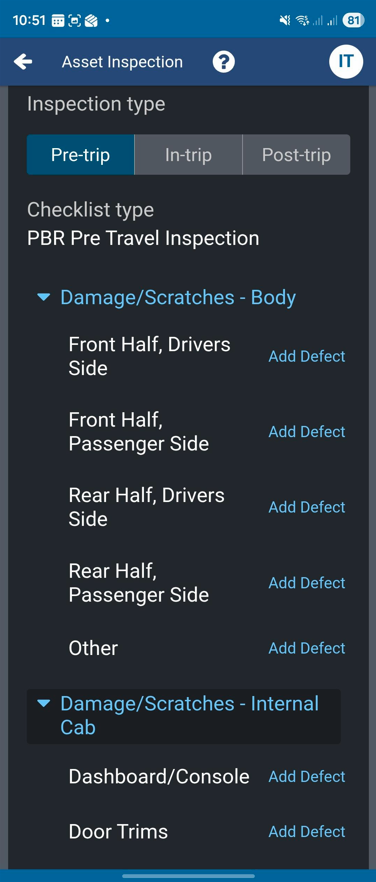
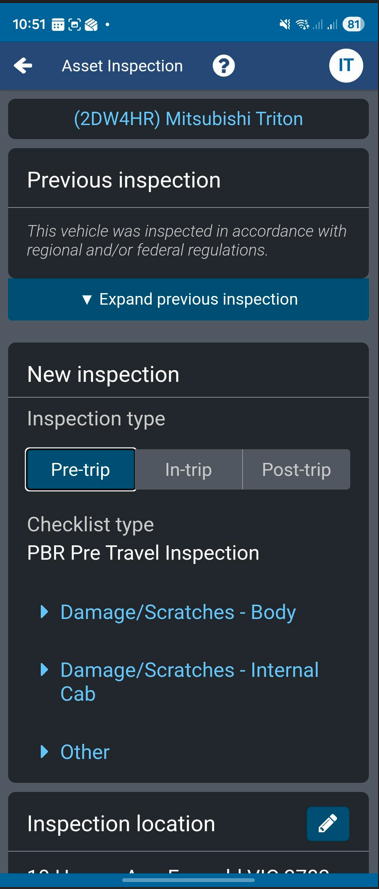
- Select "Pre-trip". Here is where you will note any physical damage to the car before driving.
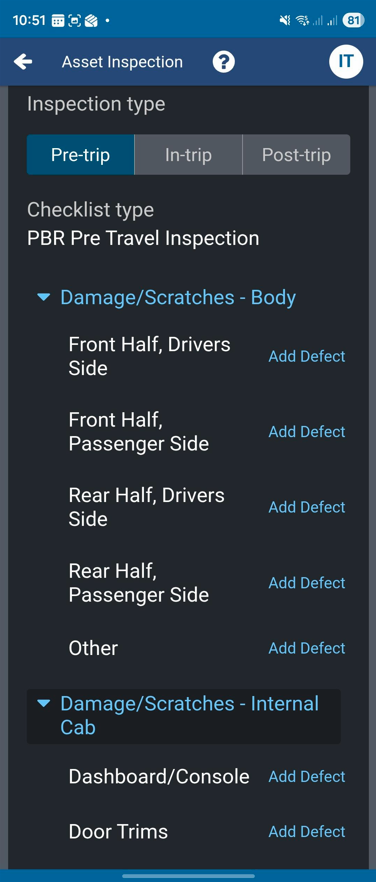
- If there is any damage noted to the external or internal of the vehicle, select the appropriate dropdown. Select "Add Defect" and note the defect.
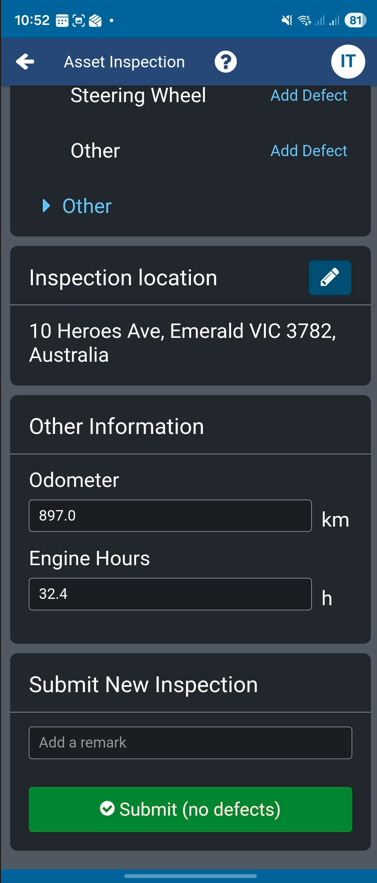
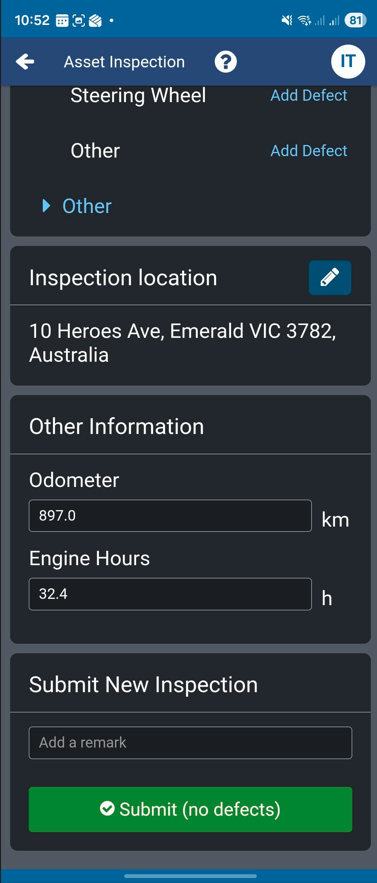
- If no damage/defects are visible, scroll to the bottom of the page. Fill out any other information such as Odometer and Inspection Location and select Submit.
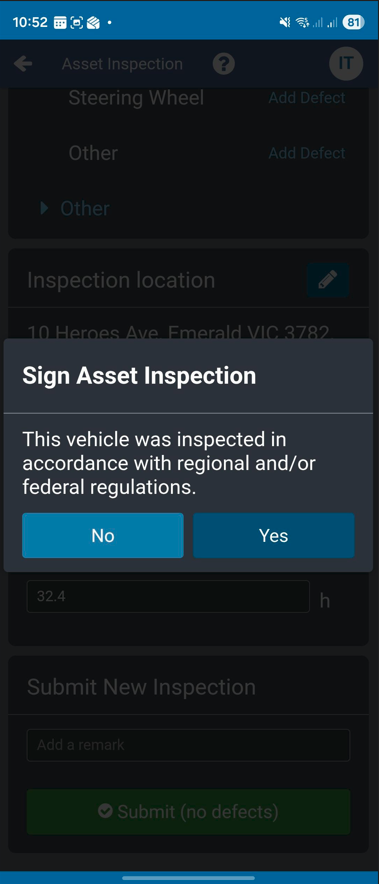
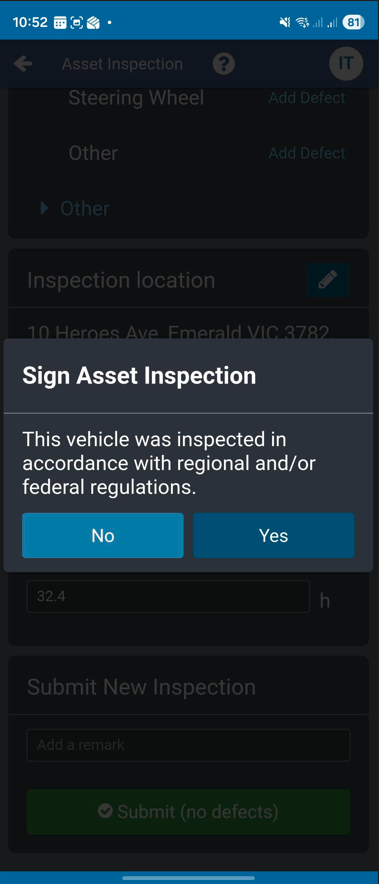
- A "Sign Asset Inspection" will appear. Select Yes if all information provided is correct.
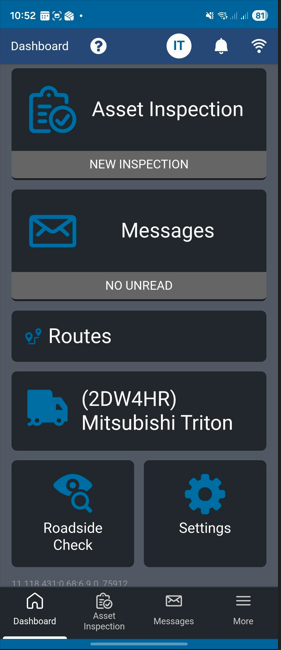
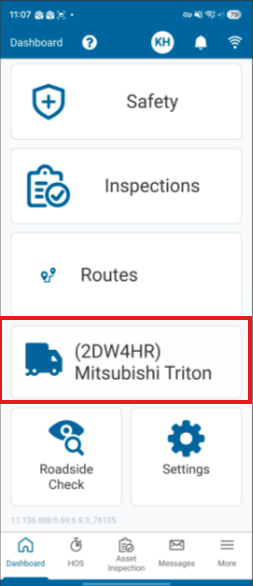
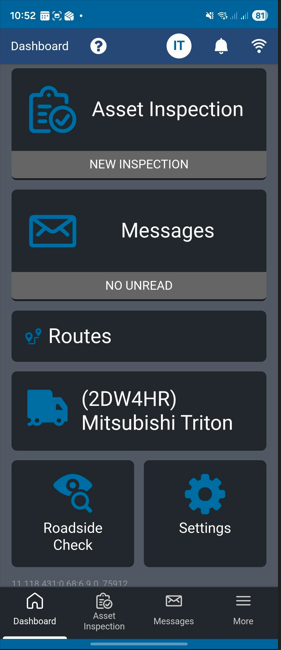
- When you see the below screen, it means you have successfully assigned yourself as the driver of the vehicle.
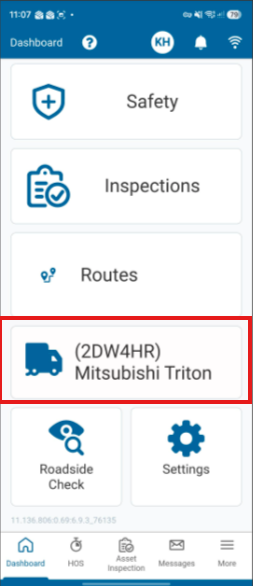
- Once the drive is complete, to unassign yourself as the driver, select your vehicle.
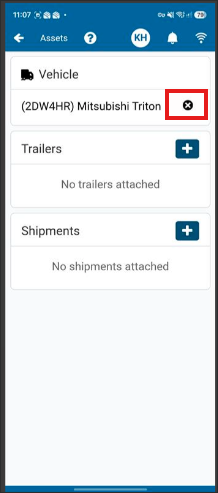
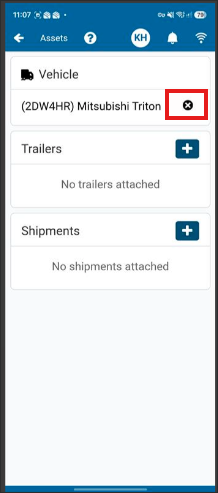
- Then select the cross..
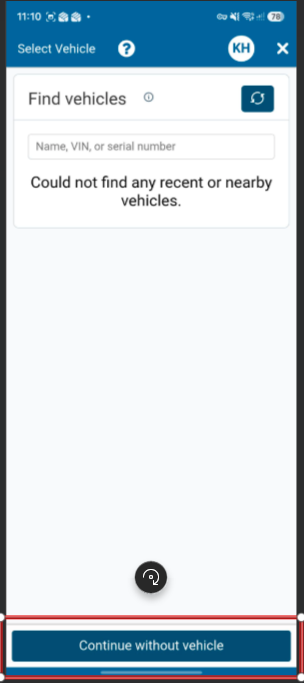
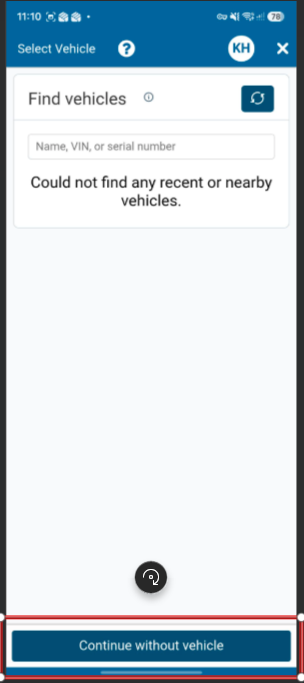
- Select "Continue without vehicle" at the bottom of the screen. You have now unassigned yourself as the driver of the vehicle.