MyGeoTab Drive App
This article will show you how to assign yourself as a driver to a vehicle when using a work vehicle to travel between sites.
Apple: Geotab Drive App - App Store
Android: Geotab Drive - Apps on Google Play
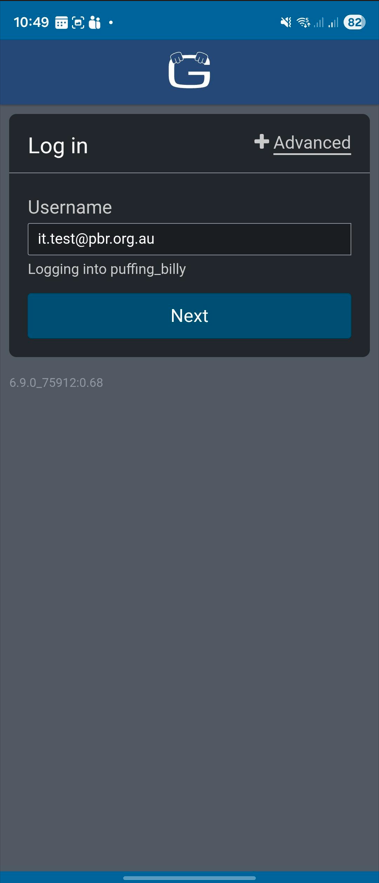
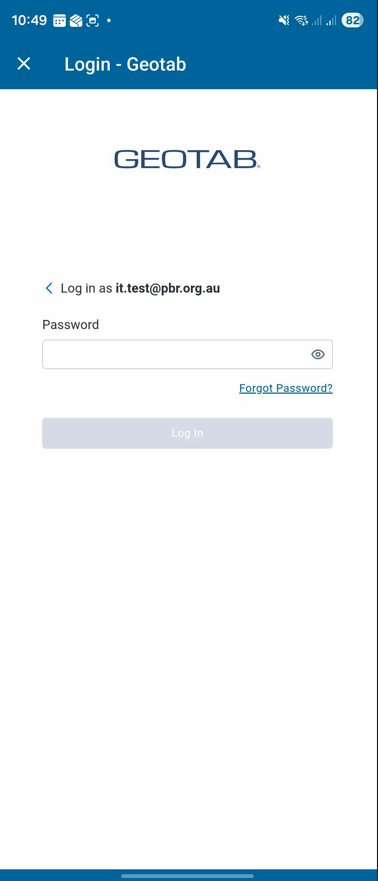
Next step is to enter your password. This is the password you selected when setting up your GeoTab account.
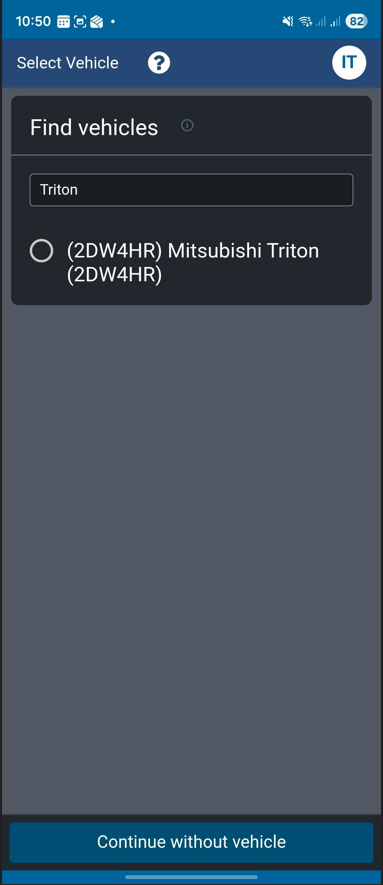
The next screen you will select the vehicle you will be driving. You can search using the registration number, or the model of the car.
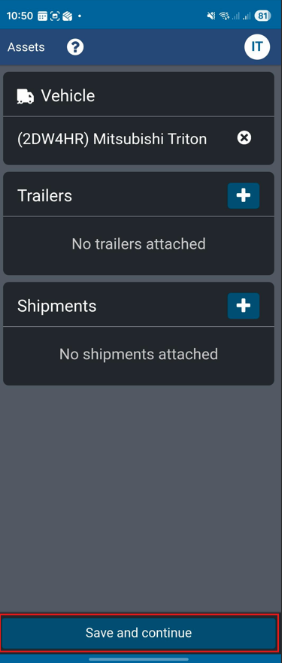
Select "Save and Continue".
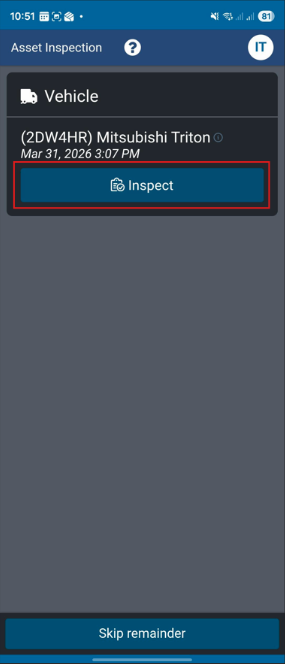
The asset inspection screen will appear. This is where the pre-travel inspection will start. Select "Inspect".
Select "Pre-trip". Here is where you will note any physical damage to the car before driving.
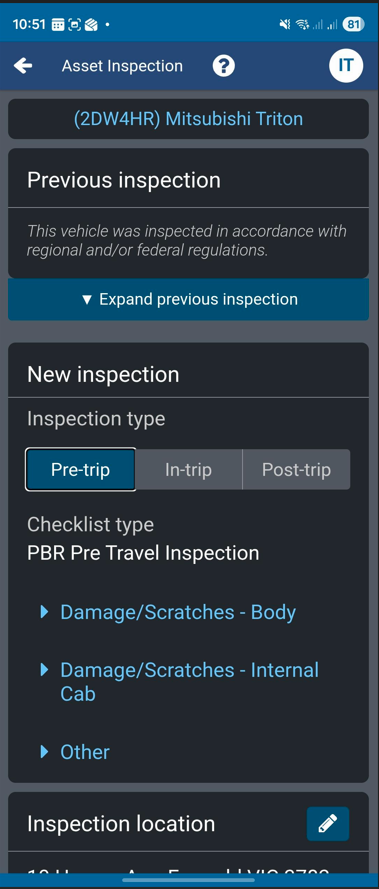
If there is any damage noted to the external or internal of the vehicle, select the appropriate dropdown. Select "Add Defect" and note the defect.
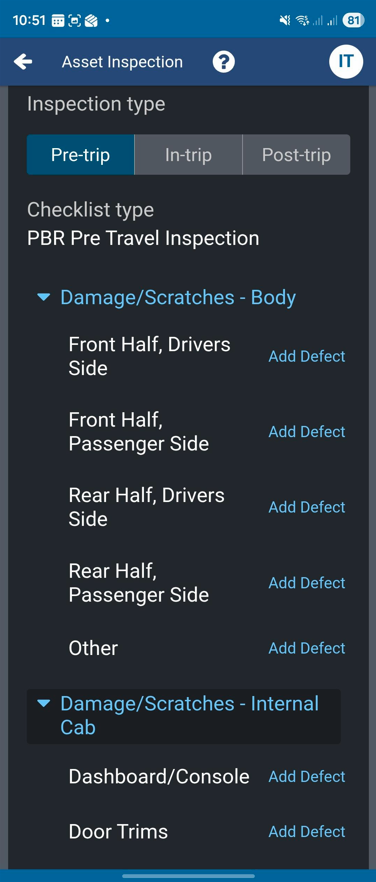
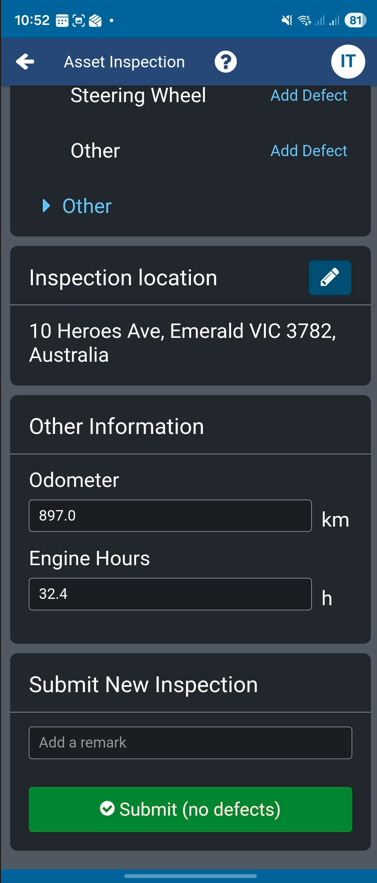
If no damage/defects are visible, scroll to the bottom of the page. Fill out any other information such as Odometer and Inspection Location and select Submit.
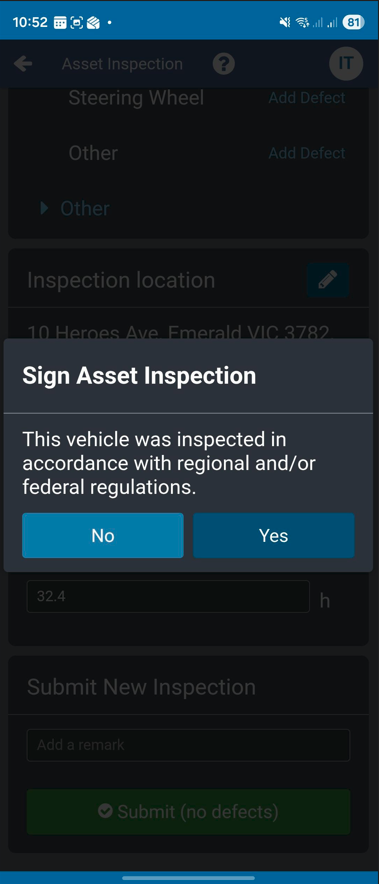
A "Sign Asset Inspection" will appear. Select Yes if all information provided is correct.