Updating Firmware Cisco Switch
Updating the Firmware on a Cisco Switch is easy.
New firmware can be found at
https://software.cisco.com/download/home/283018960
SG300 Series
In the 300 series of switches a few steps are to be taken
- Where possible a backup should be taken of the Firmware and Configuration files should something go wrong.
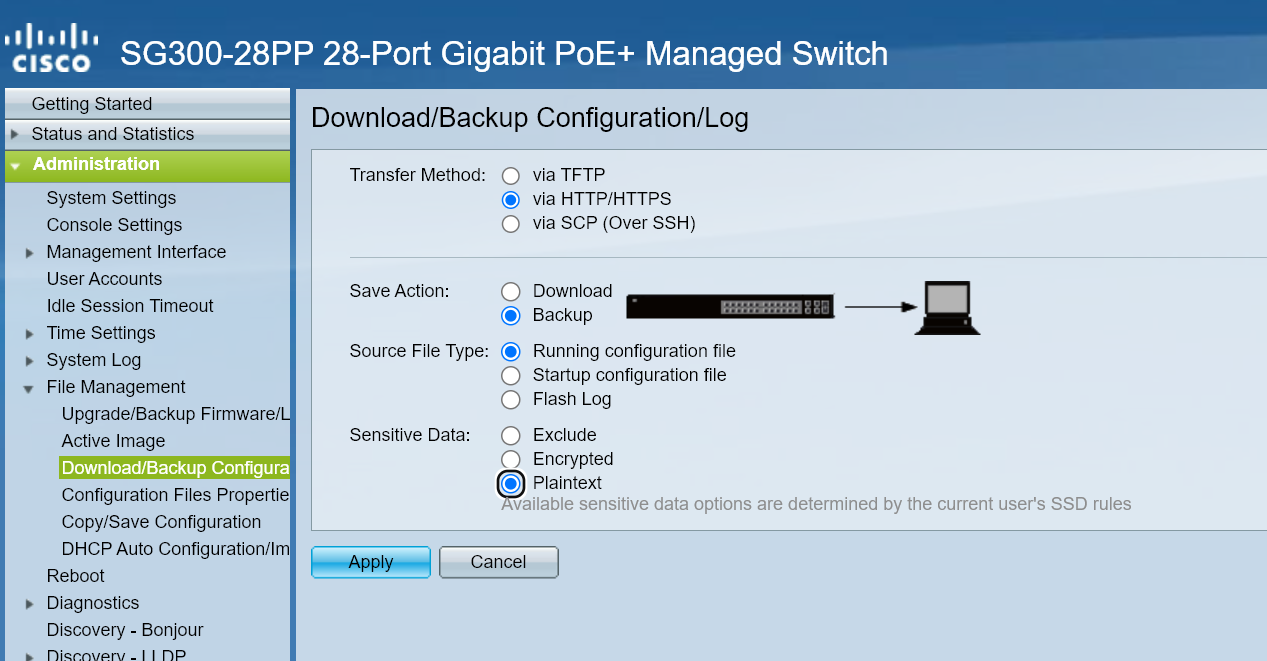
- This can be done in the Web Interface under Administration > File Management
-
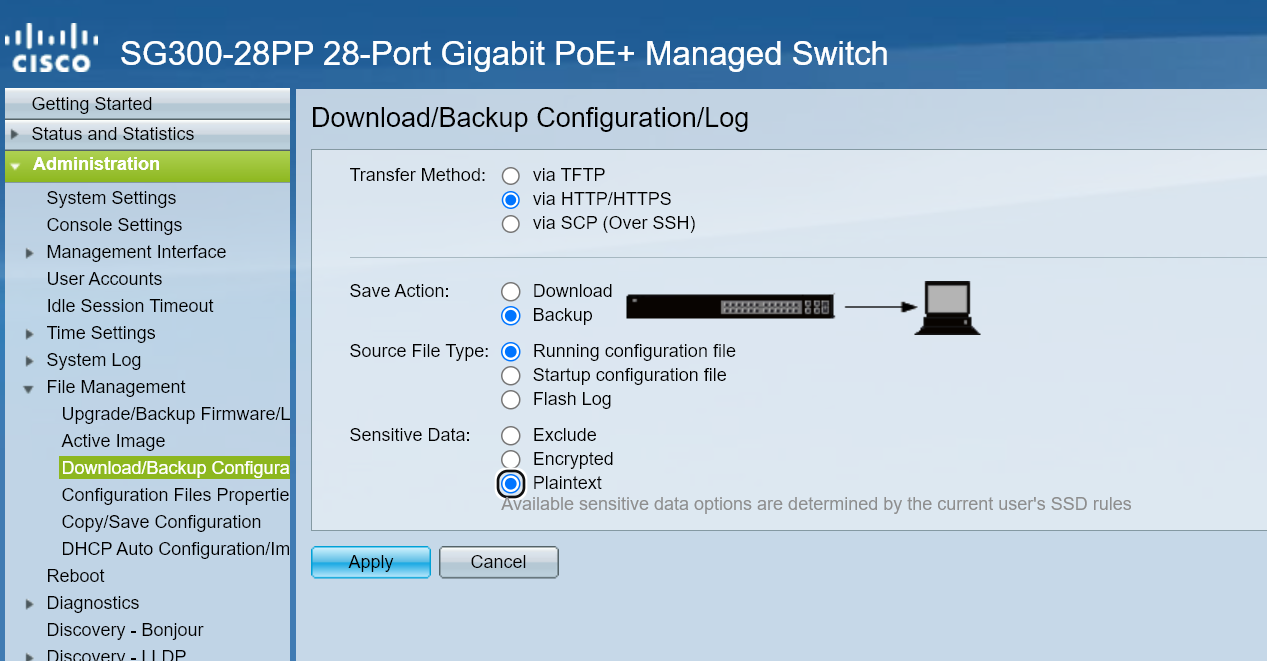
- This can be done in the Web Interface under Administration > File Management
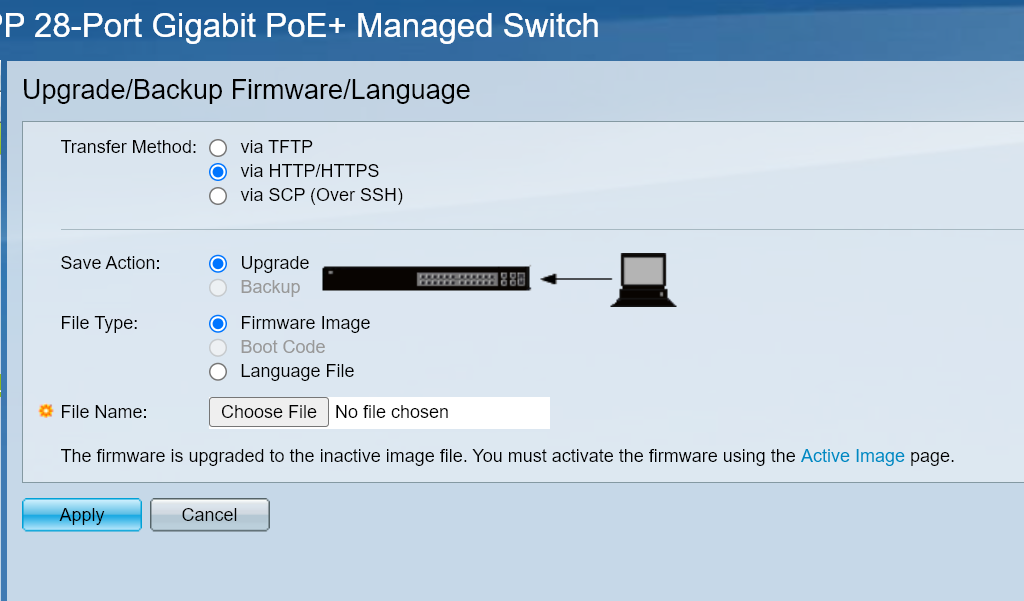
- Once backups are taken and new firmware is ready to upload, go to Upgrade/Backup Firmware/Language
- On this screen, upload your firmware file
-
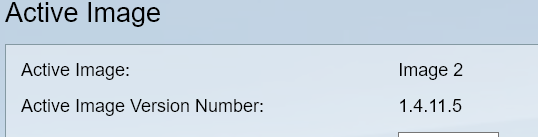
- Once uploaded go to Active Image
- Select your new firmware version to go to
-
- Once you click apply the new firmware version should show as the Active After Reboot
- Click the Reboot hyperlink to reboot the switch.
- Monitor the switch to ensure the upgrade occurs successfully.
- Navigate back to the Active Image section once rebooted to ensure the new image is currently active
-
SG350 Series
In the 350 series of switches a few steps are to be taken
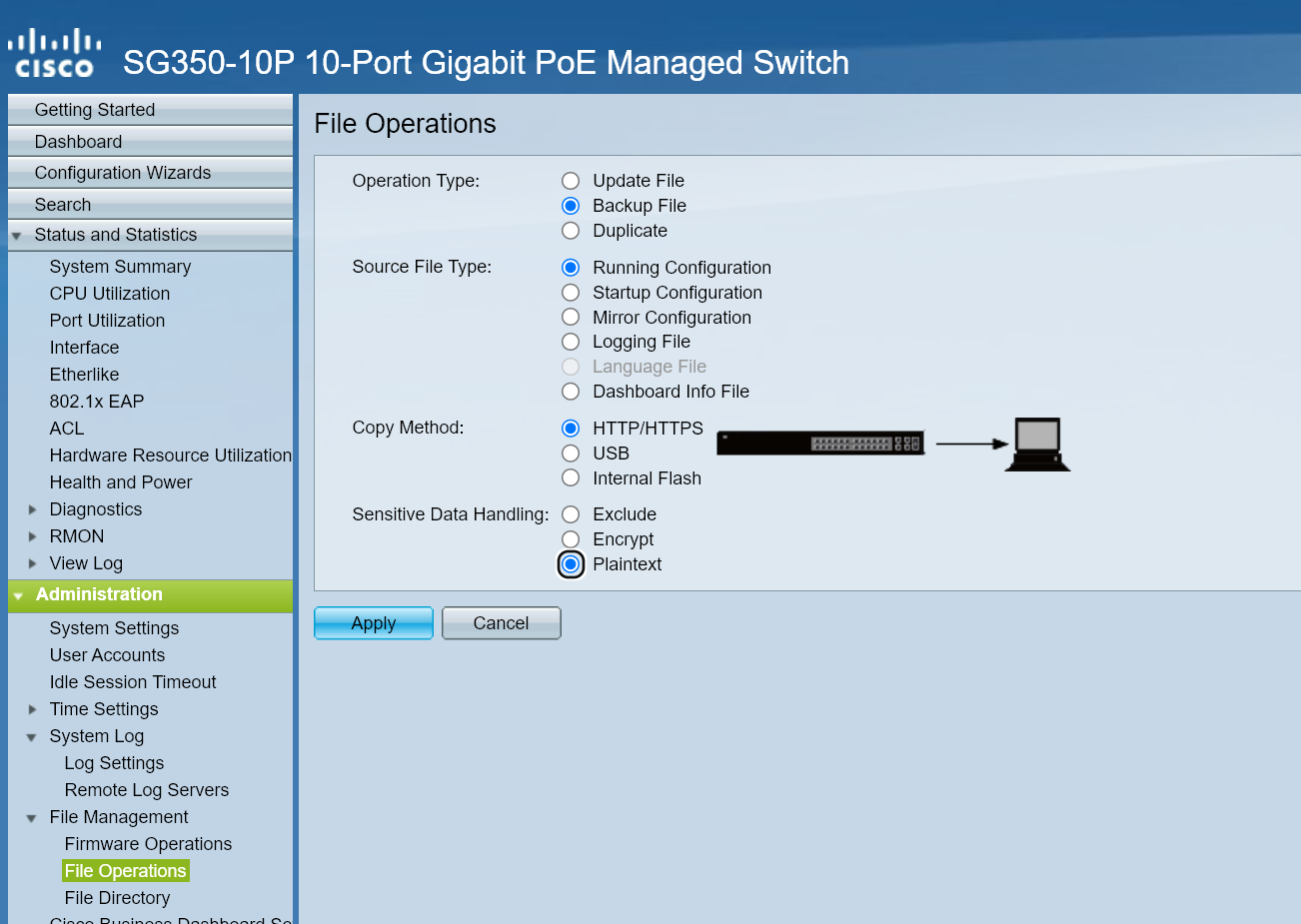
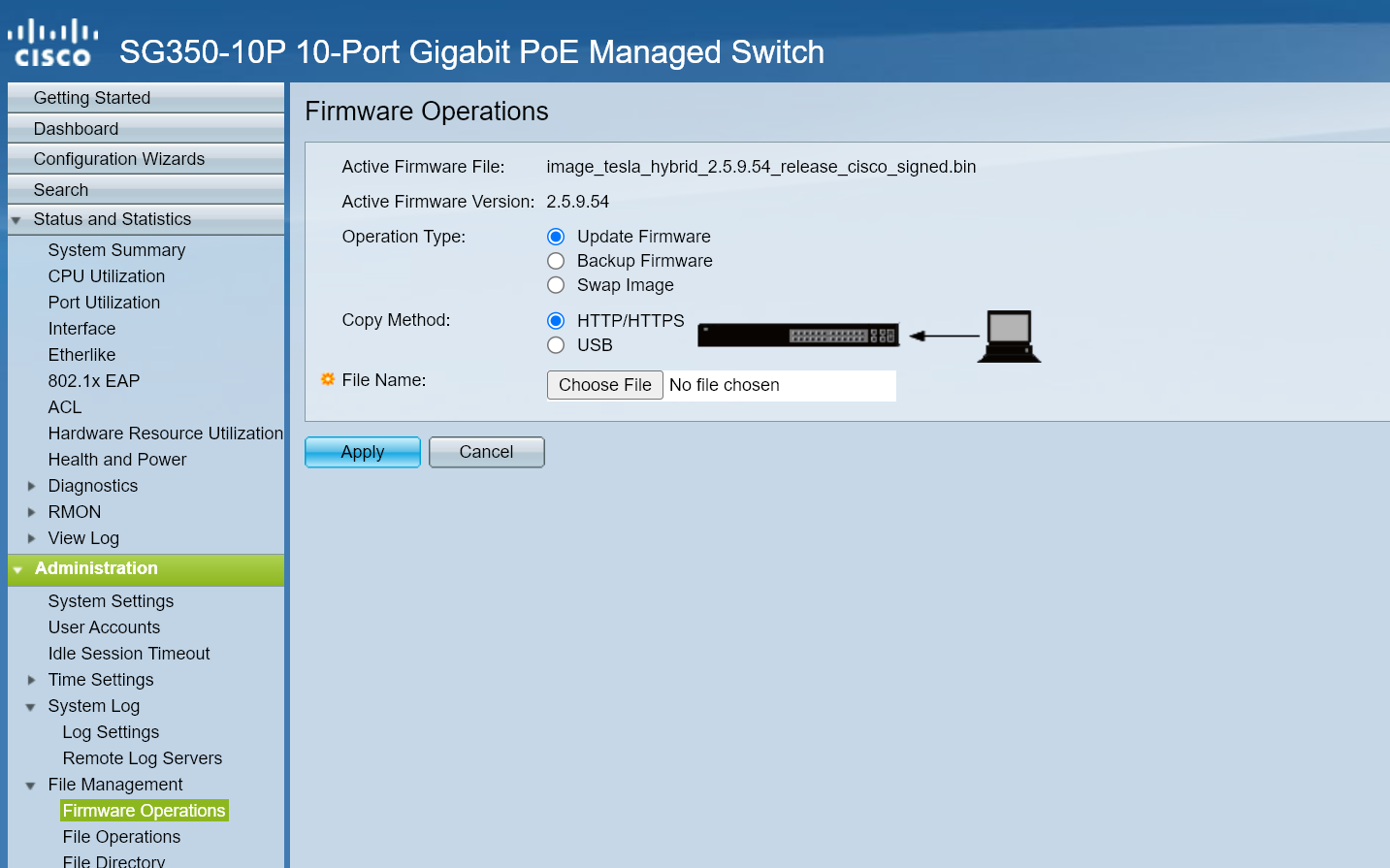
FROM HERE OUT OF DATE JUST COPIED
Once uploaded go to Active Image Select your new firmware version to go to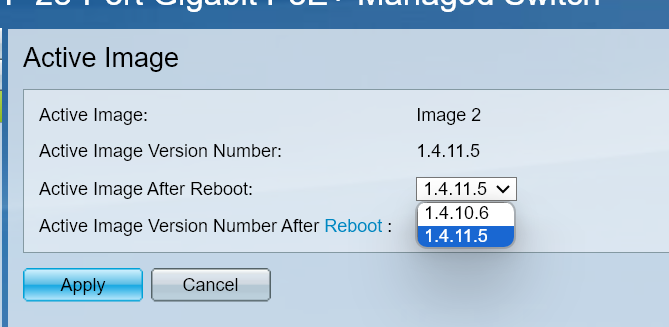
 Click the Reboot hyperlink to reboot the switch.
Monitor the switch to ensure the upgrade occurs successfully.
Navigate back to the Active Image section once rebooted to ensure the new image is currently active
Click the Reboot hyperlink to reboot the switch.
Monitor the switch to ensure the upgrade occurs successfully.
Navigate back to the Active Image section once rebooted to ensure the new image is currently active