Microsoft Authenticator Setup
This article will show you how to setup Microsoft Authenticator when logging into Microsoft.
- Restart your computer. (save any unsaved work before restarting).
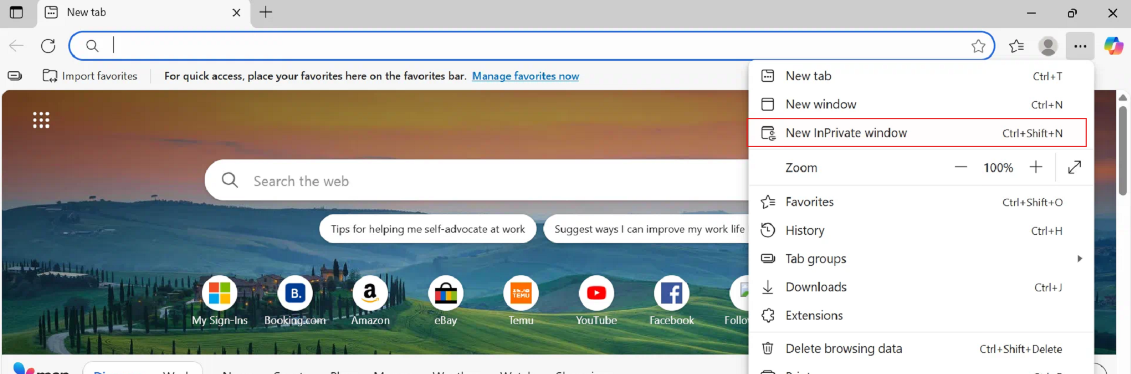
Open your browser (edge or chrome) and open an "InPrivate window". On chrome it is the same spot but called "incognito".
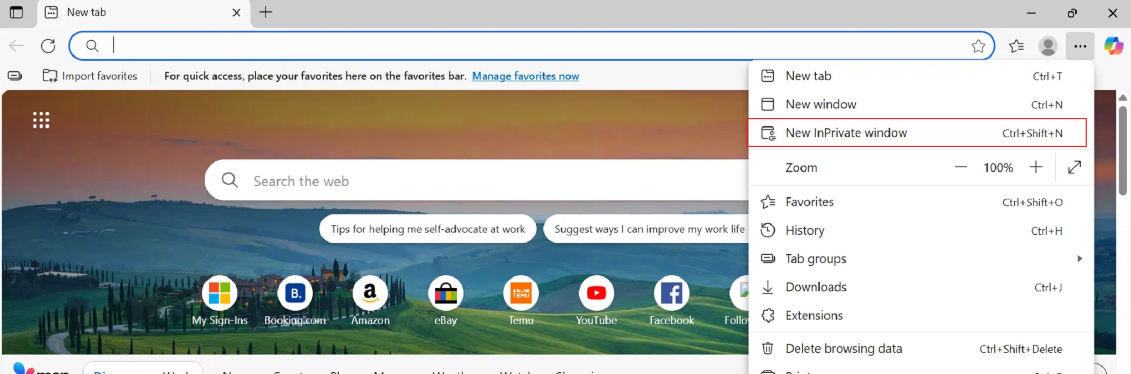
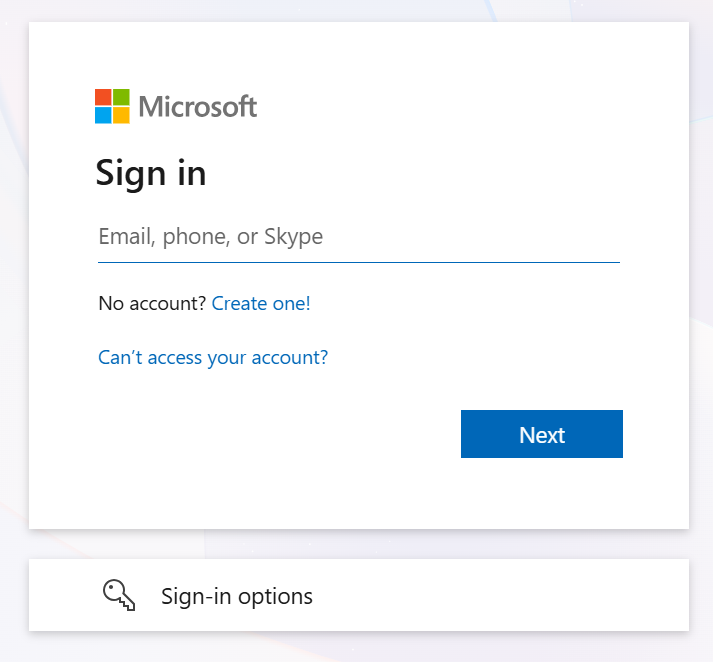
Once open, copy this link into the URL field: "https://login.microsoftonline.com/". You will be greeted with this screen.
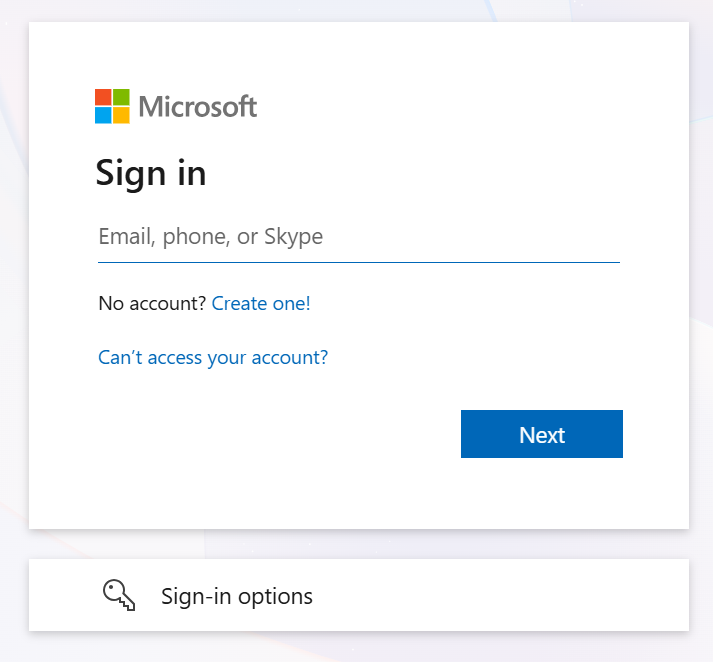
Sign in with your PBR email and password.
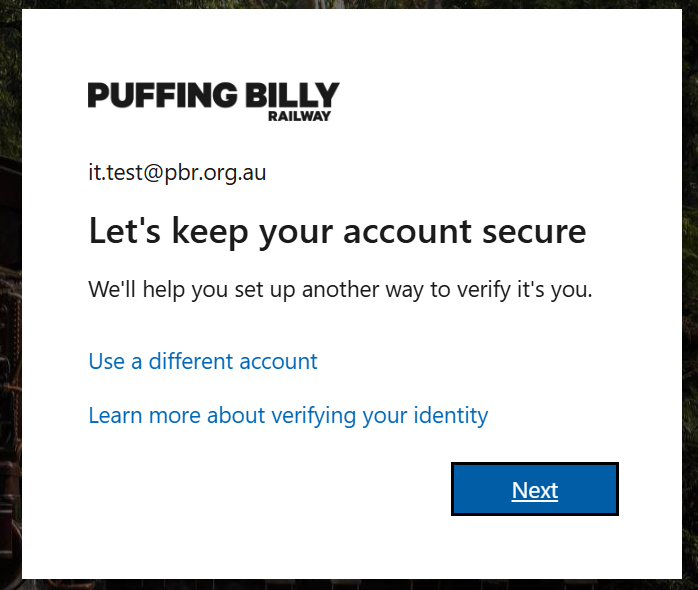
Click next.
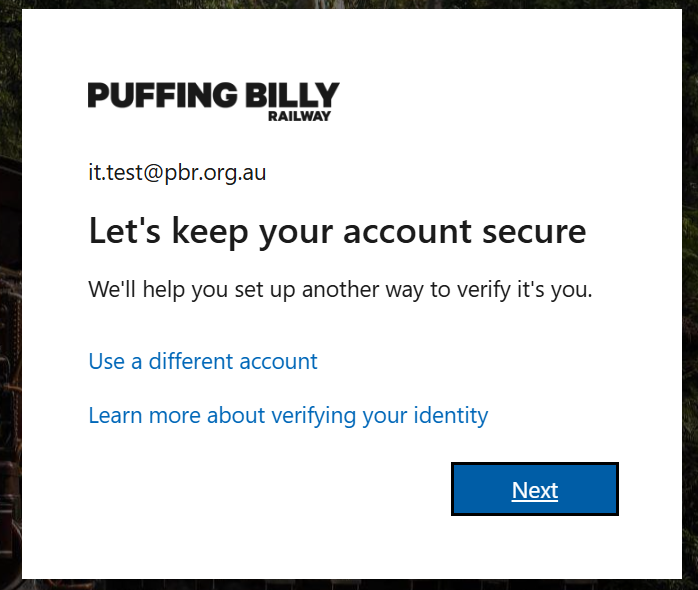
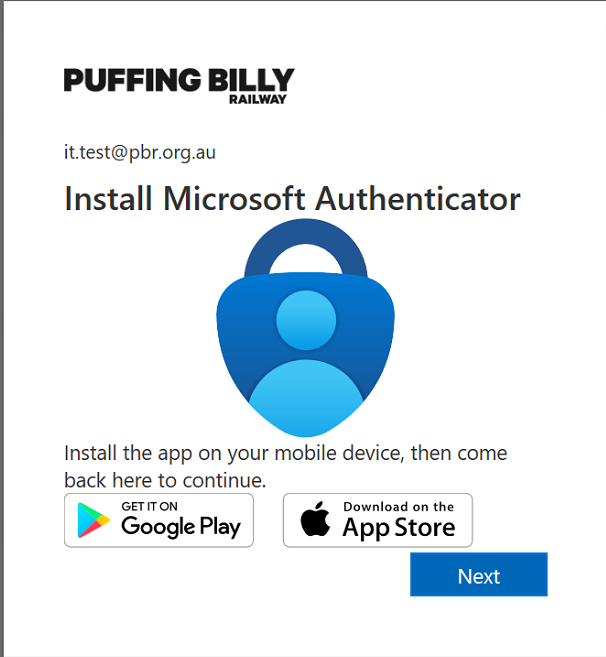
The below screen will
appearappear, wheninstall the Microsoft
requiresAuthenticator app on your
accountmobile todevice. loginOnce again.done, click next.
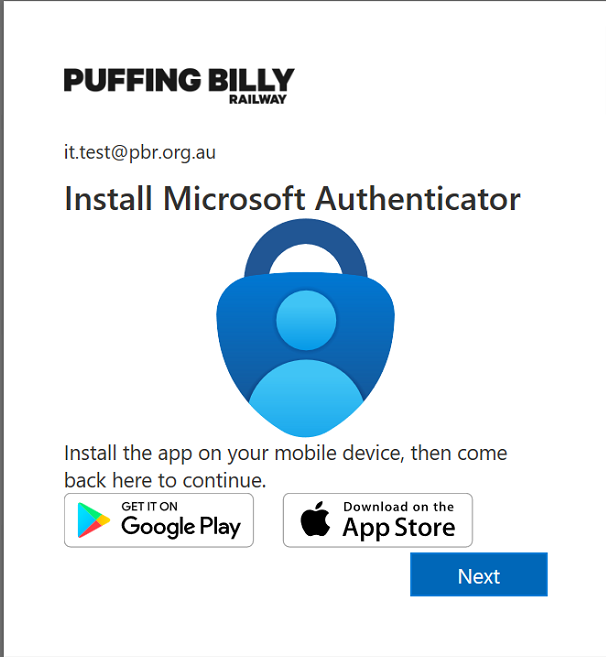
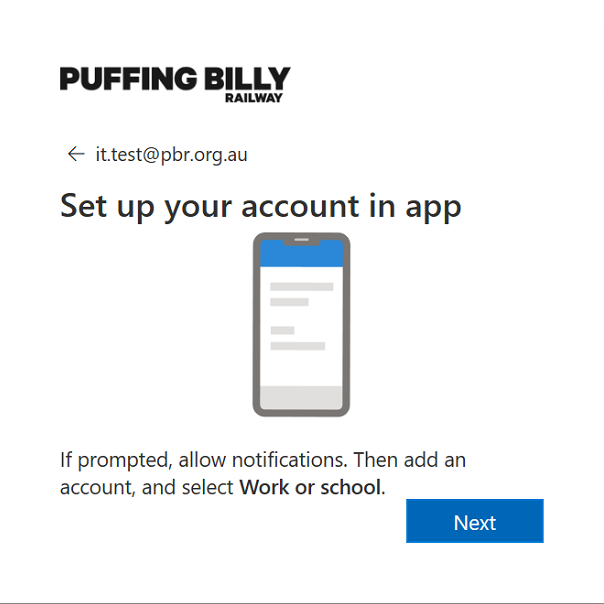
ItClick is asking you to install Microsoft Authenticator for MFA. Install the app on your mobile device, then click next on the computer until a QR code appears on your computer screen.next.
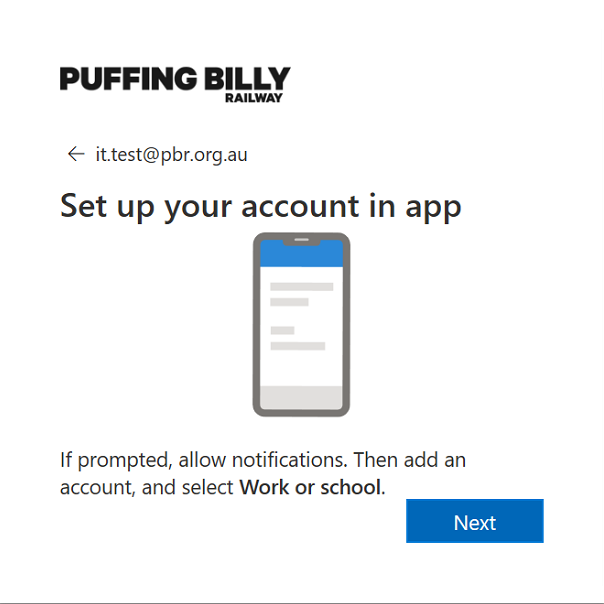
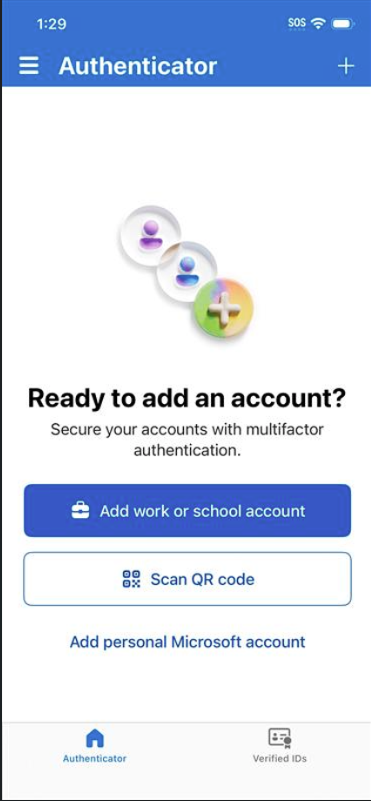
In the Microsoft Authenticator app on your mobile device, select "Scan QR code", then scan the QR code
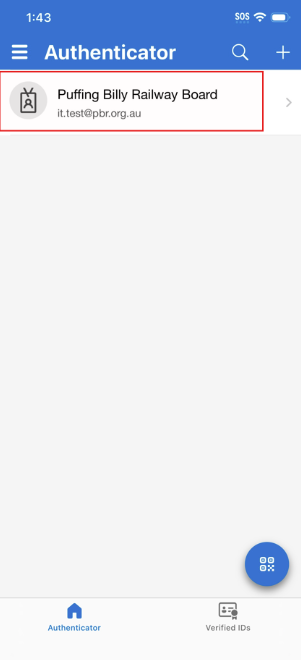
that is on your computer screen with your phone. If you are already using other applications in Microsoft Authenticator, press the QR symbol in the bottom right corner, then scan the QR code on your computer screen.
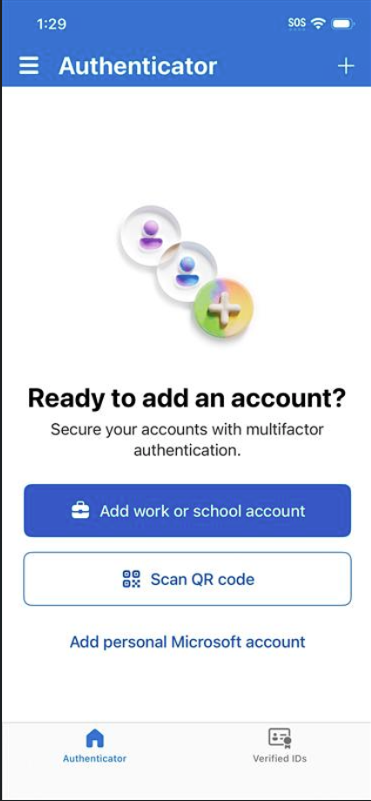
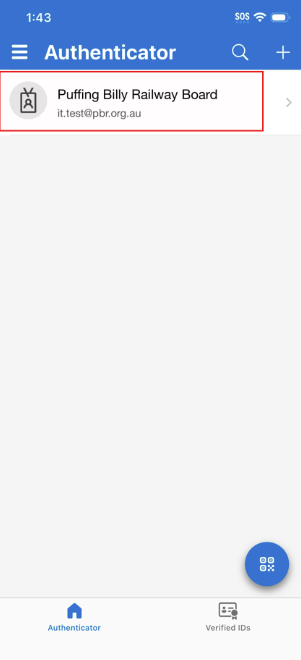
The Puffing Billy Railway Board account will then be added.
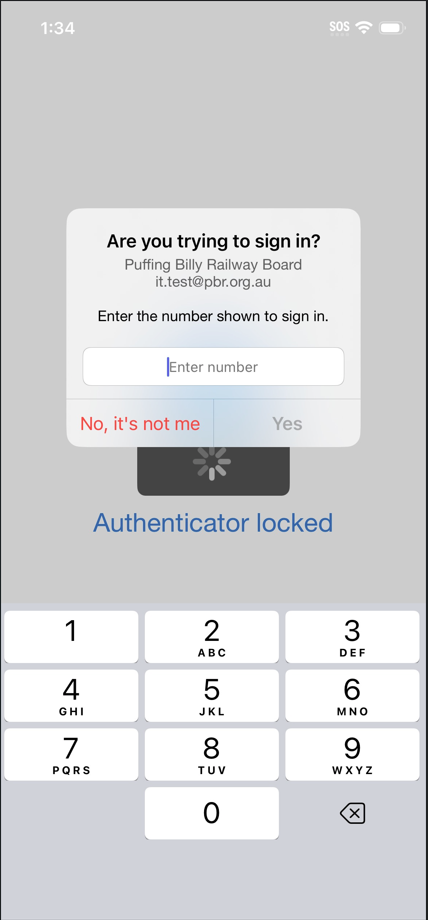
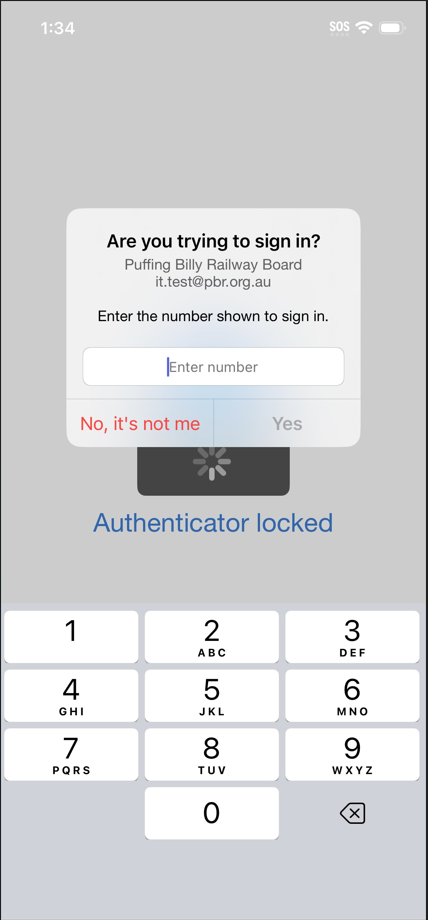
On your computer, click next to test out using Microsoft Authenticator. Enter the 2 numbers you see on your computer screen into Microsoft Authenticator and select yes.
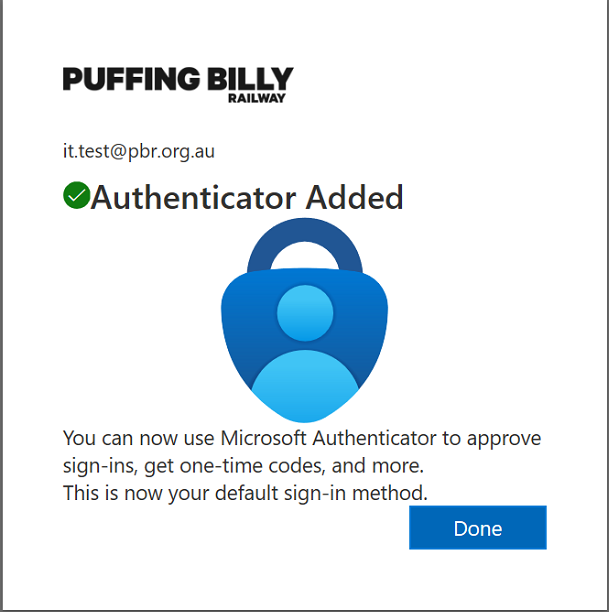
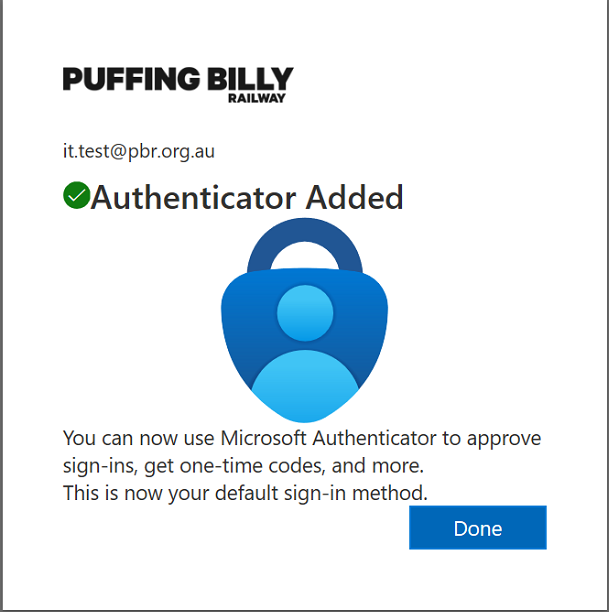
Congratulations, you have successfully added Microsoft Authenticator as your Multi-factor authentication.