Microsoft Authenticator Setup
This article will show you how to setup a user with Microsoft Authenticator when logging into Microsoft.
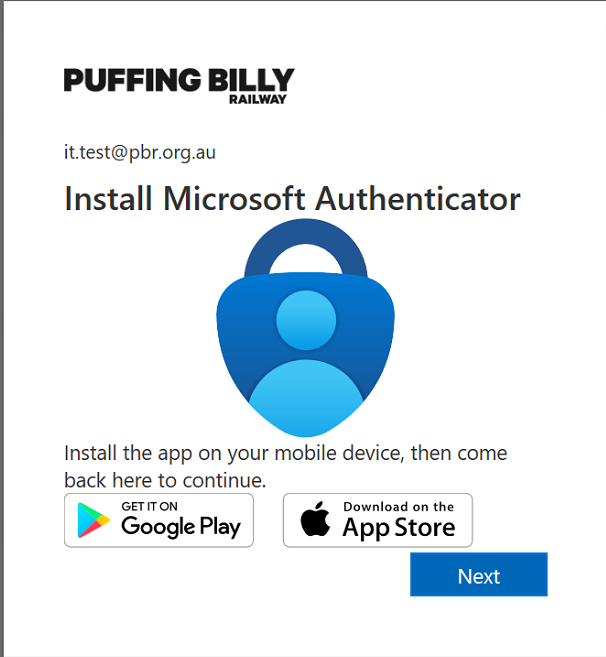
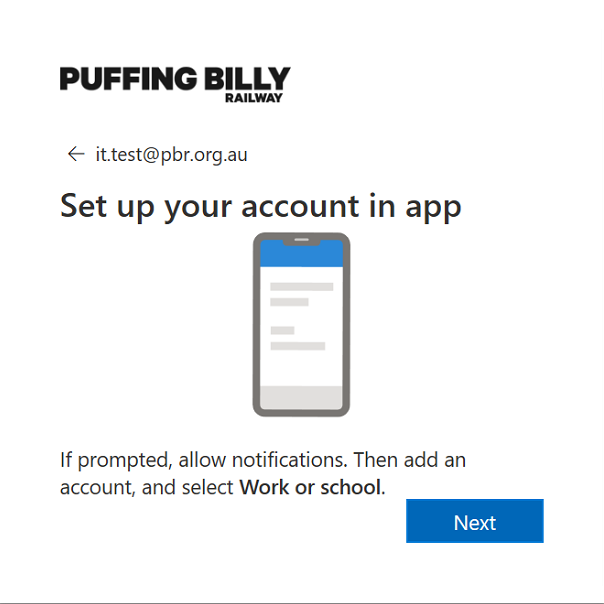
- The below screen will appear when Microsoft requires your account to login again.
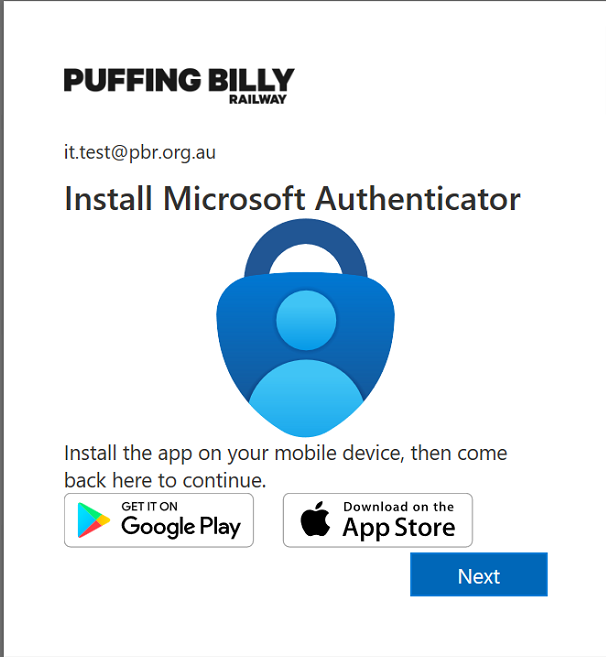
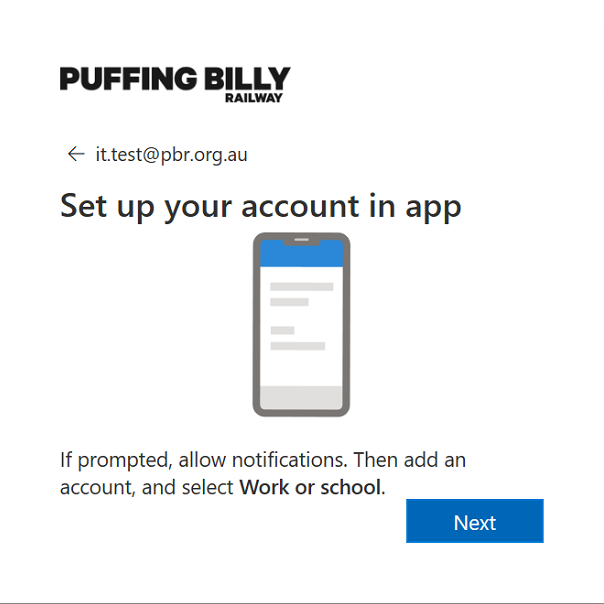
- It is asking you to install Microsoft Authenticator for MFA. Install the app on your mobile device, then click next until a QR code appears on your computer screen.
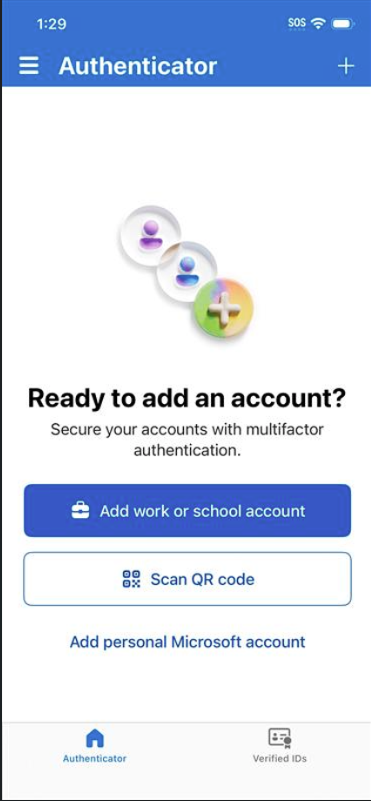
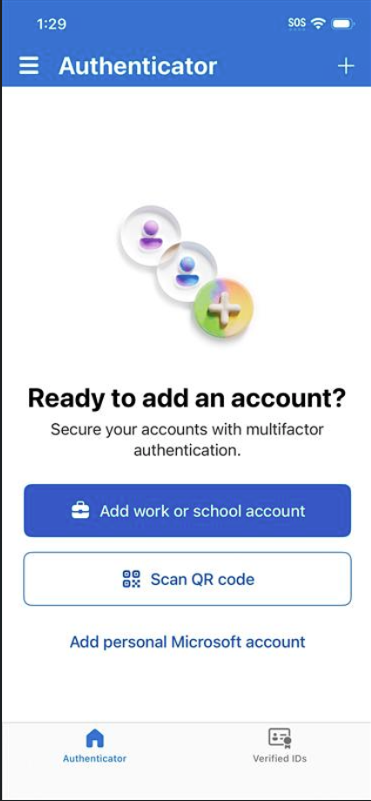
- In the Microsoft Authenticator app on your mobile device, select "Scan QR code", then scan the QR code with your phone.
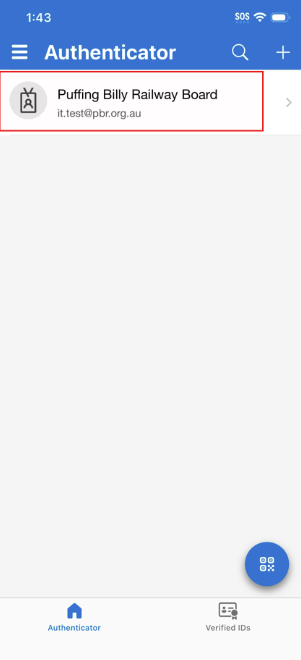
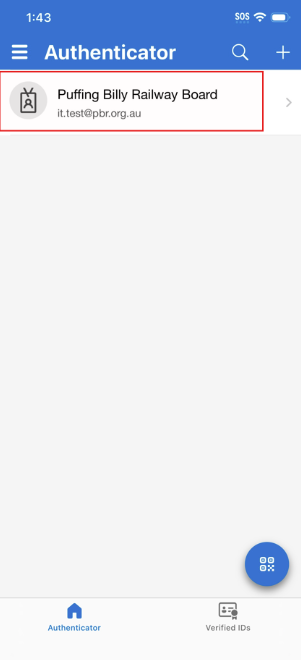
- The Puffing Billy Railway Board account will automatically be added.
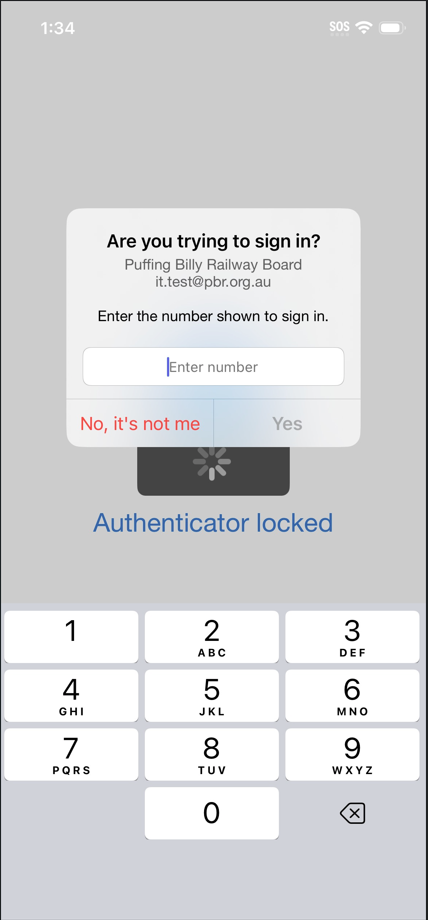
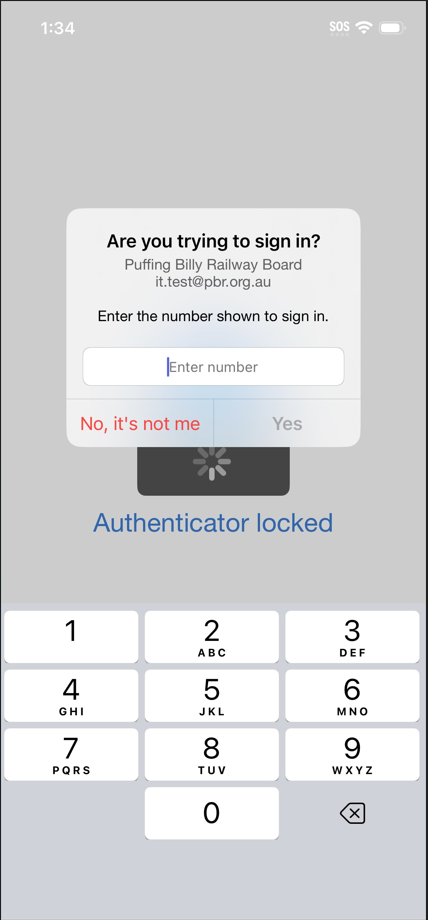
- On your computer, click next to test out using Microsoft Authenticator. Enter the 2 numbers you see on your computer screen into Microsoft Authenticator and select yes.
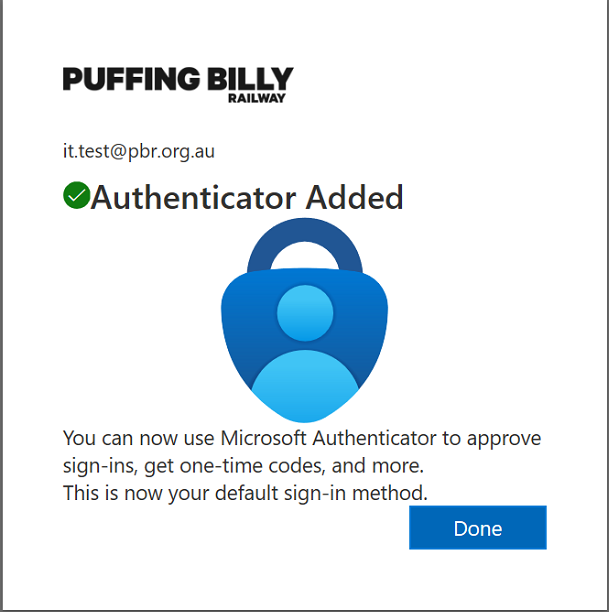
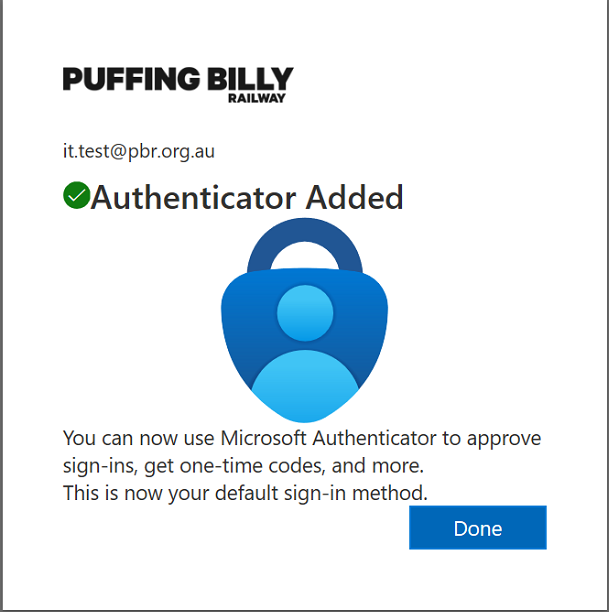
- Congratulations, you have successfully added Microsoft Authenticator as your Multi-factor authentication.