Microsoft Authenticator
This article will show you how to setup a user with Microsoft Authenticator when logging into Microsoft.
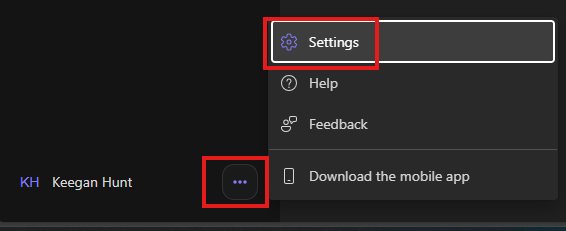
Navigate to Chat | M365 Copilot. In the bottom left corner next to the users name, select the 3 dots, then settings
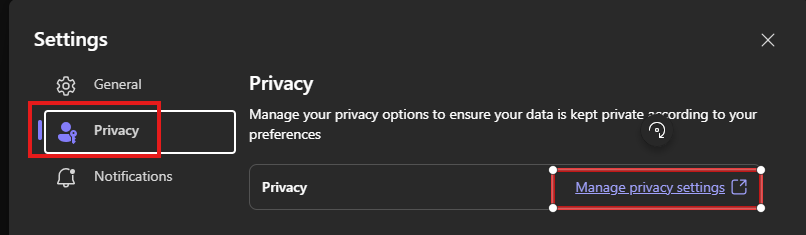
Select Privacy > manage privacy settings.
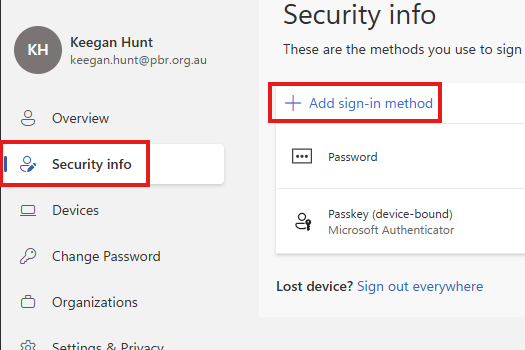
Select security info > add sign in method.
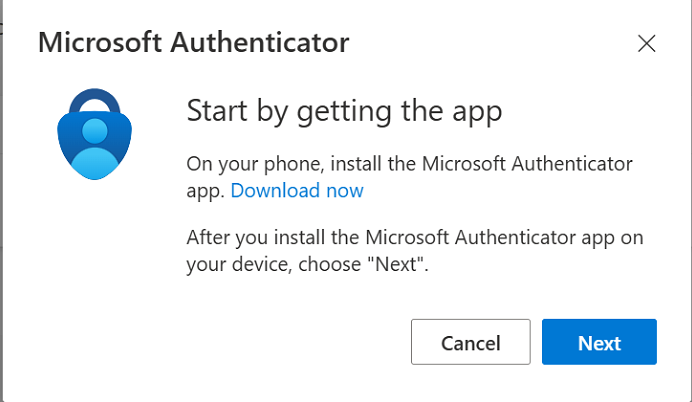
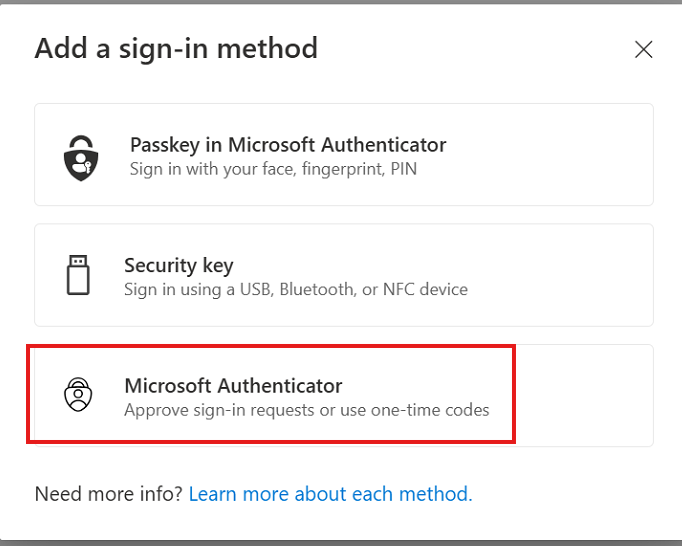
Select "Microsoft Authenticator".
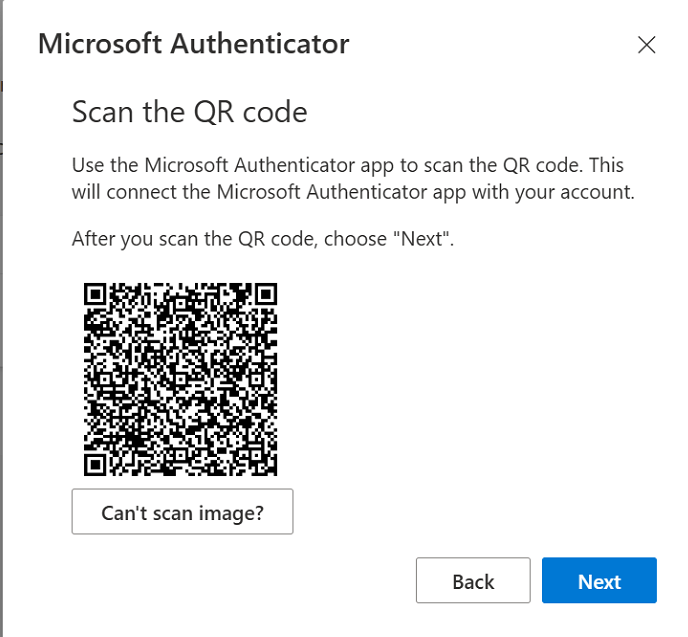
Click next.