
Enabling Aztec Code on Datalogic Gryphon Scanners
Overview
This page covers enabling Aztec Code decoding on PBR's Datalogic Gryphon 2D handheld scanners. Aztec is a 2D matrix symbology used on transit tickets, boarding passes and mobile/digital-wallet tickets. It is disabled by default on these readers, so a scanner that reads ordinary QR and 1D barcodes perfectly well will silently ignore Aztec codes until the symbology is switched on.
| Applies to | Gryphon I GD44XX (corded), GBT4400 (Bluetooth), GM440X (STAR cordless) — the 2D area-imager models, including the 4400-BK black variant |
| Symbology | Aztec Code |
| Default state | Disabled |
| Config methods | Configuration barcodes, or Datalogic Aladdin over USB |
| Reference | Gryphon I GD44XX/GBT4400/GM440X 2D Product Reference Guide (PRG) |
Important: only the 2D area-imager models (44XX) can decode Aztec. The 1D laser/linear Gryphon models (41XX / 43XX) cannot read Aztec regardless of configuration.
Method 1 — Configuration Barcodes (quickest)
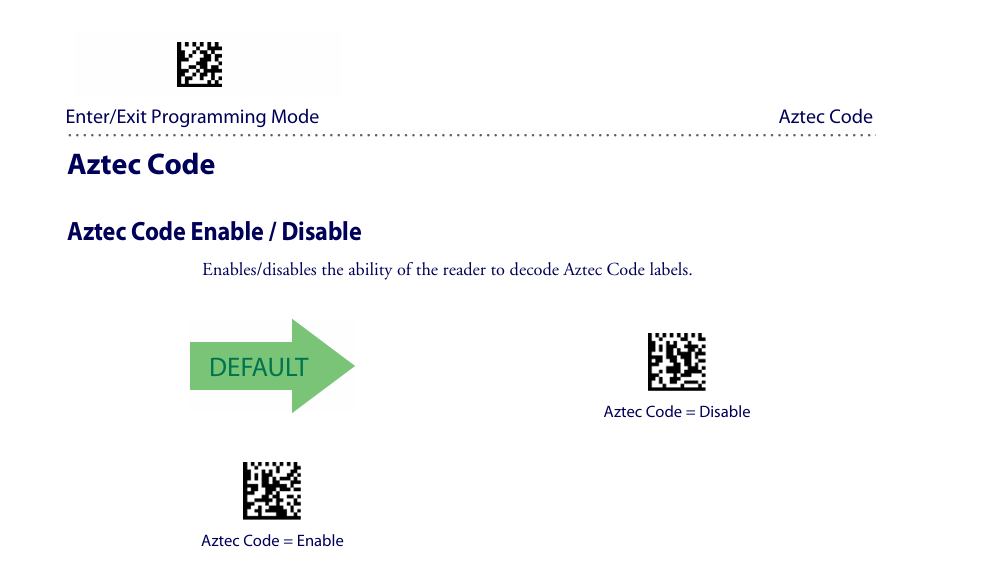
Scan the following barcodes in order. The same Enter/Exit Programming Mode barcode is used to both start and finish — scan it once at the start and once at the end to save.
- Scan Enter/Exit Programming Mode
- Scan Aztec Code = Enable
- Scan Enter/Exit Programming Mode again to save and exit
The reader gives a confirmation beep on exit. Test against a known Aztec code to confirm.
The relevant page from the Product Reference Guide is reproduced below. Note the DEFAULT arrow points to Disable, confirming Aztec is off out of the box.
Method 2 — Datalogic Aladdin (recommended for multiple units)
Aladdin is Datalogic's free PC configuration utility. It is the cleaner option when configuring more than one scanner, because the profile can be saved and reapplied, and it exposes the Aztec toggle and related settings directly without needing the serial command syntax.
- Download and install Datalogic Aladdin (free from the Datalogic website).
- Connect the scanner by USB. For GBT4400 / GM440X, connect the cradle/base; the trigger "force device connection" button can be used if it does not auto-link.
- Read the current device configuration.
- Under 2D Symbologies, enable Aztec Code.
- Write the configuration back to the device.
Aladdin can also export the profile to apply to other scanners, or generate a printable configuration barcode sheet for field use.
If it still will not read
| Symptom | Setting to check |
|---|---|
| Aztec on a phone / LCD screen (digital wallet, e-ticket) not reading | Some screen-rendered Aztec codes are reverse-video. Enable 2D Normal/Inverse Symbol Control (sits immediately before the Aztec section in the PRG). |
| Codes rejected even though Aztec is enabled | Check Aztec Code Length Control. If set to a fixed length, codes outside that length are dropped — set it back to variable. |
| No 2D codes read at all | Confirm the unit is a 2D imager (44XX), not a 1D model (41XX / 43XX). |
Reference — Manual pages
Gryphon I GD44XX/GBT4400/GM440X 2D Product Reference Guide. Exact page numbers shift between manual revisions, so search the PDF for "Aztec" rather than relying on a printed page number.
| Section | Approx. page |
|---|---|
| Configuration Using Bar Codes / Enter/Exit Programming Mode | ~p.40–44 |
| 2D Normal/Inverse Symbol Control | ~p.199 |
| Aztec Code Enable/Disable | p.200 / 206 / 218 (varies by revision) |
| Aztec Code Length Control + Set Length 1/2 | immediately after Enable |
Maintenance notes
- Settings persist across power cycles. A Restore Default / factory reset re-disables Aztec — re-run the enable steps afterwards.
- When replacing a scanner, apply the same configuration via an Aladdin profile to keep box-office readers consistent.