
How to: Create a New Agent in CustomLinc
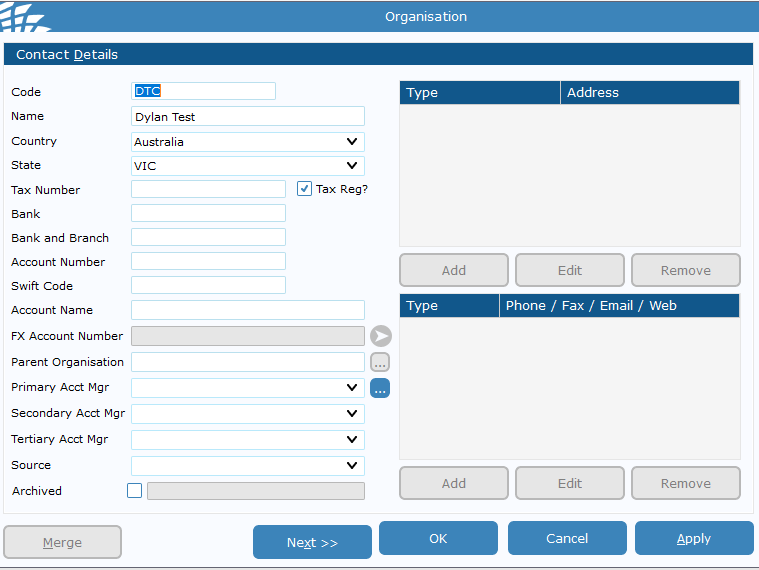
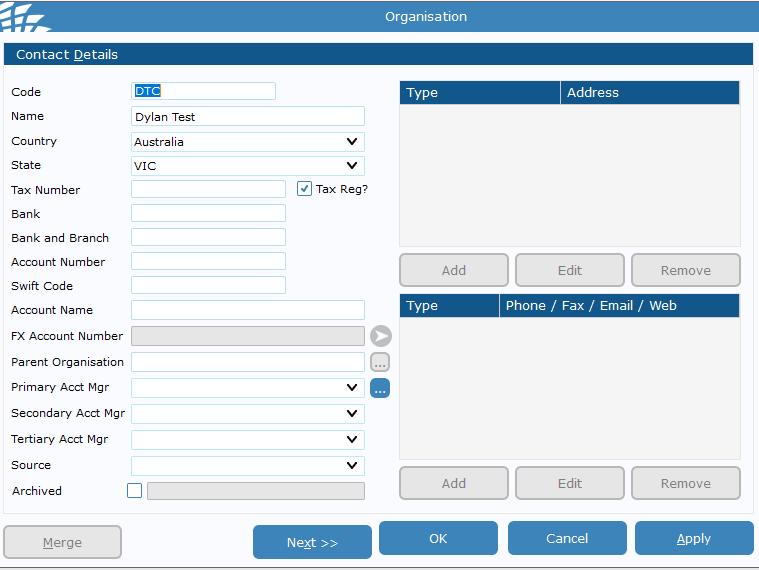
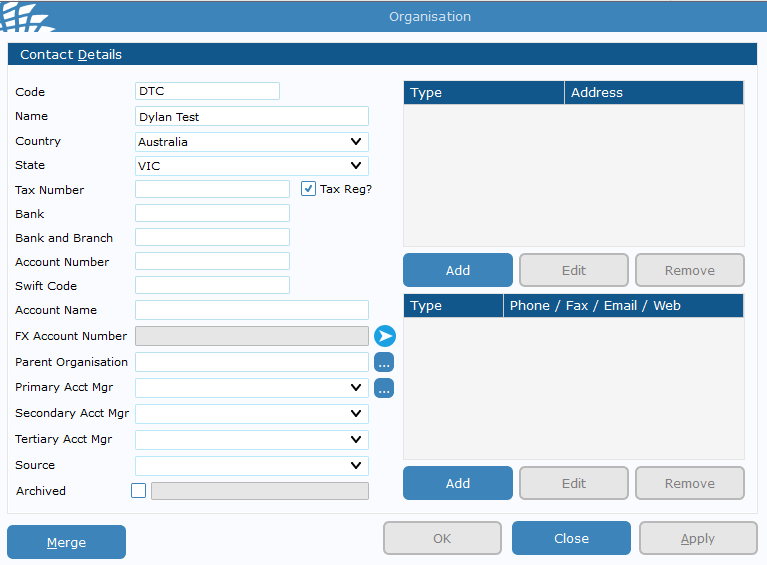
- Go to Contacts > Add Contact (+) > Click Organisation
- Fill in the Name & any other relevant data on the left side - A code is required but is not used unless they are on account.
We would recommend doing some sort of Business initials like PBR or PBRB for example. > Hit Apply
You will fill in Business Address and Contact Email in step 5.
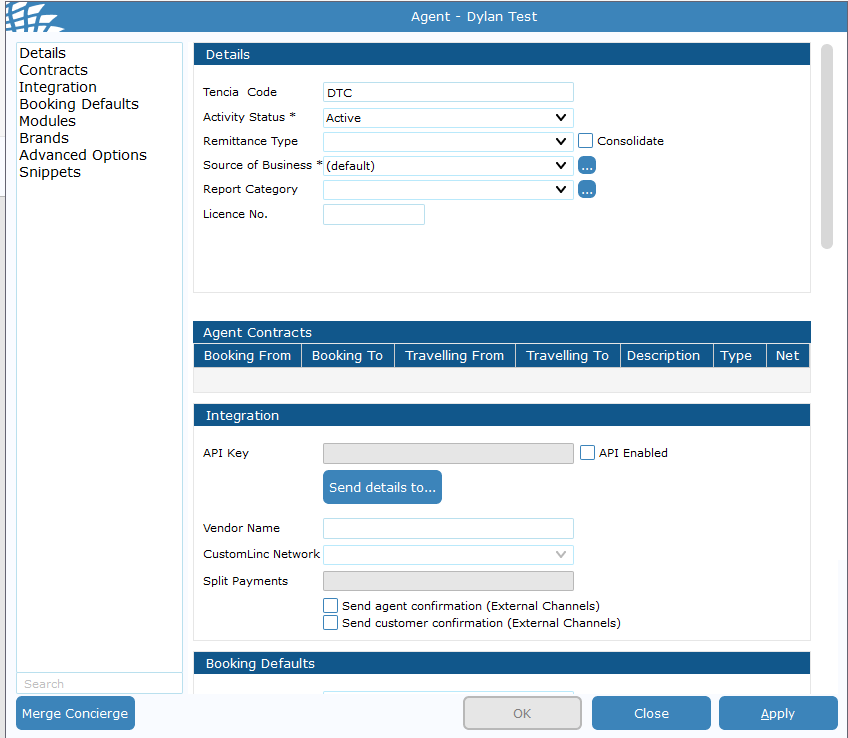
- Select "Agent" > Click Okay
- Select Apply, and close the windows to get back into the contact page
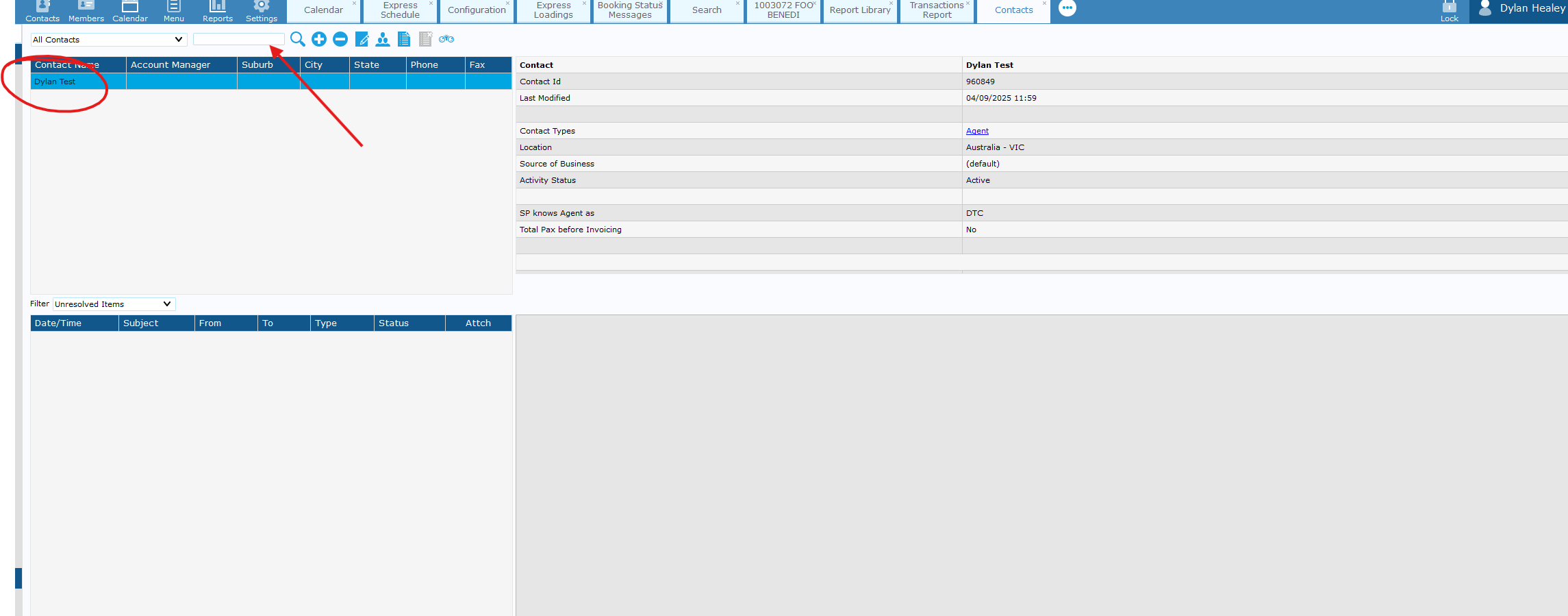
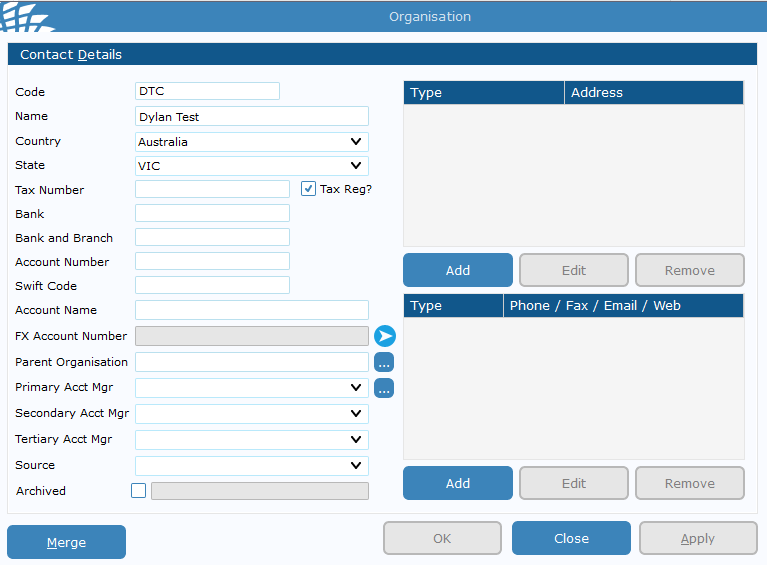
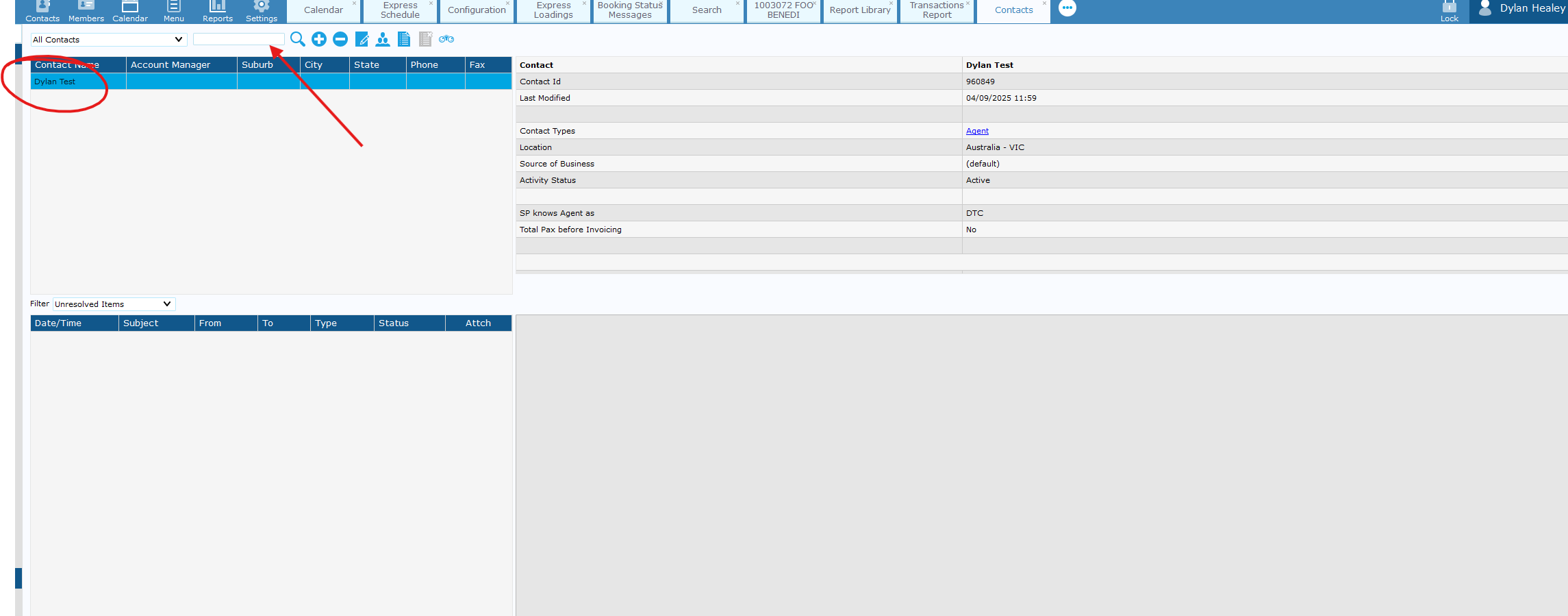
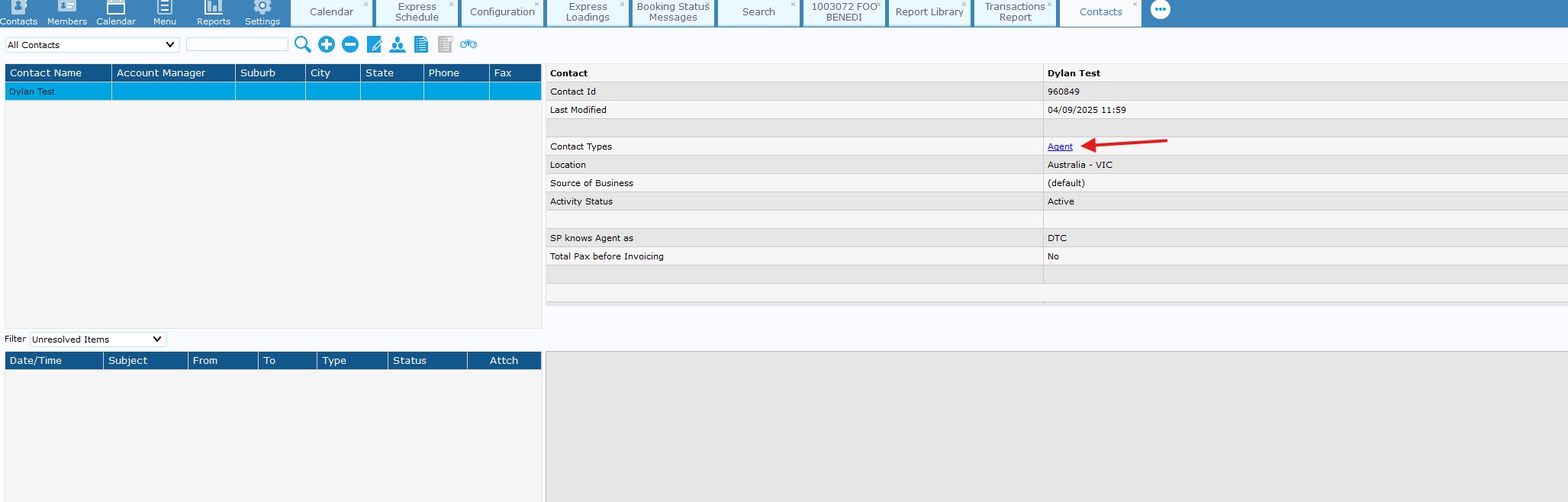
- You should see the user on the left-hand side - double click and fill in contact details such as address and email contact.
-
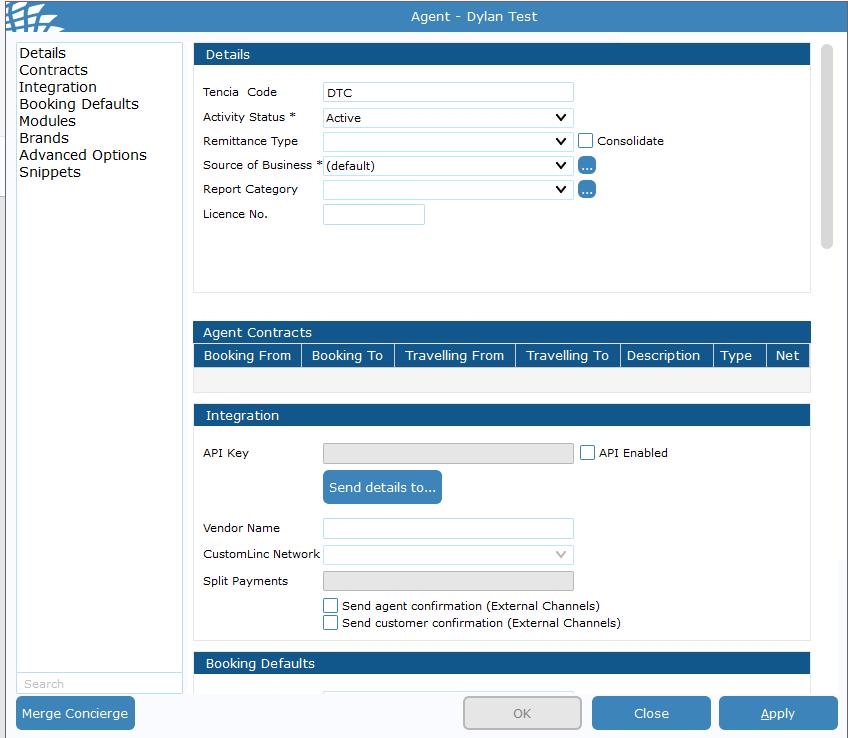
Apply & close this window > Double Click "Agent" in the contact type tab.
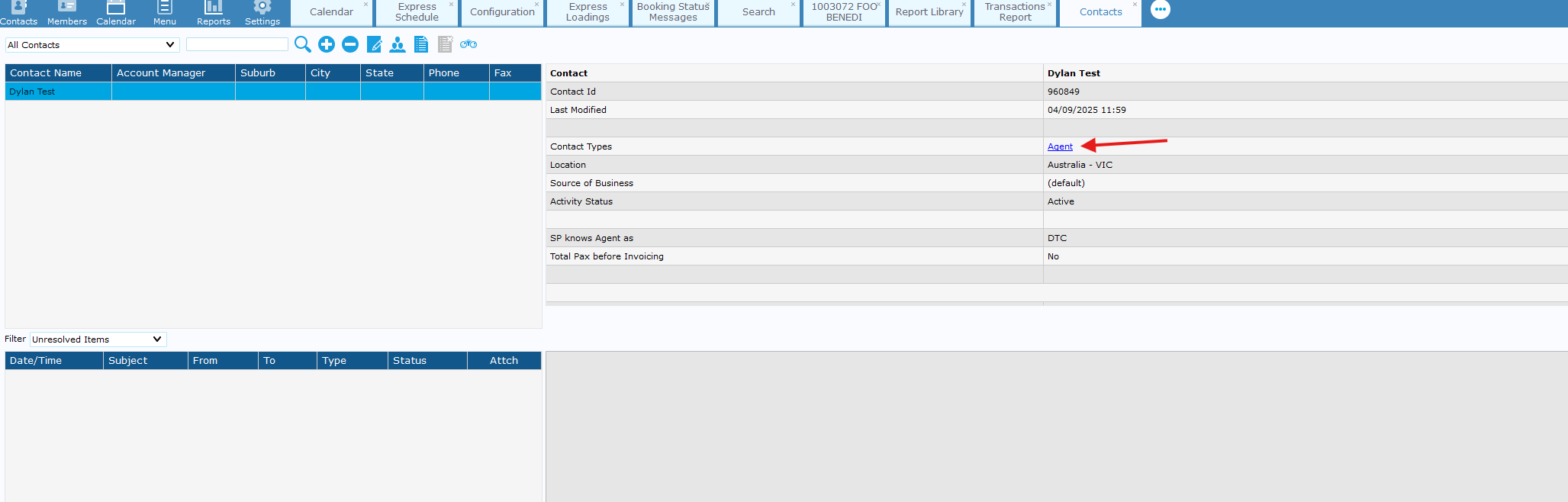
-
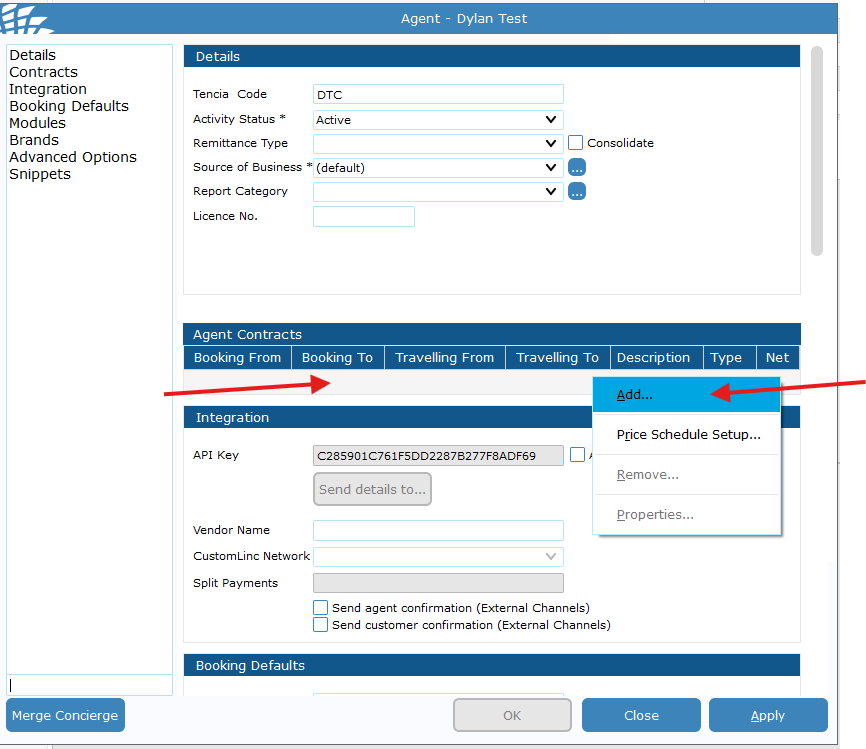
Go to the contracts area> Right click the grey space > Click Add
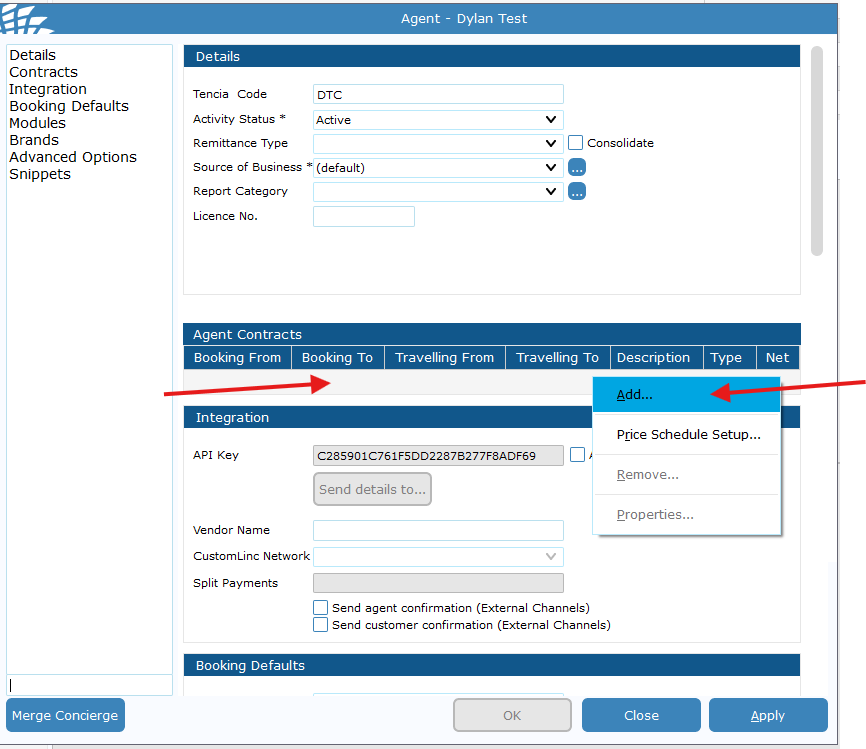
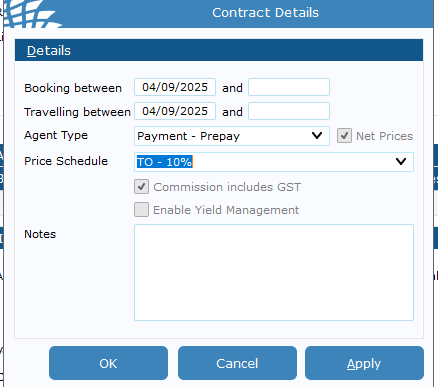
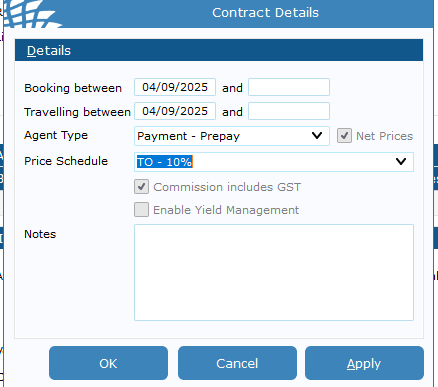
- Fill in details:
- Booking Between - Usually set day after request to prevent any issues with any bookings made that day;
- Travelling between Usually set day after request to prevent any issues with any bookings made that day ;
- Agent type is the payment process the agent uses (Invoice or Prepaid);
- Price schedule is their commission rate.
If an end date is put into this field the contract will be removed after that date.
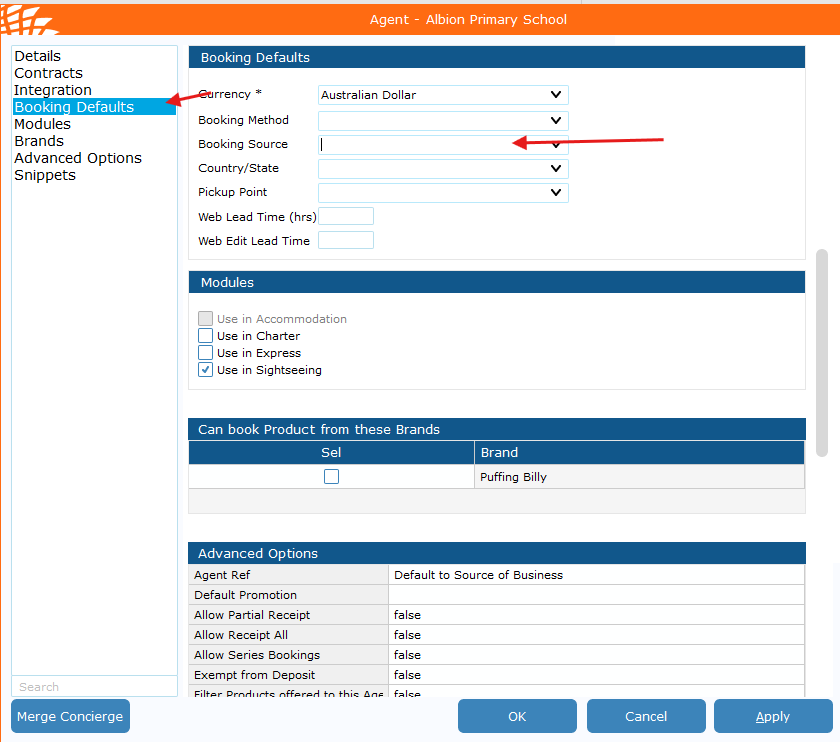
- If the Agent is a school, you also need to go to Booking Defaults > Booking Source and set it to School.
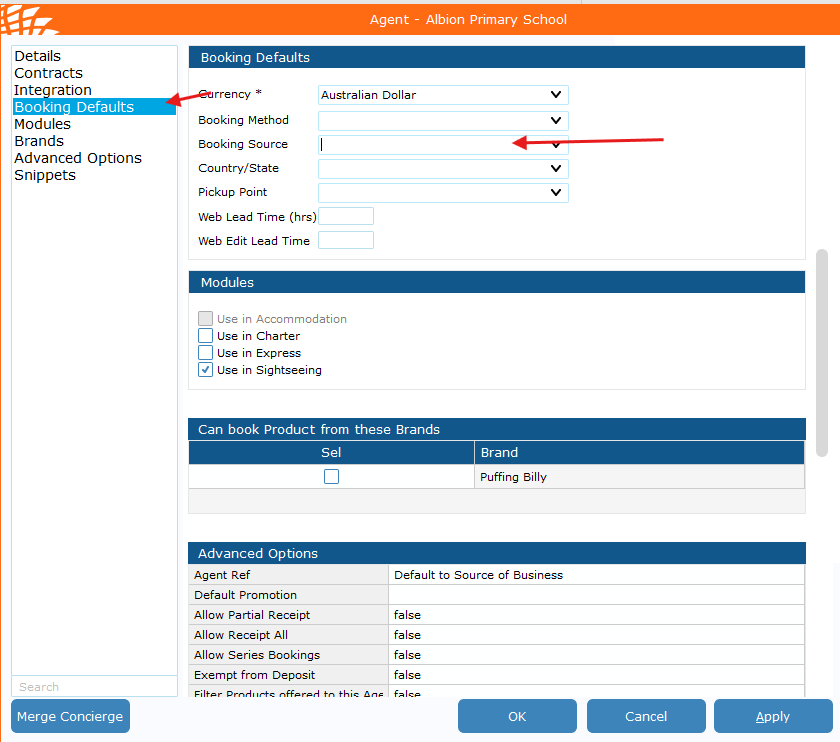
-
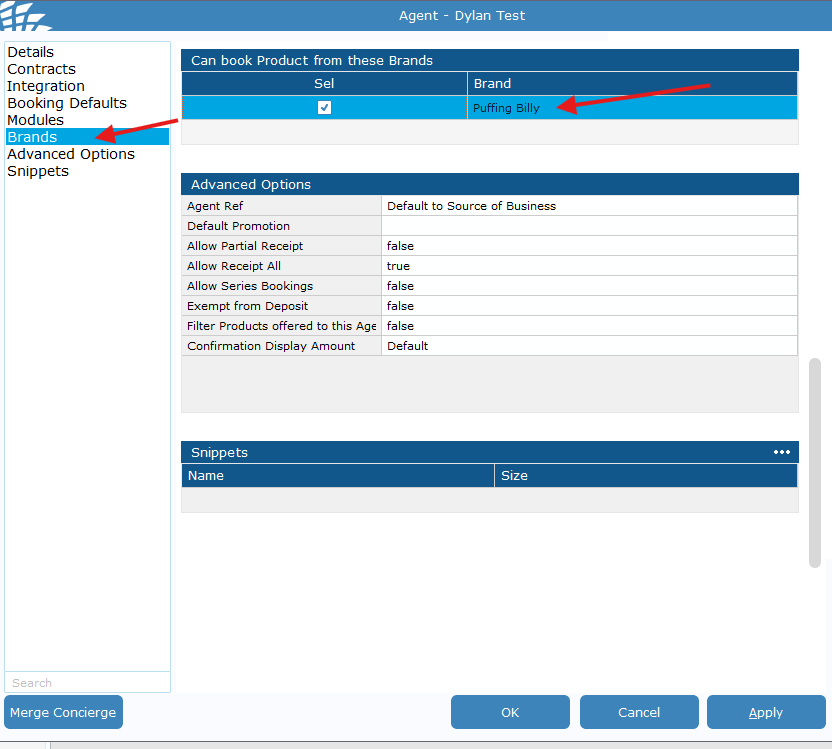
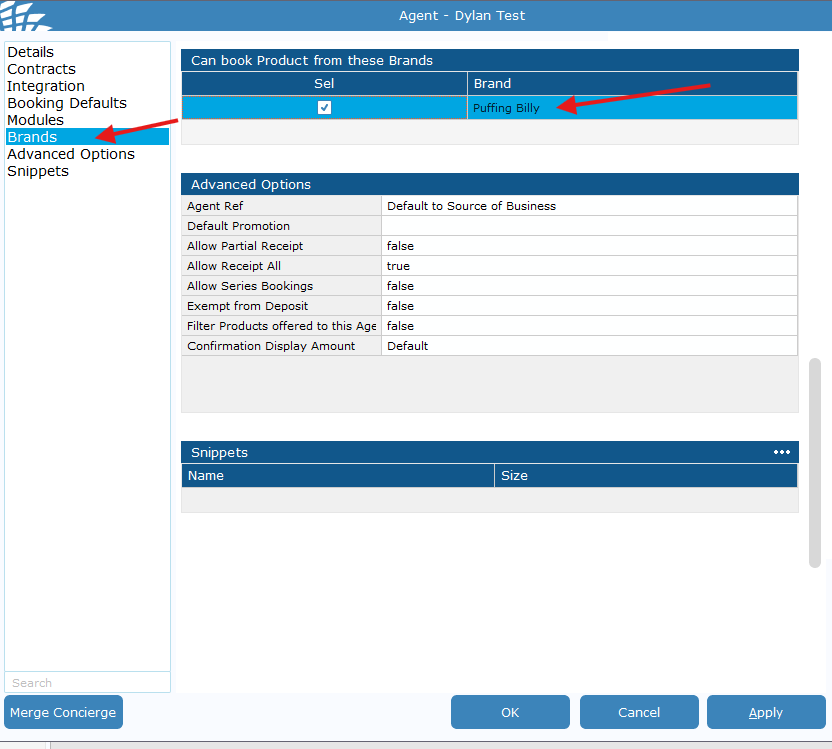
Finally go to brands and make sure Puffing Billy is ticked for the agent. > click Apply then close.
No comments to display
No comments to display