
How to: Log into Global Protect VPN
- Log into your PBR device.
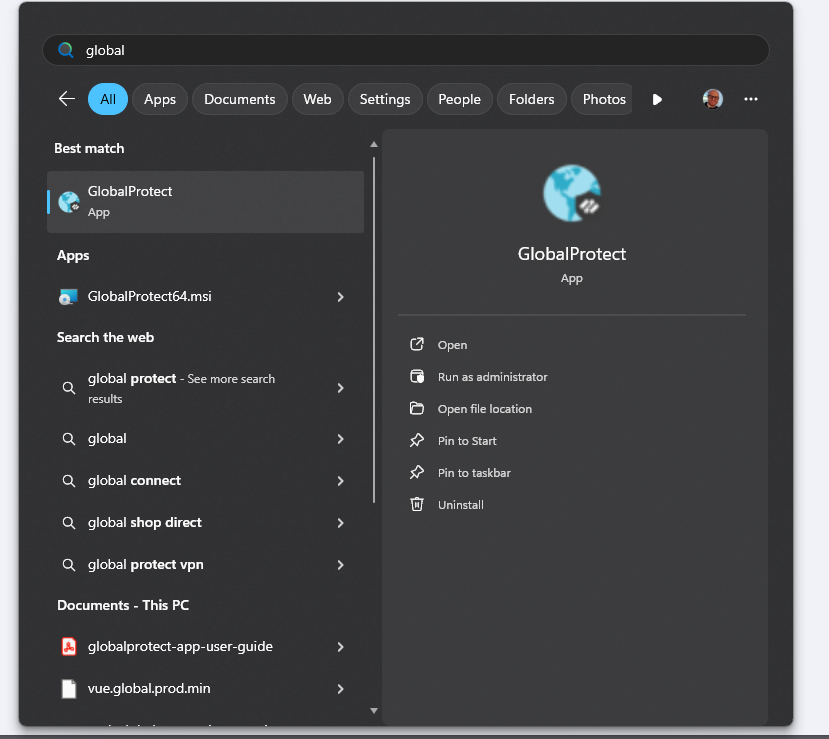
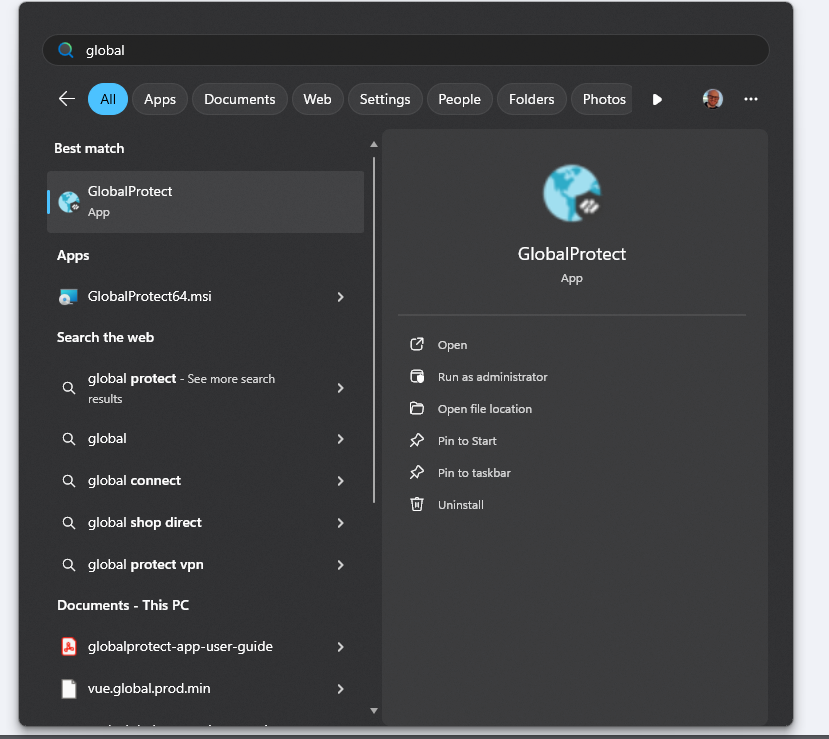
- Search for the Global Protect application in your start menu and click to open
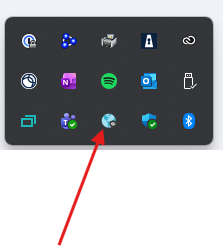
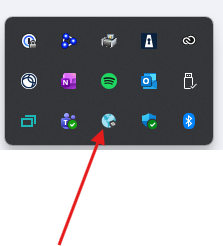
You may need to go to your taskbar and click the icon for the window to open.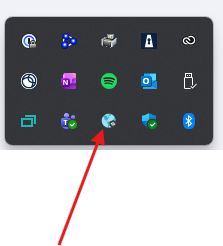
The first time opening the program you may receive a Welcome window. Click "Get Started" option, click this and it will bring you to the Connect page.
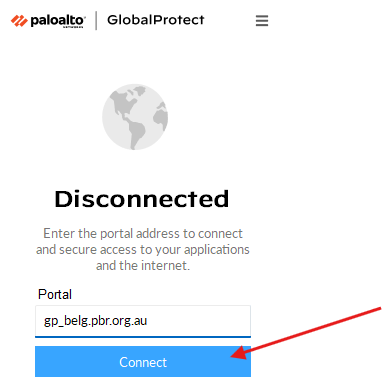
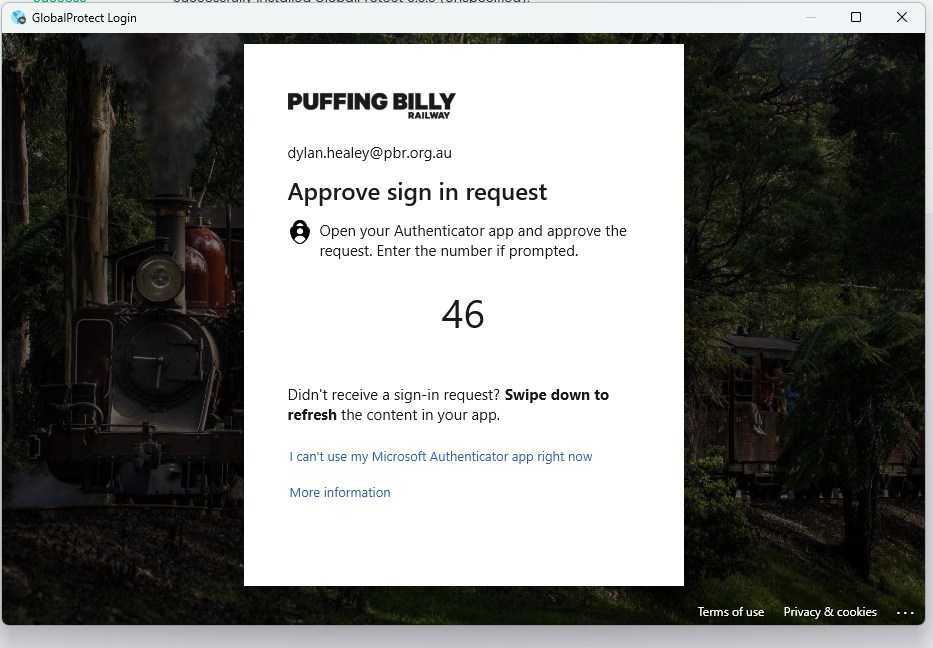
- Click connect and wait for a Microsoft Authentication window. The portal address should be automatically configured, otherwise please input gp_belg.pbr.org.au then click connect.
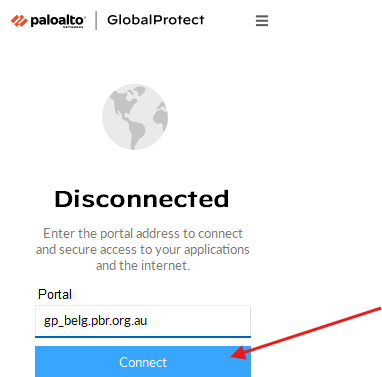
-
Open your authentication device (usually mobile) and you should receive a Microsoft Authentication prompt to Input the code.
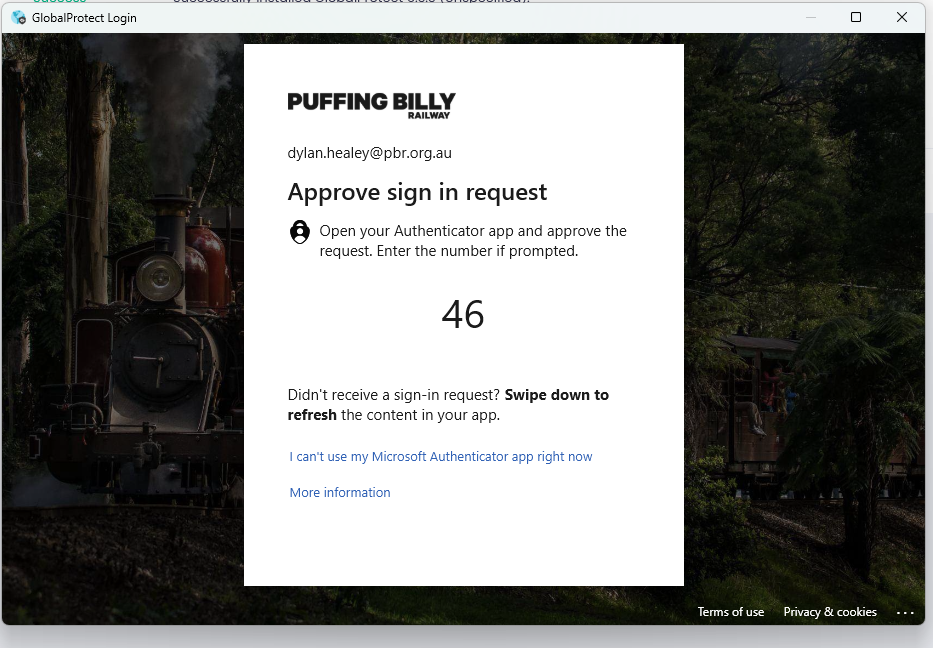
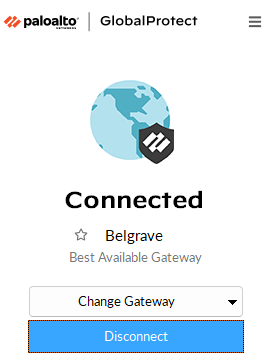
- IF connected correctly the Global Protect window will hide in the task bar, you are able to confirm your connect status by opening your task menu and clicking the Icon.
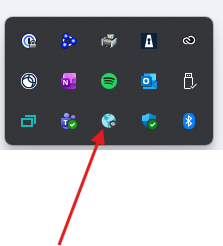
- Here you can see I am connected to Belgrave and have the option to change the gateway. No matter what Gateway you are connected to you should have access to resources hosted at any site.
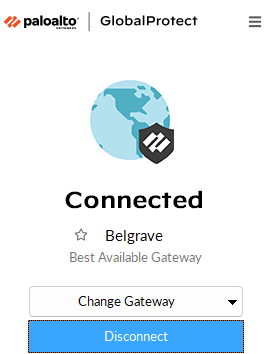
- Leaving your connection as "Best Available" will mean you are provided with the most reliable connection to our internal site.

No comments to display
No comments to display