Connecting to VPN with Global Protect
Overview
LogPBR intouses yourGlobal Protect as its VPN client. The VPN allows you to securely access PBR device.network
resources (such Searchas forshared thedrives, internal systems, and printers) when working from home or off-site.
Global Protect should be installed on your PBR-issued device. If it is not installed, contact IT Helpdesk.
Connecting to the VPN
Make sure you are connected to the internet (home WiFi, mobile data, etc.)
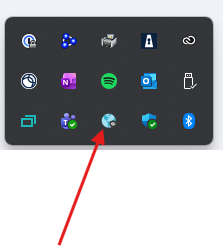
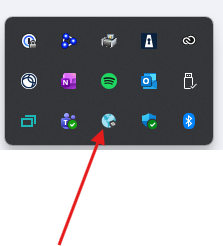
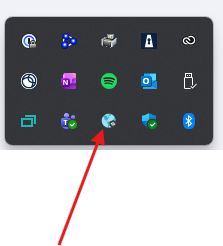
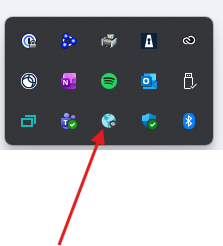
Find the Global Protectapplication icon in your
startsystem tray (bottom-right of the taskbar). It looks like a small globe. Click it to open
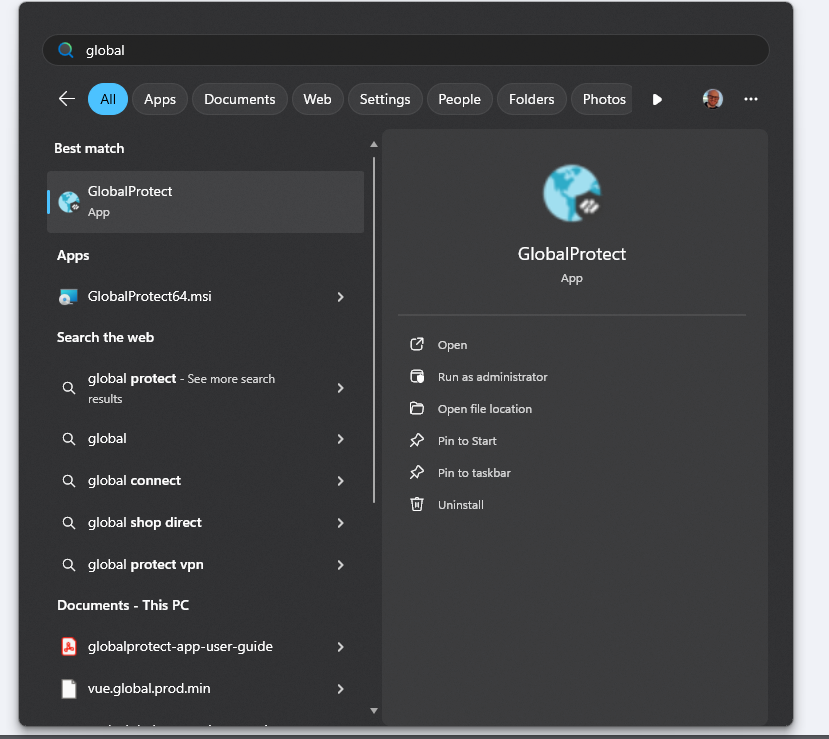
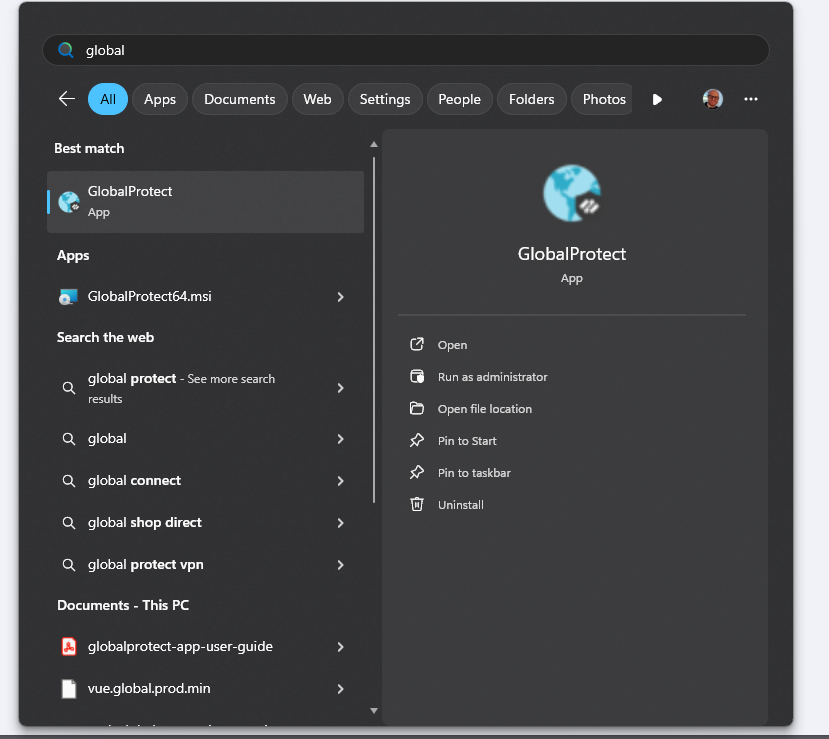
If you cannot find it in the tray, search Global Protect in the Windows Start menu and
click to open
You may need to go to your taskbar and click the iconapp
forIf thethis windowis to open.
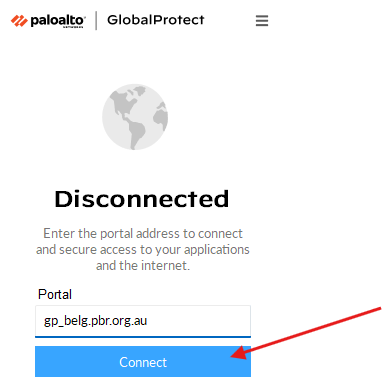
Theyour first time opening theGlobal programProtect, you may receivesee a Welcome window.screen Click— "click Get Started" option, click this and it will bring you to the Connect page.

Click connect and wait for a Microsoft Authentication window. The portal address should be automaticallypre-configured configured, otherwise please inputas gp_belg.pbr.org.au. thenIf it is not, type this in and click connect.
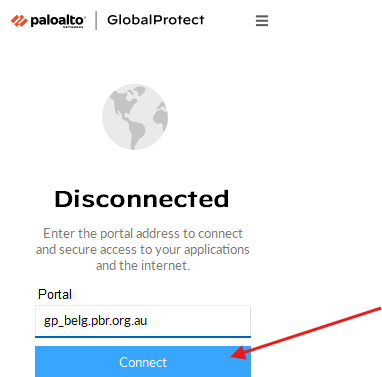
Connect
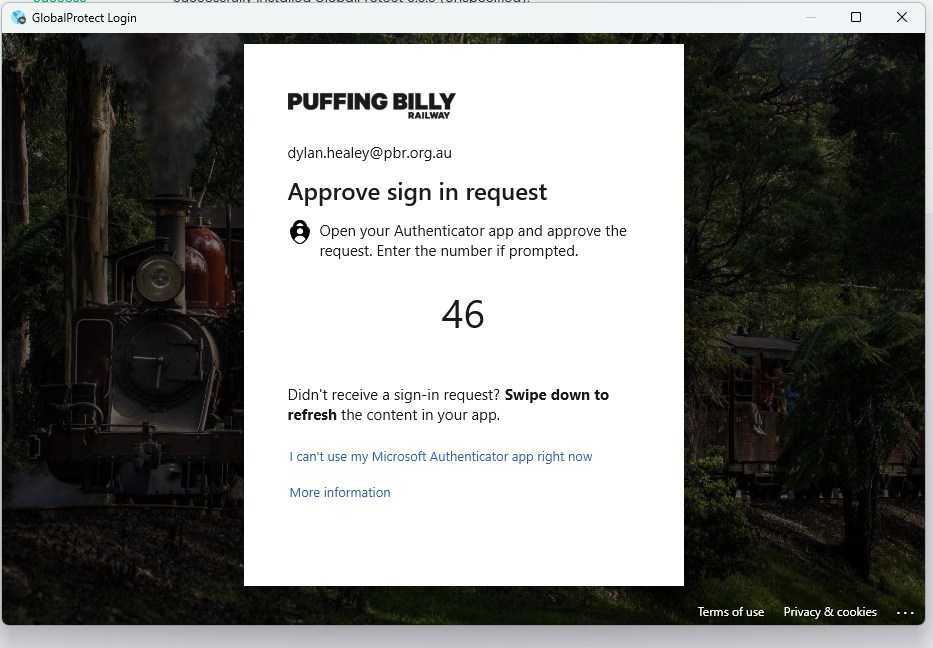
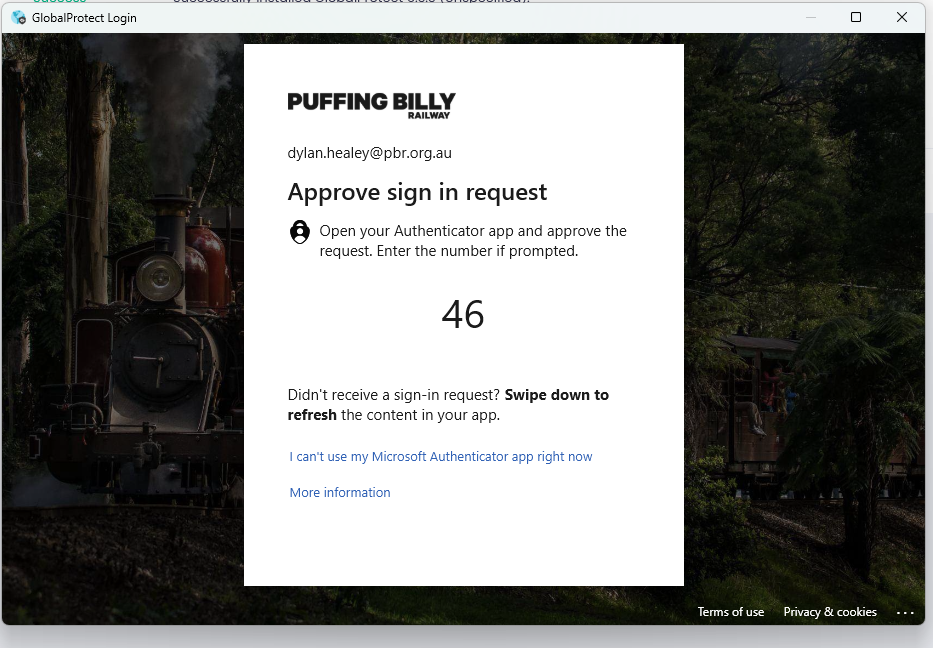
A OpenMicrosoft sign-in window will appear — sign in with your authenticationPBR device (usually mobile)email and youpassword
shouldApprove receivethe MFA prompt on your Microsoft Authenticator app
Once connected, the Global Protect icon will show a
Microsofttick. AuthenticationYou promptcan now access PBR network resources as normal
Disconnecting
Click the Global Protect icon in the system tray
Click Disconnect
Disconnect when you are finished working remotely or return to Inputa PBR site — the code.VPN is not required when you are on-site.
Connecting Before Windows Login (Start Before Logon)
If your network drives are disconnected after logging in remotely, you can connect to the VPN before Windows loads your profile. This ensures your drives map correctly.
Shut down your computer completely and wait 10 seconds
IF connected correctlyTurn the
computer on — do not log in yet
On the Windows login screen, click the network sign-in icon in the bottom-right corner
The Global Protect window will
hideappear — select your site and click Connect
Sign in
with your PBR credentials and approve the
taskMFA bar,prompt
youOnce areconnected, ableproceed to
confirmlog into Windows as normal
Troubleshooting
IssueSolution
Global Protect not installedContact IT Helpdesk — do not attempt to install yourself
Cannot connect — connection timeoutCheck your
connectinternet statusconnection byis openingworking first; try disconnecting and reconnecting
MFA prompt not appearingCheck your
taskphone menuhas andsignal/internet; clickingopen Microsoft Authenticator manually to look for a pending approval
Network drives not appearing after connectingTry the
Icon."Start Before Logon" method above, or contact IT Helpdesk
Prompted for a portal addressEnter: gp_belg.pbr.org.au
Need Help?
Contact IT Here you can see I am connected to Belgrave and have the option to change the gateway. No matter what Gateway you are connected to you should have access to resources hostedHelpdesk at
any site.
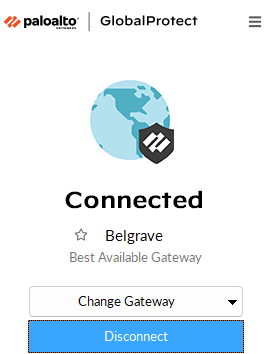
Leaving your connection as "Best Available" will mean you are provided with the most reliable connection to our internal site.