
Login To Cisco AnyConnect
Step-by-step guide
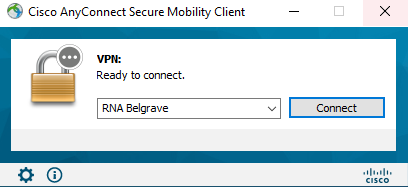
- Open the Cisco AnyConnect Client, installed on your ETRB issued device.
- The Cisco AnyConnect will appear, select RNA Belgrave if you’re stationed at Belgrave or RNA Emerald if you’re stationed at Emerald.


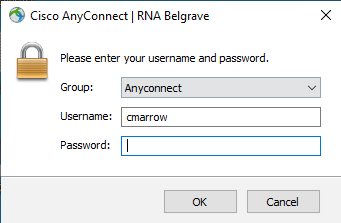
- You will be asked to login. Use the same credentials that you use to login to your computer.


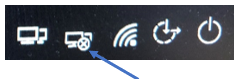
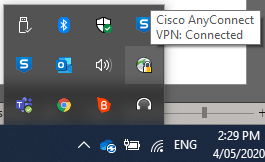
- You will now be logged into the Cisco AnyConnect and will see the icon in the bottom right of the screen.


- Login to your computer.
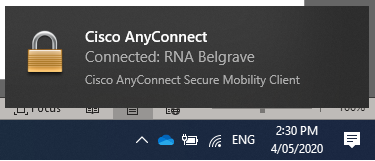
- Once you login you will be able to access your H Drive and network drives. You will receive a popup alerting you that you are connected to Cisco AnyConnect. You can also confirm by showing your hidden icons.


Duo Authentication
Single Password with Automatic Push
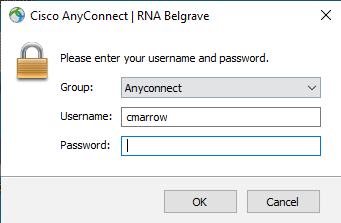
After you submit your login information, an authentication request is automatically sent to you via push to the Duo Mobile app or as a phone call.
Alternatively, you can add a comma (“,”) to the end of your password, followed by a Duo passcode or the name of a Duo factor. Here's how:
|
Type...
|
To...
|
|---|---|
| password,passcode | Log in using a passcode, either generated with Duo Mobile, sent via SMS, generated by your hardware token, or provided by an administrator. Examples: mypass123,123456 or mypass123,1456789 |
| password,push | Push a login request to your phone (if you have Duo Mobile installed and activated on your iOS, Android, or Windows Phone device). Just review the request and tap "Approve" to log in. |
| password,phone | Authenticate via phone callback. |
| password,sms | Get a new batch of SMS passcodes. Your login attempt will fail — log in again with one of your new passcodes. |
You can also add a number to the end of these factor names if you have more than one device registered. For example, push2 will send a login request to your second phone, phone3 will call your third phone, etc.
Examples
To use Duo Push if your password is "hunter2", type:
hunter2,push
To use the passcode "123456" if your password is "hunter2", type:
hunter2,123456
To send new SMS passcodes to your second phone if your password is "hunter2", type:
hunter2,sms2
The comma is Duo's default separator character between your password and the Duo factor. Your administrator may have changed this to a different character. Be sure to follow the instructions sent to you by your organization if they differ from what's shown here.