Skip to main content
How to: Add a folder to a quick link button
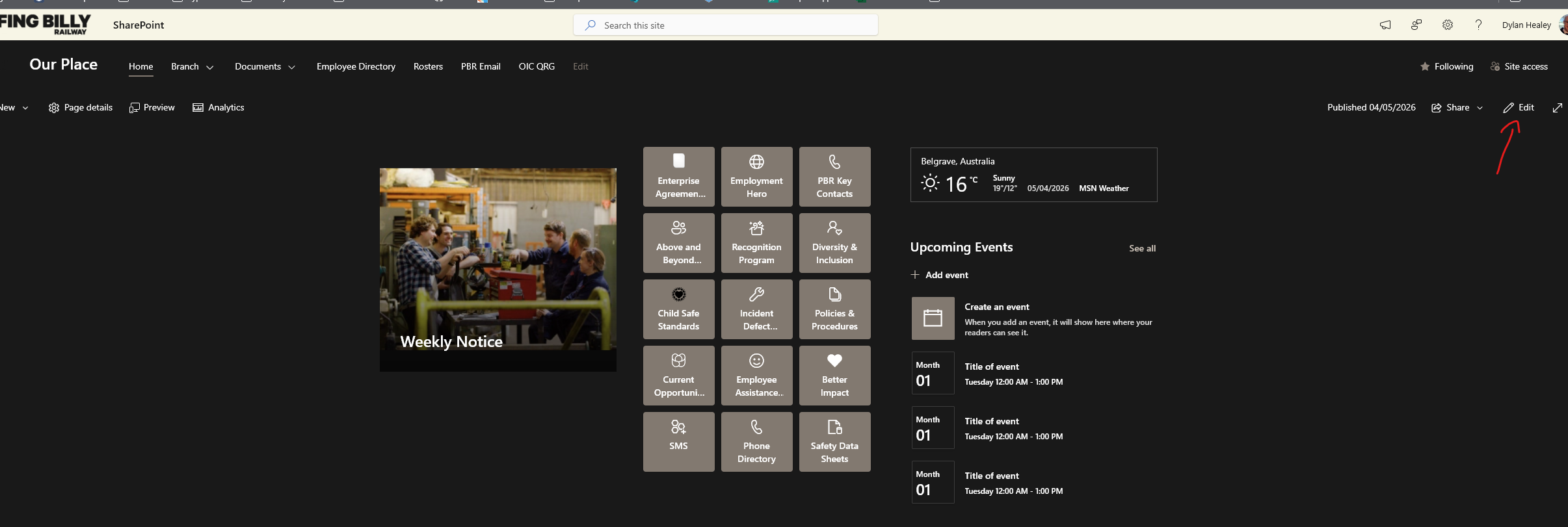
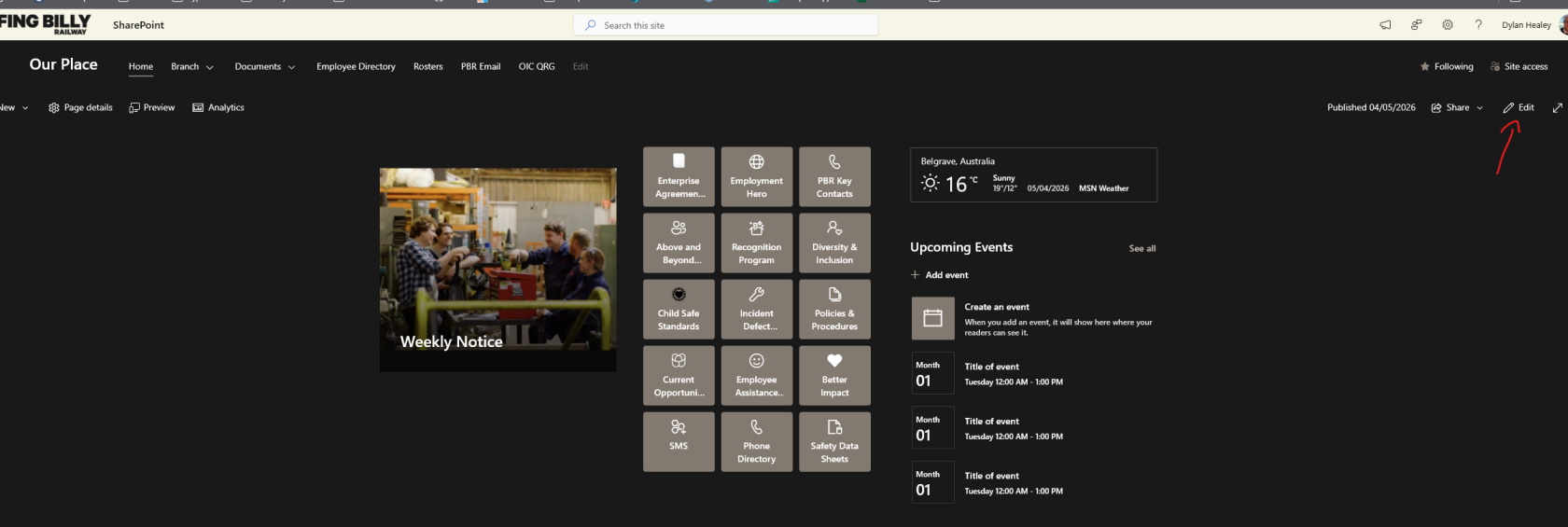
- Go to the SharePoint Site or Page you wish to add a link to, click edit in the top right.
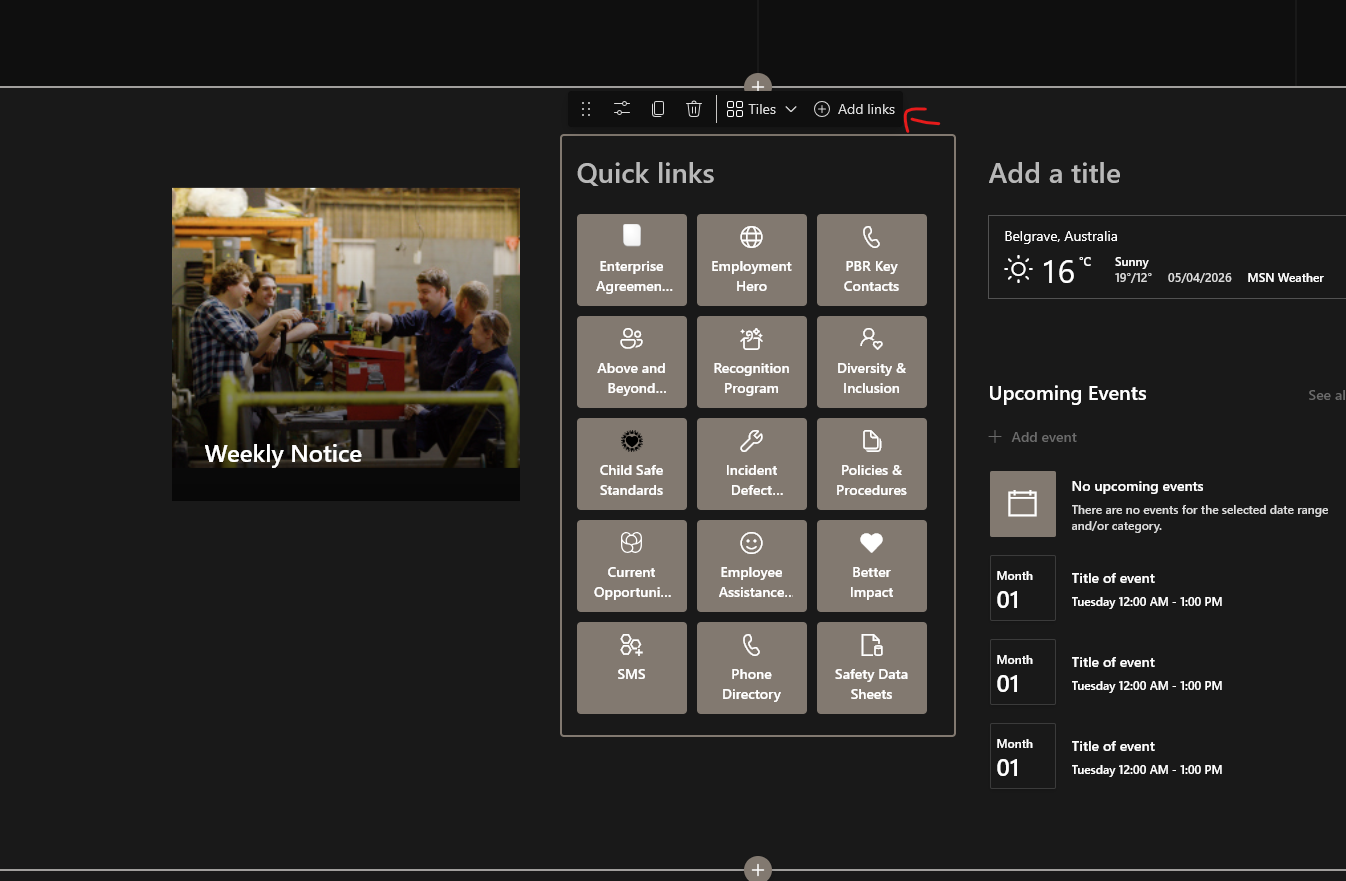
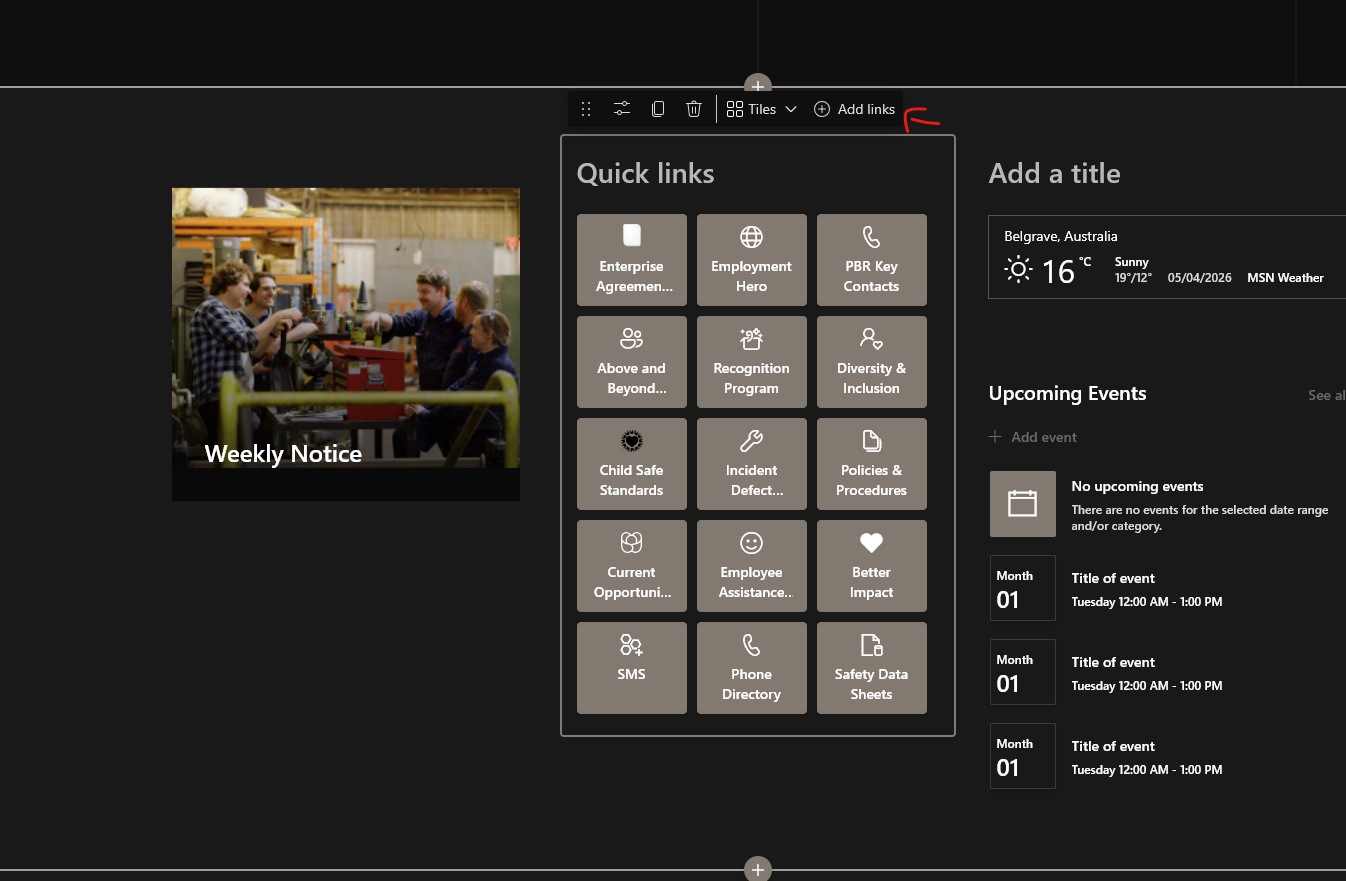
- Click Add Links
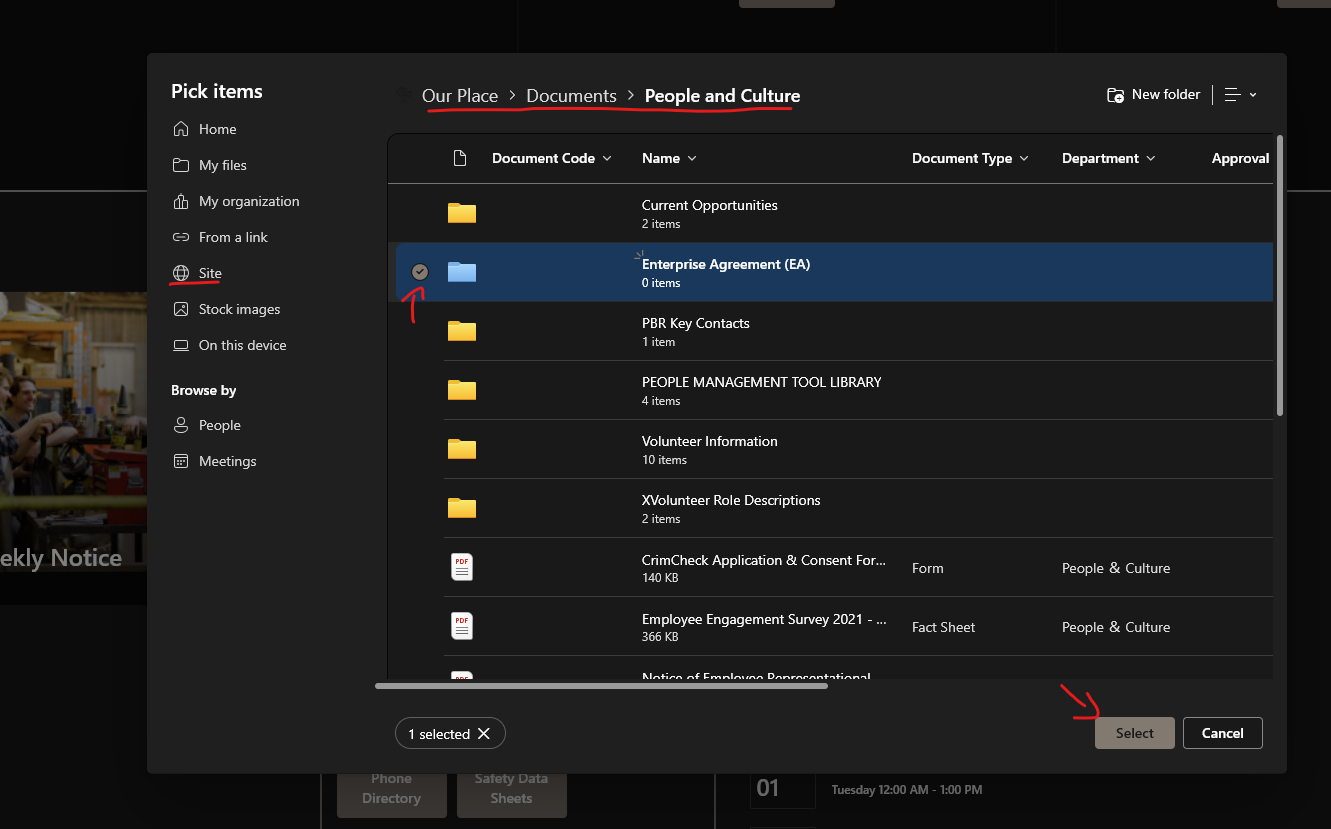
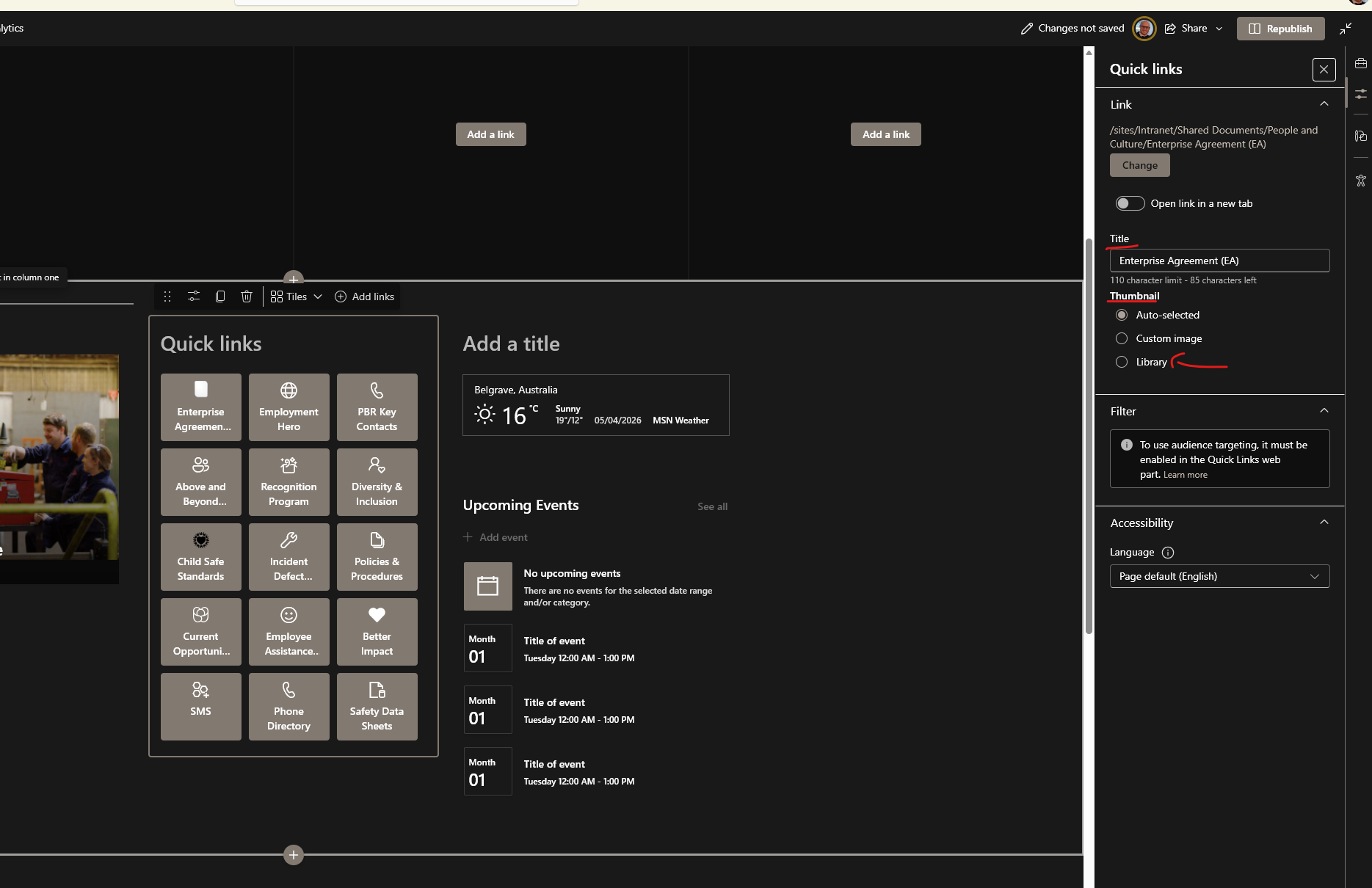
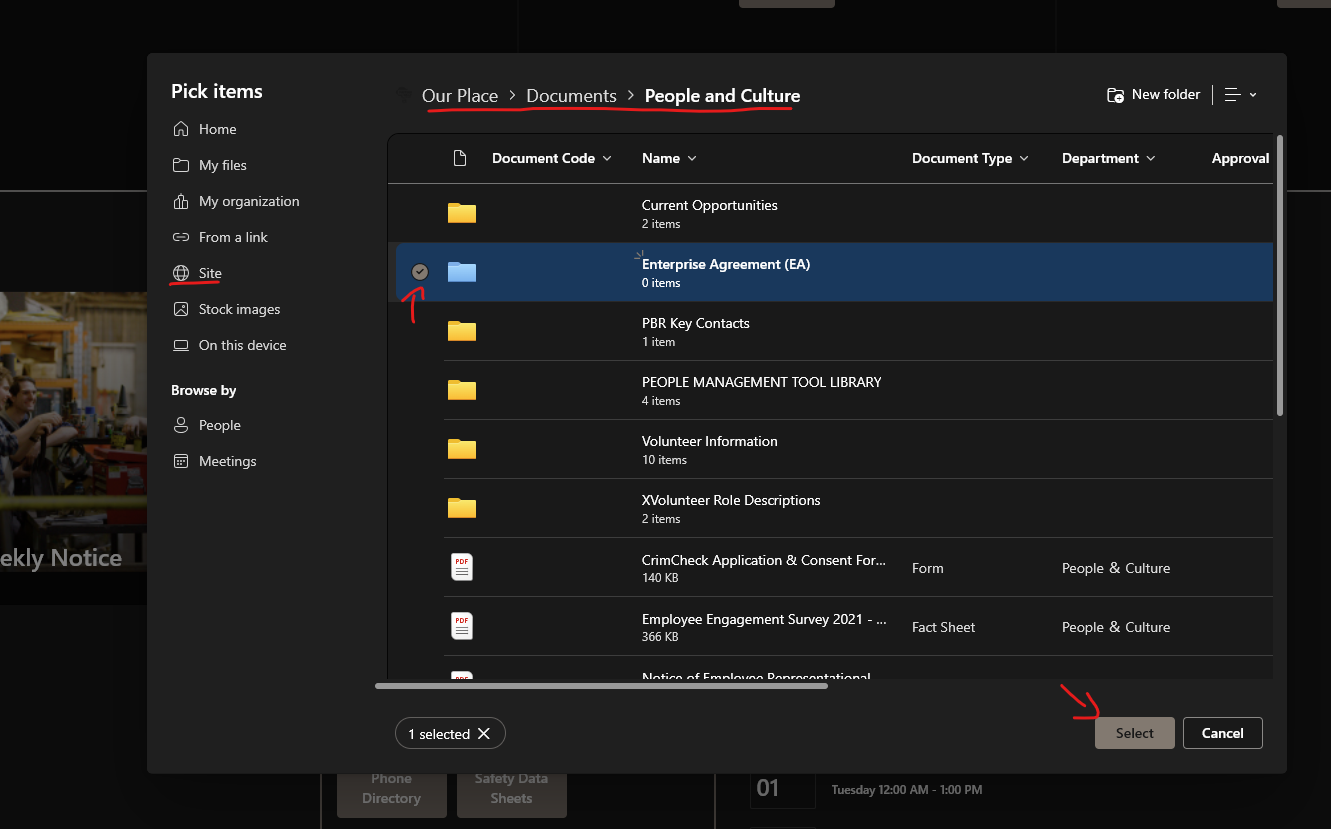
- Navigate to the folder you wish to add, in this cate its under Site > Documents > People and Culture. Click the Folder you wish to add on the left. Then click Select.
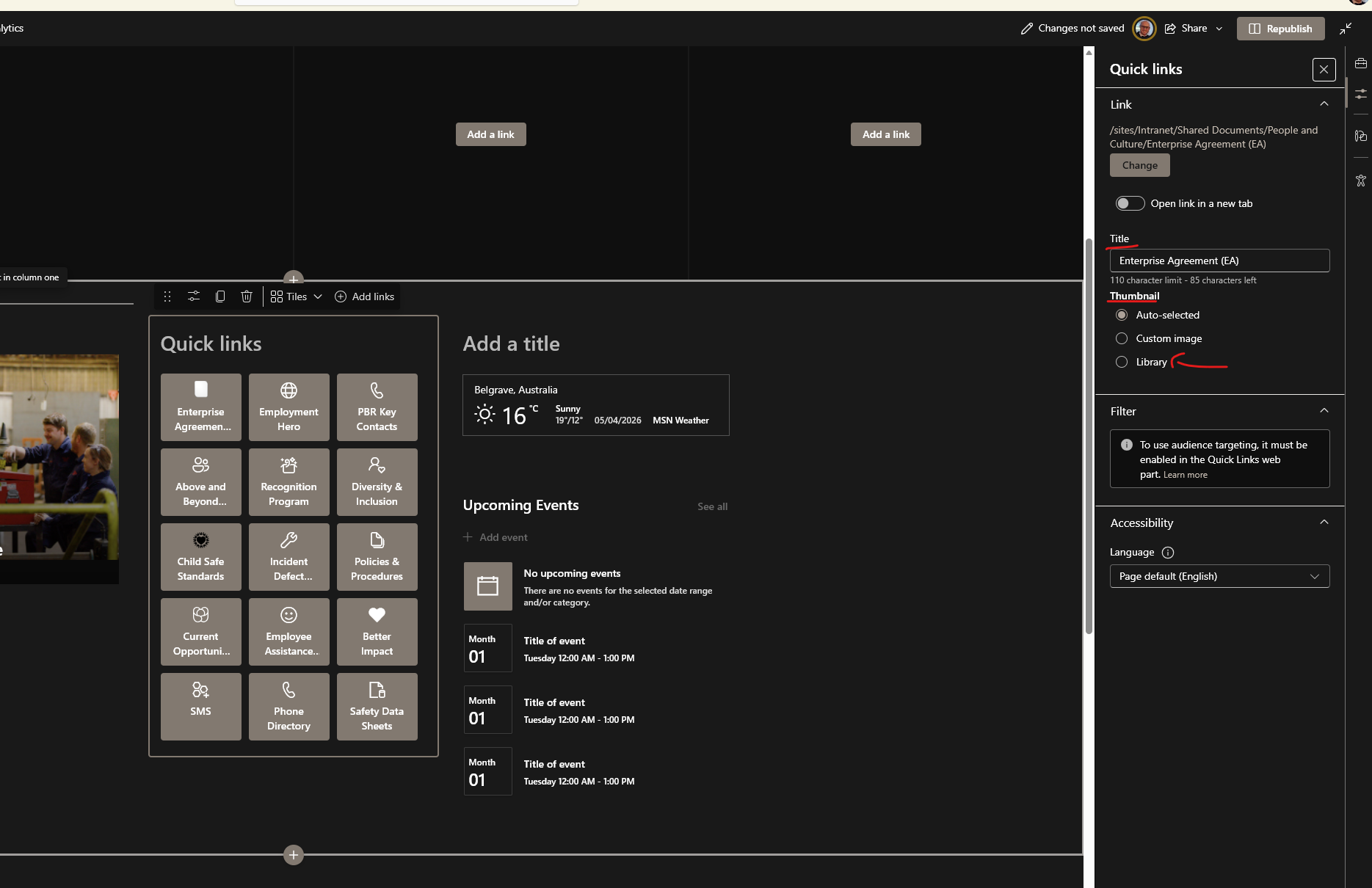
- It should automatically open the Buttons settins & Options on the right side.
HEre you can edit the Buttons name, Thumbnail (Icon) and link.
And Icon can give the button some quick relevancy when looking around.
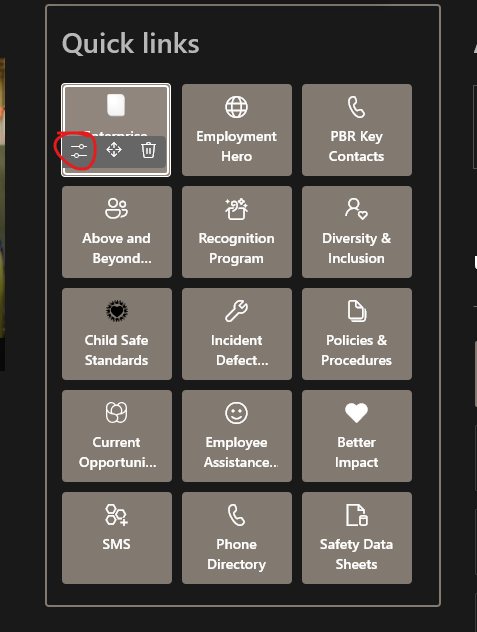
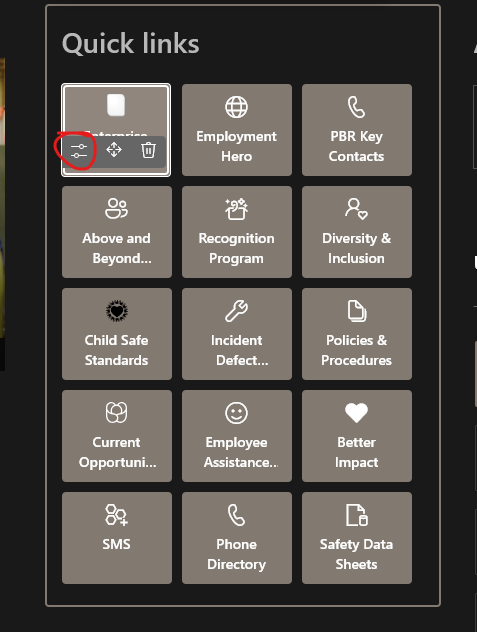
- If this option doesnt show, you can click the Quick Link button while in edit mode, and click the Edit option.
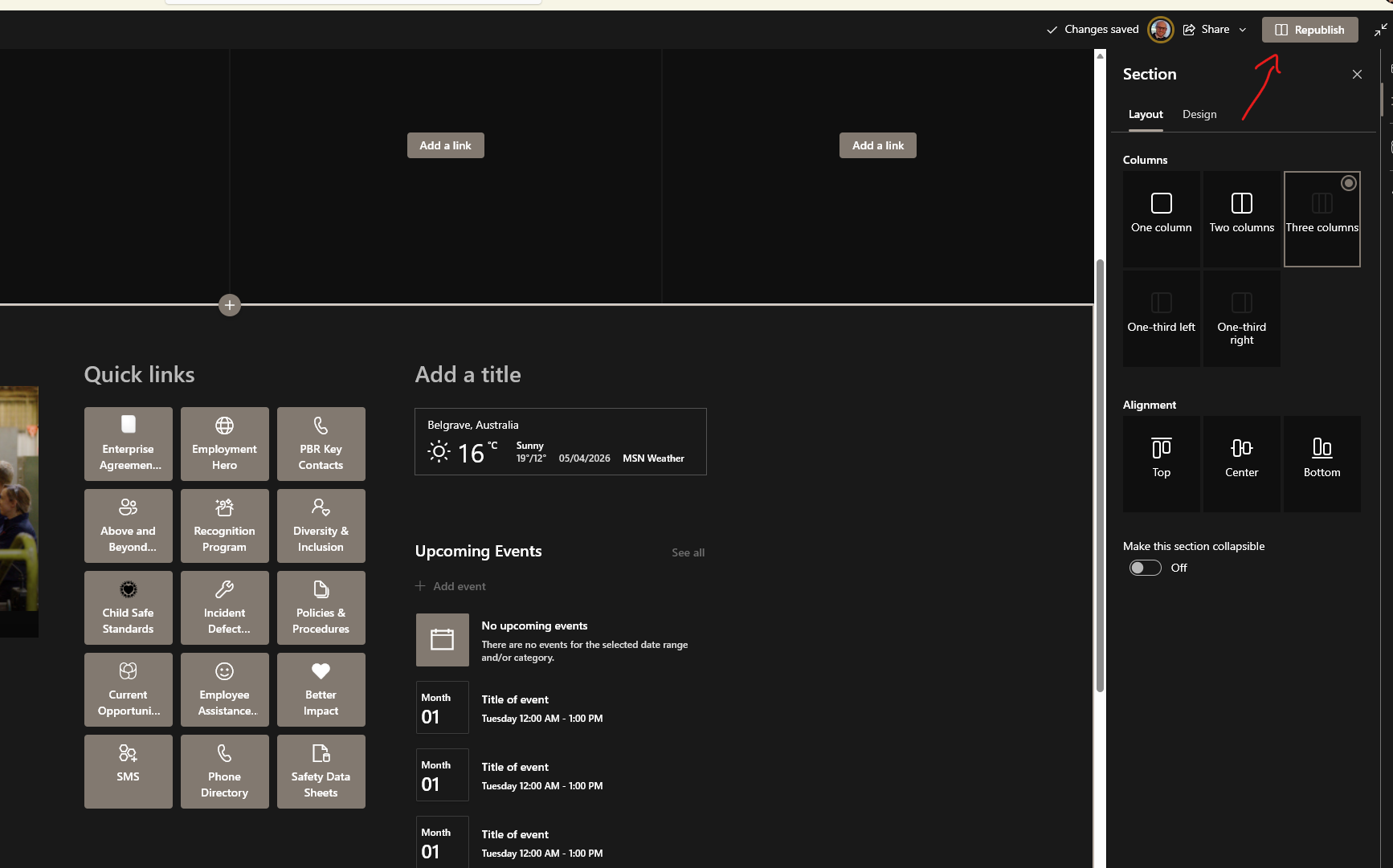
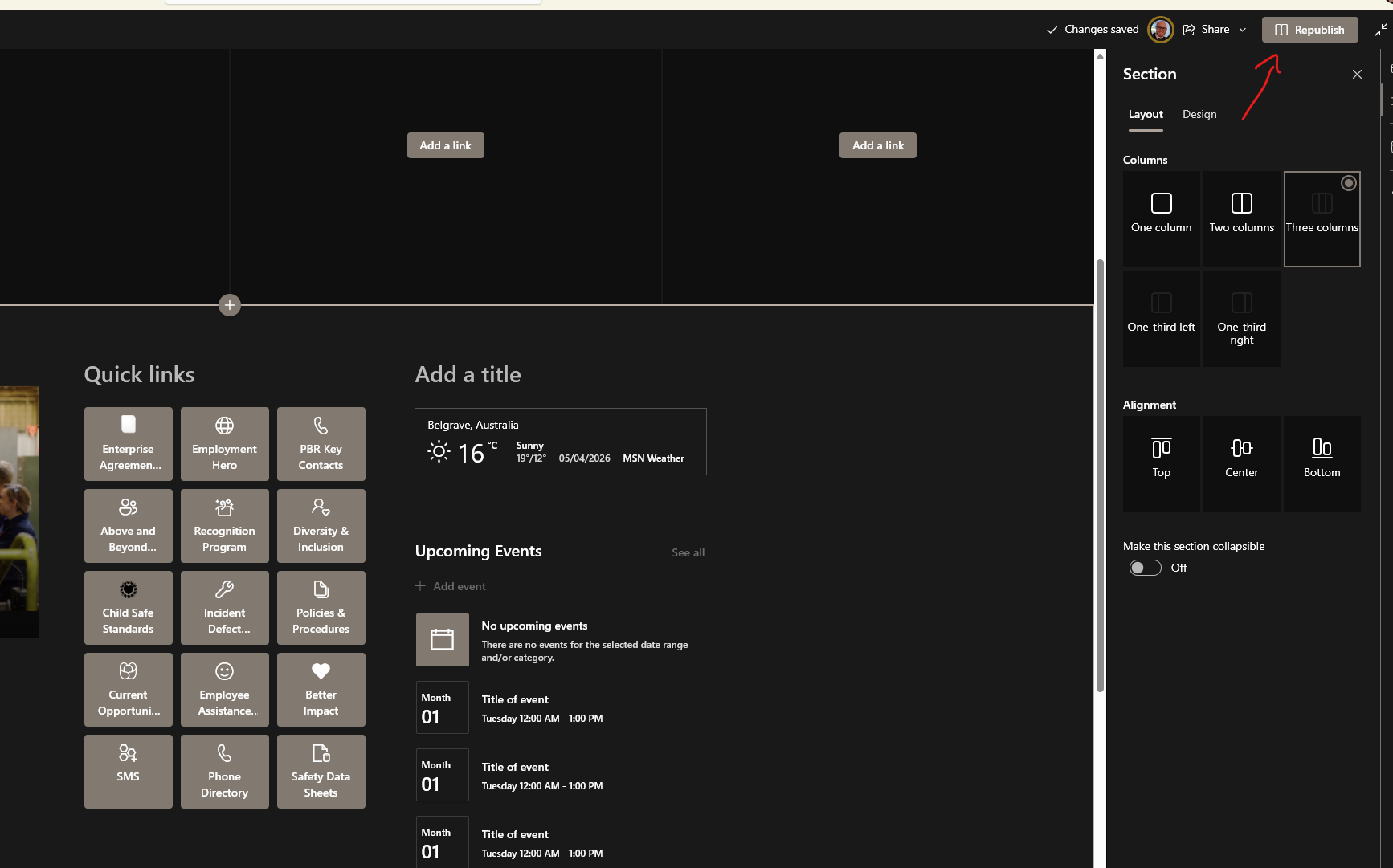
- When done click Republish & test the link.