
Syncing OneDrive
Step-by-step guide
- Search for Onedrive in Windows and open the app.

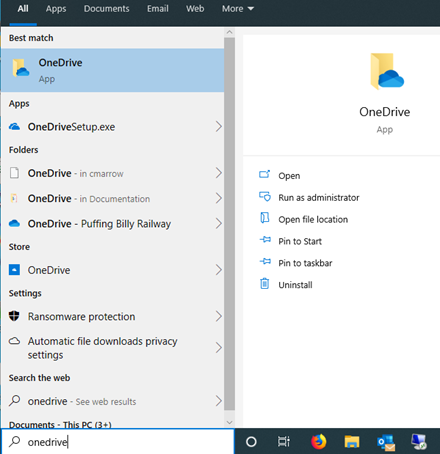
- The OneDrive icon will appear in the right-hand corner of the taskbar. Click on it to open OneDrive.


- Sign into OneDrive with your PBR credentials.

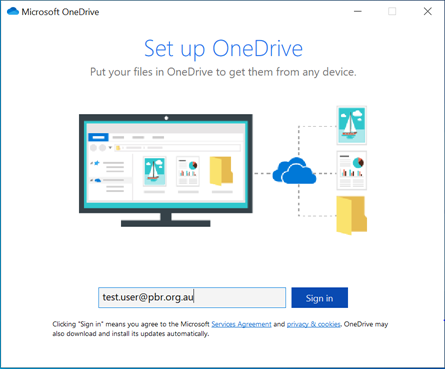
- Click Next.
- Make sure Sync all files and Folders is selected and then press Start sync.

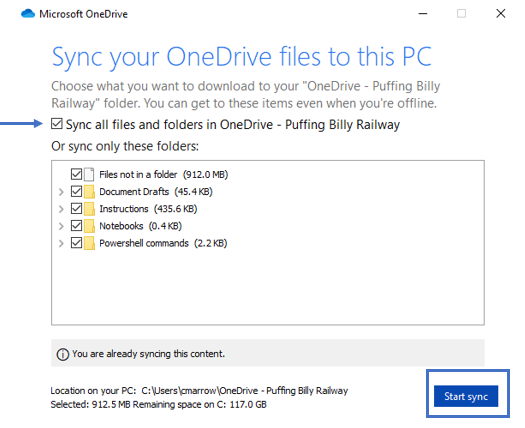
- Click through any remaining screens. Once done your files will sync to OneDrive.
-
Open File Explorer in Windows. You will now be able to see the folder under OneDrive - Puffing Billy Railway located in the left-hand menu.


Be aware that when you create, modify or delete files in the folder it is automatically synced to OneDrive.


