Setting Up Microsoft Authenticator (Standard MFA)
Overview
ThisMulti-Factor articleAuthentication will(MFA) showprotects your PBR account by requiring a second verification step when you howsign toin. manually setup Microsoft Authenticator.
Restart your computer. (save any unsaved work before restarting).
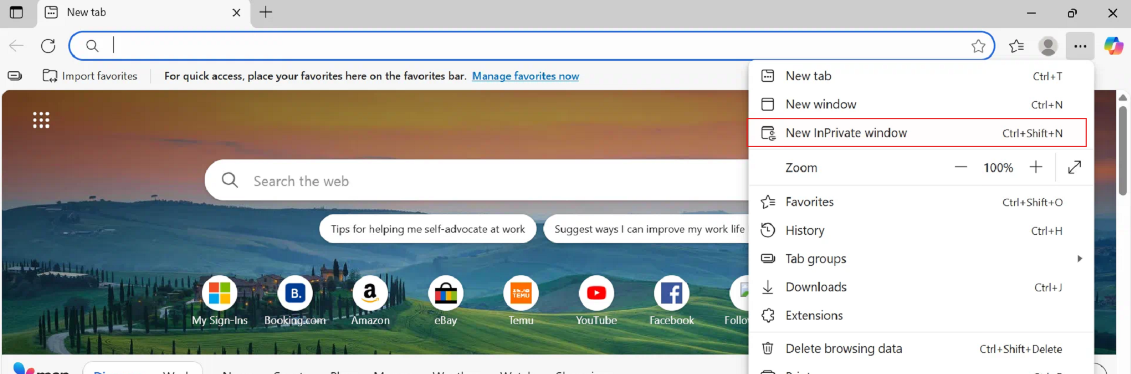
Open your browser (edge or chrome) and open an "InPrivate window". On chrome itAuthenticator is the
samestandard spotMFA butmethod calledfor "incognito".all 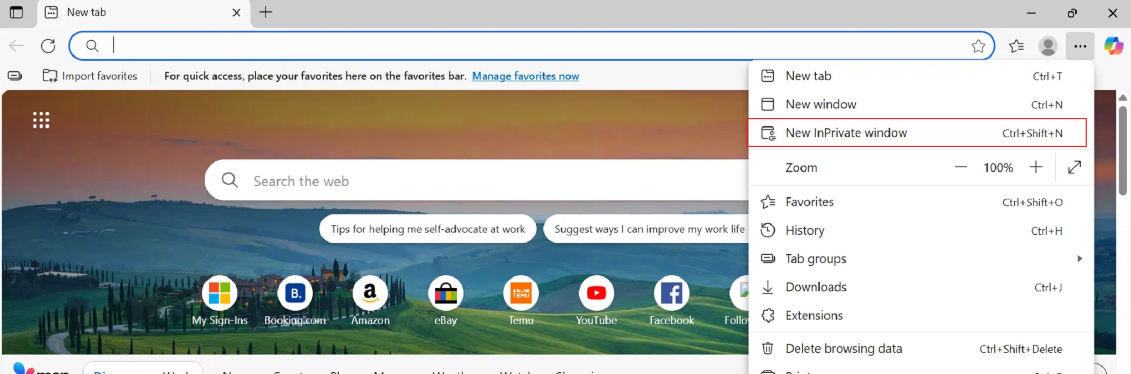
PBR staff.
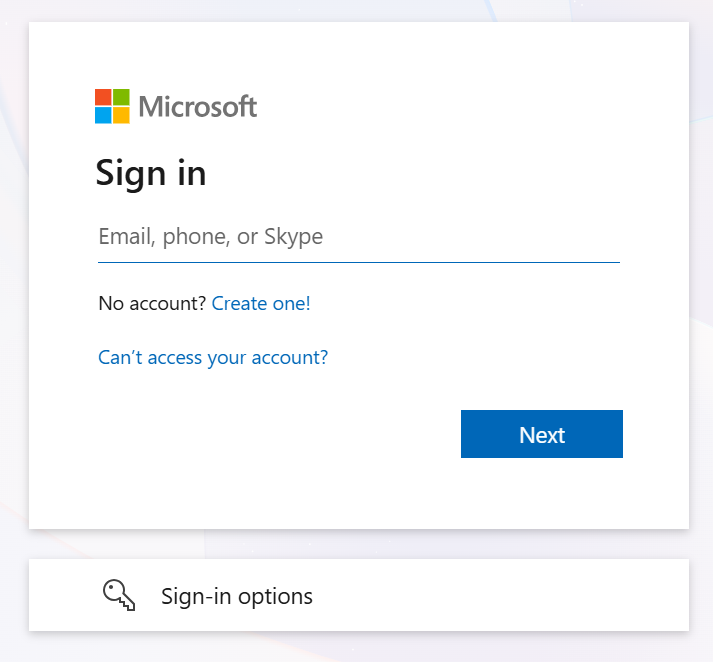
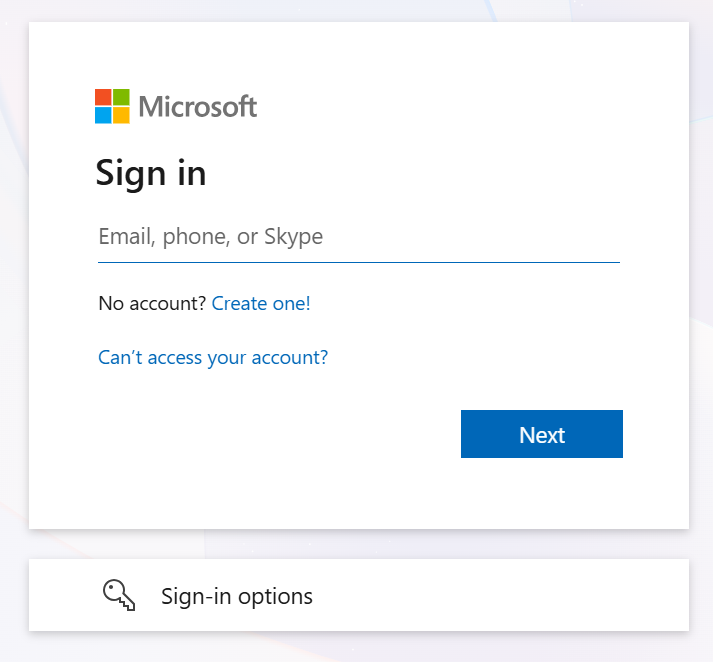
Once open, copy this link into the URL field: "https://login.microsoftonline.com/". You will beneed greetedyour withmobile phone to complete this screen.setup. If you don't have a smartphone, contact the IT Helpdesk at [email protected].
Step 1 — Install Microsoft Authenticator
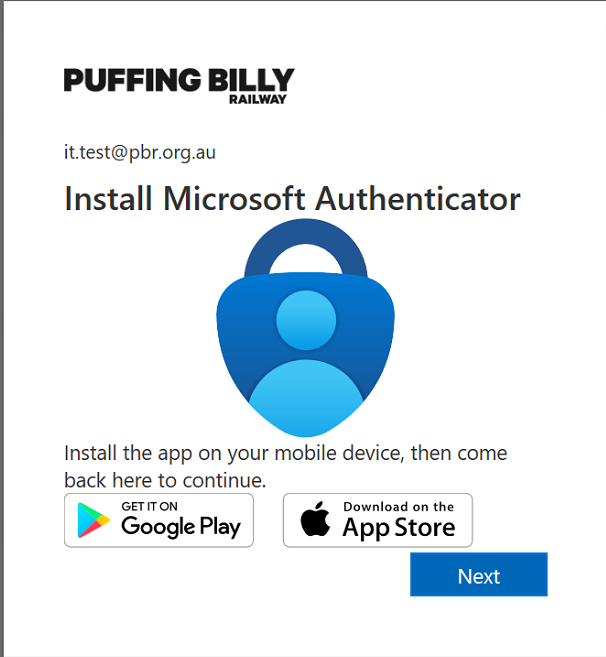
iPhone: Search "Microsoft Authenticator" in the App Store
Android: Search "Microsoft Authenticator" in the Google Play Store
Open the app once installed — you don't need to sign in yet.
Step 2 — Start the MFA Setup on Your Computer
On your computer, open a browser and go to https://aka.ms/mfasetup
Sign in with your PBR email
address ([email protected]) and
password.password
ClickYou next.may 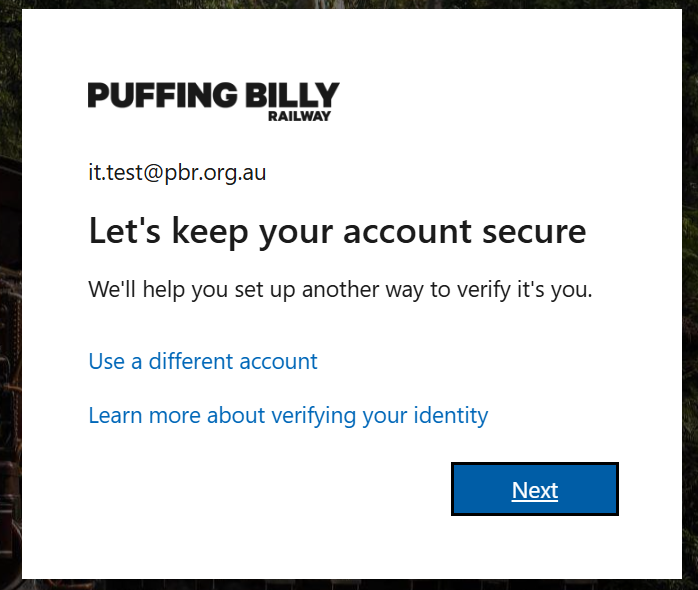
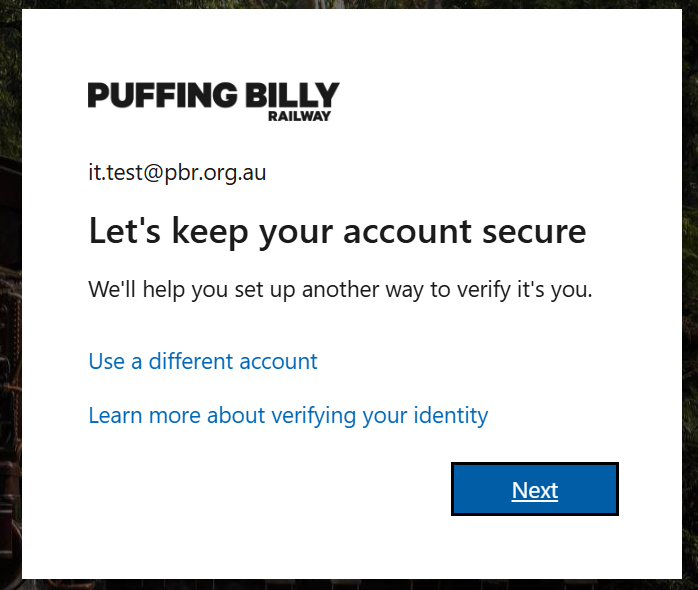
see a prompt saying "More information required" — click Next
The below screen will appear, installOn the
"Keep your account secure" page, click Next
Step 3 — Link the App to Your Account
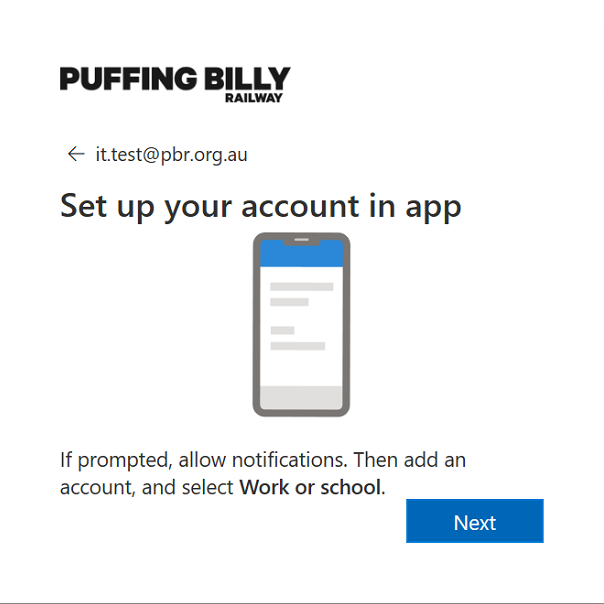
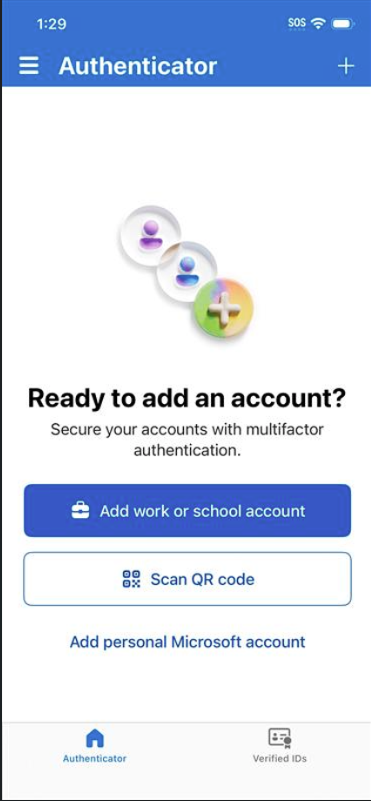
On your phone, open Microsoft Authenticator
appand ontap + Add account
Select Work or school account
Tap Scan a QR code
Point your
mobilephone device.camera Once done, click next.
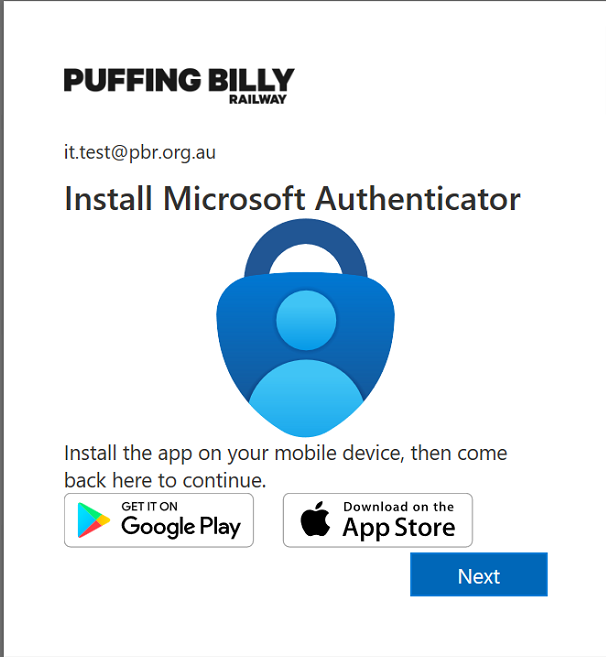
Click next.
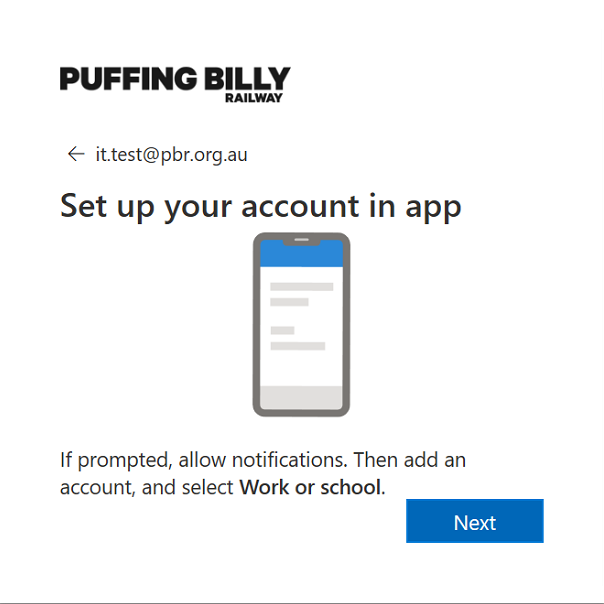
In the Microsoft Authenticator app on your mobile device, select "Scan QR code", then scanat the QR code
that isshown on your computer screen
with your phone. If you are already using other applications in Microsoft Authenticator, press the QR symbol in the bottom right corner, then scan the QR code on your computer screen.
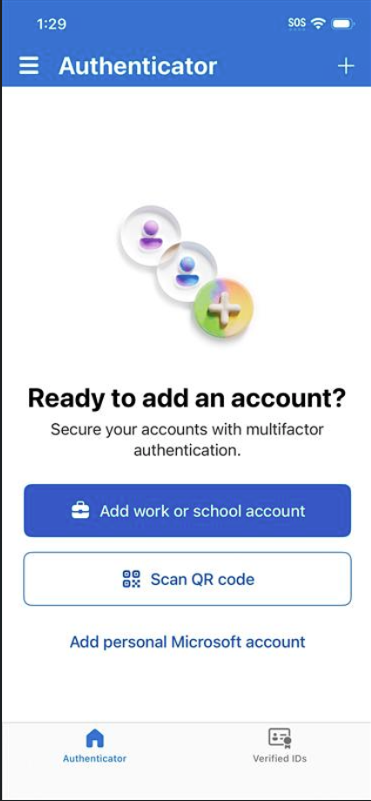
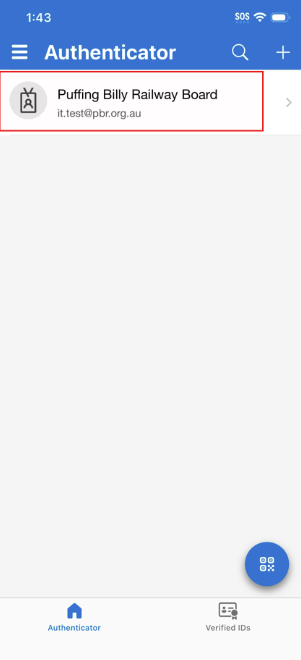
TheYour Puffing Billy Railway BoardPBR account will
then be
added.added 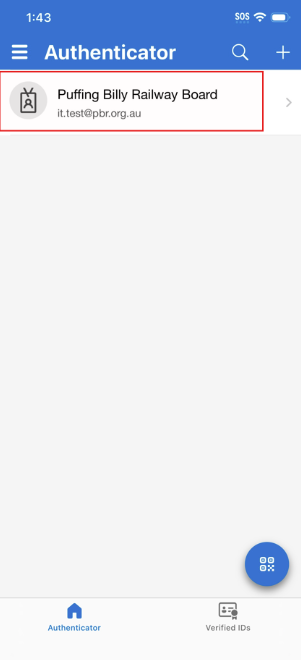
to the app
Step 4 — Test the Setup
- On your computer, click
nextNext after scanning the QR code
Microsoft will send a test notification to
testyour outphone
usingOn your phone, tap Approve in the notification
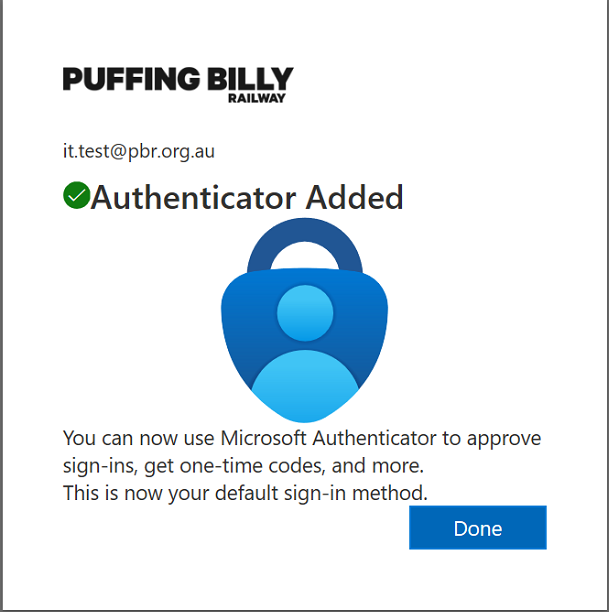
Click Next and then Done
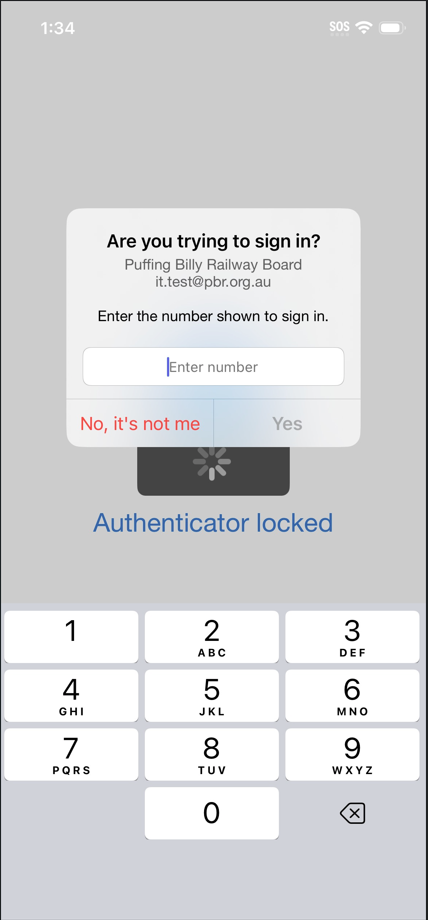
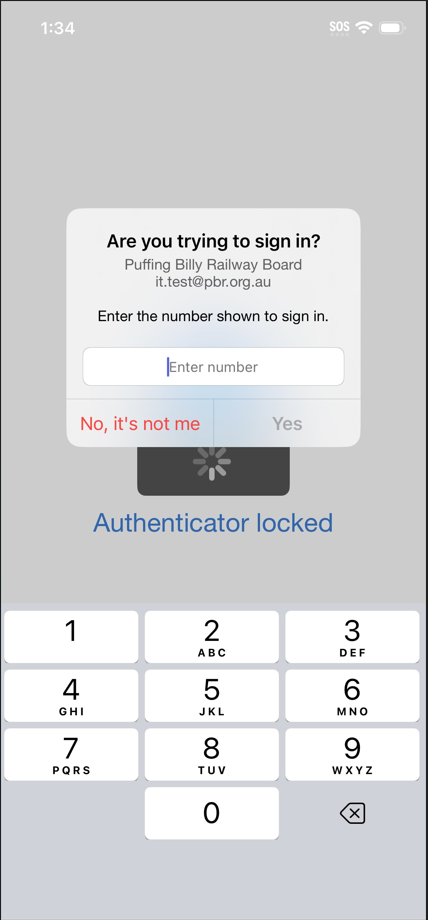
Your MFA is now set up. From now on, when you sign into Microsoft Authenticator.365 Enterfrom thea 2new numbersdevice or browser, you seewill receive a notification on your computerphone screento intoapprove Microsoftthe login.
Troubleshooting
IssueSolution
No notification receivedOpen the Authenticator
app and
selectlook yes.for Ita pending approval there, or check your phone's notification settings
Lost or replaced phoneContact IT Helpdesk immediately — they will
likelyreset thenyour MFA
again as an actual authentication.
Congratulations,so you
havecan successfullyre-register
addedApp Microsoftshows wrong code / not workingCheck your phone's date and time is set to automatic — Authenticator
asrequires accurate time
Locked out of accountContact IT Helpdesk at [email protected] or call during business hours
Managing Your Authentication Methods
You can view and manage your Multi-factorregistered authentication.MFA
methods at any time by visiting