
Backup/Restore Mobile Phone
This article will show you how to backup and restore a company mobile phone when a user gets offboarded, or data from a backup needs to be retrieved.
Backing up
- Install "Apple Devices" onto your device.
- Plug the desired mobile to backup into your device, press "Trust" on both the mobile device and Apple Devices. (You may need to put your device into Application Control Monitor in Threatlocker as the driver for the connection of Apple devices is blocked.)
- Once the device appears, it may perform a sync. Once complete, select "Backup Now".
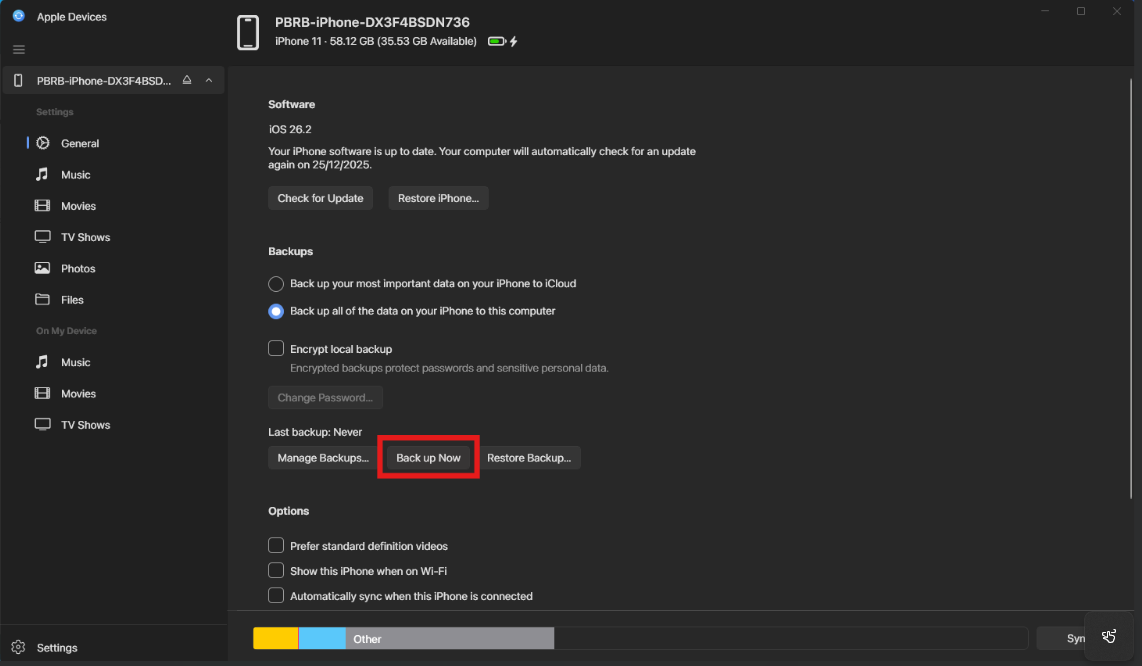
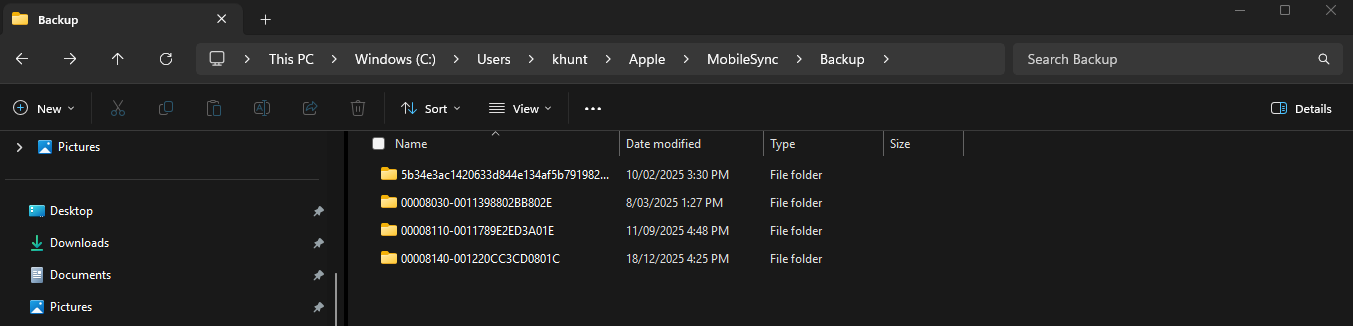
- It will backup to path: C:\Users\<user>\Apple\MobileSync\Backup
- The file name will look something like below. You can determine which backup you just performed by looking at the date and time.
Copy the desired backup file to the offboarded users file on PBR-NAS-B1.
Restoring
- If you need to go back and see data such as photos, text messages etc, you will have to restore the backup onto a mobile device.
- You will have to copy the backup file file from the user's file on PBR-NAS-B1 and paste it into the path specified above in step 4.
- Plug the mobile device, open apple devices and select "Restore Backup". The selections are a bit more user friendly. Select the desired backup to restore the mobile device currently plugged in.
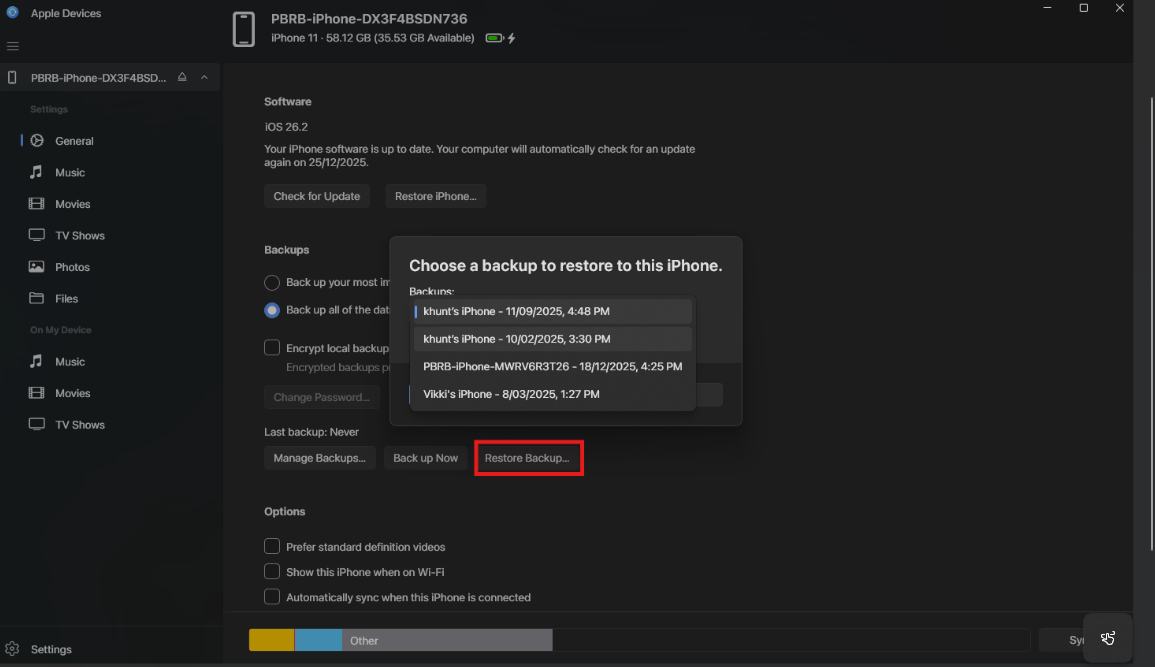
- Once complete, you will now be able to see the data on the device.
No comments to display
No comments to display