Skip to main content
How to install Linkly for Ingenico Integrated Pinpads
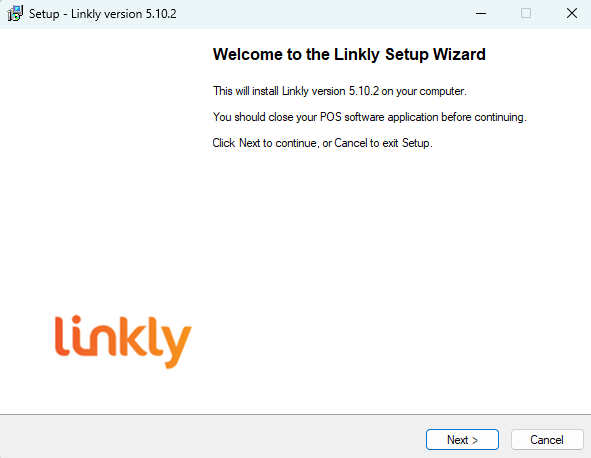
Navigate to this URL: "https://linkly.com.au/resources-support/software/". Download the linkly install client.

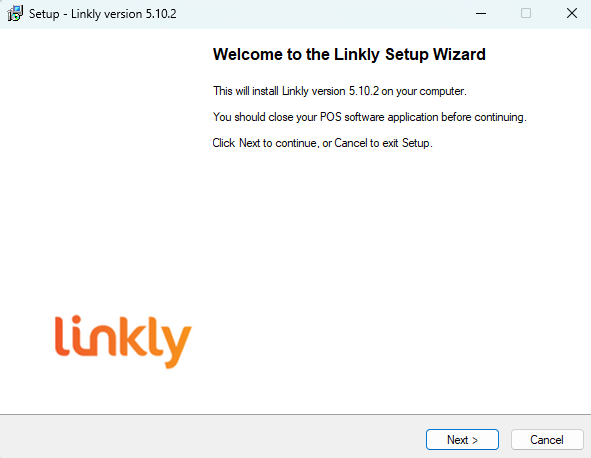
Once downloaded open it and follow the configuration wizard prompts.
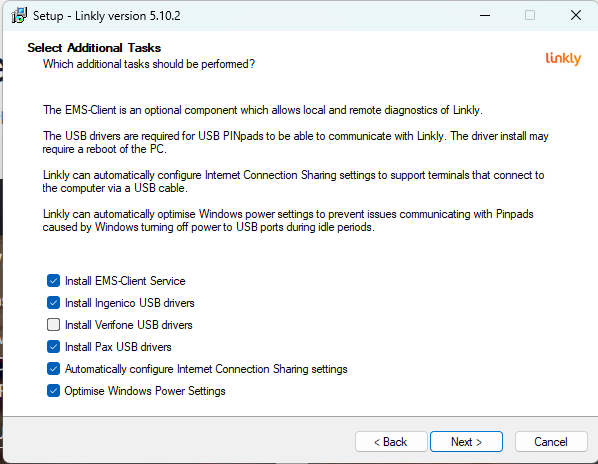
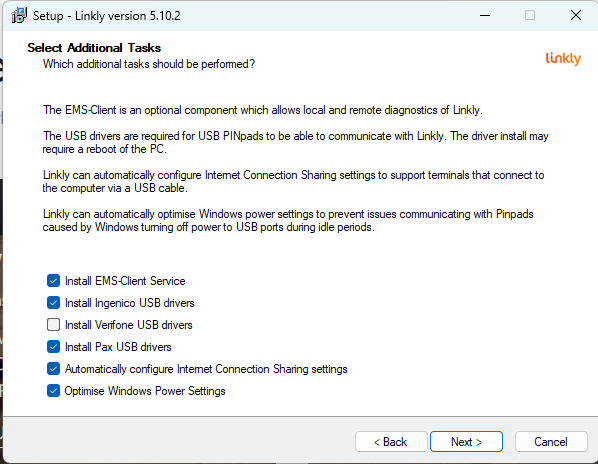
If installing to an ingenico machine, uncheck the "Install Verifone USB Drivers" option. If installing a verifone machine, uncheck the "Install Ingenico USB Drivers" option.
Ingenico Machines
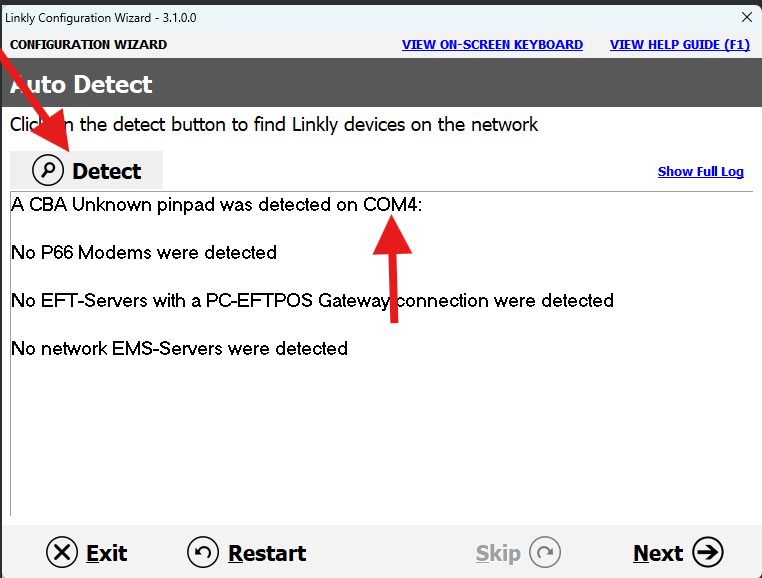
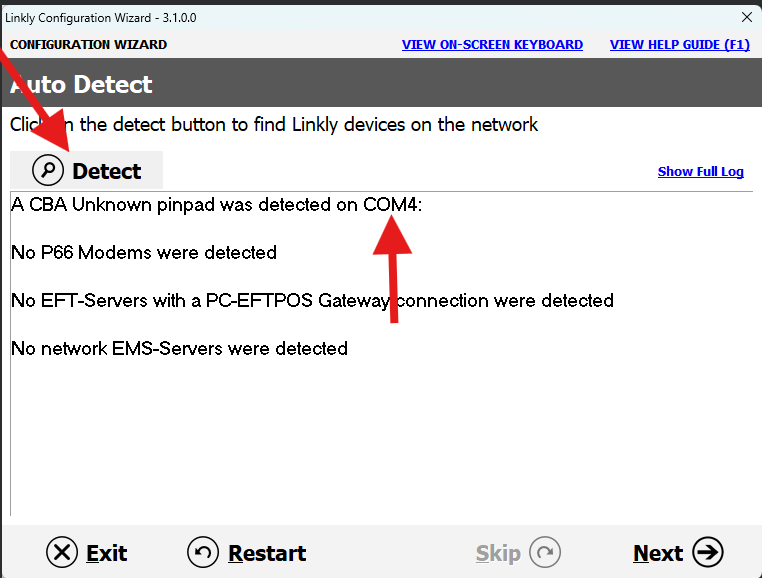
The linkly config wiz will appear. Click detect to find the com port number.
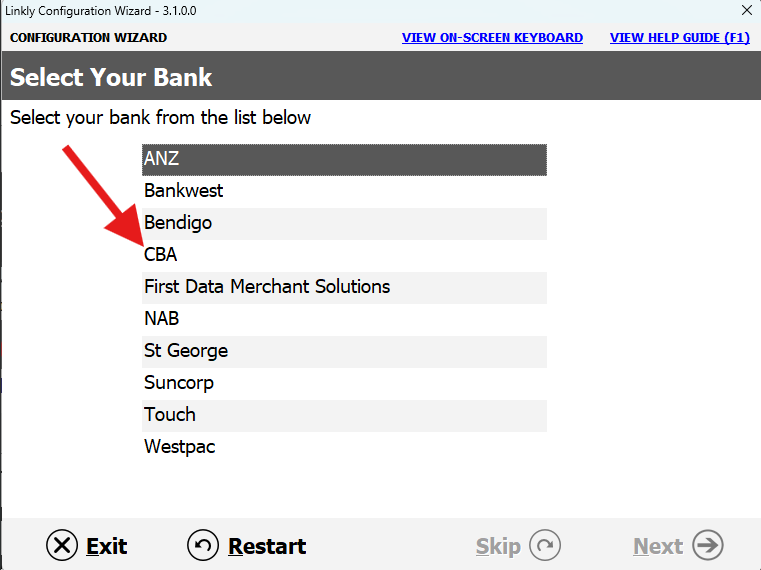
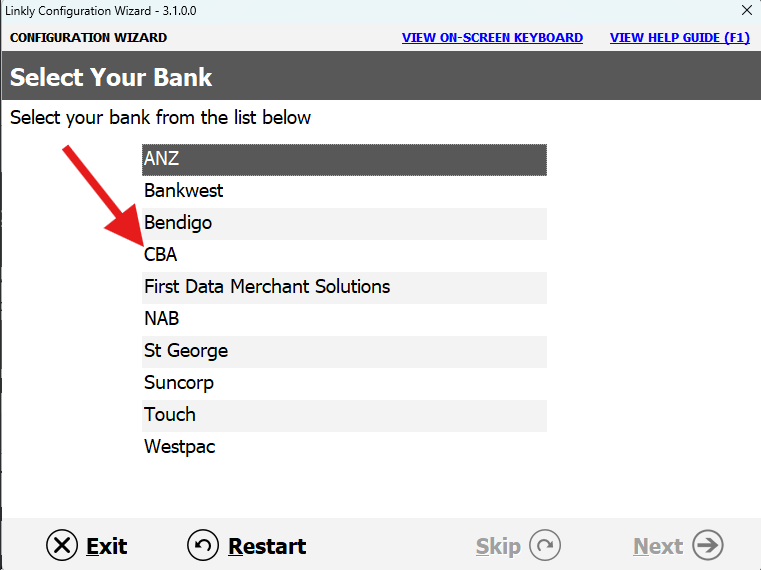
Click next, then choose the bank CBA.
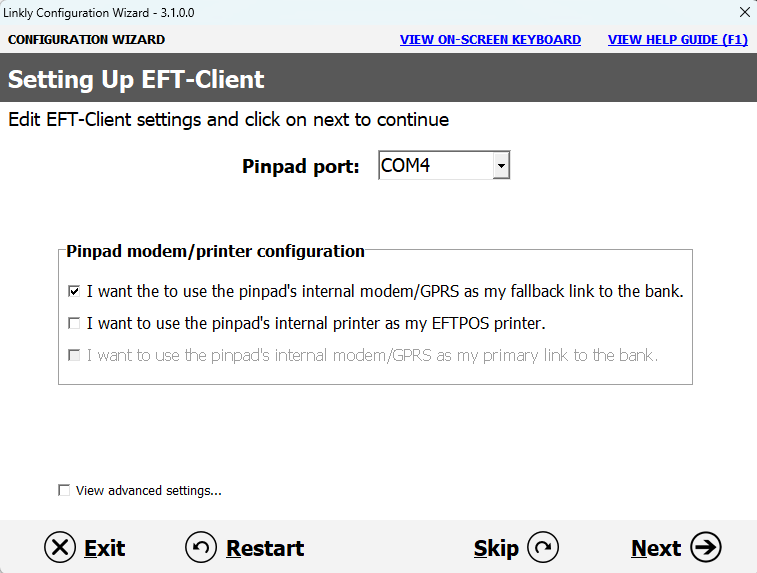
Click next, the pin pad port should match the port that was detected earlier.
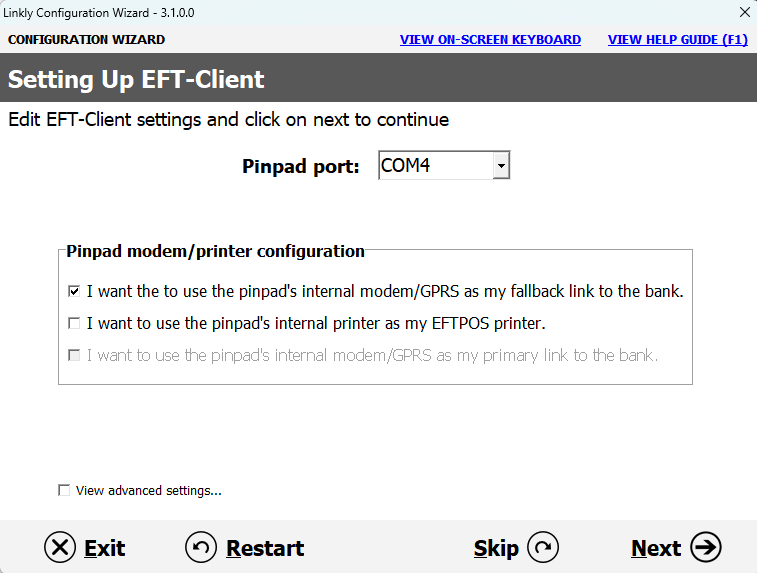
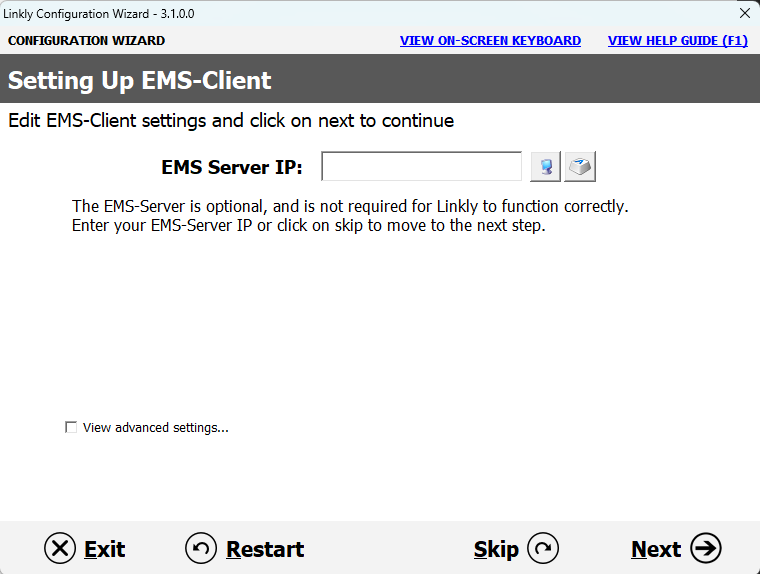
Click next.
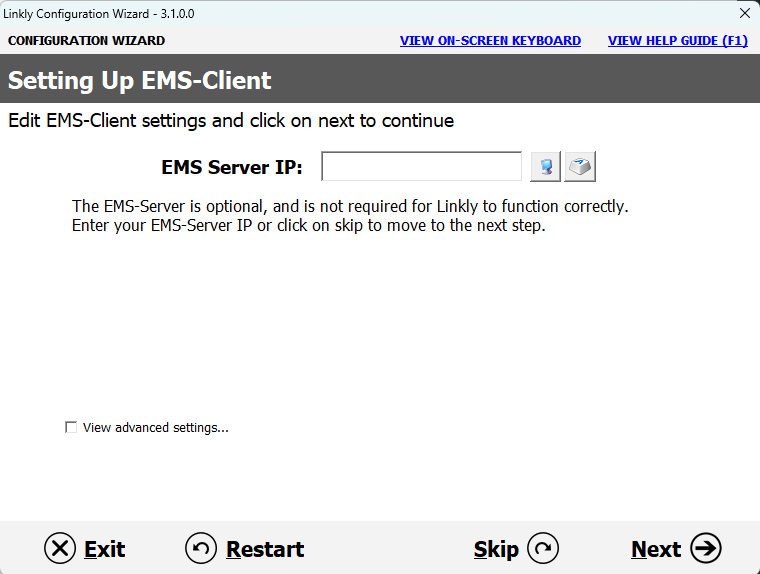
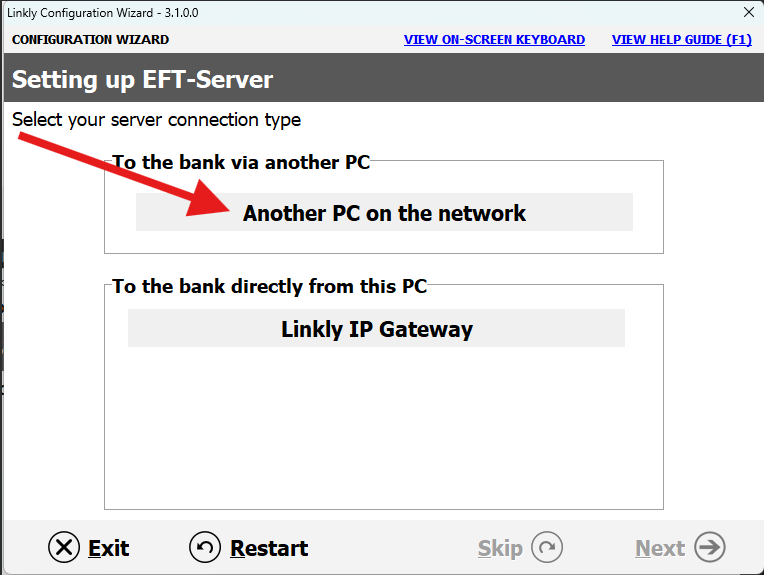
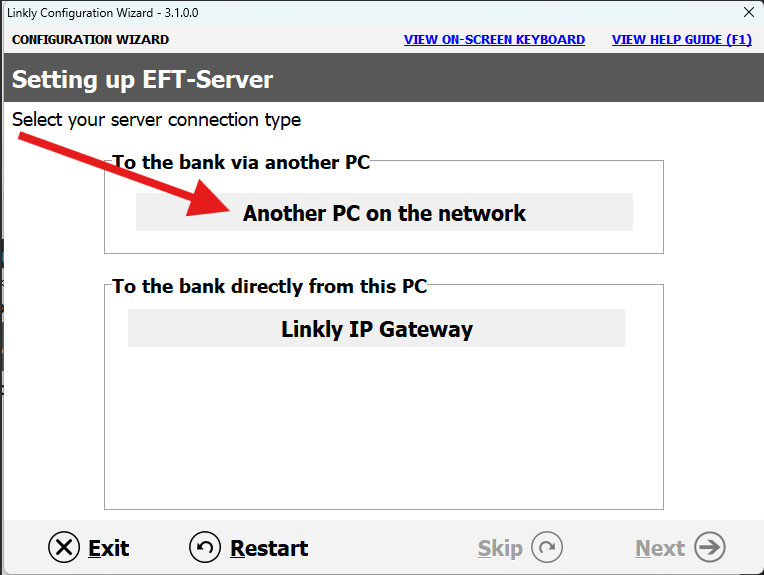
Click "Another PC on the network".
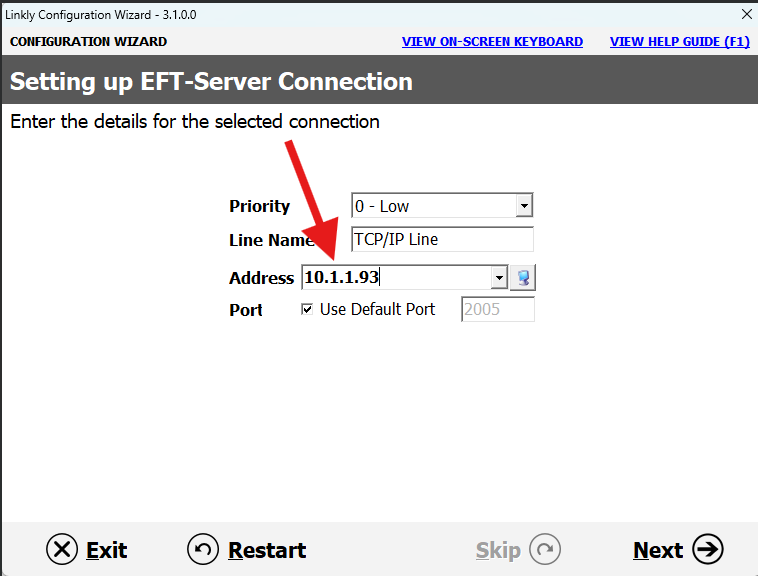
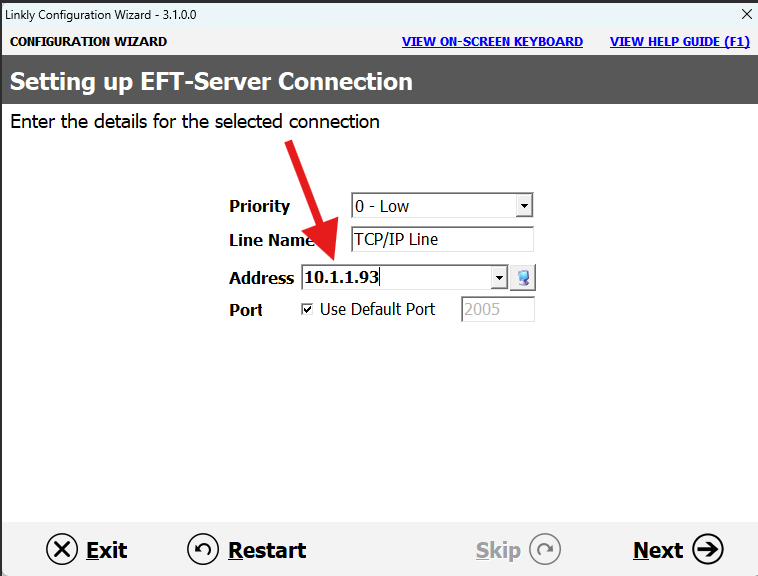
Enter the POS servers IP address and click next.
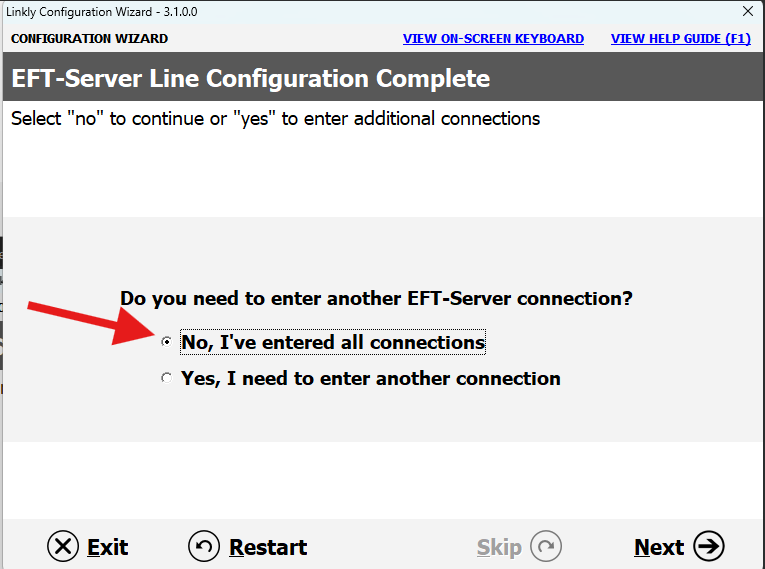
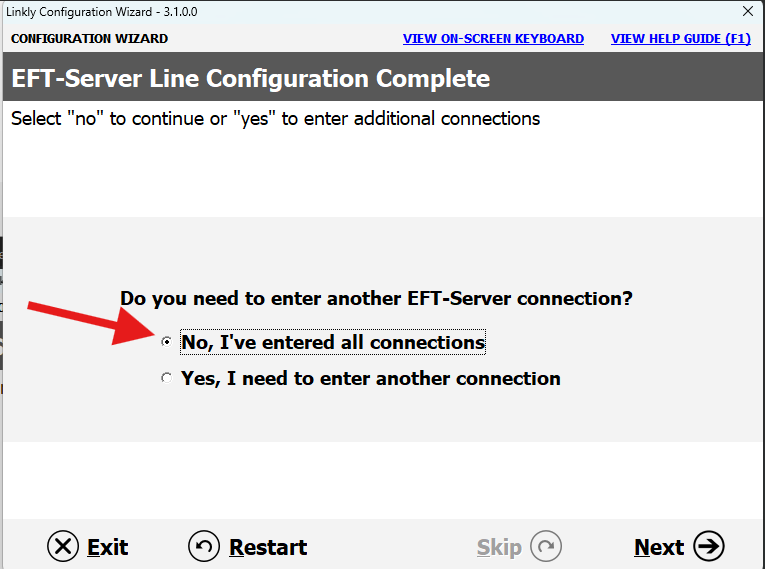
Checkbox "no, ive entered all connections".
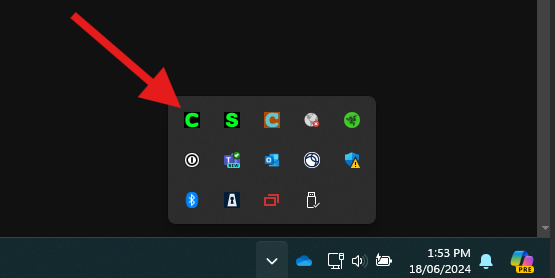
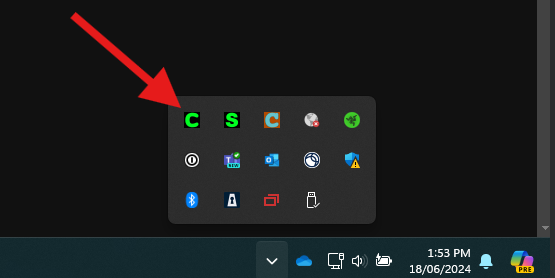
All thats left is to log the eftpos machine on. In the taskbar double click the "c" icon.
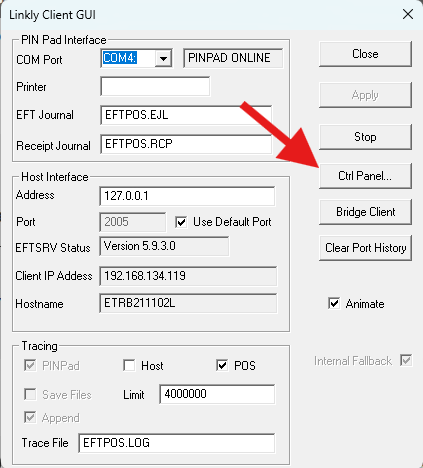
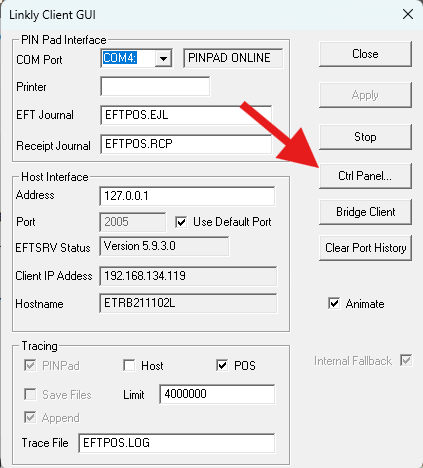
The linkly client gui will appear, click "ctrl panel".
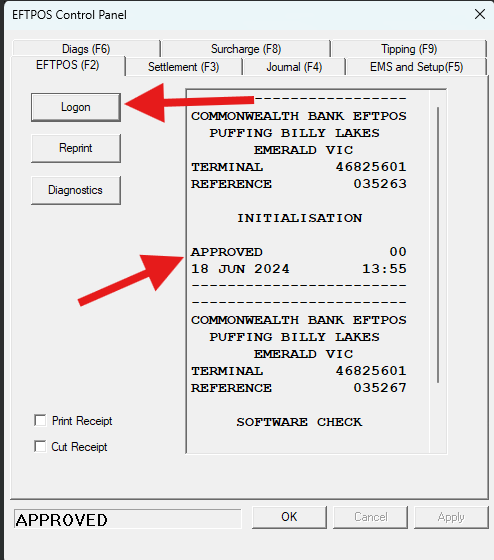
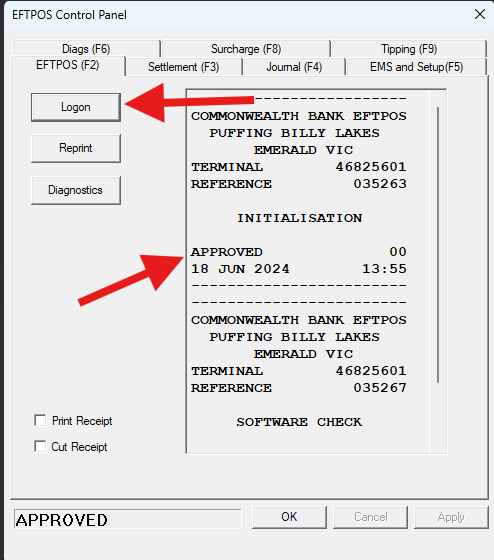
Click "logon". If successful it will say approved.
Verifone