Skip to main content
Creating a Special Guest Pass Booking
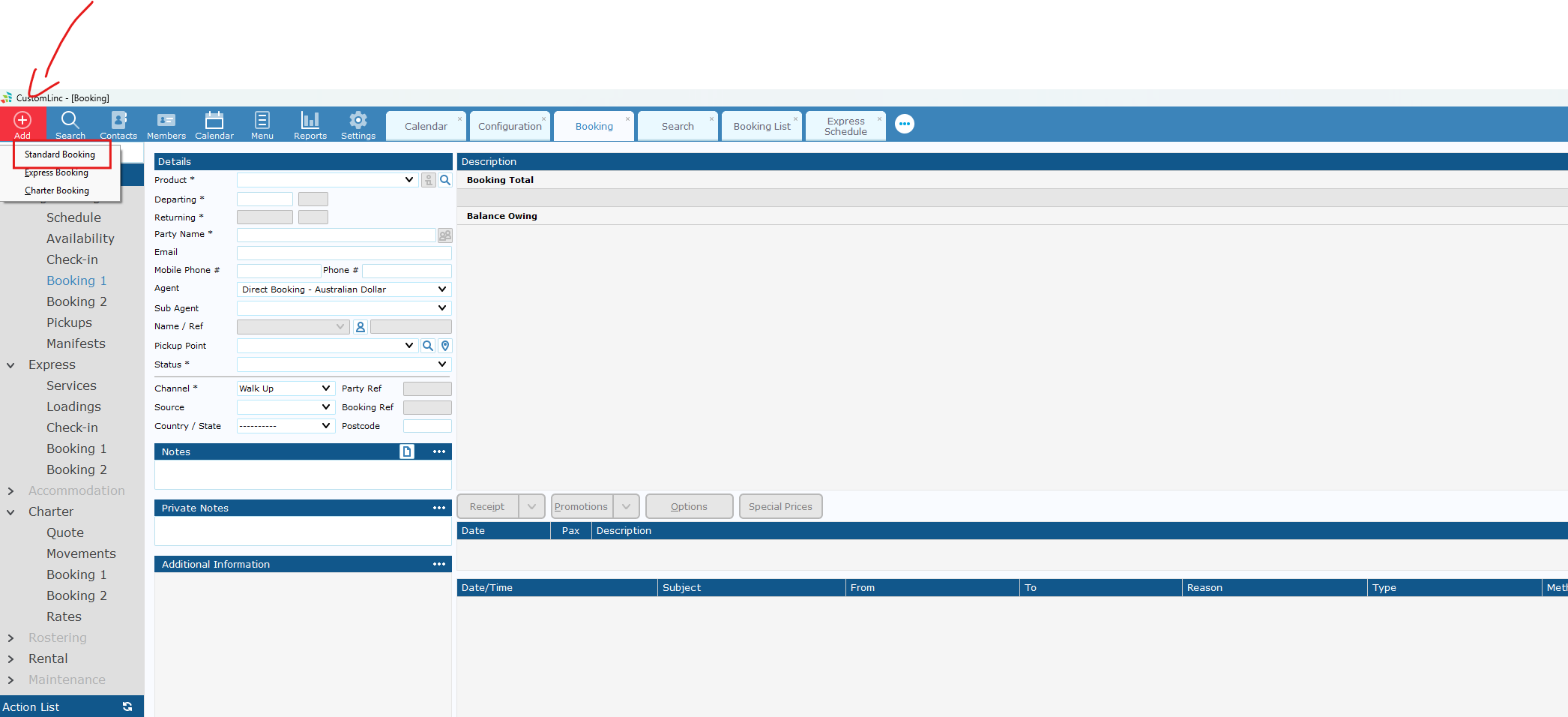
- Go to Add Booking > Make a Standard Booking
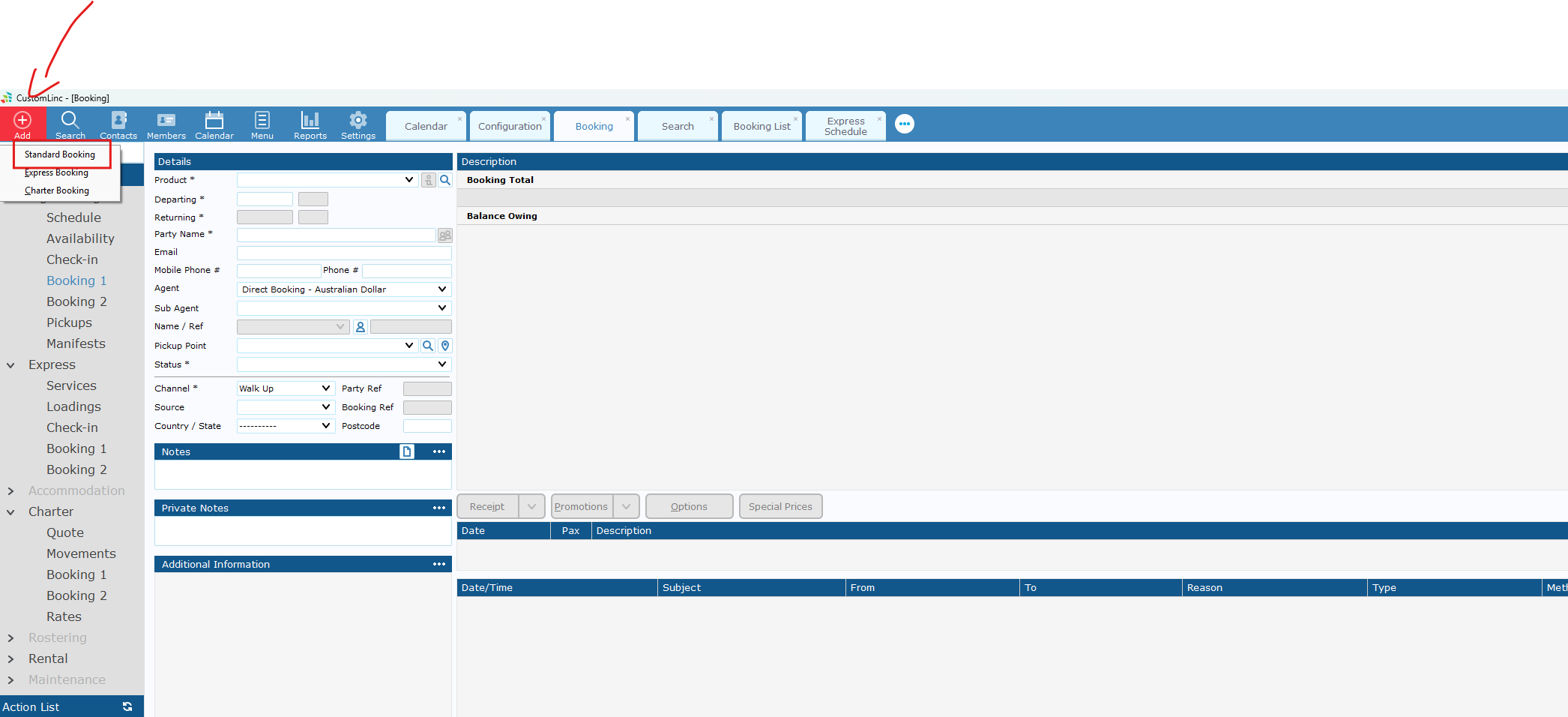
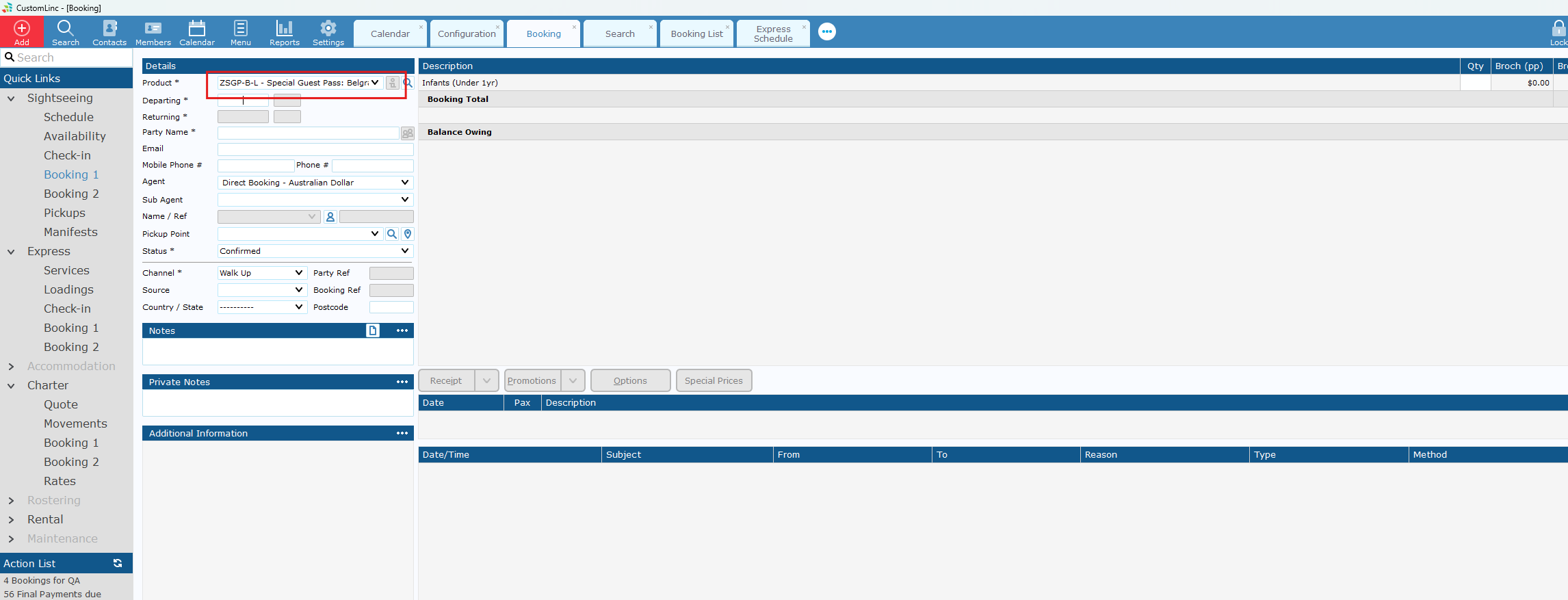
- Select the applicable SGP product, if unsure consult with team.
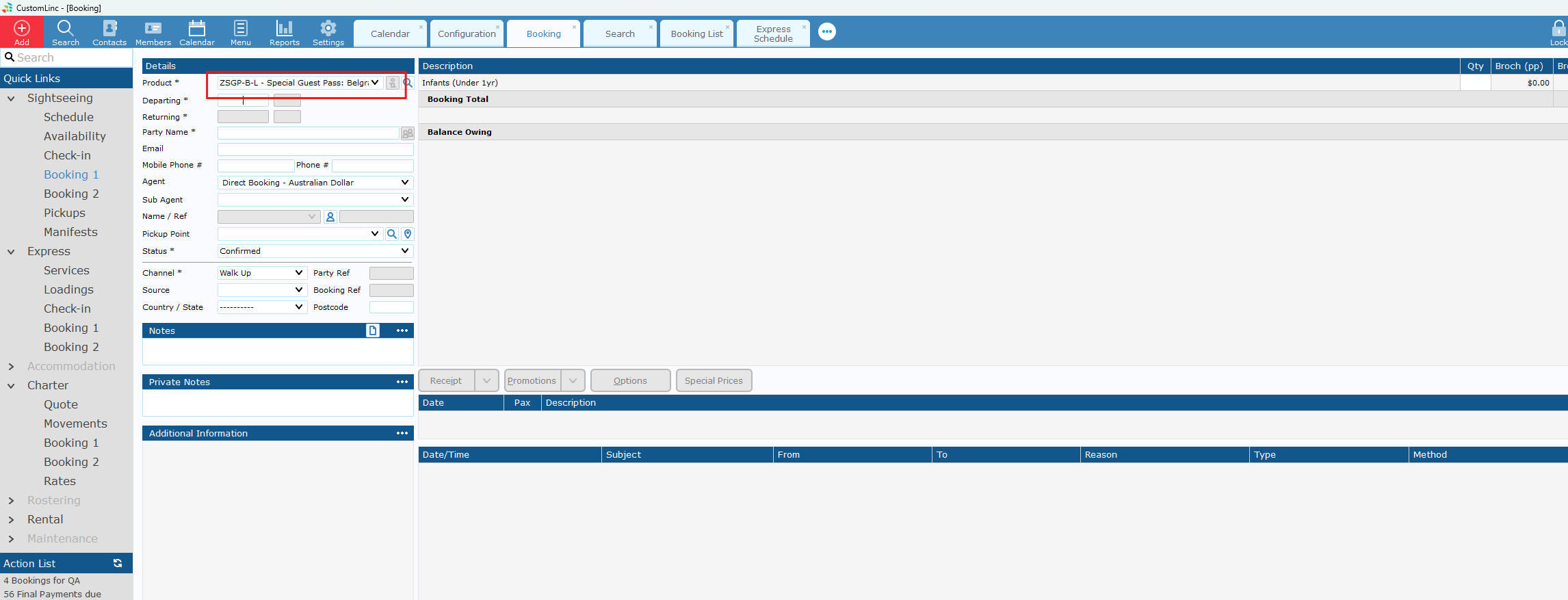
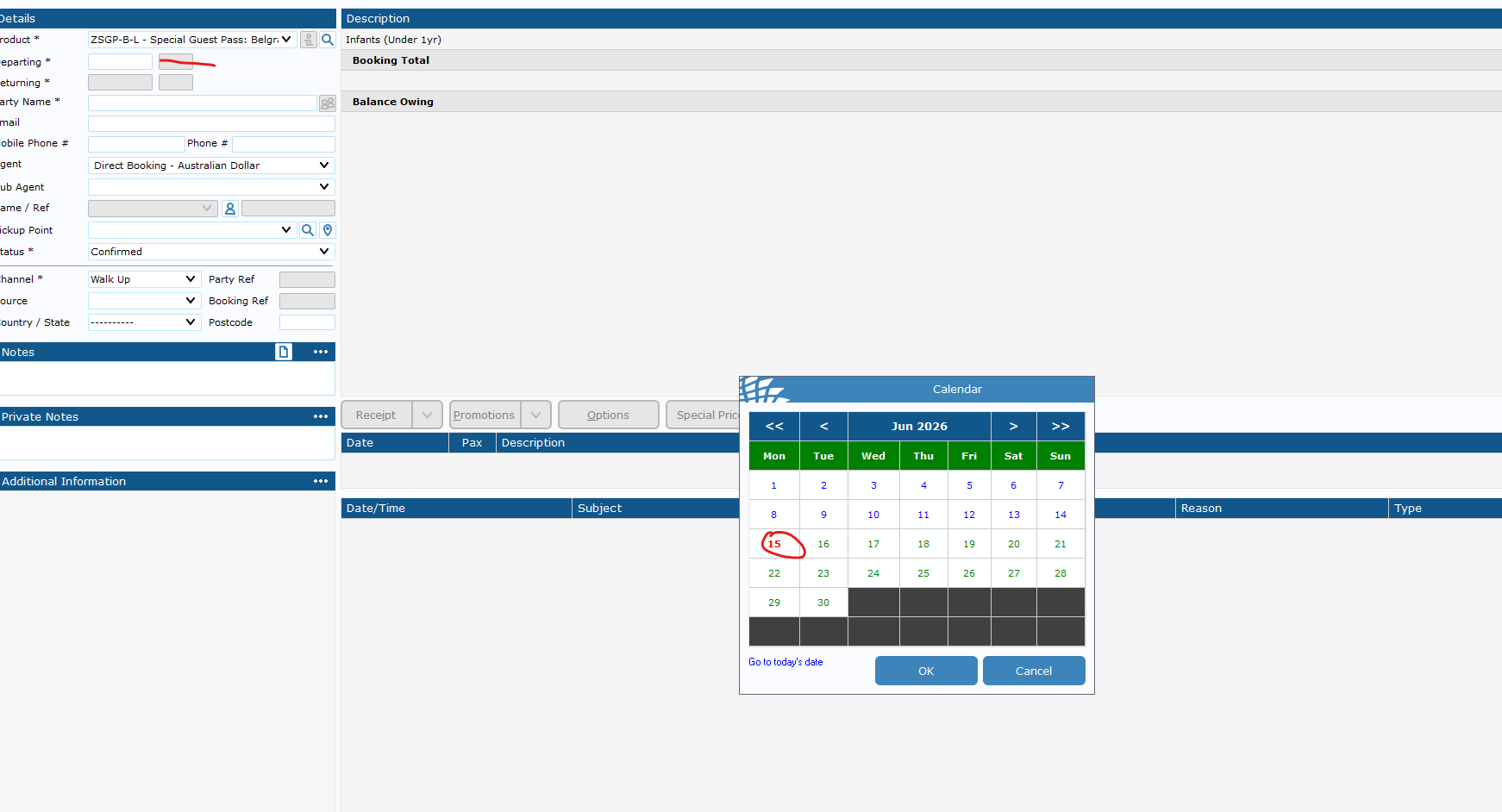
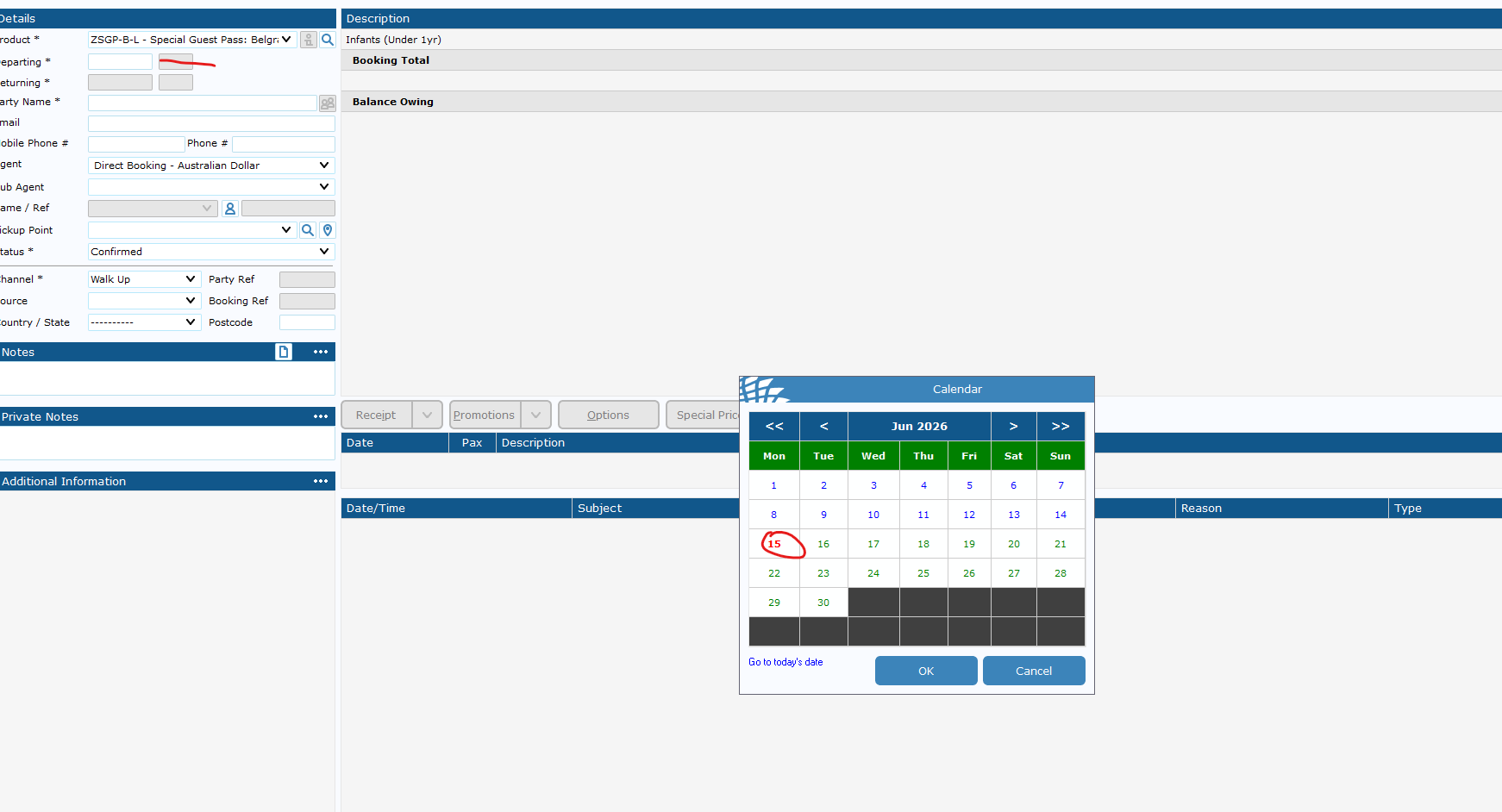
- If you do not set a date, it will default to 1 Year in the future. This is the expiry date for the booking.
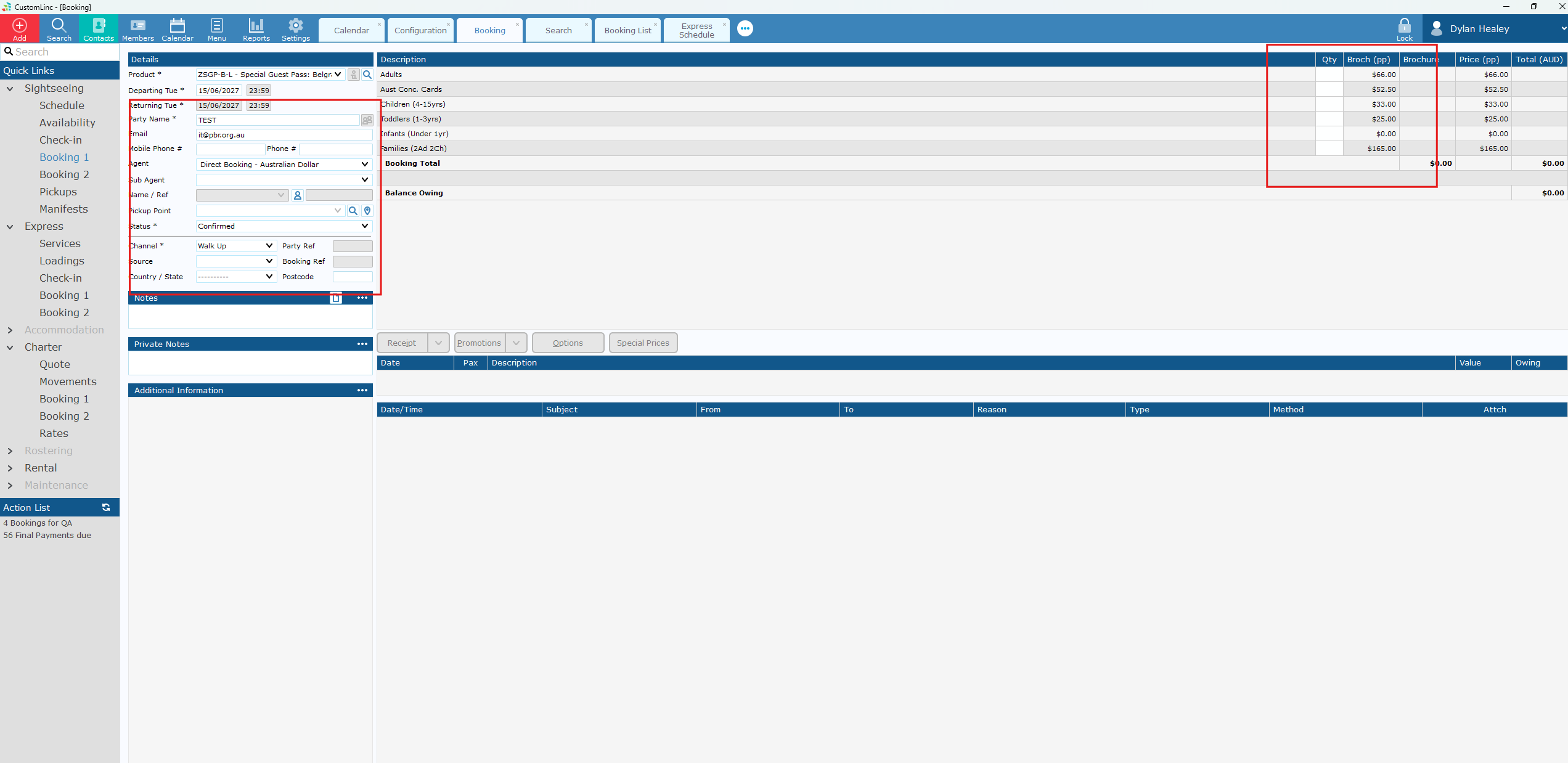
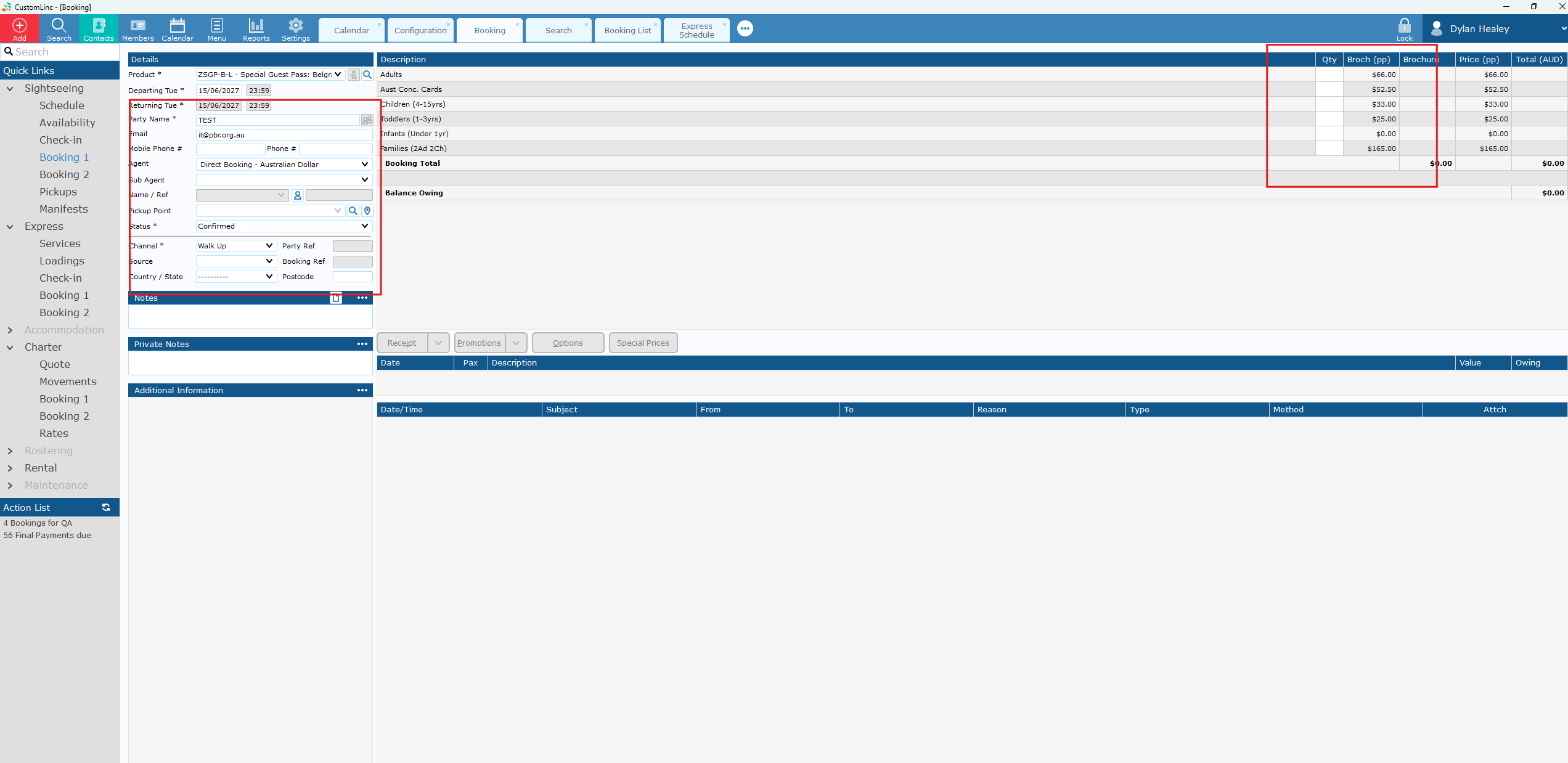
- Input booking details & fare amounts.
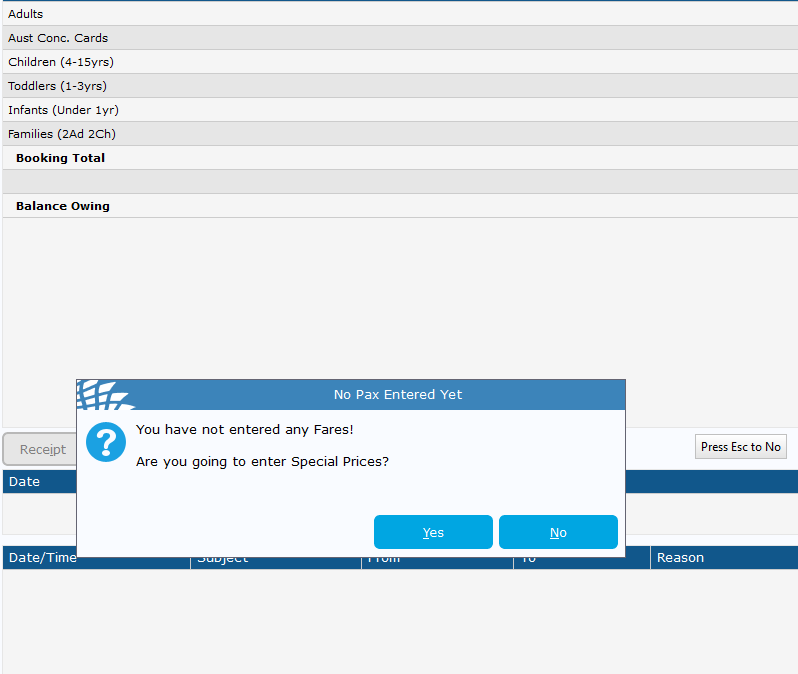
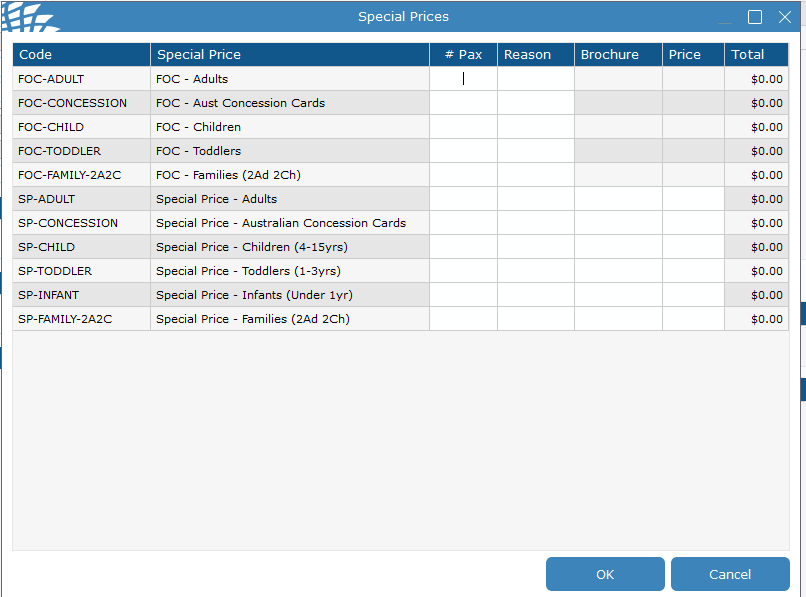
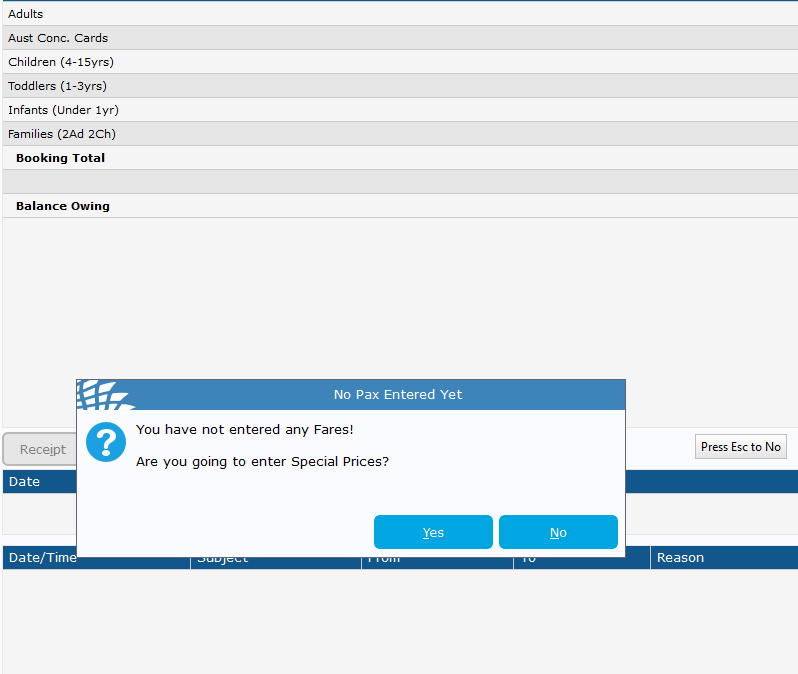
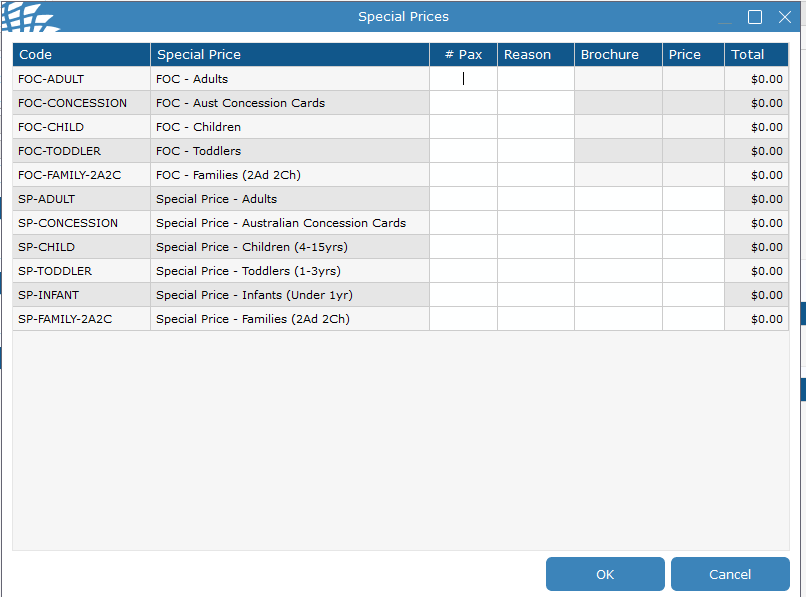
- If you need Special Fares like Free of Charge (FOC). Click update without placing in any fares. You will see a prompt to enter special fares - Click Yes.
- Enter amount and reason.
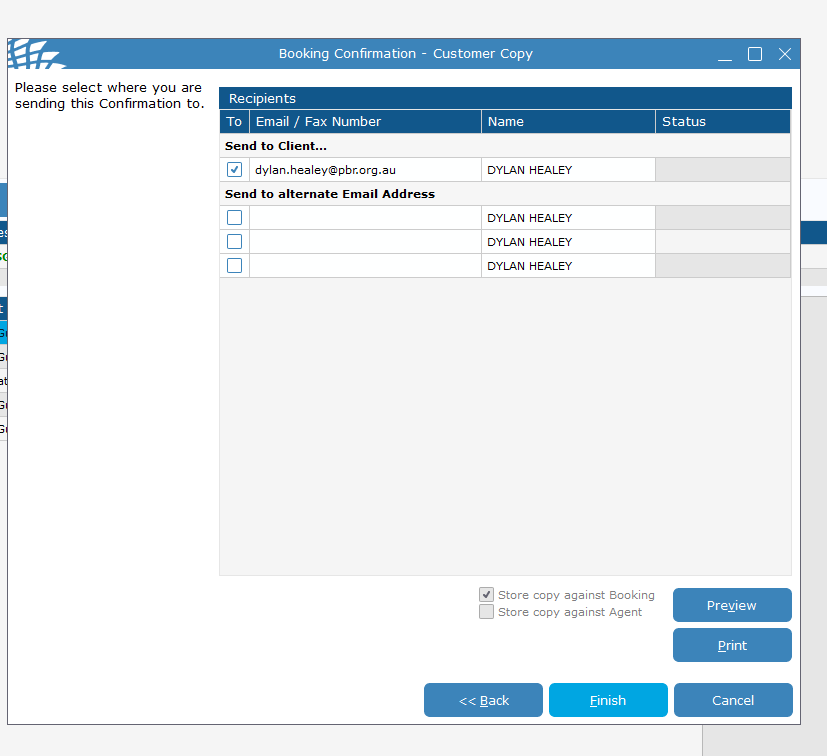
- Send Confirmation to Client to email in booking, or required address
If you need to send to a different email address, place the email in the alternate email address area and make sure the button to the left is ticked.
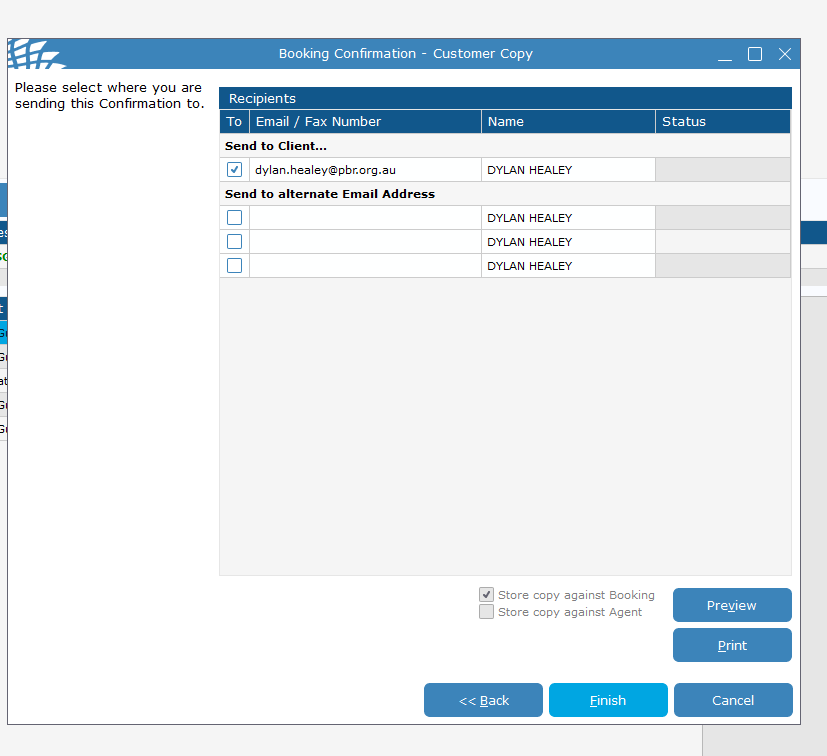
- Click finish and it will queue an email to be sent - this should be send within 5 minutes or so.