How to: Make a take an Integrated - EFTPOS payment for a booking
The workstation you are trying to do this from needs to be setup to sell tickets via 'Quick Ticket' if the POS option in step 1 is not visible. Please contact IT and request for access.
Currently the booking made will not receive a Carriage Allocation. Please confirm there is room on a carriage prior to booking.
Open
CustomLincMake a booking.
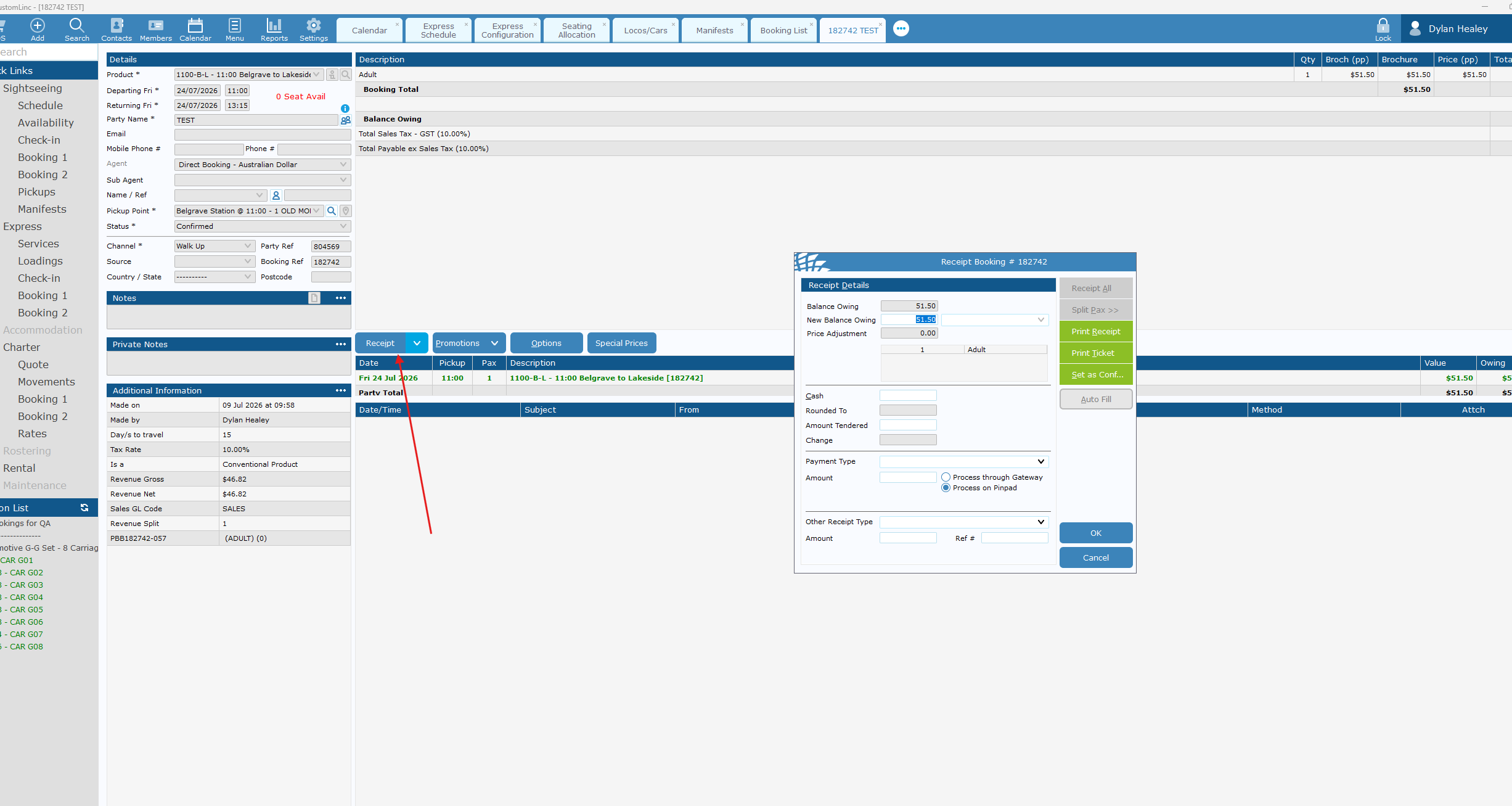
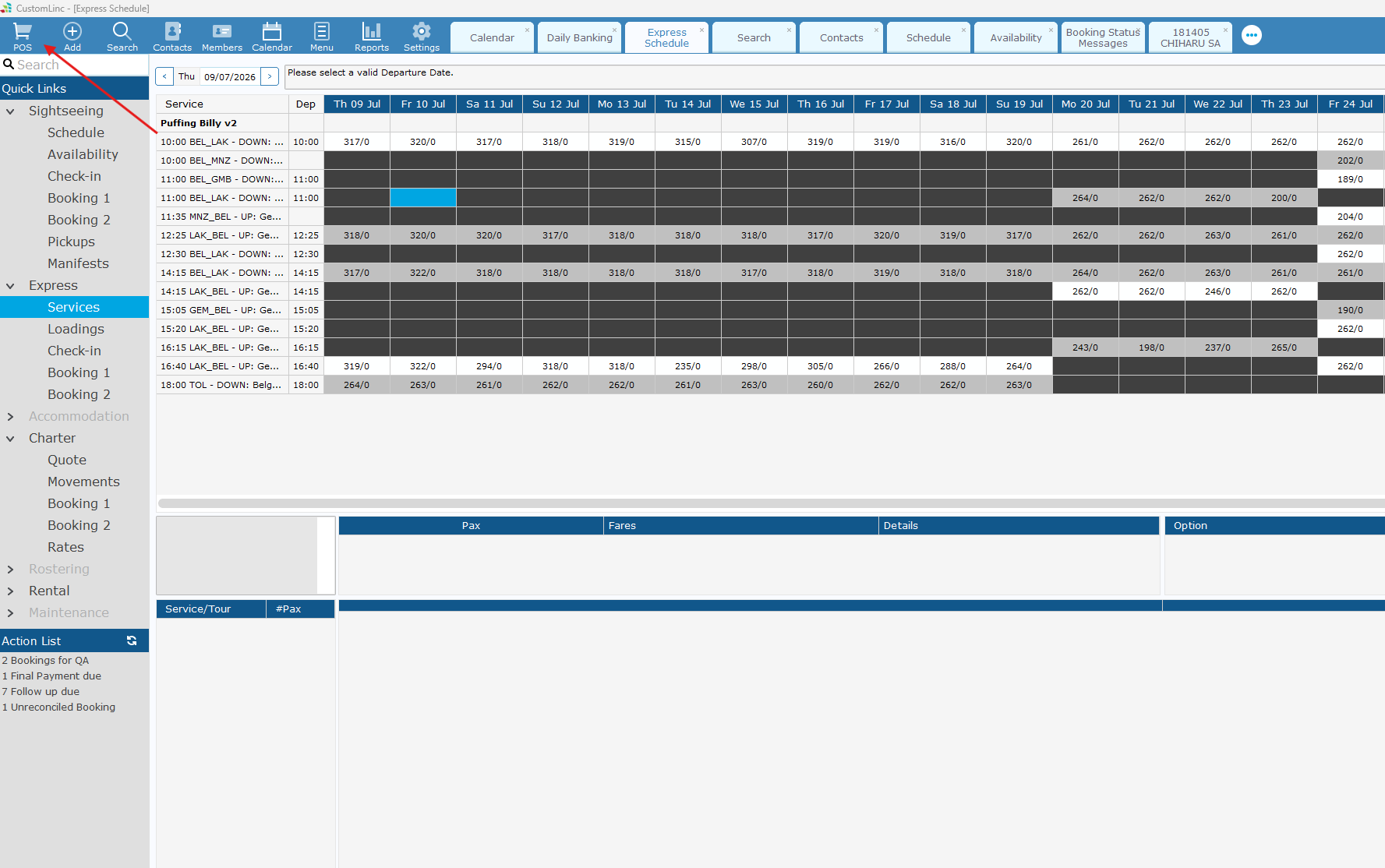
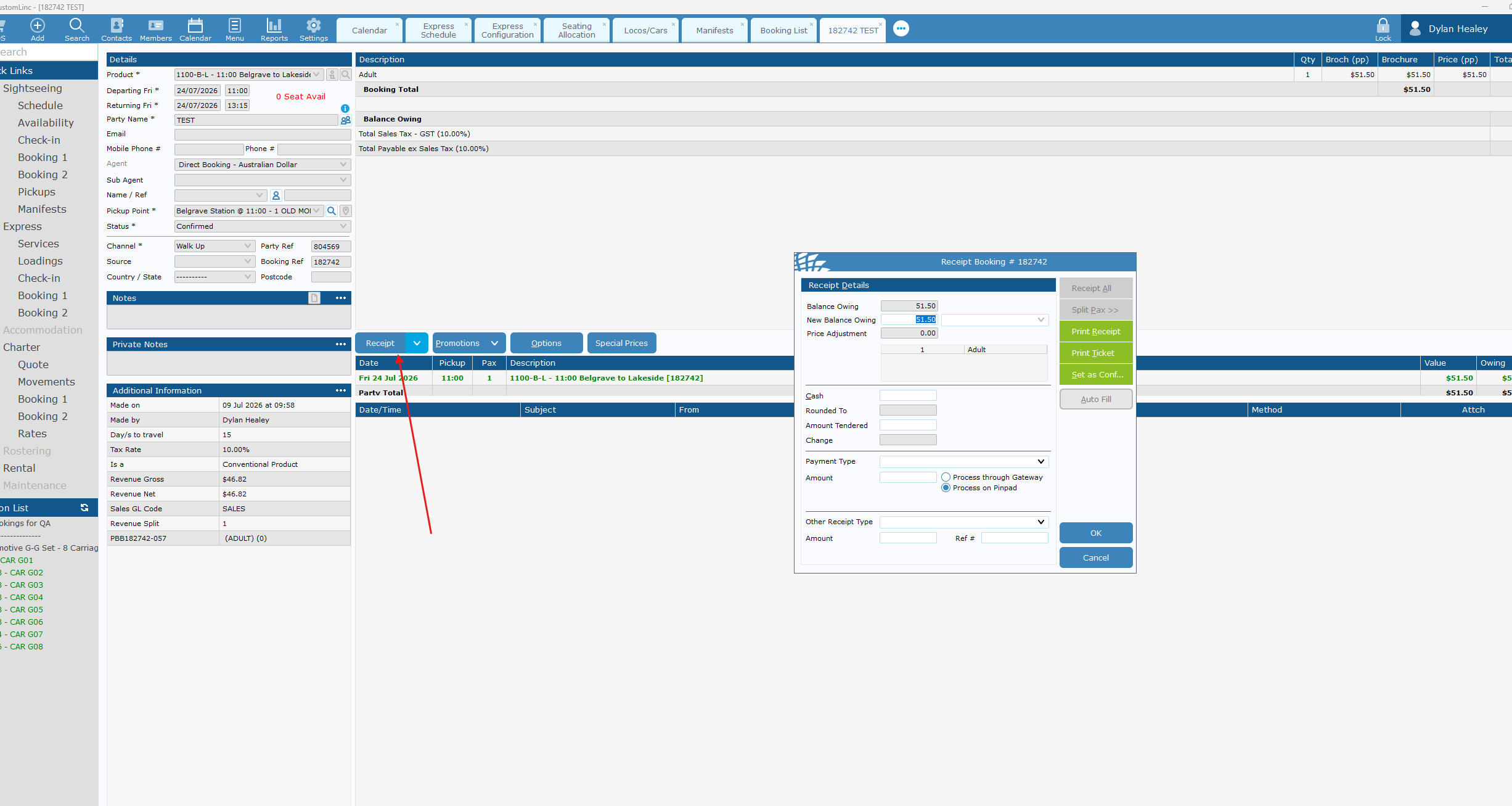
Click Receipt and
click POS in the
topReceipt left.Booking window will pop up.
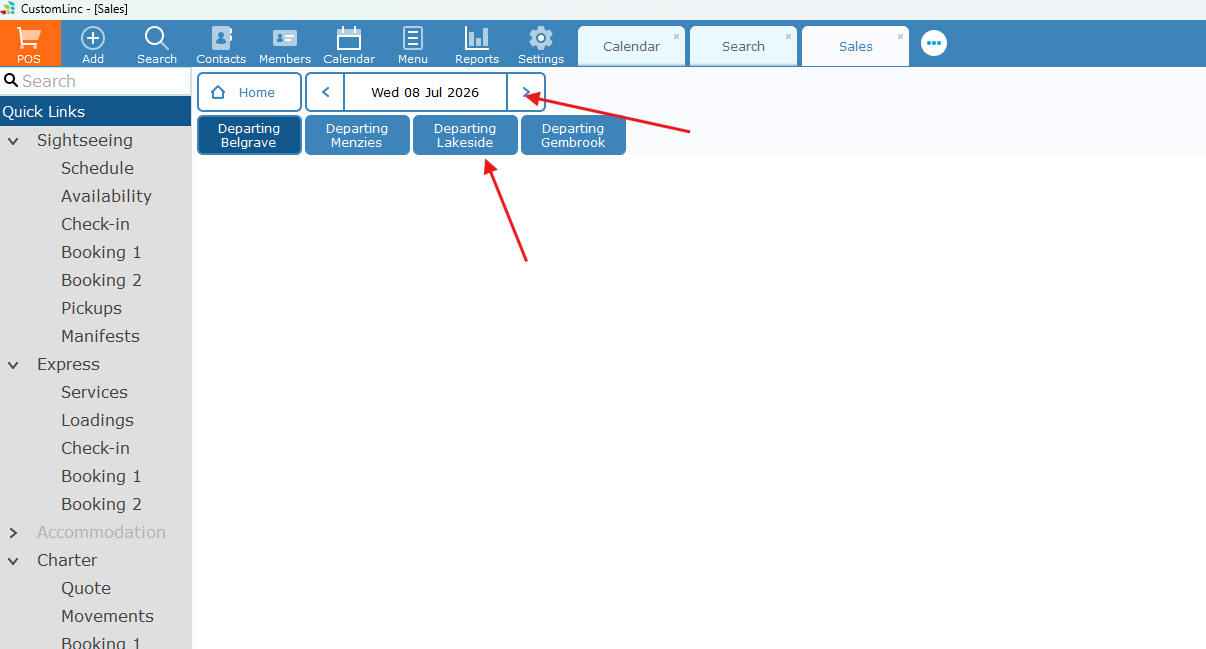
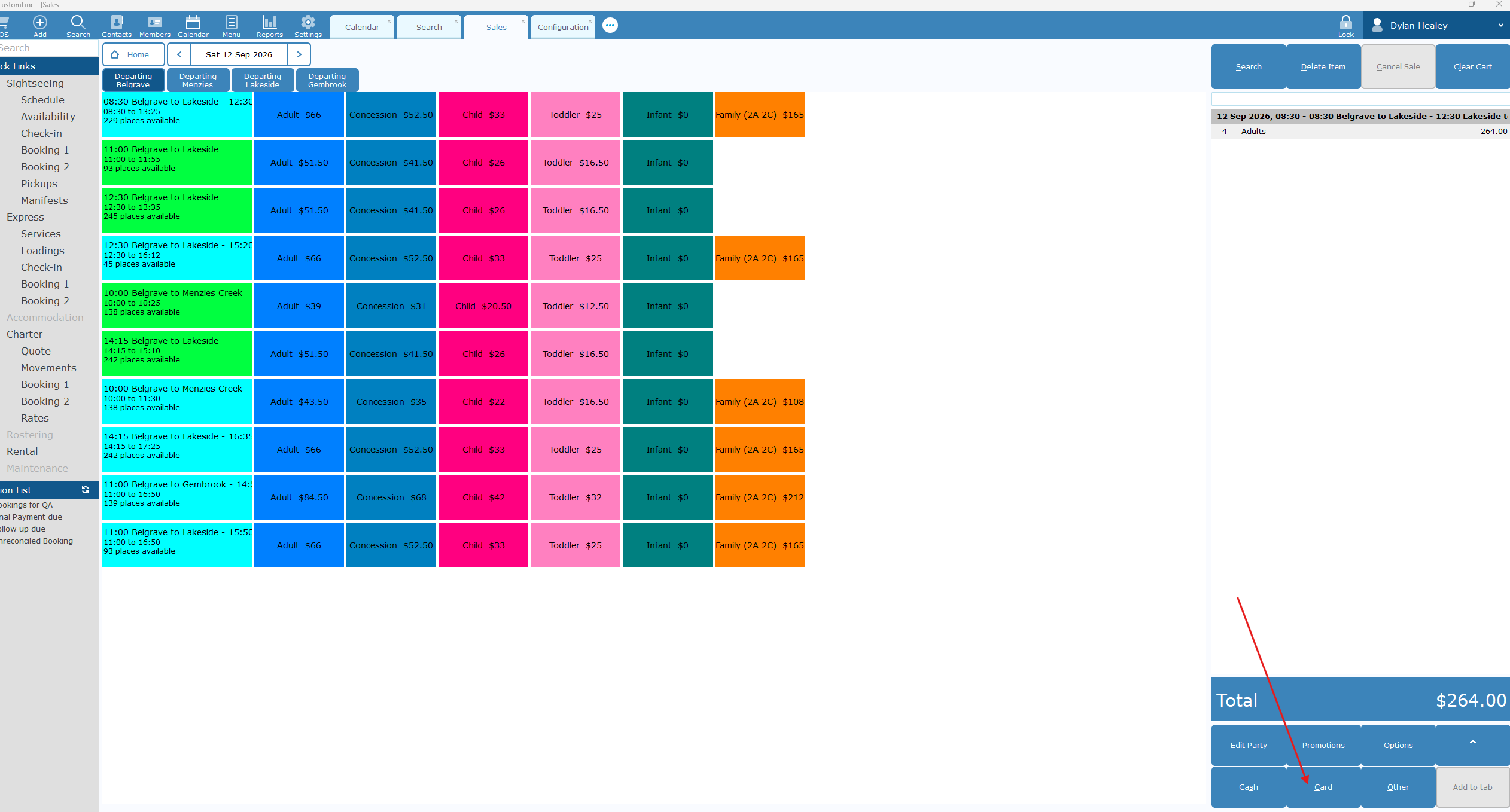
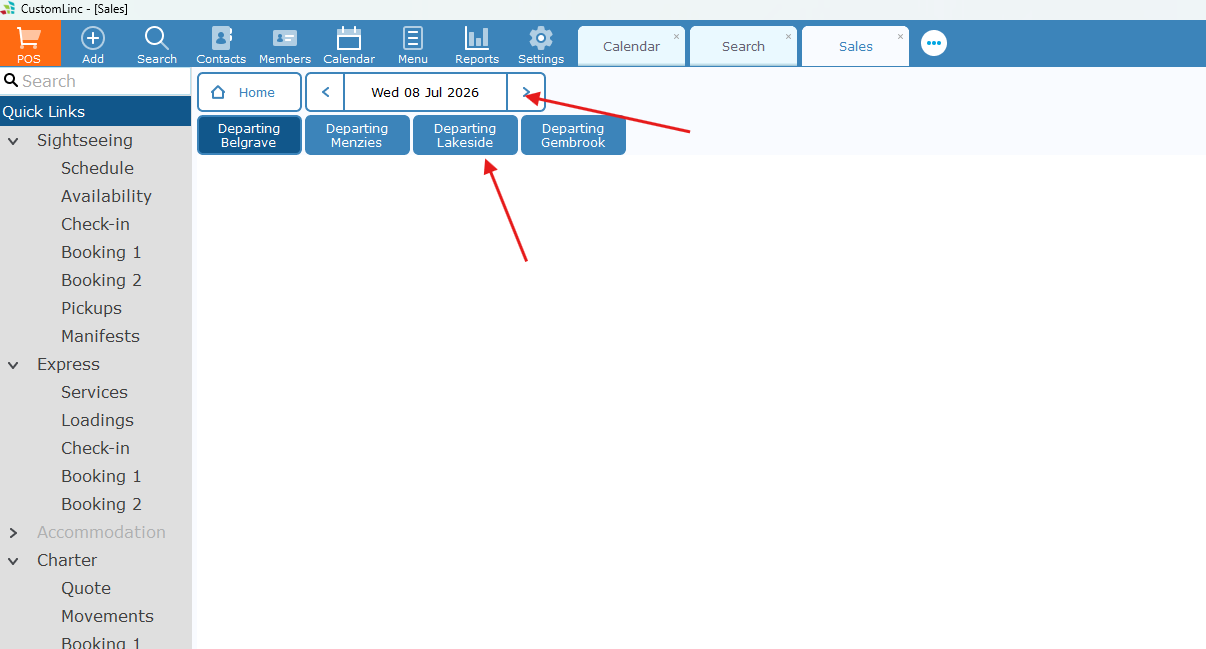
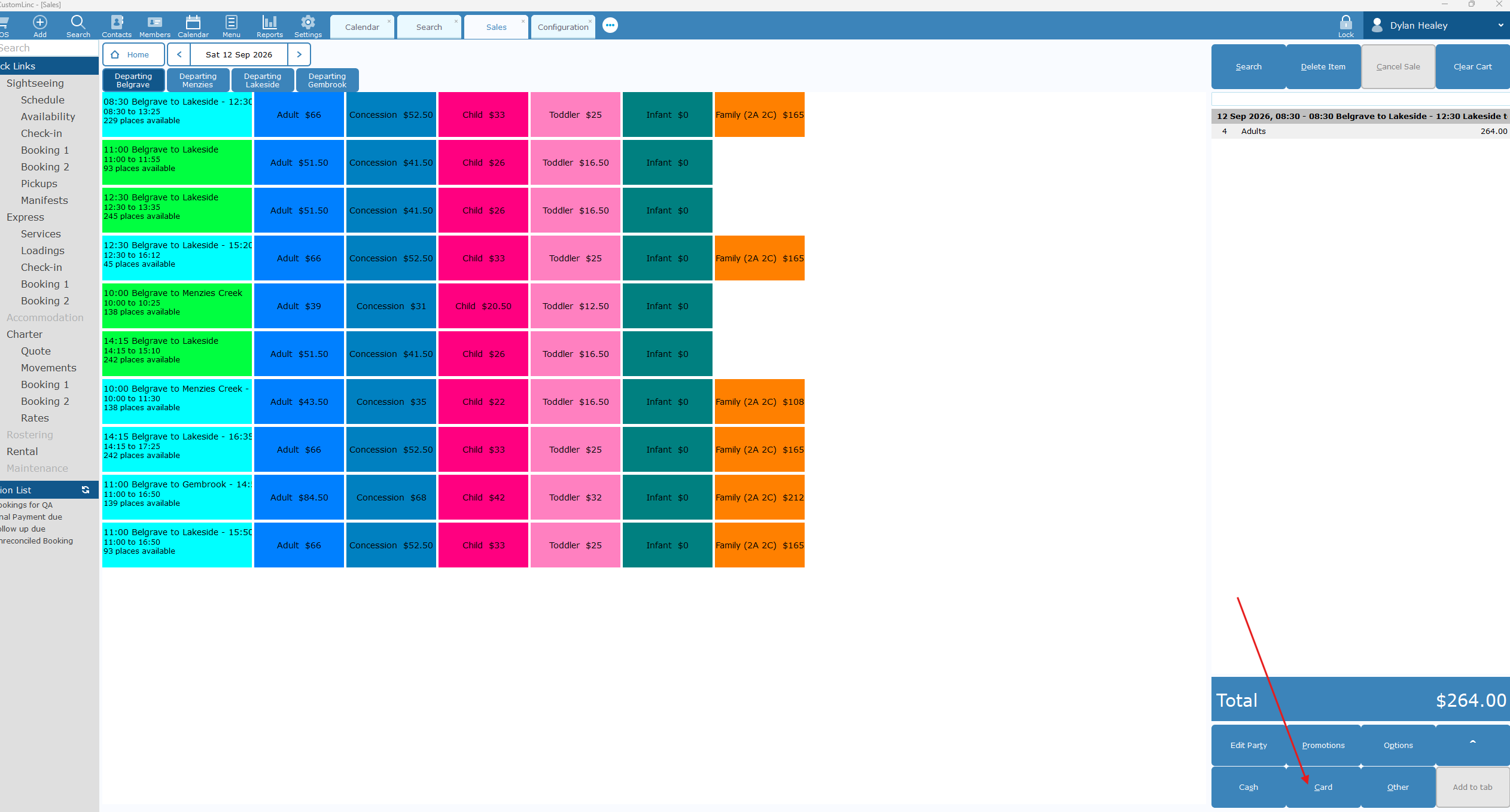
Select the Date and the Departing Location
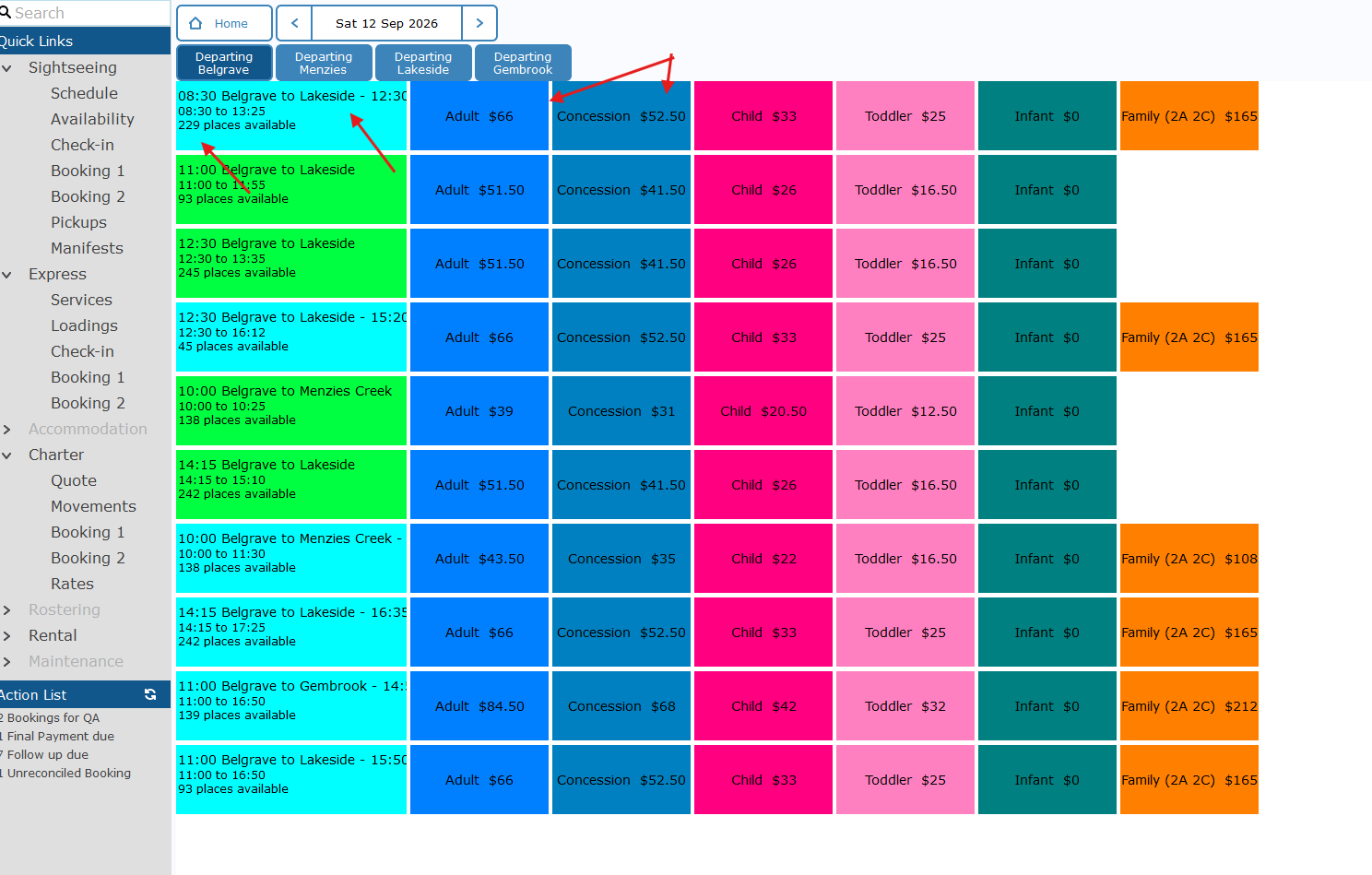
here you'll see the Type of Journey, The available seats & the fares available.
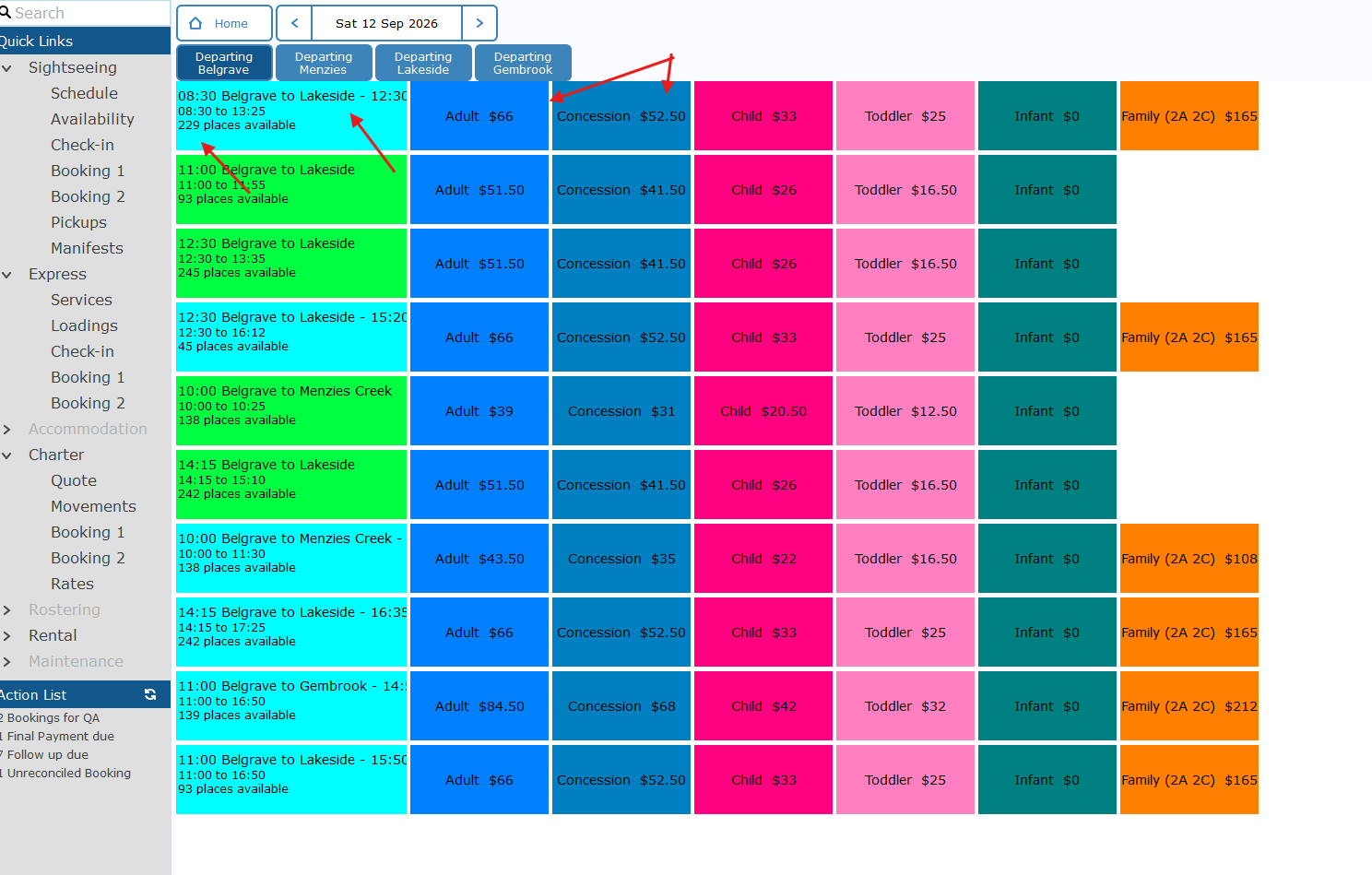
Currently
Return products are coloured Light Blue
Single Way products are coloured Green
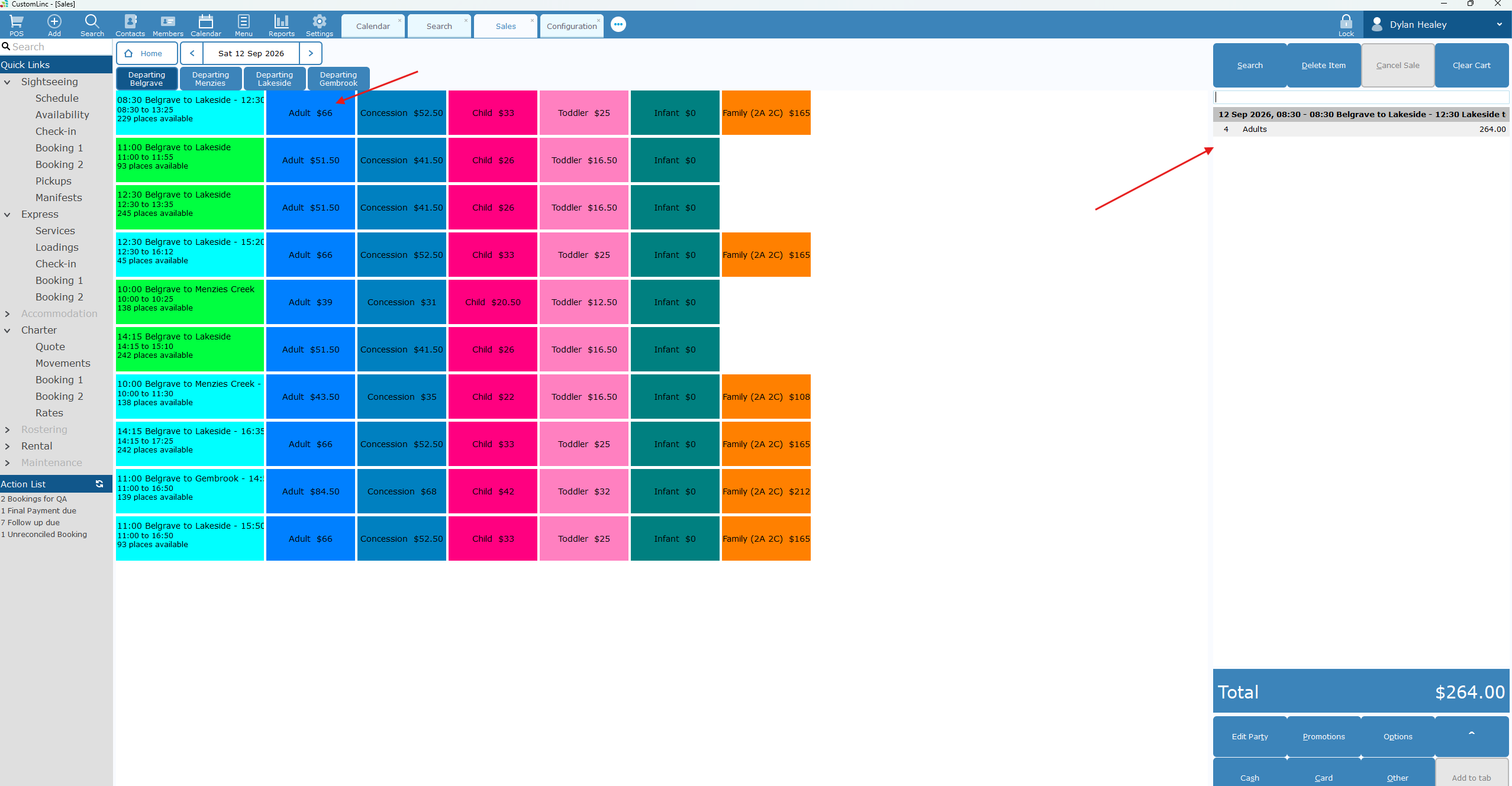
Click on the appropriate fare(s) for the product. You will see it populate the fares on the far-right side.
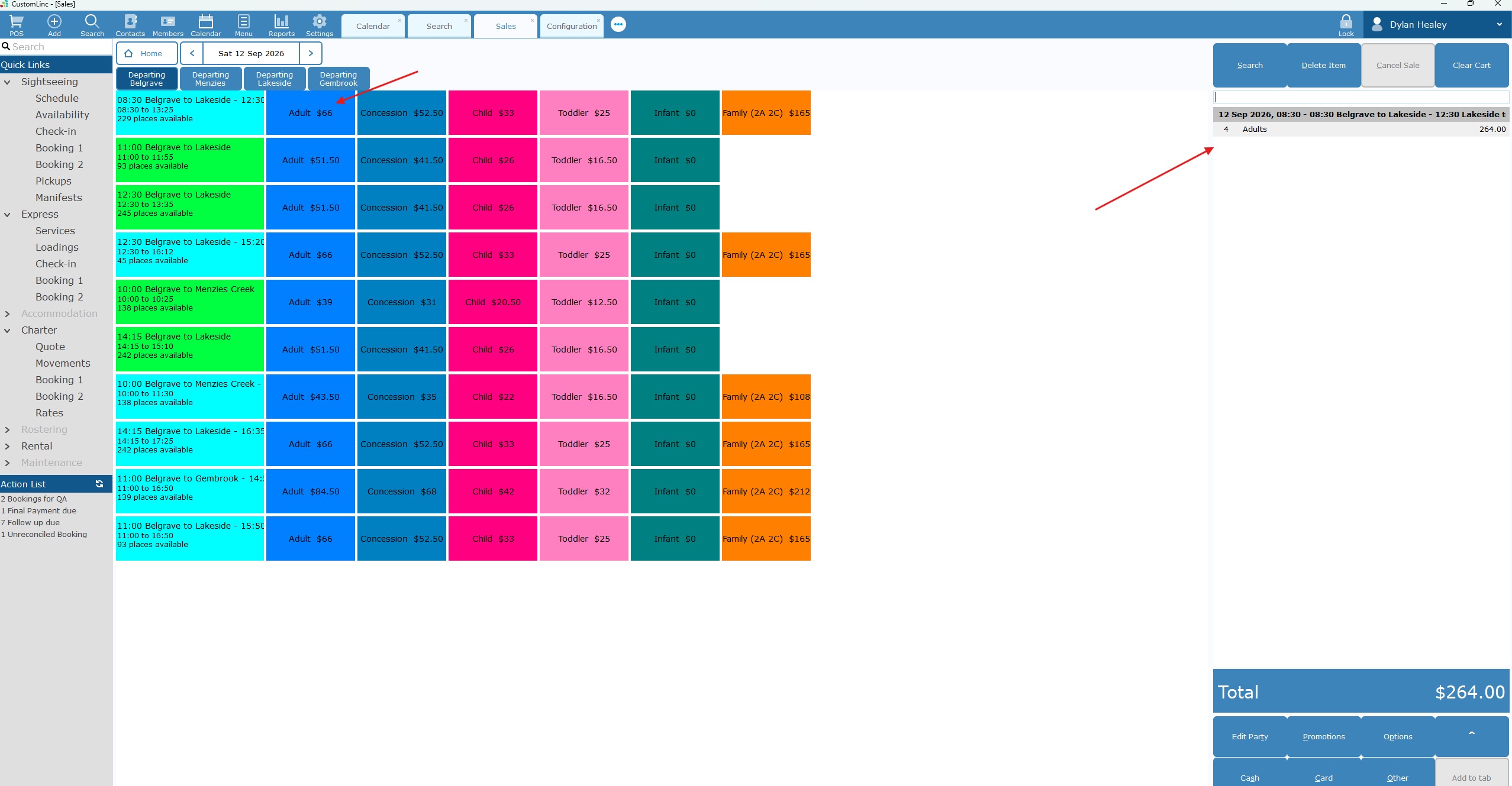
Click Card in the bottom right.
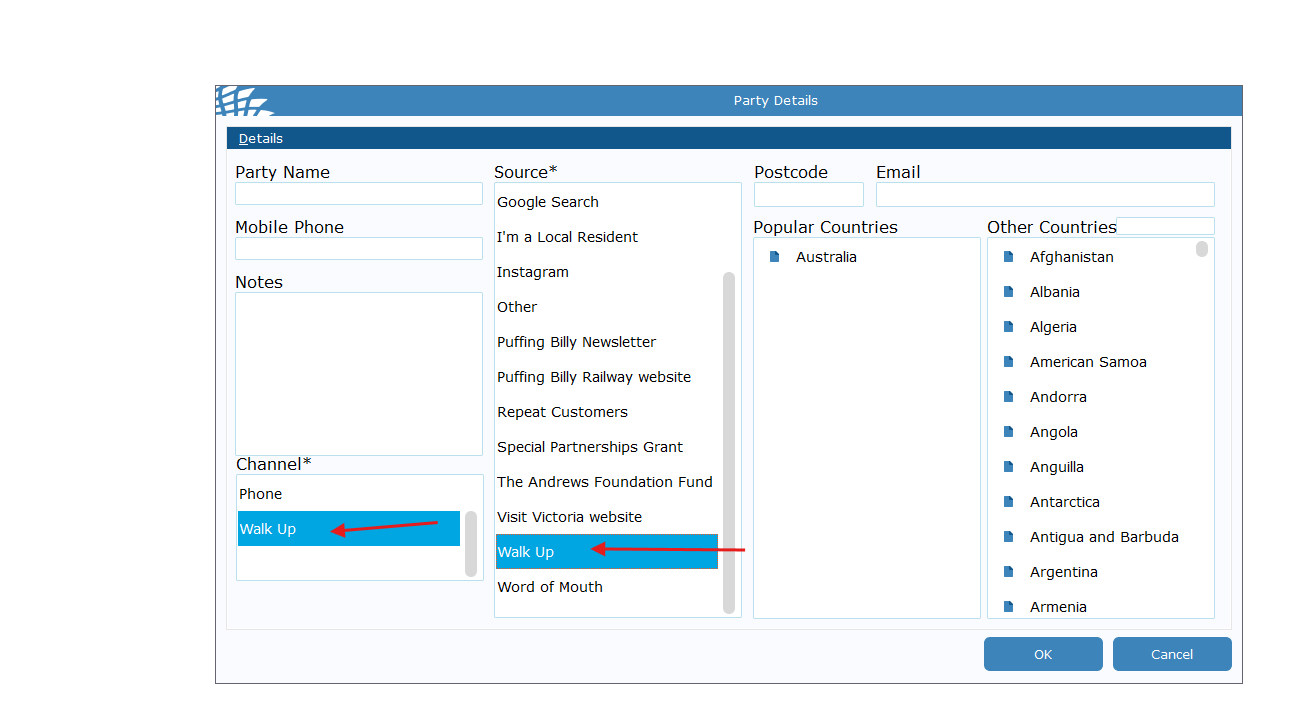
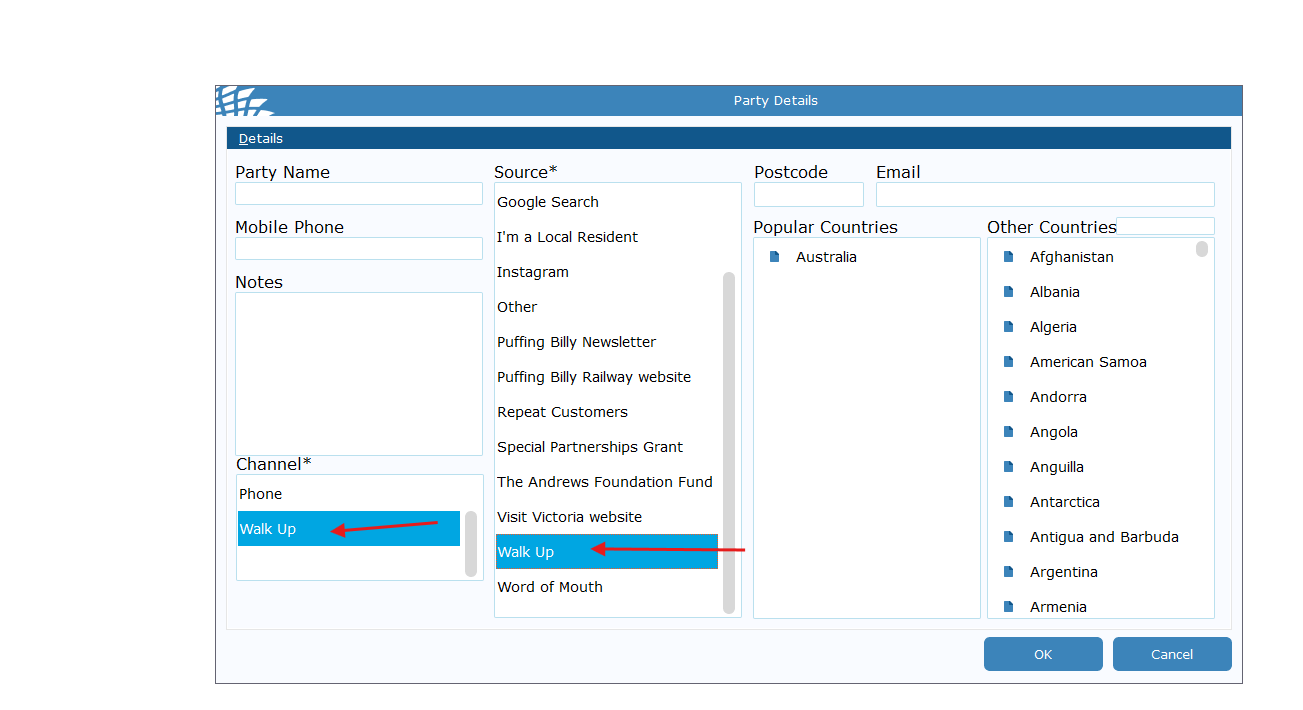
Select Walk Up for the Channel & Source. Click OK.
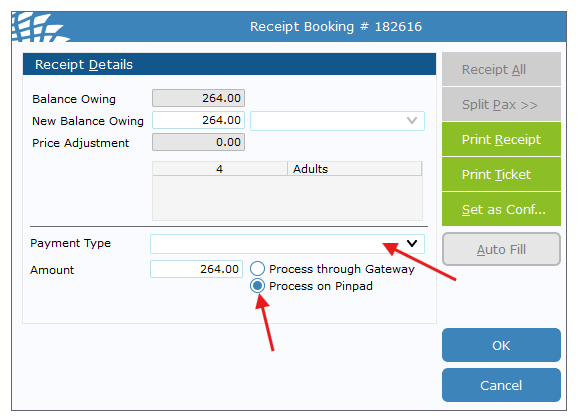
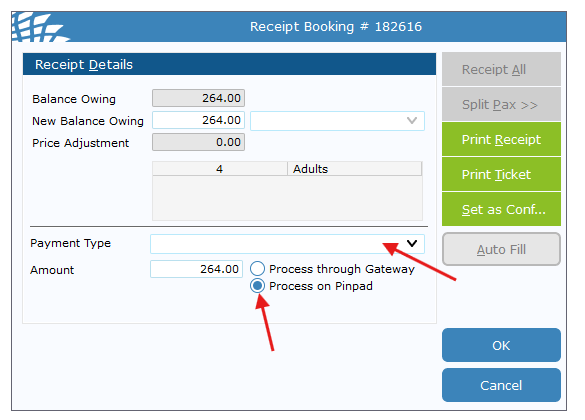
Select Payment Type -
EFTPOS - Integrated and confirm that Process on Pindpad is selected and click
OK
The connected EFTPOS terminal should now prompt for payment. Complete payment.
Once
completedcomplete, aclick taxTicket receiptto & appropriate tickets will automatically printPrinter -
The ticket will NOT have a seating allocation on it.