
How To Use: Belgrave Meeting Room Conference System
This article will show you how to use the Belgrave station meeting room conference system.
If you created a meeting
If you created the meeting and sent invitation to PBR or external sources.
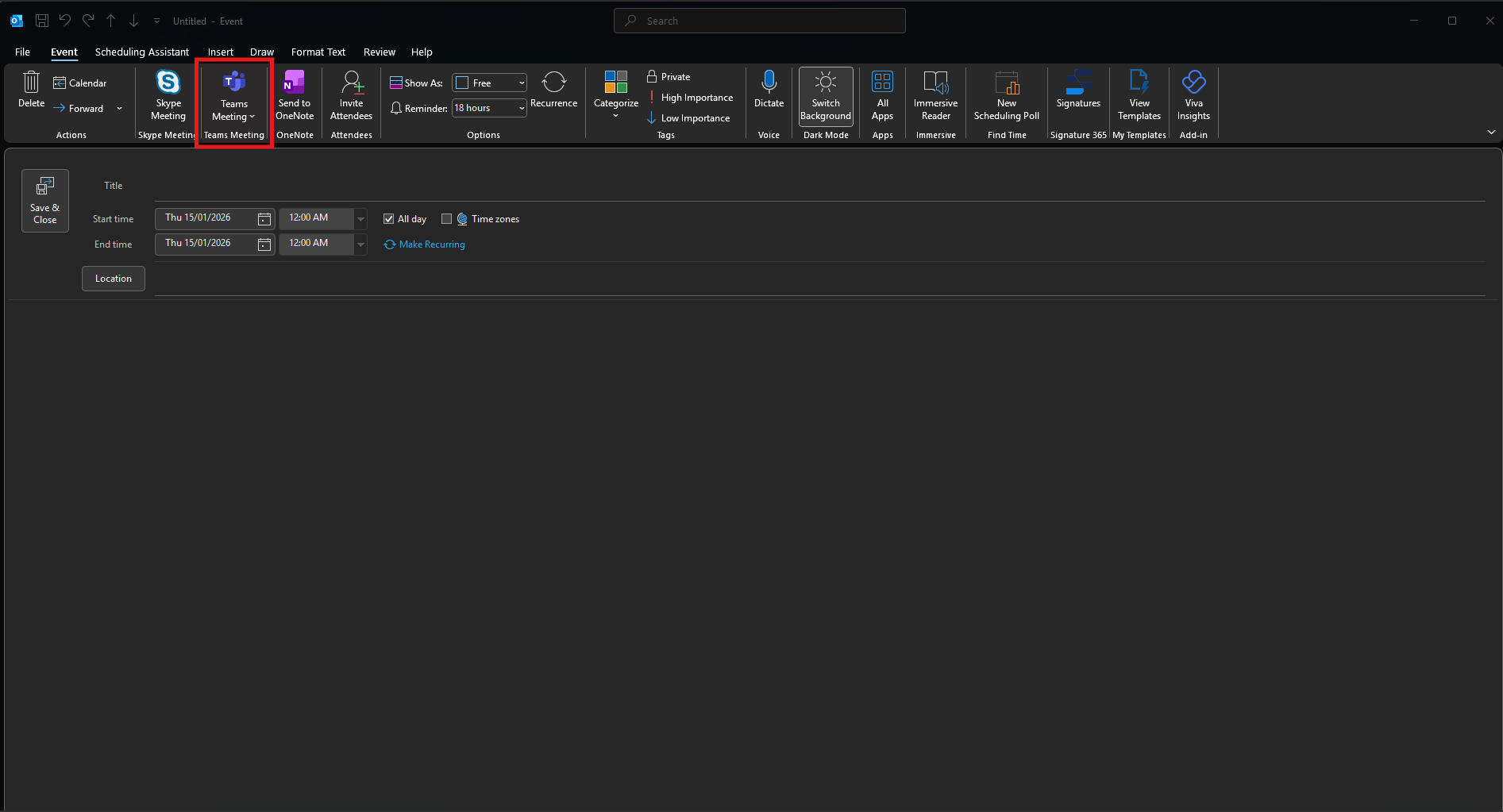
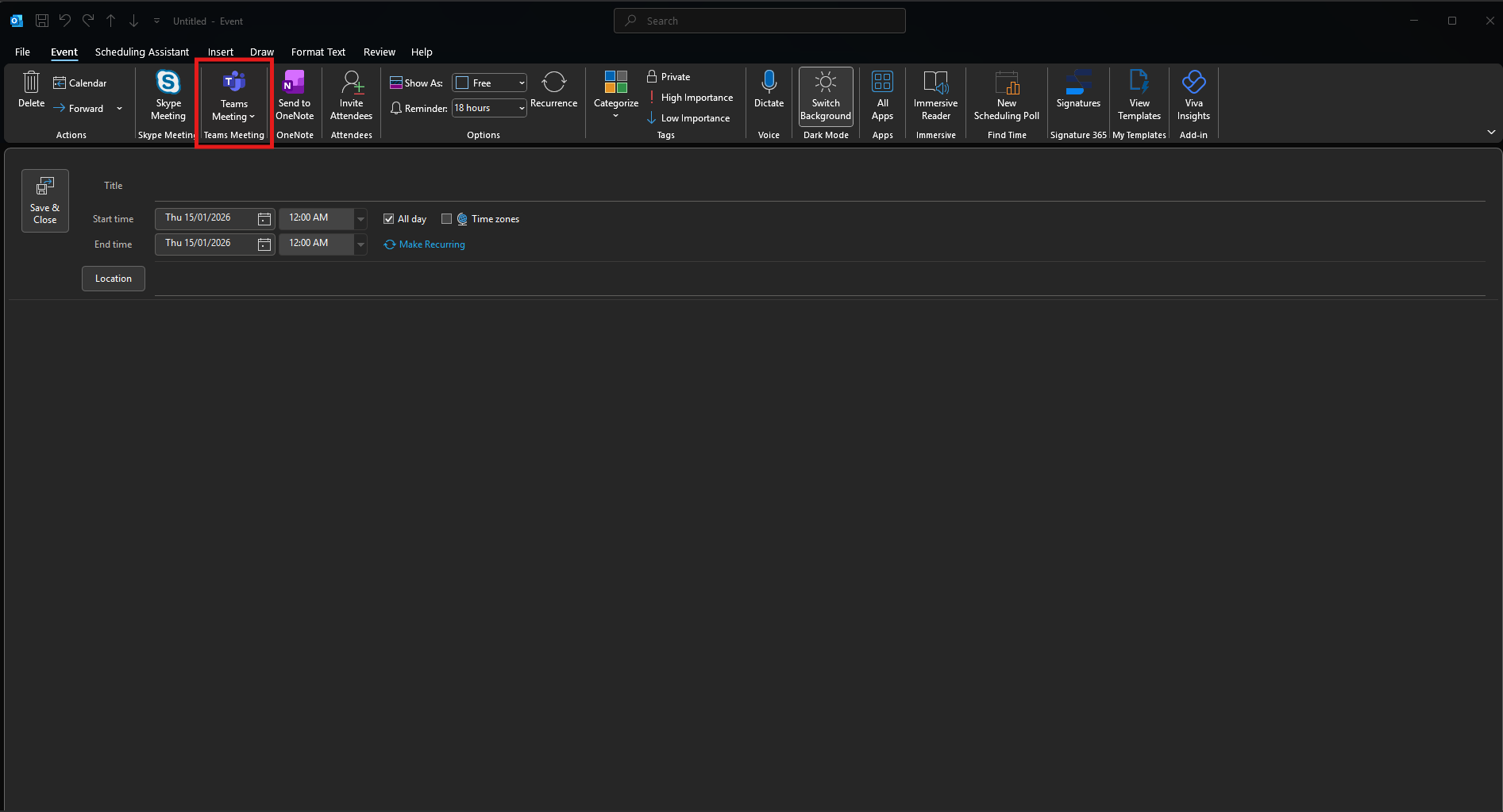
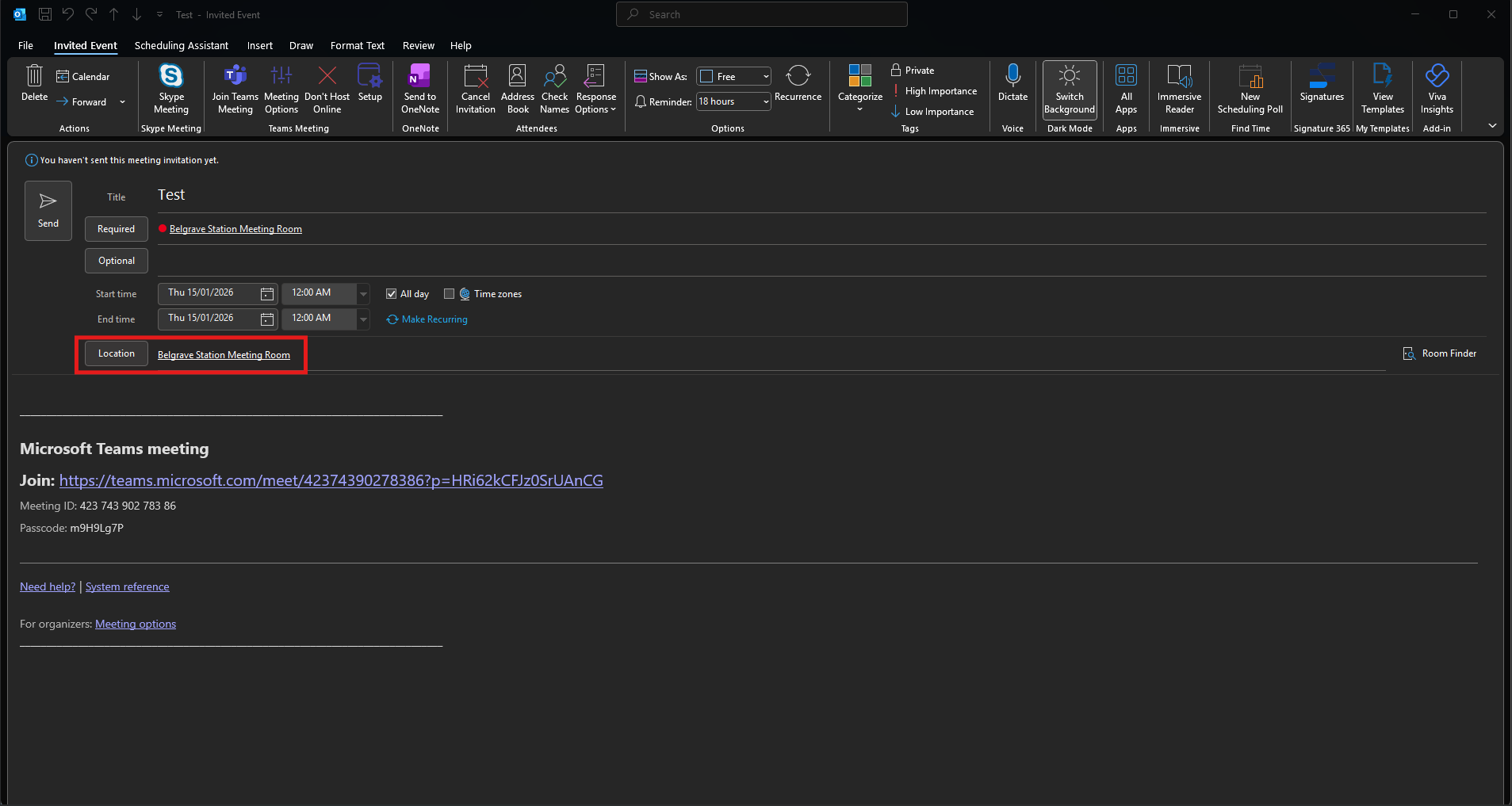
- When creating a meeting, select "Teams Meeting" to make it an online meeting.
- Choose the desired people/date/time as you would normally for a meeting. In location select "Belgrave Station Meeting Room".
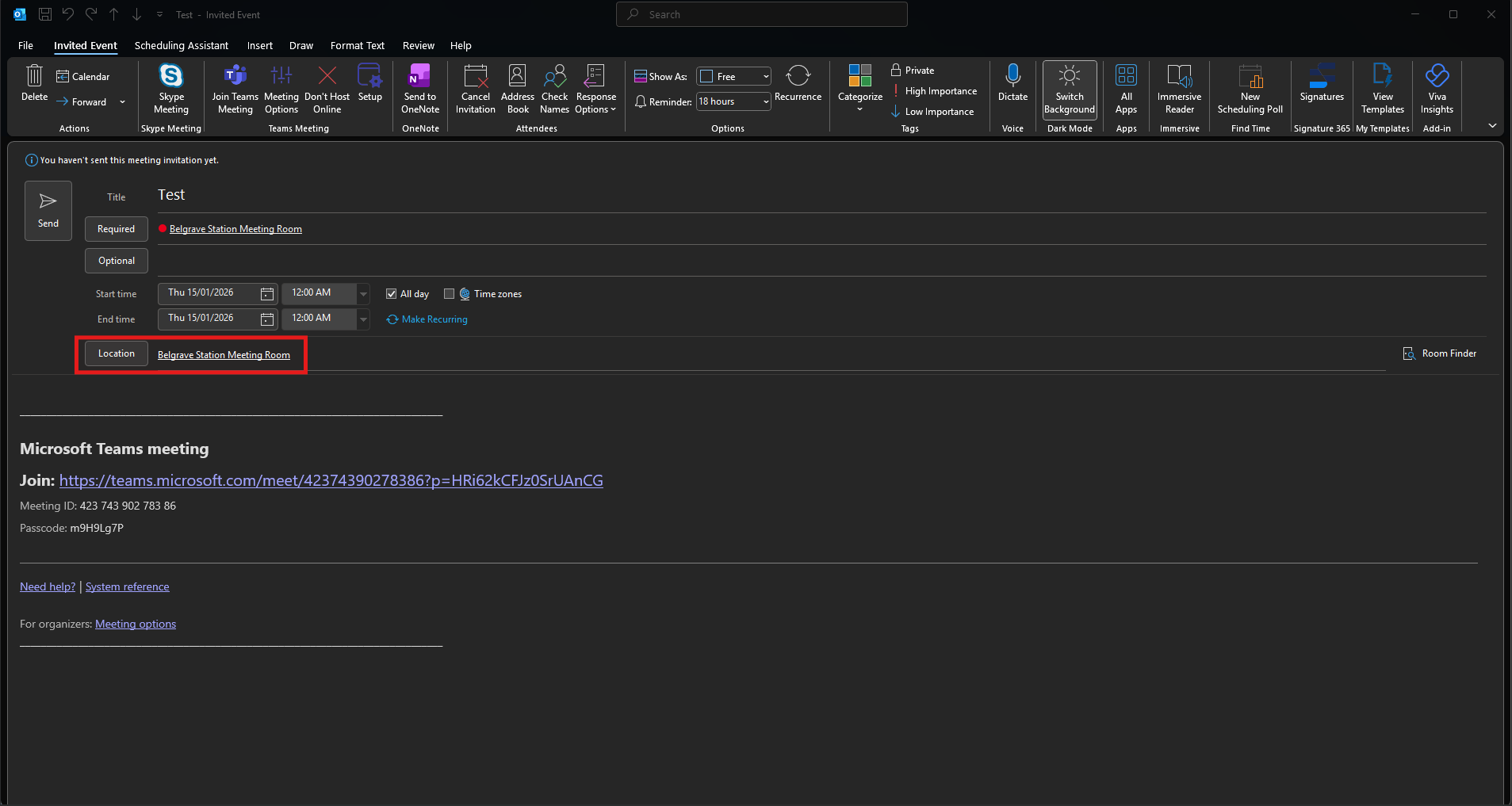
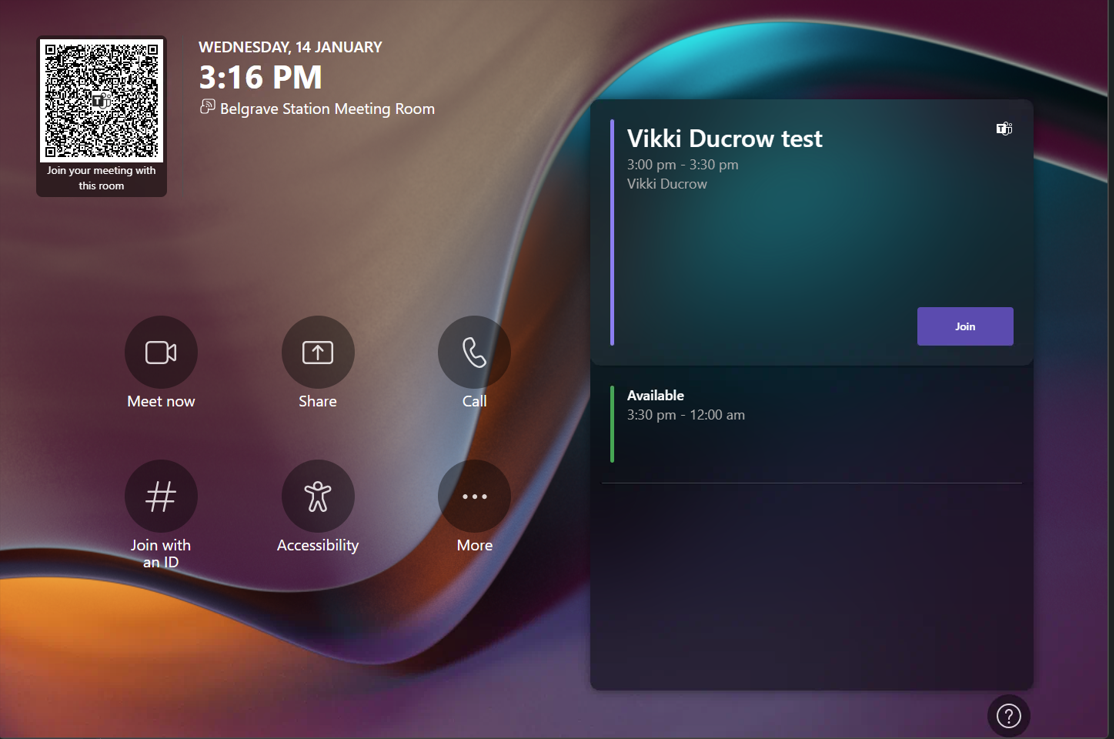
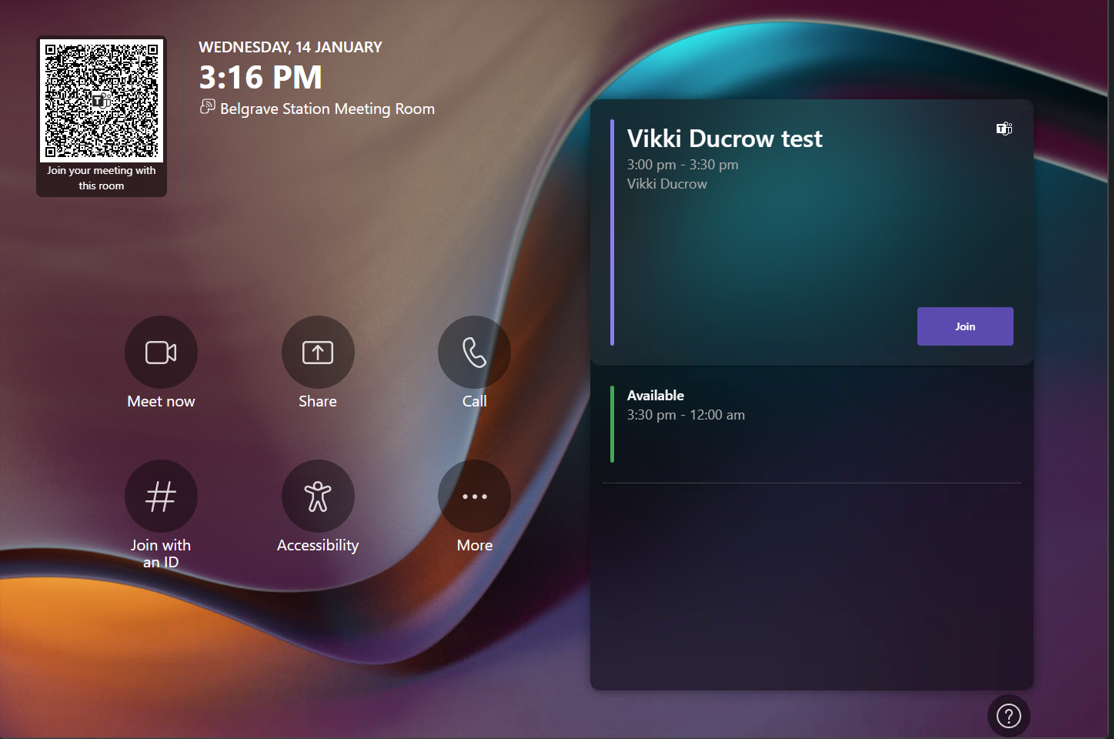
- By adding Belgrave Station Meeting Room to the location, it automatically adds its email to the meeting. This will add it to the calendar. By adding it to the calendar, it will then be displayed on the tablet on the meeting room table.
-
When it is time to join the meeting, click "Join", this will take you to the teams meeting room. The guests can click on their teams link they got in their meeting invitation and will join the same meeting.
If you were invited to a meeting
If you were invited to a meeting from an external source.
- On the Belgrave meeting room table there is a HDMI cable, plug it into your laptop. It will then display your laptop onto the TV screen. Join the meeting as normal using the teams link sent in the invitation. The audio/mic/camera of the conference system can be utilised.
Start an unscheduled meeting
When you are in the meeting room and want to start an unscheduled meeting.
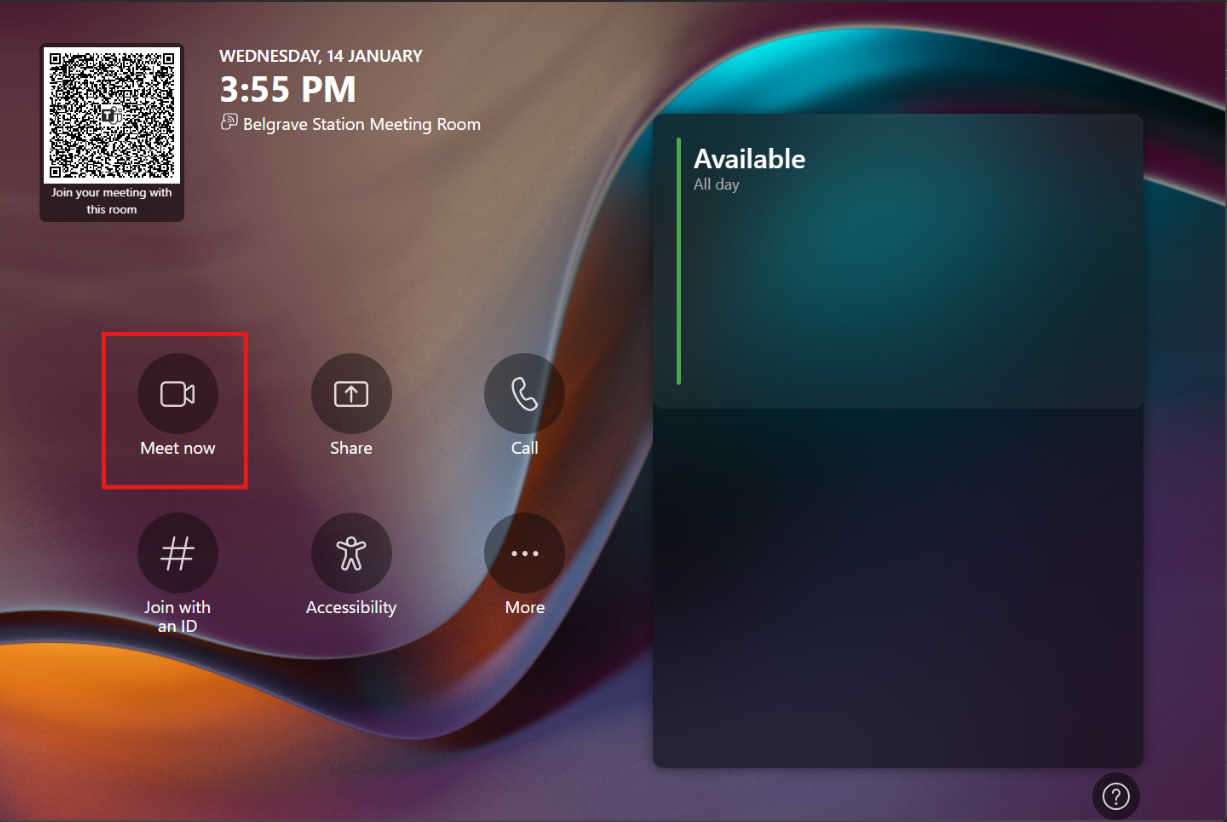
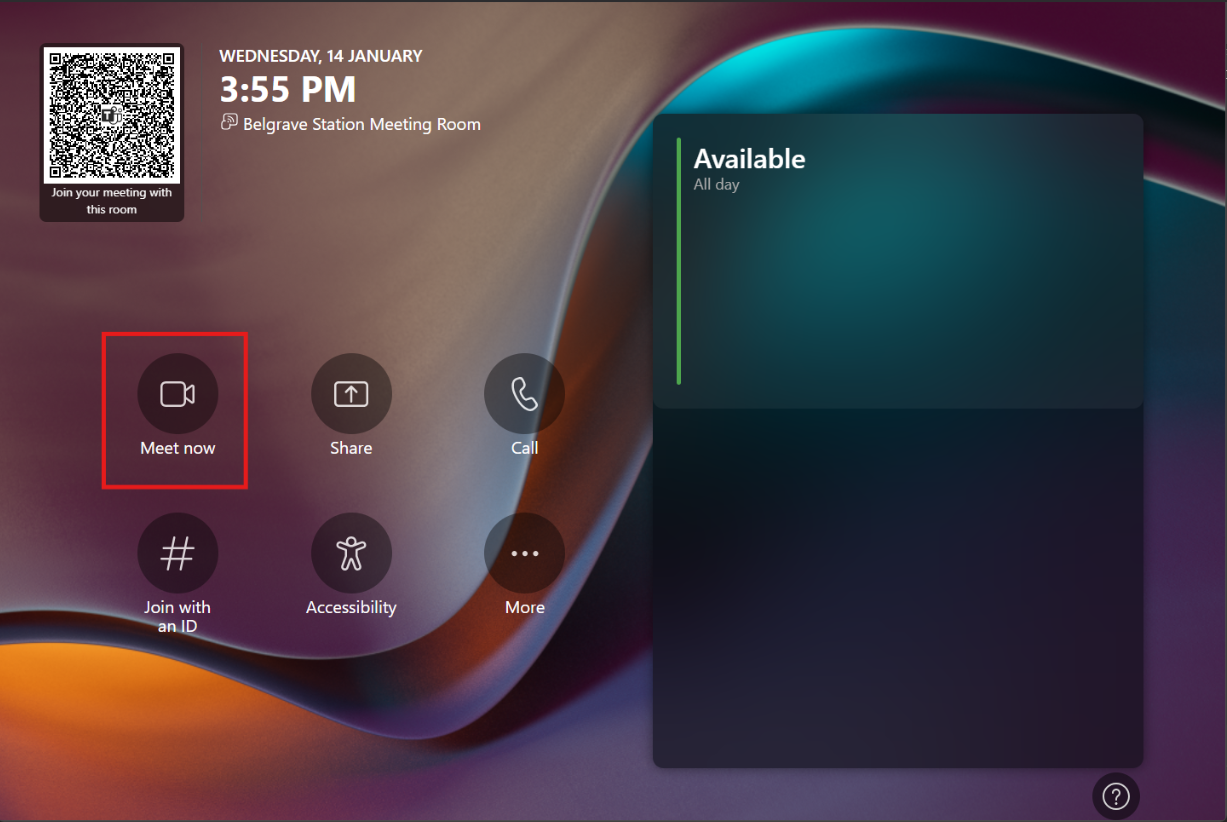
- On the tablet in the meeting room, select "Meet Now".
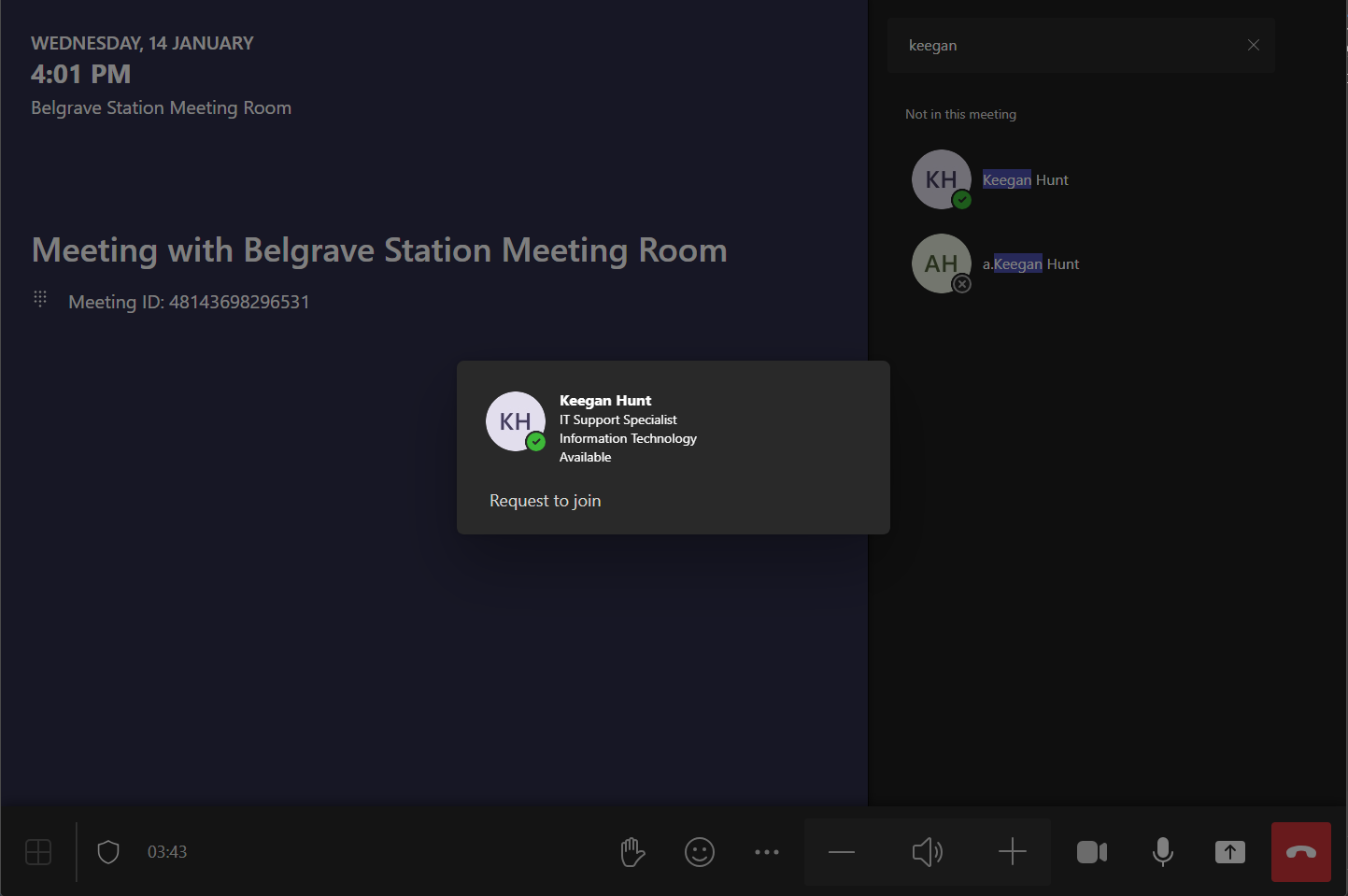
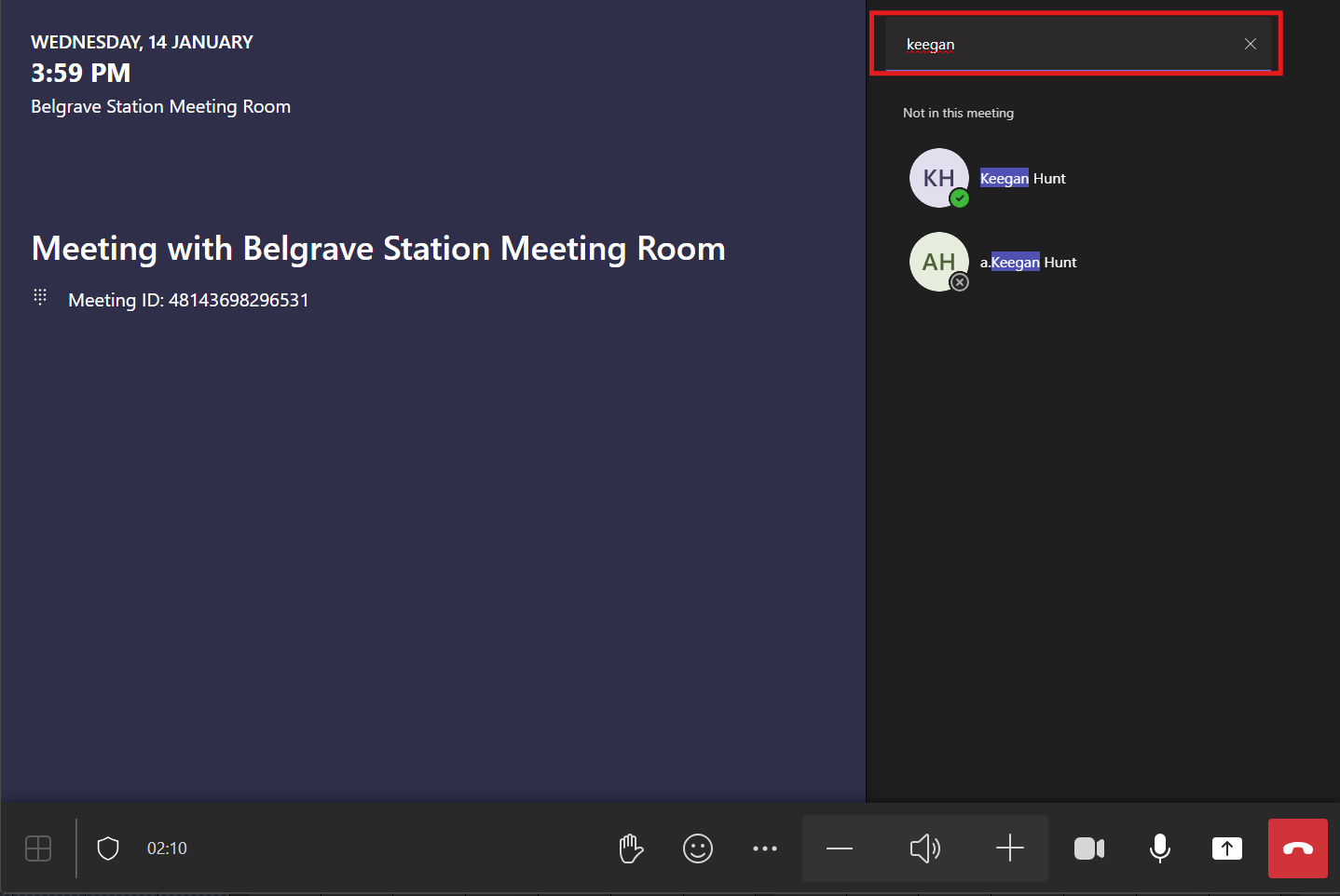
- You will then be taken to another page where you can invite PBR employees using the search bar and selecting the name.
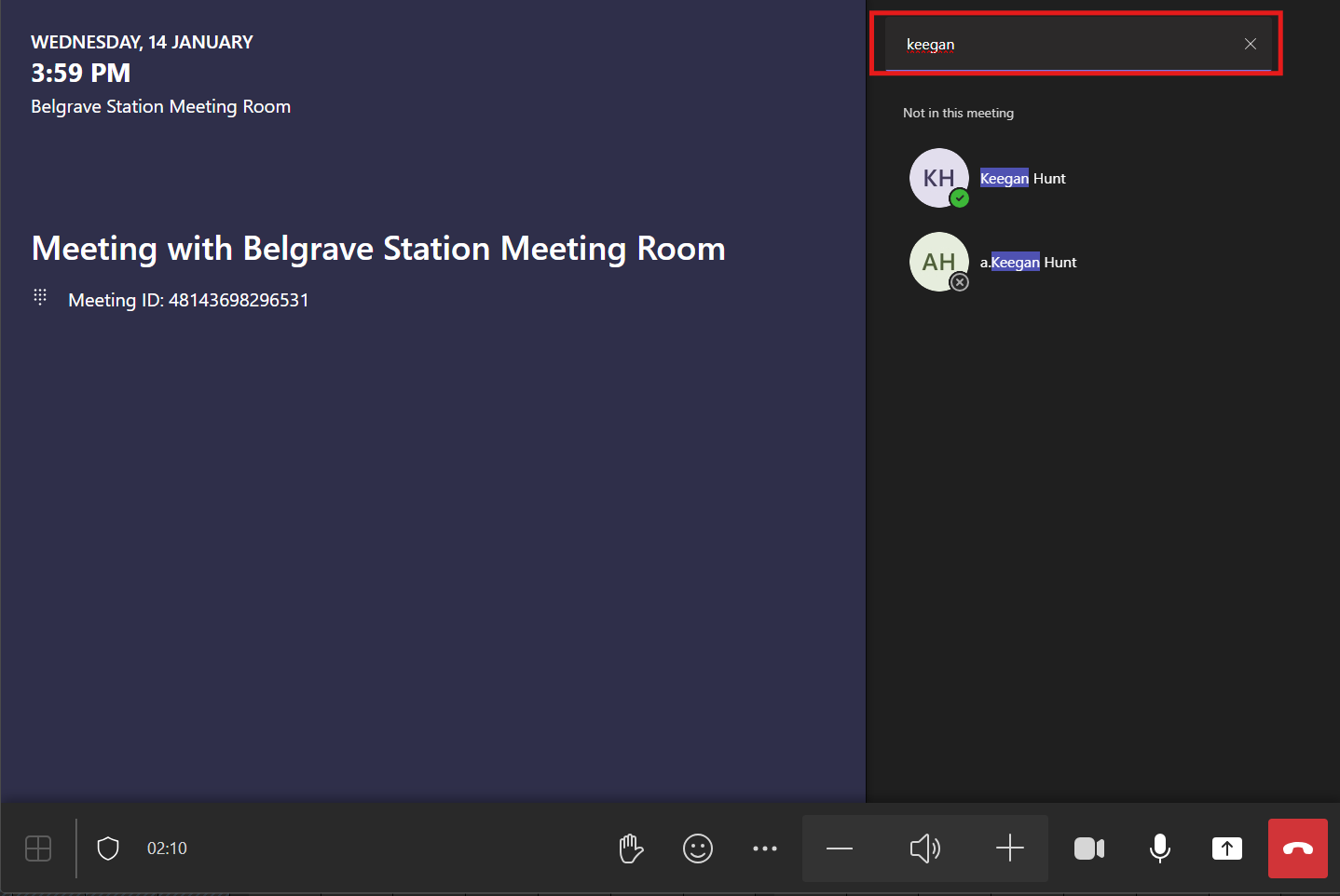
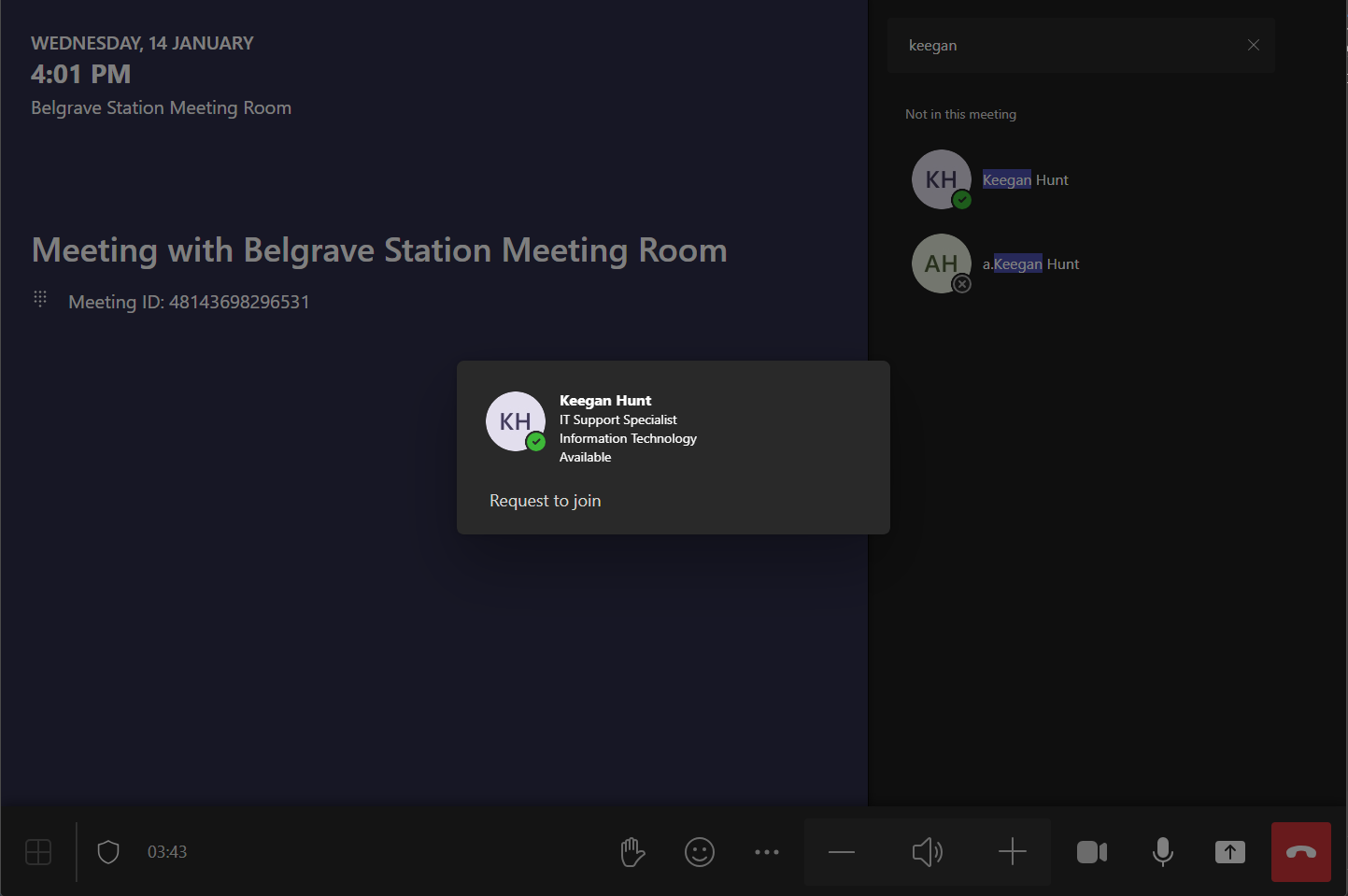
- Then click "Request to Join". They will get a notification to be able to join the call.
Share your laptop screen on the TV (when not in a meeting)
If you want to show your laptop on the TV when not in an online meeting.
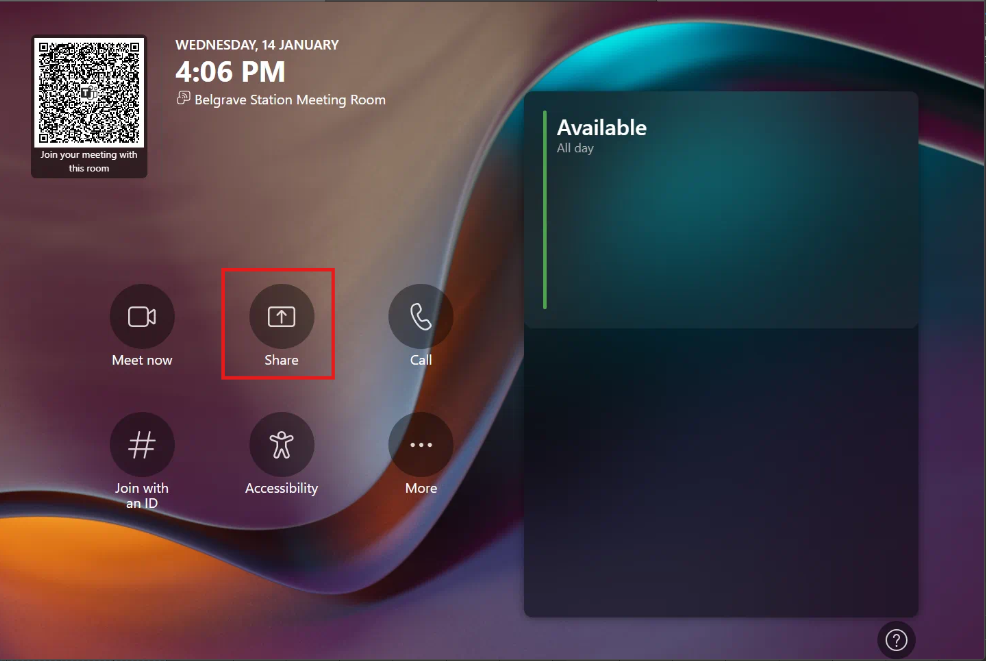
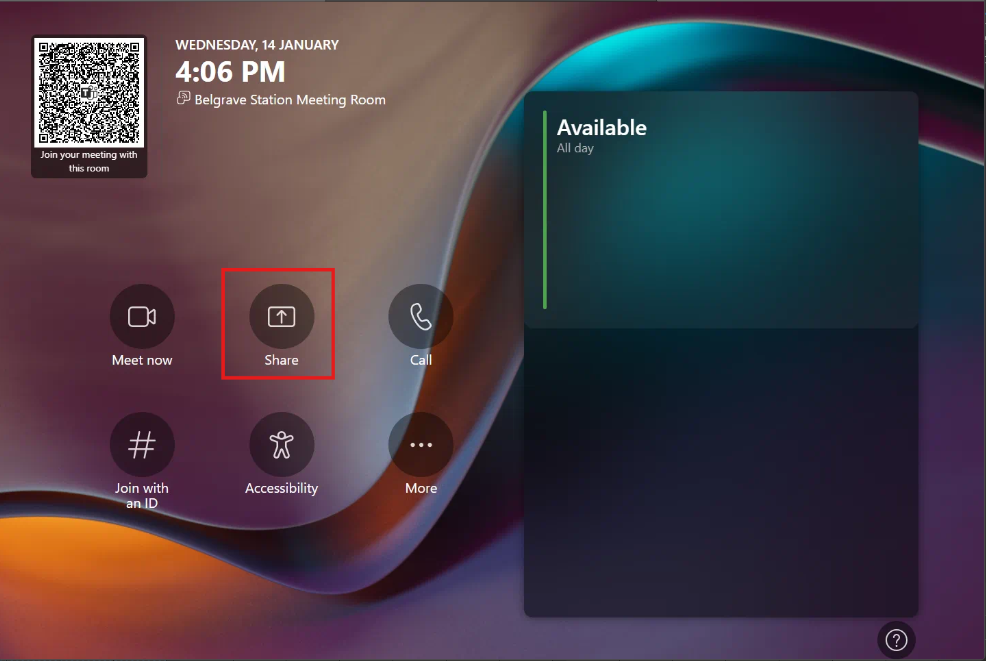
- Plug the HDMI cable on the meeting room table into your laptop. It should automatically display your laptop onto the TV. If it does not, select "Share" on the tablet on the meeting room table. If you would like to stop sharing your display on the TV, select "Stop Sharing".
Share your laptop screen (when in an online meeting for attendees to see)
When you are in an online meeting and want to share your display for online attendees to see your screen.
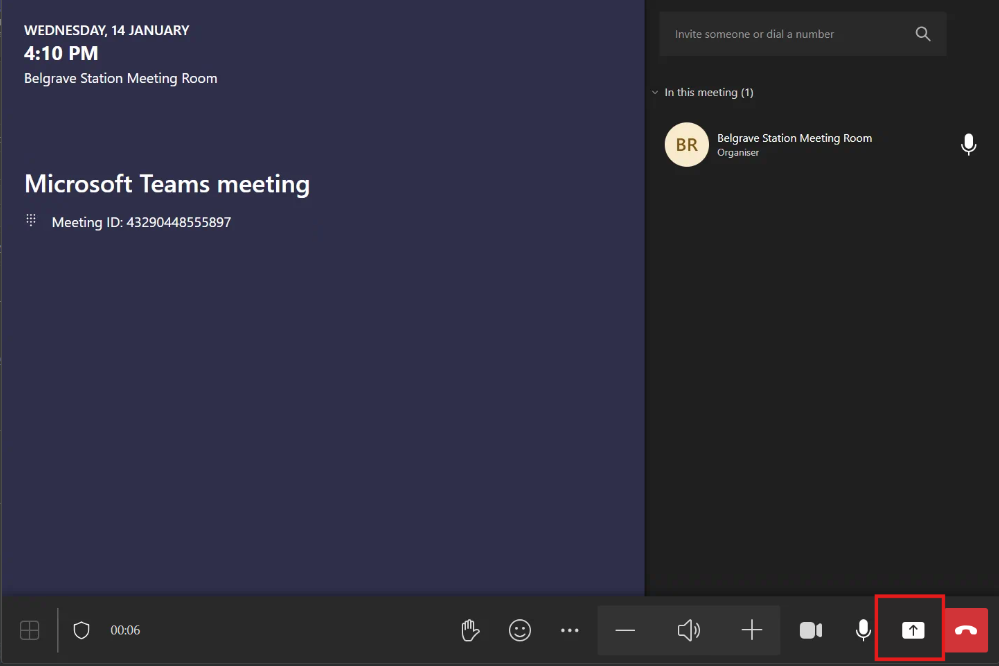
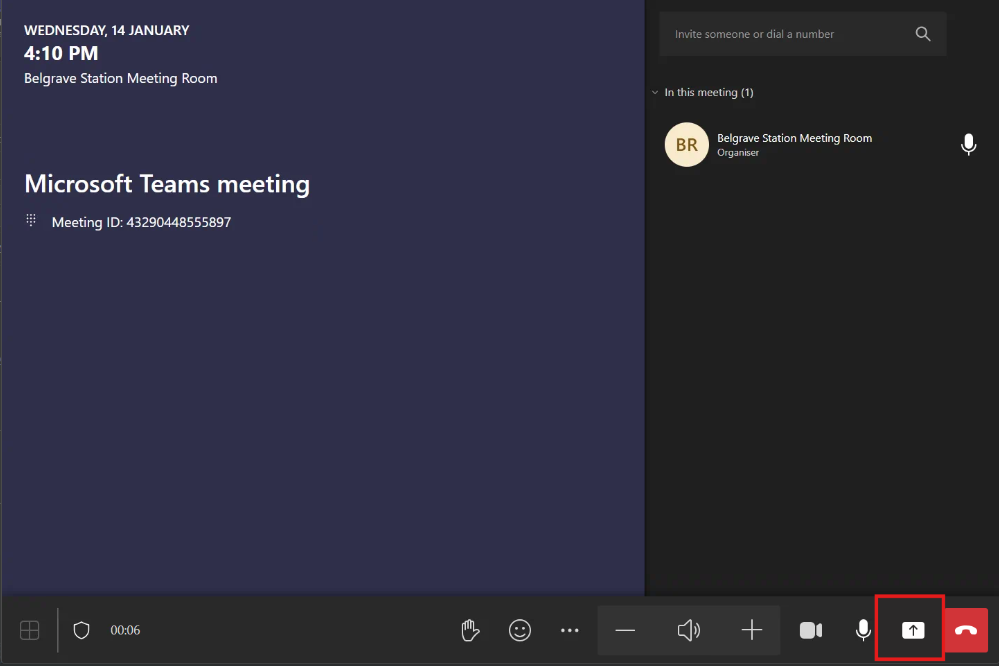
- Plug in the HDMI cable on the meeting room table into your laptop, it will then be displayed onto the TV. The online attendees cannot see your screen until the up arrow button (Share button) in the bottom right corner of the tablet is selected.
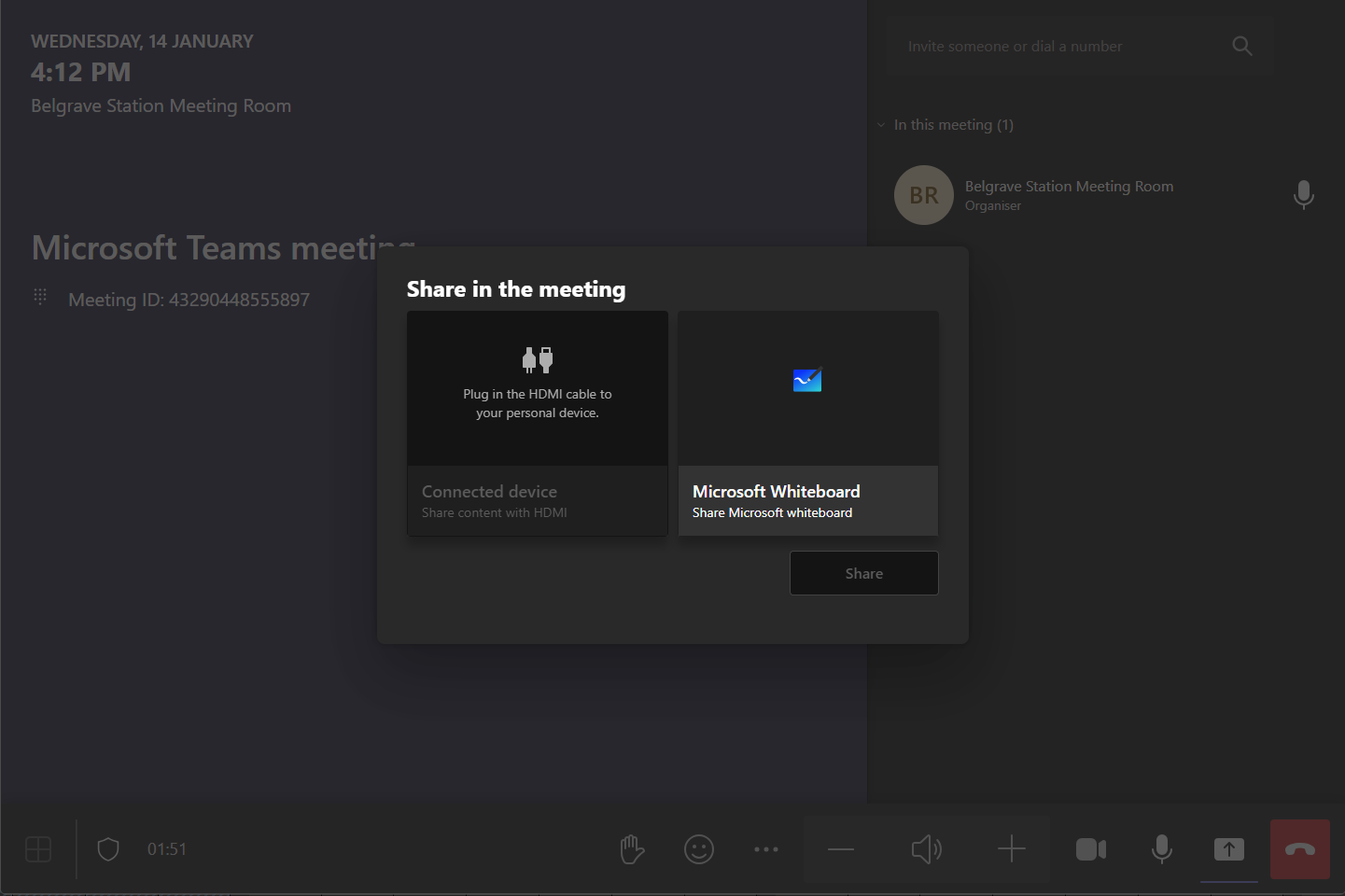
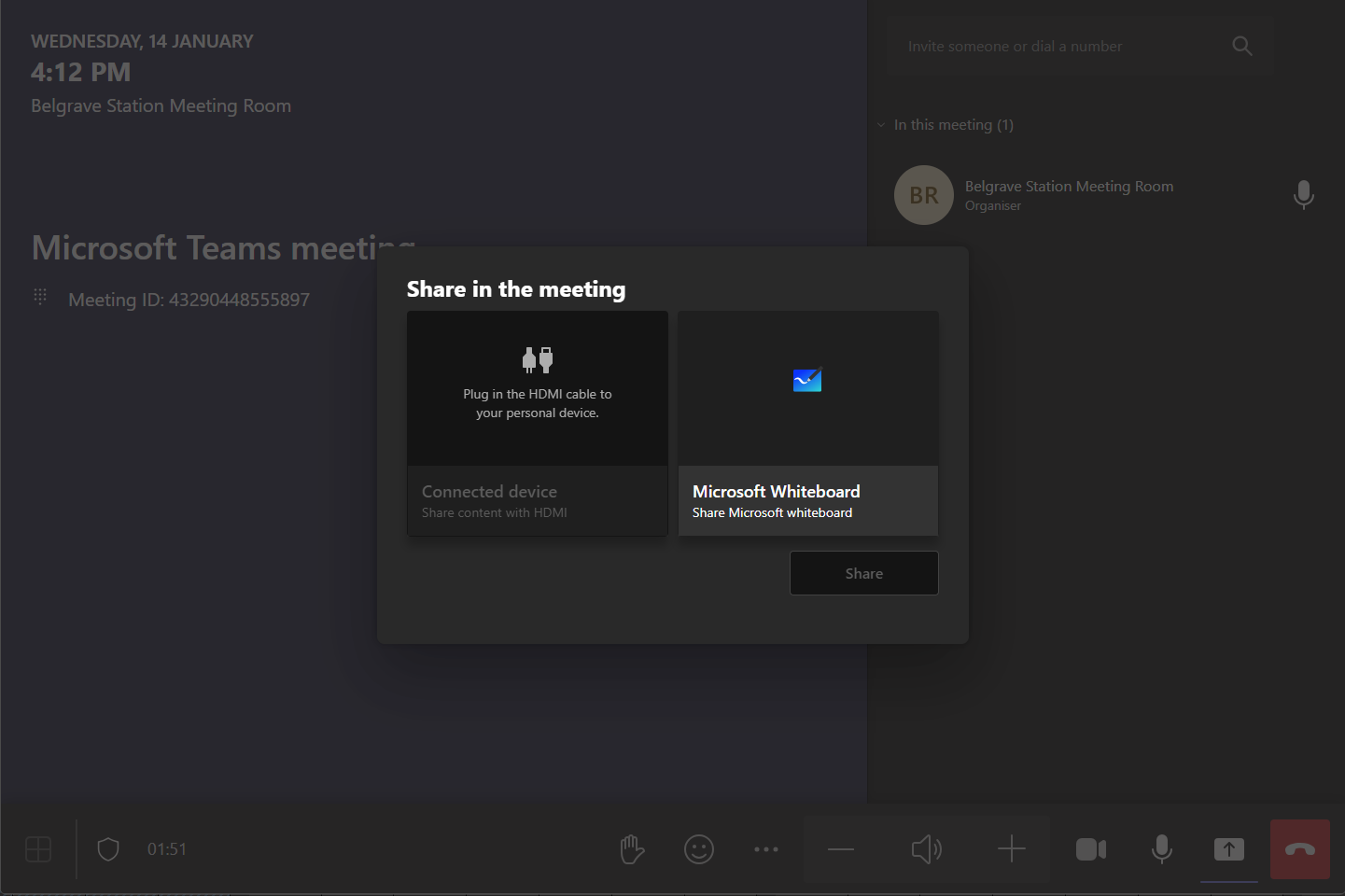
- Once the Share button is selected, the below screen will appear, select HDMI. A red square will appear around the screen on the TV, this means the online attendees can see that screen.
No comments to display
No comments to display