# Wordpress

Managing content on PBR's WordPress website.

# Common Tasks - Wordpress Backend

## <span>TOTAL FIRE BAN / RAILWAY CLOSURE HOMEPAGE TILE</span>

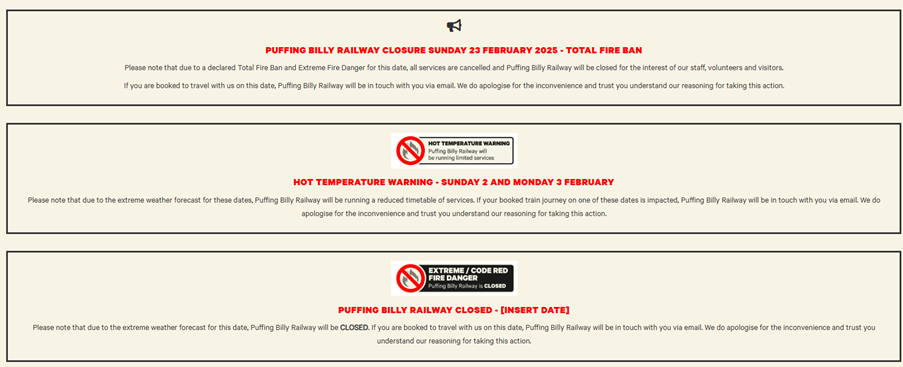
<span><span><span style="font-size:11pt;line-height:107%;font-family:Calibre, sans-serif;text-transform:none;">We have a set of templated callout boxes hidden at the top of the homepage, to utilise in different scenarios including TFB/Railway closures, limited timetables operating due to weather events etc. </span></span></span>

<span><span><span style="font-size:11pt;line-height:107%;font-family:Calibre, sans-serif;text-transform:none;">The copy in these modules have been kept high level on purpose, as affected passengers also receive comms via email and SMS with more specific information about their circumstances. </span></span></span>

<span><span>**<span style="font-size:11pt;line-height:107%;font-family:Calibre, sans-serif;text-transform:none;">Important to note: </span>**</span></span>

<span><span><span style="font-size:11pt;line-height:107%;font-family:Symbol;text-transform:none;"><span>·<span style="font:7pt 'Times New Roman';"> </span></span></span><span style="font-size:11pt;line-height:107%;font-family:Calibre, sans-serif;text-transform:none;">These sections are **<u>only</u>** to be published if the railway and LVC is closed altogether. </span></span></span>

<span><span><span style="font-size:11pt;line-height:107%;font-family:Symbol;text-transform:none;"><span>·<span style="font:7pt 'Times New Roman';"> </span></span></span><span style="font-size:11pt;line-height:107%;font-family:Calibre, sans-serif;text-transform:none;">In the event of cancelled services / limited timetable operating but the Railway still being open (example scenario: Gembrook service terminating at Lakeside due to a fallen tree in Wright Forest) external comms is **<u>limited to the affected pax only</u>** and no notice is published on the website. </span></span></span>

<span><span><span style="font-size:11pt;line-height:107%;font-family:Calibre, sans-serif;text-transform:none;">Templated callout boxes (hidden) on the homepage include the following:</span></span></span>

<span><span><span style="font-size:11pt;line-height:107%;font-family:Calibre, sans-serif;text-transform:none;">![A screenshot of a computer  AI-generated content may be incorrect.](https://bookstack.pbr.org.au/uploads/images/gallery/2025-03/embedded-image-g9pbitps.png)</span></span></span>

<span><span><span style="font-size:11pt;line-height:107%;font-family:Calibre, sans-serif;text-transform:none;">![A close up of a paper  AI-generated content may be incorrect.](https://bookstack.pbr.org.au/uploads/images/gallery/2025-03/embedded-image-0xynzjes.png)</span></span></span>

<span><span><span style="font-size:11pt;line-height:107%;font-family:Calibre, sans-serif;text-transform:none;">In the event of a railway closure, select the one that is most relevant to the circumstances. </span></span></span>

<span><span><span style="font-size:11pt;line-height:107%;font-family:Calibre, sans-serif;text-transform:none;"><span>1.<span style="font:7pt 'Times New Roman';"> </span></span></span><span style="font-size:11pt;line-height:107%;font-family:Calibre, sans-serif;text-transform:none;">Change the date/s in the header</span></span></span>

<span><span><span style="font-size:11pt;line-height:107%;font-family:Calibre, sans-serif;text-transform:none;"><span>2.<span style="font:7pt 'Times New Roman';"> </span></span></span><span style="font-size:11pt;line-height:107%;font-family:Calibre, sans-serif;text-transform:none;">Change the body copy if required</span></span></span>

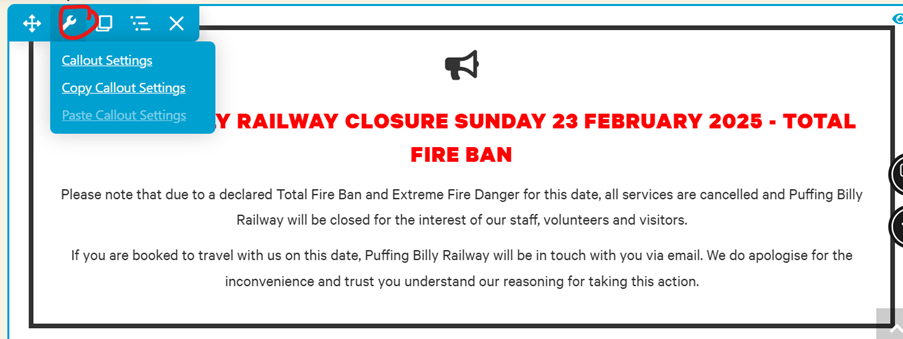
<span><span><span style="font-size:11pt;line-height:107%;font-family:Calibre, sans-serif;text-transform:none;"><span>3.<span style="font:7pt 'Times New Roman';"> </span></span></span><span style="font-size:11pt;line-height:107%;font-family:Calibre, sans-serif;text-transform:none;">Make the callout box visible (see step by step guide on next page)</span></span></span>

<span><span><span style="font-size:11pt;line-height:107%;font-family:Calibre, sans-serif;text-transform:none;">![A white sign with red text  AI-generated content may be incorrect.](https://bookstack.pbr.org.au/uploads/images/gallery/2025-03/embedded-image-volvpcaf.png)</span></span></span>

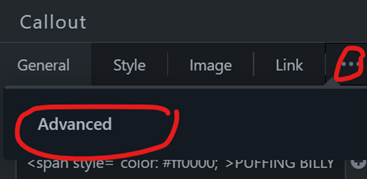
<span><span><span style="font-size:11pt;line-height:107%;font-family:Calibre, sans-serif;text-transform:none;">Click on the three dots to bring up the Advanced tab. Click Advanced.</span></span></span>

<span><span><span style="font-size:11pt;line-height:107%;font-family:Calibre, sans-serif;text-transform:none;">![embedded-image-fnjkpdi7.png](https://bookstack.pbr.org.au/uploads/images/gallery/2025-03/embedded-image-fnjkpdi7.png)</span></span></span>

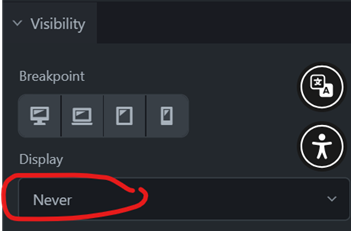
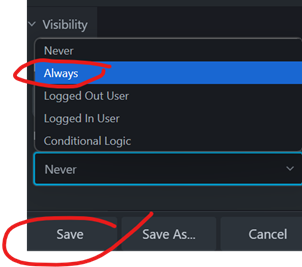
<span><span><span style="font-size:11pt;line-height:107%;font-family:Calibre, sans-serif;text-transform:none;">You’ll see that the visibility is set to ‘Never’.</span></span></span>

<span><span><span style="font-size:11pt;line-height:107%;font-family:Calibre, sans-serif;text-transform:none;">![embedded-image-gvdwztsv.png](https://bookstack.pbr.org.au/uploads/images/gallery/2025-03/embedded-image-gvdwztsv.png)</span></span></span>

<span><span><span style="font-size:11pt;line-height:107%;font-family:Calibre, sans-serif;text-transform:none;">Change it to ‘Always’ and hit ‘Save’ before publishing the changes to the homepage in the top right corner. </span></span></span>
<span><span><span style="font-size:11pt;line-height:107%;font-family:Calibre, sans-serif;text-transform:none;">![embedded-image-bdsmki09.png](https://bookstack.pbr.org.au/uploads/images/gallery/2025-03/embedded-image-bdsmki09.png)</span></span></span>

### <span><span>EDITING SAVED MODULES AND ROWS</span></span>

<span><span> </span></span>

<span><span>Go to the page you want to change a module or row in and click on Beaver Builder.</span></span>

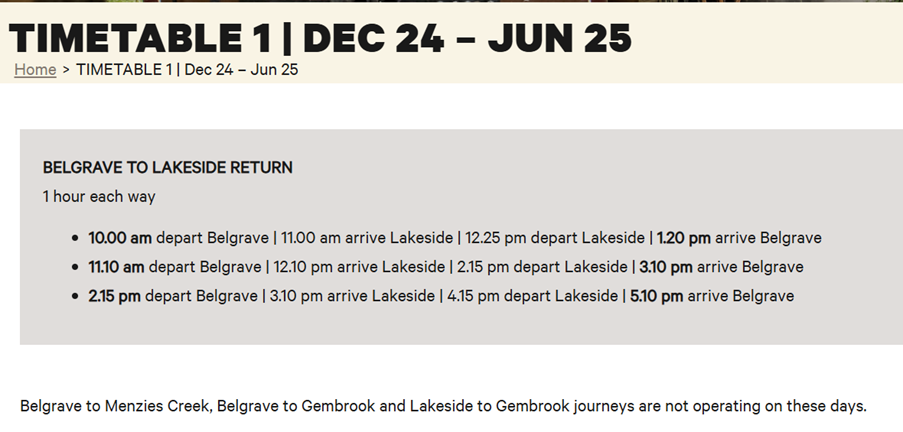
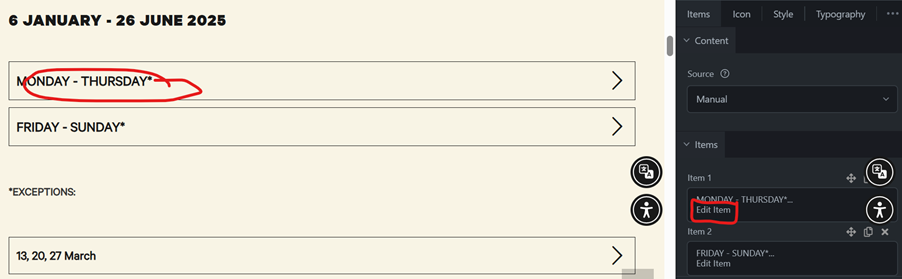
<span><span><span><span>1.<span style="font:7pt 'Times New Roman';"> </span></span></span>Navigate to the content piece you want to change. Example being used here is the Jan-June 2025 timetable.</span></span>

<span><span><span><span>2.<span style="font:7pt 'Times New Roman';"> </span></span></span>Click on the advanced accordion module, which brings up the editing pane on the right. If we want to look at the content for Monday – Thursday, we can click on “edit item”. </span></span>
<span><span><span>![A white rectangular object with black lines  AI-generated content may be incorrect.](https://bookstack.pbr.org.au/uploads/images/gallery/2025-03/embedded-image-rvknrqeg.png)</span></span></span>

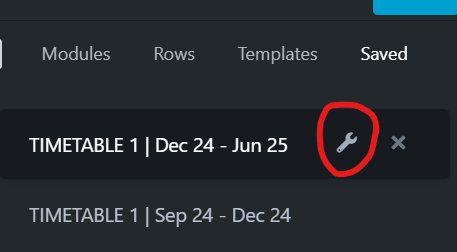
<span><span>This shows us that the content here is in fact a saved row named **‘TIMETABLE 1 | Dec 24 – Jun 25’.** </span></span>

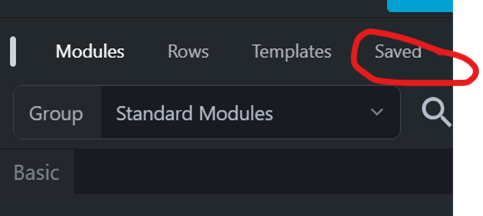
<span><span>Next, we go to the ‘Saved’ tab in the editing pane to locate our saved row. </span></span>
<span><span><span>![A screenshot of a computer  AI-generated content may be incorrect.](https://bookstack.pbr.org.au/uploads/images/gallery/2025-03/embedded-image-dds4vcvj.png)</span></span></span>

<span><span>All the saved rows are listed first (in alphabetical order) followed by all saved modules. Scroll down to find the saved row we want to edit. </span></span>
<span><span><span>![A screenshot of a computer  AI-generated content may be incorrect.](https://bookstack.pbr.org.au/uploads/images/gallery/2025-03/embedded-image-murwzhl6.png)</span></span></span>

<span><span><span>![A screenshot of a calendar  AI-generated content may be incorrect.](https://bookstack.pbr.org.au/uploads/images/gallery/2025-03/embedded-image-or9ukxvc.png)</span></span></span>

<span><span>Make the required edits before hitting done and Publish. </span></span>

<span><span>This brings us back to the main page where the saved row is shown. Publish this page as well and check the accordion to ensure that the updated information is there. </span></span>

<span><span>Repeat for any other saved modules and rows. </span></span>

### UPDATING PRICING (ADVANCED ACCORDIONS/TABLES IN MAIN CONTENT)

  
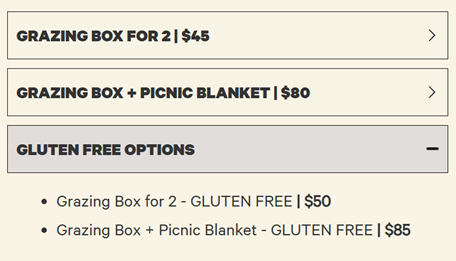
Prices for products and experiences are normally outlined either in an advanced accordion (such as for Grazing Boxes below) or a table (such as for event fares).

[![image.png](https://bookstack.pbr.org.au/uploads/images/gallery/2025-03/scaled-1680-/Omoimage.png)](https://bookstack.pbr.org.au/uploads/images/gallery/2025-03/Omoimage.png)
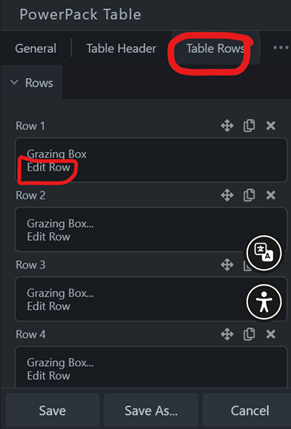
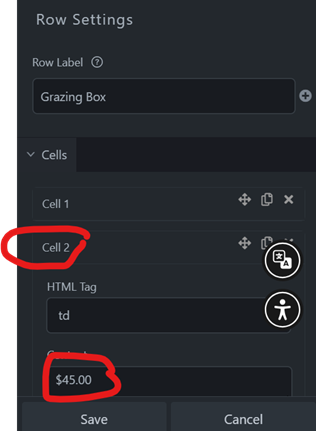
Ticket prices in tables can be updated as per below by clicking on the table itself in Beaver Builder:

STEP 1:<span> </span><span>![A screenshot of a program  AI-generated content may be incorrect.](https://bookstack.pbr.org.au/uploads/images/gallery/2025-03/embedded-image-xzuvcqdv.png)</span>STEP 2:<span>![A screenshot of a cell phone  AI-generated content may be incorrect.](https://bookstack.pbr.org.au/uploads/images/gallery/2025-03/embedded-image-shd24wpm.png)</span>

Update and save before publishing the page the table is sitting on.

**REMOVING A PAGE FROM THE NAVIGATION**

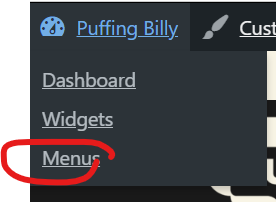
<span style="font-size:11pt;line-height:107%;"><span>1.<span style="font:7pt 'Times New Roman';"> </span></span></span><span style="font-size:11pt;line-height:107%;">To go any page on the website (not in Beaver Builder mode), and click on Puffing Billy in the top left corner. This brings up a drop-down box – click on Menus.</span>

<span>![A screenshot of a menu  AI-generated content may be incorrect.](https://bookstack.pbr.org.au/uploads/images/gallery/2025-03/embedded-image-02krykfi.png)</span>

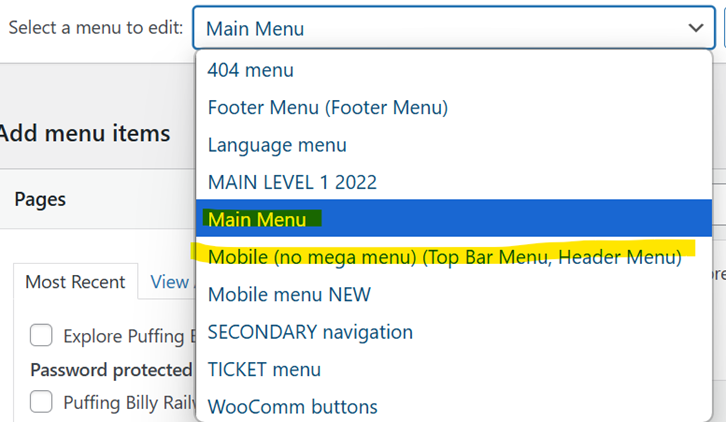
<span style="font-size:11pt;line-height:107%;">We need to remove the page from both the Main Menu (being shown on Desktops) and Mobile (shown on phones and some tablets/smaller screen sizes). </span>
<span>![A screenshot of a menu  AI-generated content may be incorrect.](https://bookstack.pbr.org.au/uploads/images/gallery/2025-03/embedded-image-vevlrkky.png)</span>

<u><span style="font-size:11pt;line-height:107%;">Main menu:</span></u>

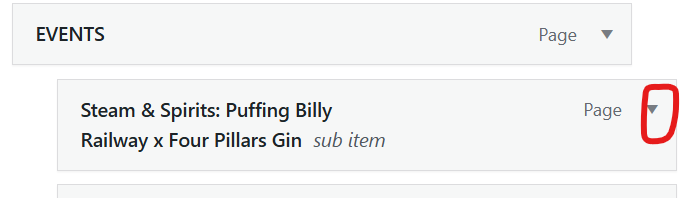
<span style="font-size:11pt;line-height:107%;">Navigate to the page you wish to remove and click on the down arrow.</span>

<span>![A screenshot of a phone  AI-generated content may be incorrect.](https://bookstack.pbr.org.au/uploads/images/gallery/2025-03/embedded-image-pruqlbgv.png)</span>

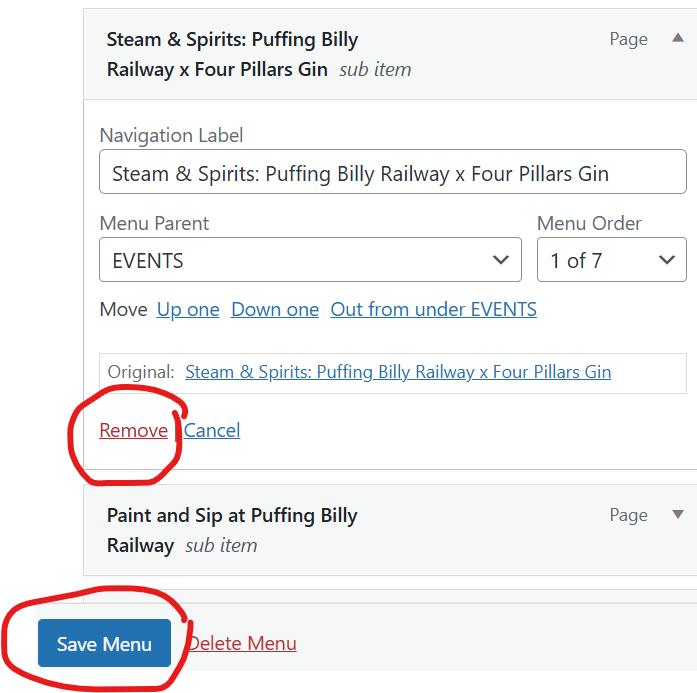
<span style="font-size:11pt;line-height:107%;">Click on ‘Remove’ followed by ‘Save Menu’.</span>

<span>![A screenshot of a menu  AI-generated content may be incorrect.](https://bookstack.pbr.org.au/uploads/images/gallery/2025-03/embedded-image-3fugmjln.png)</span>

<u><span style="font-size:11pt;line-height:107%;">Mobile menu:</span></u>

<span style="font-size:11pt;line-height:107%;">Navigate to the main menu (see screenshot above) and follow the same steps as for the Main Menu to remove the page from the Mobile Menu as well. </span>

### <span><span><span style="font-size:12pt;line-height:107%;font-family:Calibre, sans-serif;">  
</span></span></span>

<span style="line-height:107%;font-family:'Calibre Black', sans-serif;color:#191919;text-transform:uppercase;"> </span>

**ADDING A PAGE TO THE NAVIGATION**

<span><span>1.<span style="font:7pt 'Times New Roman';"> </span></span></span>Head to the menus screen, as per the previous section.

<span><span>2.<span style="font:7pt 'Times New Roman';"> </span></span></span>Select Main Menu

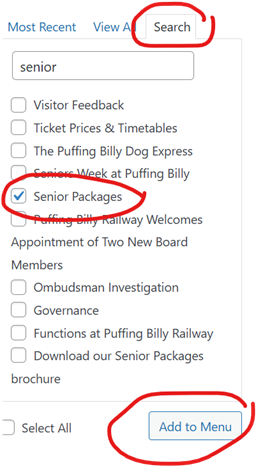
<span><span>3.<span style="font:7pt 'Times New Roman';"> </span></span></span>Go to the left-hand side of the screen, and search for the page you want to add from the list (alternatively scroll through all the pages listed). Tick the box next to the page and click ‘Add to Menu’.

<span><span>4.<span style="font:7pt 'Times New Roman';"> </span></span></span>This adds the page to the very bottom of the list of pages, and you can drag and drop it to the applicable page, for instance as a subpage under ‘Experiences’. Once it is in the spot you want it, click ‘Save Menu’.

<span><span>5.<span style="font:7pt 'Times New Roman';"> </span></span></span>Repeat process for Mobile menu.

[![eWximage.png](https://bookstack.pbr.org.au/uploads/images/gallery/2025-03/scaled-1680-/ewximage.png)](https://bookstack.pbr.org.au/uploads/images/gallery/2025-03/ewximage.png)

**<span class="PBRSubheaderChar">BRINGING A PAGE BACK TO DRAFTS</span>**

<span style="font-size:11pt;line-height:107%;"><span>1.<span style="font:7pt 'Times New Roman';"> </span></span></span><span style="font-size:11pt;line-height:107%;">Open the page you wish to bring back to drafts</span>

<span style="font-size:11pt;line-height:107%;"><span>2.<span style="font:7pt 'Times New Roman';"> </span></span></span><span style="font-size:11pt;line-height:107%;">Click on ‘edit page’ along the top</span>

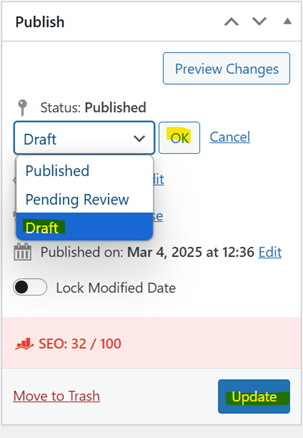
<span style="font-size:11pt;line-height:107%;"><span>3.<span style="font:7pt 'Times New Roman';"> </span></span></span><span style="font-size:11pt;line-height:107%;">Go to the Publish tab on the right-hand side, change the status to “draft”, click “OK” and then “Update” further down. The page is back in draft mode.</span>

<span style="font-size:11pt;line-height:107%;"><span>4.<span style="font:7pt 'Times New Roman';"> </span></span></span><span style="font-size:11pt;line-height:107%;">After this is completed, follow the steps listed above to remove the page from the navigation too. </span>

<span style="font-size:11pt;line-height:107%;"> </span>

[![image.png](https://bookstack.pbr.org.au/uploads/images/gallery/2025-03/scaled-1680-/RYOimage.png)](https://bookstack.pbr.org.au/uploads/images/gallery/2025-03/RYOimage.png)

**ADDING OR REMOVING PASSWORD PROTECTION TO A PAGE IN REVIEW**

<span style="font-size:11pt;line-height:107%;"><span>1.<span style="font:7pt 'Times New Roman';"> </span></span></span><span style="font-size:11pt;line-height:107%;">Open the page you wish to bring back to drafts</span>

<span style="font-size:11pt;line-height:107%;"><span>2.<span style="font:7pt 'Times New Roman';"> </span></span></span><span style="font-size:11pt;line-height:107%;">Click on ‘edit page’ along the top</span>

<span style="font-size:11pt;line-height:107%;"><span>3.<span style="font:7pt 'Times New Roman';"> </span></span></span><span style="font-size:11pt;line-height:107%;">Go to the Publish tab on the right-hand side</span>

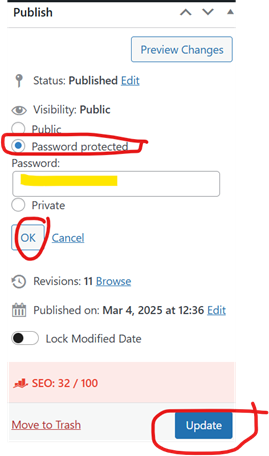
<span style="font-size:11pt;line-height:107%;"><span>4.<span style="font:7pt 'Times New Roman';"> </span></span></span><span style="font-size:11pt;line-height:107%;">Change the Visibility from ‘Public’ to ‘Password protected’ and select a password (I tend to use some type of acronym that reflects the page or something totally random). What you select doesn’t matter as long as it is taken note of and share with the people who need to access/review the page. </span>

<span style="font-size:11pt;line-height:107%;"><span>5.<span style="font:7pt 'Times New Roman';"> </span></span></span><span style="font-size:11pt;line-height:107%;">To remove the password protection from a page (for instance at the launch of an event), change visibility from ‘Password protected’ to ‘Public’ and hit ‘Update’. </span>

<span style="font-size:11pt;line-height:107%;"> </span>

[![image.png](https://bookstack.pbr.org.au/uploads/images/gallery/2025-03/scaled-1680-/Liaimage.png)](https://bookstack.pbr.org.au/uploads/images/gallery/2025-03/Liaimage.png)