**Please note that you may need to update you Who's on Call Plus app for the following options to show.**
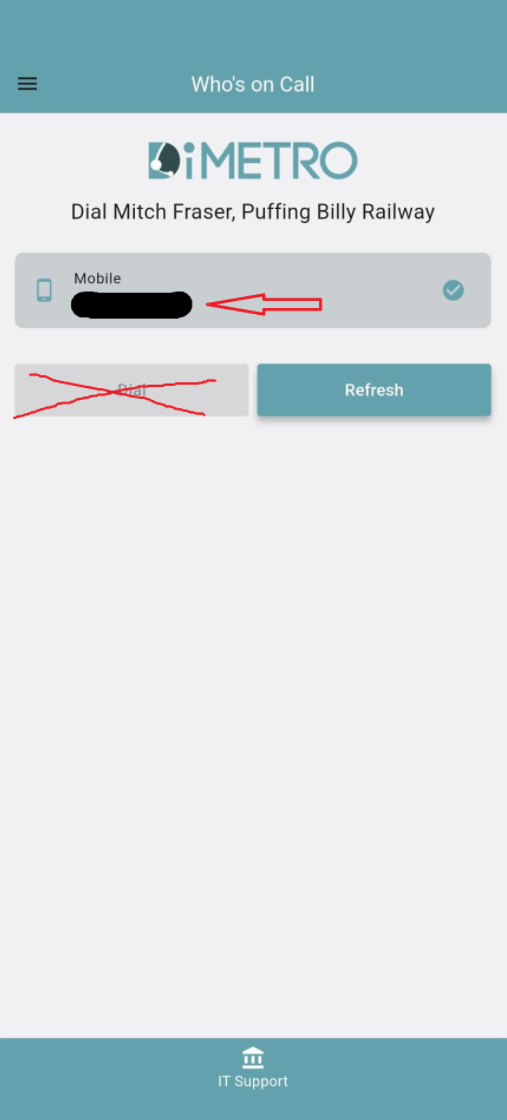
1. On your mobile device open the Who's On Call app. 2. Tap the 'hamburger' menu in the top right [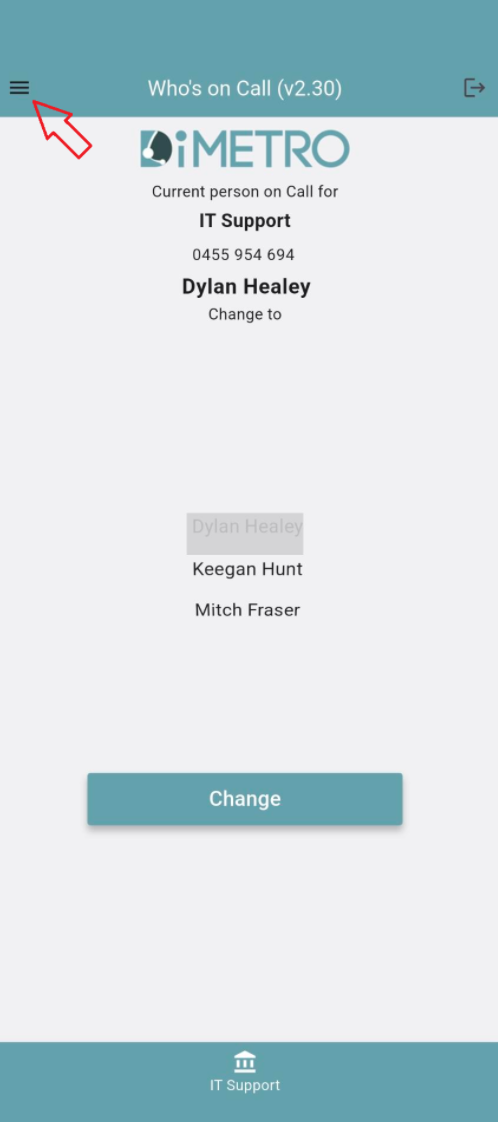](https://bookstack.pbr.org.au/uploads/images/gallery/2026-04/kcRimage.png) 3. Tap on Phone Book Dial [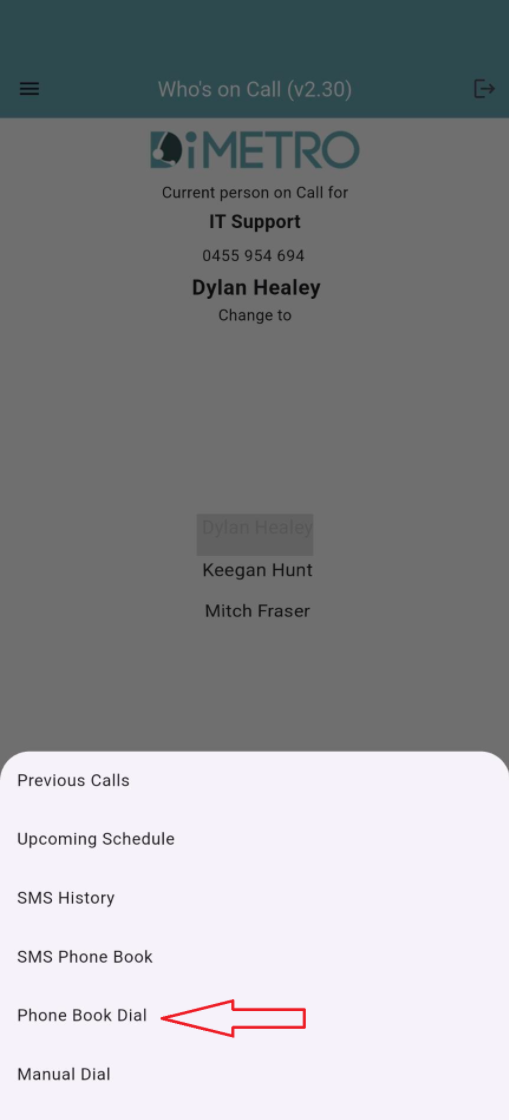](https://bookstack.pbr.org.au/uploads/images/gallery/2026-04/qGQimage.png) 4. You can search by First name, Last Name or Company name. Type in at least one field and tap Find Contact [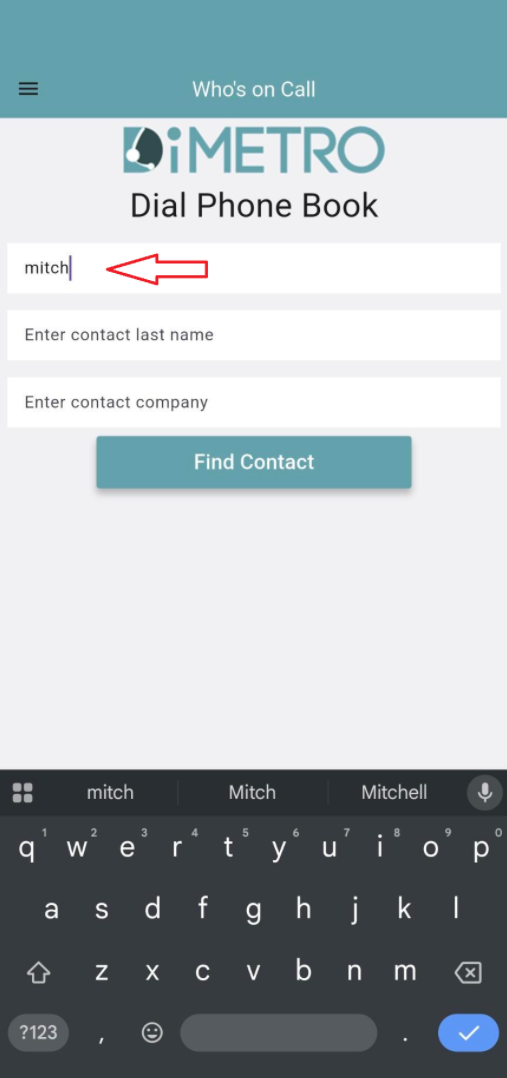](https://bookstack.pbr.org.au/uploads/images/gallery/2026-04/x56image.png) 5. You will then be provided a list of contacts that match your search. Tap the appropriate option. [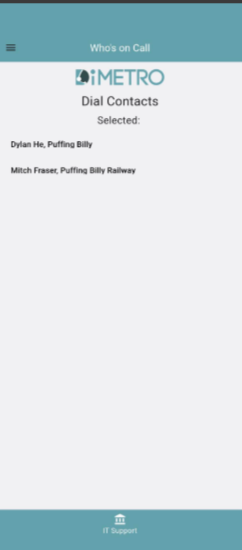](https://bookstack.pbr.org.au/uploads/images/gallery/2026-04/80dimage.png) 6. You can then see the contact number(s) for the contact. You will have to not this number down or type it directly into your call function on your device.Please note that the Dial button does not work and is unable to be omitted from the app.
[](https://bookstack.pbr.org.au/uploads/images/gallery/2026-04/wTVimage.png)