# Add a Shared Mailbox in the Outlook App

Use the below steps to add a shared mailbox to your Outlook using the Android or iPhone Outlook app.

<p class="callout warning">You must have access to the shared in order for it to be added.</p>

## Step-by-step guide

1. Open the Outlook app.
2. Click on your **initial** in the top left hand corner.  
    [![image.png](https://bookstack.pbr.org.au/uploads/images/gallery/2022-10/scaled-1680-/dr1image.png)](https://bookstack.pbr.org.au/uploads/images/gallery/2022-10/dr1image.png)

3. Click on the **Mail+** icon under your initial in the left hand menu.  
    [![image.png](https://bookstack.pbr.org.au/uploads/images/gallery/2022-10/scaled-1680-/IQ3image.png)](https://bookstack.pbr.org.au/uploads/images/gallery/2022-10/IQ3image.png)
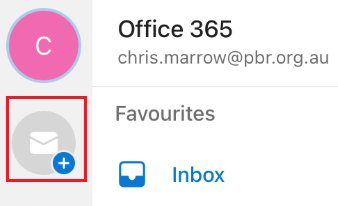
4. A new menu will appear. Click on **Add Shared Mailbox**.  
    [![image.png](https://bookstack.pbr.org.au/uploads/images/gallery/2022-10/scaled-1680-/uxBimage.png)](https://bookstack.pbr.org.au/uploads/images/gallery/2022-10/uxBimage.png)
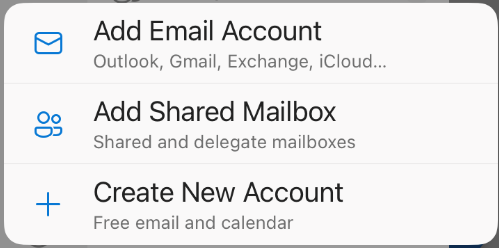
5. Enter in the name of the shared mailbox and click on the button **Add Shared Mailbox**.  
    [![image.png](https://bookstack.pbr.org.au/uploads/images/gallery/2022-10/scaled-1680-/L36image.png)](https://bookstack.pbr.org.au/uploads/images/gallery/2022-10/L36image.png)
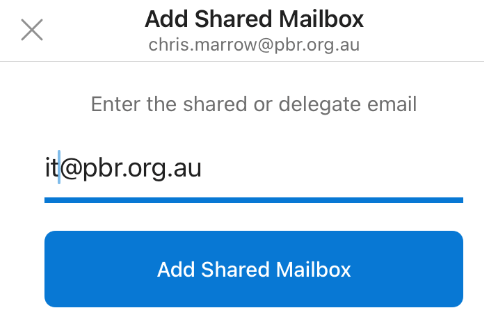
6. The new mailbox will be added. You can switch to it by click on the **initial**.  
    <span class="confluence-embedded-file-wrapper confluence-embedded-manual-size">![](https://confluence.pbr.org.au/download/thumbnails/10059805/image2020-12-23_13-9-17.png?version=1&modificationDate=1608689357721&api=v2)</span>