You must have access to the shared in order for it to be added.
## Step-by-step guide 1. Open the Outlook app. 2. Click on your **initial** in the top left hand corner. [](https://bookstack.pbr.org.au/uploads/images/gallery/2022-10/dr1image.png) 3. Click on the **Mail+** icon under your initial in the left hand menu. [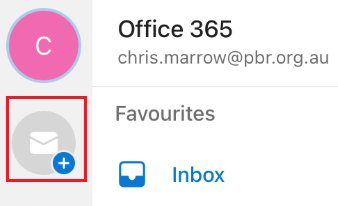](https://bookstack.pbr.org.au/uploads/images/gallery/2022-10/IQ3image.png) 4. A new menu will appear. Click on **Add Shared Mailbox**. [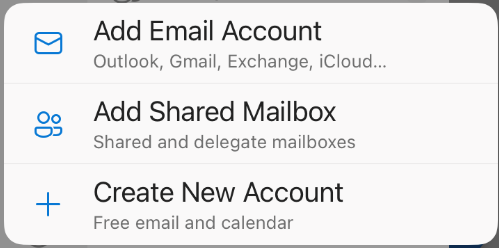](https://bookstack.pbr.org.au/uploads/images/gallery/2022-10/uxBimage.png) 5. Enter in the name of the shared mailbox and click on the button **Add Shared Mailbox**. [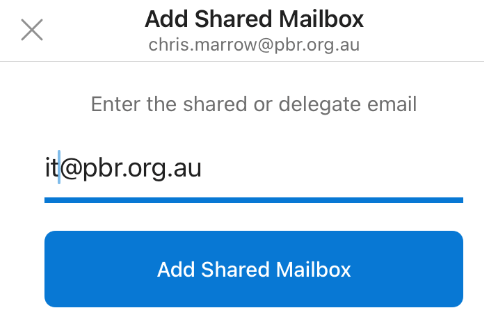](https://bookstack.pbr.org.au/uploads/images/gallery/2022-10/L36image.png) 6. The new mailbox will be added. You can switch to it by click on the **initial**. # Setup email on an Android phone Follow the below steps to setup email on an Android phone. ## Step-by-step guide 1. Download the Outlook app from the Android app store if you don't already have it. 2. Open the Outlook app. 3. Click on **Get Started.** [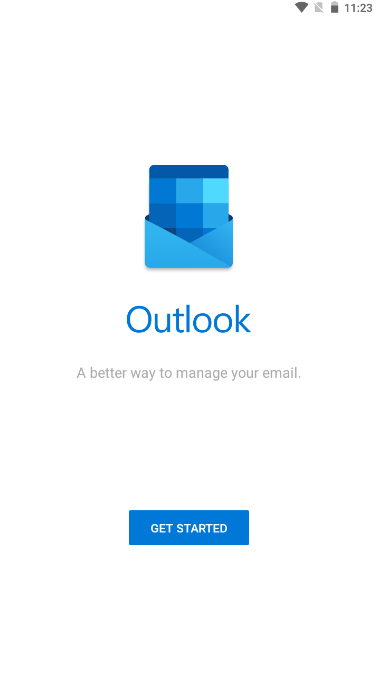](https://bookstack.pbr.org.au/uploads/images/gallery/2022-10/XYgimage.png) 4. Enter in your PBR email address and click **Continue**. [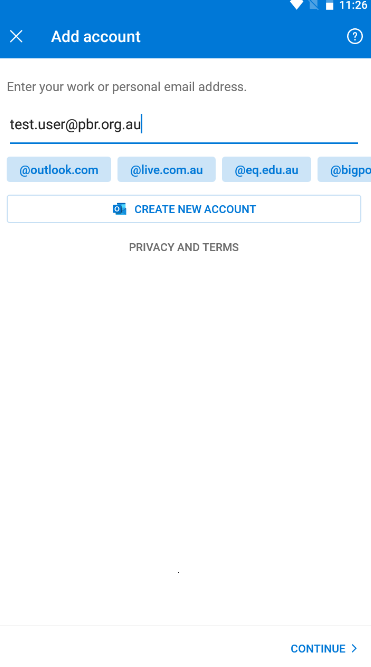](https://bookstack.pbr.org.au/uploads/images/gallery/2022-10/lzzimage.png) 5. Enter your password and click on **Sign In**. [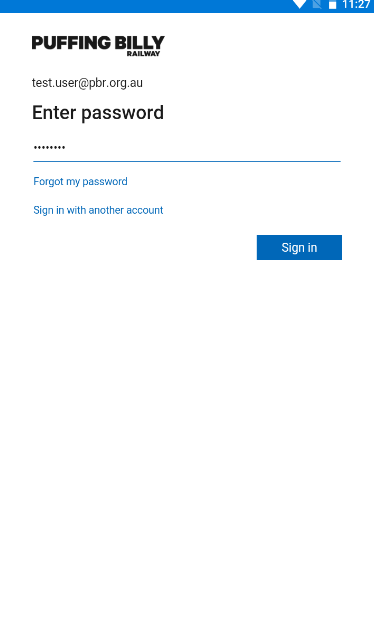](https://bookstack.pbr.org.au/uploads/images/gallery/2022-10/l5Mimage.png) 6. Click on **Maybe Later (bottom left)**. [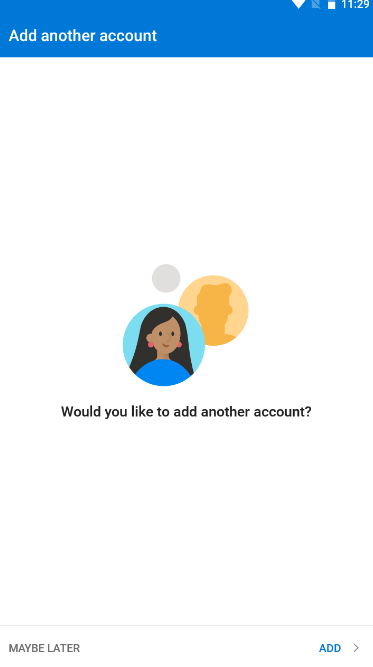](https://bookstack.pbr.org.au/uploads/images/gallery/2022-10/E8ximage.png) 7. Click on the arrow to scroll through the instructions or press **Skip** to finish setup. [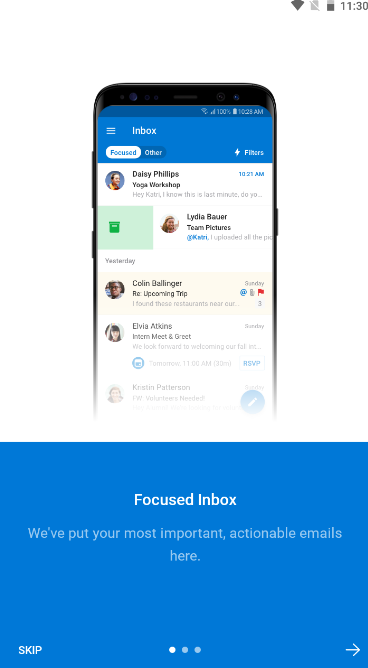](https://bookstack.pbr.org.au/uploads/images/gallery/2022-10/si4image.png) 8. You will be taken to your Inbox. Click on the **Microsoft icon** in the top left hand corner to bring up additional options & see your other folders. [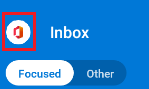](https://bookstack.pbr.org.au/uploads/images/gallery/2022-10/FIzimage.png) # Setup email on an iPhone Follow the below steps to setup email on your iPhone. ## Step-by-step guide 1. Go to **Apple Store** on your phone and search for **Outlook** and download it. [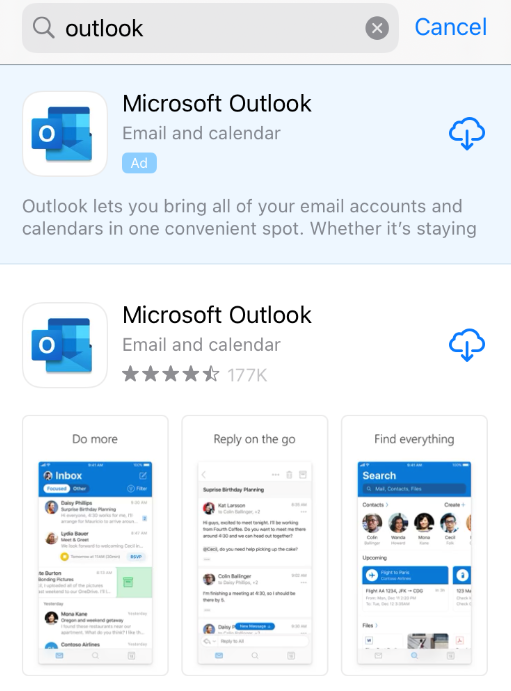](https://bookstack.pbr.org.au/uploads/images/gallery/2022-10/QpYimage.png) 2. Open **Outlook.** You may already see your PBR email address listed. Click on **Add Account** 3. Enter in your PBR Email if prompted, then click the ****Add Account Button.**** [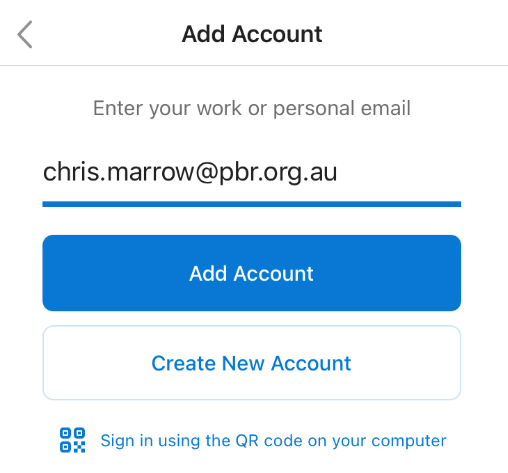](https://bookstack.pbr.org.au/uploads/images/gallery/2022-10/jboimage.png) 4\. Enter in your PBR Email password and click **Sign In**. [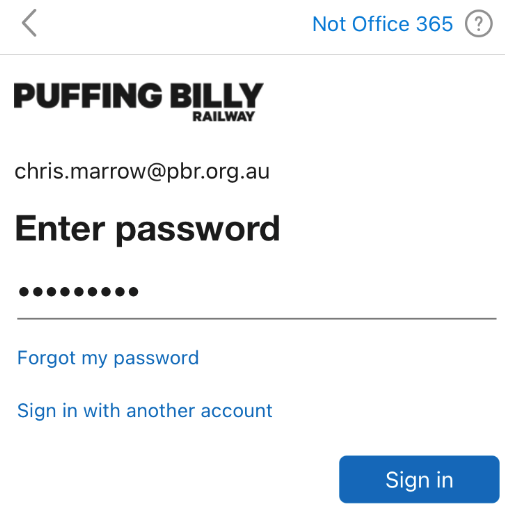](https://bookstack.pbr.org.au/uploads/images/gallery/2022-10/z5kimage.png) 5\. You can add another account if required, otherwise click on **Maybe Later.** [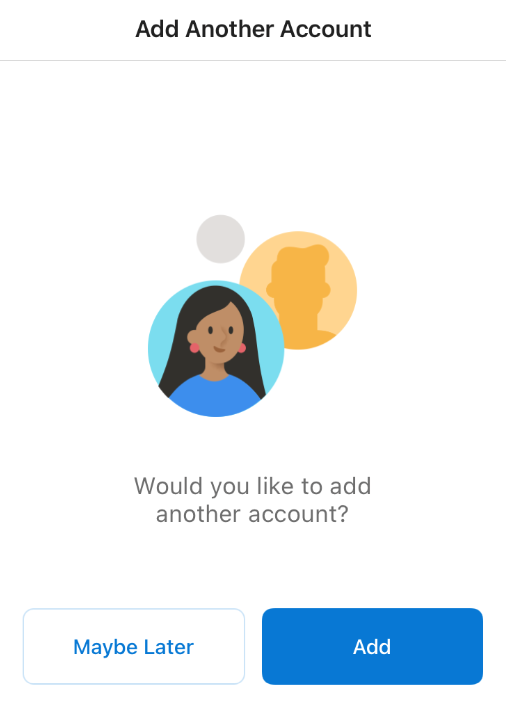](https://bookstack.pbr.org.au/uploads/images/gallery/2022-10/BFsimage.png) 6\. You will now be taken to your inbox