Removing Access to a Folder/File
Step-by-step guide
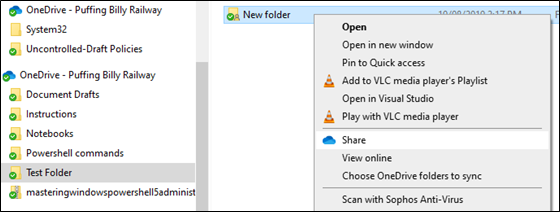
- Navigate to the Folder/File and click on Share.

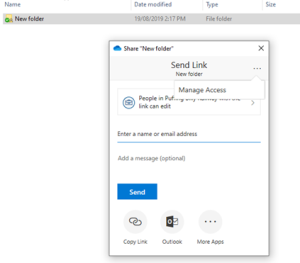
- Click the three dots in the top right-hand corner and select Manage Access.

-
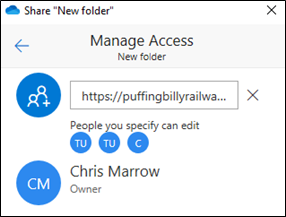
Click on the X to remove access to the folder/file.
This will remove access to all users you have shared the folder/file with. If you wish to remove only certain users, you will need to do this in the web version of OneDrive. Please see Removing Access to a File (Web).