Multi-Factor Authentication (MFA)
Setting up and managing MFA for your PBR account. Microsoft Authenticator is the standard method for all staff.
Setting Up Duo MFA (IT Staff and Select Roles)
Overview
Duo MFA is used only by IT staff and a small number of select roles — primarily for systems that integrate with Duo, such as NetSuite. If you are a general PBR staff member, please use Microsoft Authenticator instead — see Setting Up Microsoft Authenticator.
If you are unsure which MFA method applies to your role, contact IT Helpdesk.
Setup Steps
- Contact IT Helpdesk at helpdesk@pbr.org.au to request a Duo enrolment email if you have not already received one
- Download the Duo Mobile app on your phone from the App Store (iPhone) or Google Play (Android)
- Open the enrolment email on a computer or tablet and click the enrolment link
- Follow the on-screen prompts to link your phone to your Duo account
- When prompted, scan the QR code with the Duo Mobile app
- Complete the setup — you will receive a test push notification to confirm it is working
Using Duo
When signing into a Duo-protected system (such as NetSuite), you will be prompted to approve a push notification on the Duo Mobile app, or enter a one-time passcode generated by the app.
Troubleshooting
| Issue | Solution |
|---|---|
| No push notification | Open Duo Mobile and check for a pending request, or use the passcode option instead |
| Lost or replaced phone | Contact IT Helpdesk at helpdesk@pbr.org.au to reset your Duo enrolment |
| Cannot log into NetSuite via Duo SSO | See Cannot log into Duo Single Sign-On |
Setting Up Microsoft Authenticator (Standard MFA)
Overview
Multi-Factor Authentication (MFA) protects your PBR account by requiring a second verification step when you sign in. Microsoft Authenticator is the standard MFA method for all PBR staff.
You will need your mobile phone to complete this setup. If you don't have a smartphone, contact IT Helpdesk at helpdesk@pbr.org.au.
Step 1 — Install Microsoft Authenticator
On your mobile phone, download and install the Microsoft Authenticator app:
- iPhone: Search "Microsoft Authenticator" in the App Store
- Android: Search "Microsoft Authenticator" in the Google Play Store
Open the app once installed — you don't need to sign in yet.
Step 2 — Start the MFA Setup on Your Computer
- On your computer, open a browser and go to https://aka.ms/mfasetup
- Sign in with your PBR email address (firstname.lastname@pbr.org.au) and password
- You may see a prompt saying "More information required" — click Next
- On the "Keep your account secure" page, click Next
- On the "Install Microsoft Authenticator" page, click Next
- On the "Set up your account in app" page, click Next
Step 3 — Link the App to Your Account
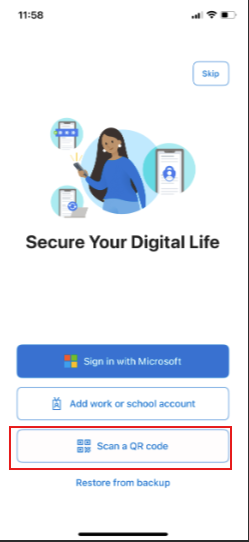
- On your phone, open Microsoft Authenticator and select "Scan a QR Code" (make sure the app has access to your camera)

- Point your phone camera at the QR code shown on your computer screen
- Your PBR account will be added to the app
Step 4 — Test the Setup
- On your computer, click Next after scanning the QR code
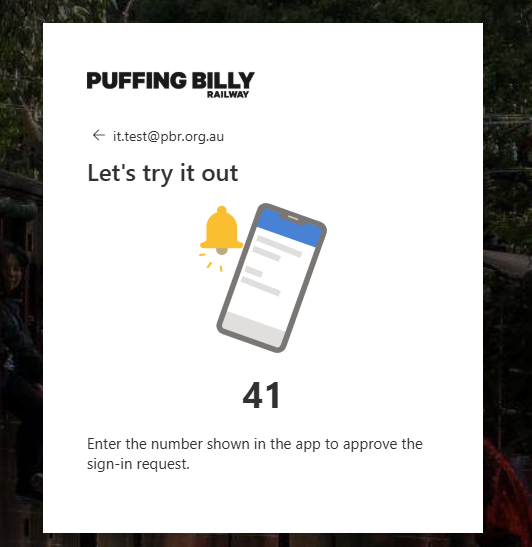
- Microsoft will send a test notification to your phone
- On your phone, enter the 2 digits shown in the notification on the computer. These digits need to be entered on your phone in the app.

- Click Next and then Done
- Microsoft will then send a real authentication, do the same as above and enter the 2 digits shown on the computer, into the app on your phone.
Your MFA is now set up. From now on, when you sign into Microsoft 365 from a new device or browser, you will receive a notification on your phone to approve the login.
Troubleshooting
| Issue | Solution |
|---|---|
| No notification received | Open the Authenticator app and look for a pending approval there, or check your phone's notification settings |
| Lost or replaced phone | Contact IT Helpdesk immediately — they will reset your MFA so you can re-register |
| App shows wrong code / not working | Check your phone's date and time is set to automatic — Authenticator requires accurate time |
| Locked out of account | Contact IT Helpdesk at helpdesk@pbr.org.au or raise a ticket at helpdesk.pbr.org.au |
Managing Your Authentication Methods
You can view and manage your registered MFA methods at any time by visiting https://aka.ms/mysecurityinfo and signing in with your PBR account.