Microsoft Teams
Using Microsoft Teams for chat, meetings, channels, and file collaboration.
- Joining a Teams Meeting from Your Outlook Calendar
- Joining a Teams Meeting via the Outlook Reminder
- Scheduling a Teams Meeting
- Sending a Chat Message in Teams
- Finding and Using Teams Channels
- Sharing Files in Teams
Joining a Teams Meeting from Your Outlook Calendar
Steps
- Open Outlook and go to your Calendar
- Find and open the meeting
- Click Join Microsoft Teams Meeting
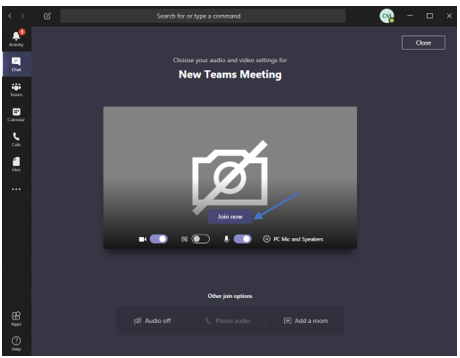
- Teams will open — click Join now
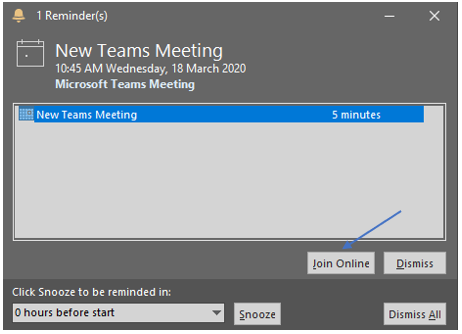
Tip: You can also join directly from the Outlook meeting reminder popup when it appears — click the Join Online button.
Joining a Teams Meeting via the Outlook Reminder
Step-by-step guide
- Before the meeting Outlook will remind you of the meeting. Click on the Join Online button.

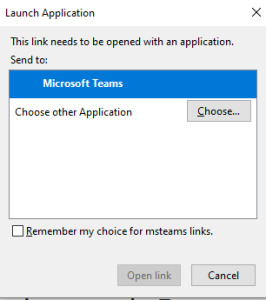
- If you asked to choose an application, make sure Microsoft Teams is selected and click Open Link.

- The new meeting will open in Teams. Click on Join now.

Scheduling a Teams Meeting
Overview
You can schedule a Teams meeting directly from Outlook or from within Teams. All attendees will receive a calendar invite with a Join link.
Schedule from Outlook
- Open Outlook and go to your Calendar
- Click New Teams Meeting in the ribbon at the top
- Fill in the meeting title, add attendees in the To field, and set the date and time
- Add any agenda or notes in the body
- Click Send
Schedule from Teams
- Open Microsoft Teams
- Click Calendar in the left sidebar
- Click New meeting in the top right
- Fill in the meeting details and add attendees
- Click Save
Sending a Chat Message in Teams
Overview
Teams Chat allows you to send quick messages to individuals or small groups without needing a formal meeting or email.
Starting a New Chat
- Open Microsoft Teams
- Click the Chat icon in the left sidebar (speech bubble icon)
- Click the New chat icon (pencil icon) at the top
- In the To field, type the name of the person you want to message
- Type your message in the box at the bottom and press Enter to send
Group Chat
To chat with multiple people at once:
- Follow steps 1–3 above
- In the To field, add multiple names (up to 20 people)
- Type a group name in the Group name field (optional but recommended)
- Type your message and press Enter
Useful Chat Features
- Formatting: Click the A icon below the message box to add bold, bullet points, headings, and more
- Attach a file: Click the paperclip icon to attach a file from your computer or OneDrive
- React to a message: Hover over a message and click the emoji icon to react
- Reply to a specific message: Hover over the message and click the curved arrow (reply) icon
Chat vs Email — When to Use Which
| Use Teams Chat for | Use Email for |
|---|---|
| Quick questions, informal conversation | Formal communication, external parties |
| Real-time collaboration | Long records that need to be archived |
| Small group coordination | Distribution to large groups |
Finding and Using Teams Channels
Overview
Teams are organised into Channels — dedicated spaces for different topics, projects, or departments. Channels help keep conversations organised and searchable.
Finding Your Teams and Channels
- Open Microsoft Teams
- Click Teams in the left sidebar
- You will see a list of Teams you are a member of
- Click on a Team to expand it and see its channels
- Click a channel name to open it
Posting in a Channel
- Open the channel
- Click the message box at the bottom that says Start a new conversation
- Type your message and press Enter to post
Tip: Click New conversation to start a distinct thread, rather than replying to an existing one.
Replying to a Channel Post
- Find the post you want to reply to
- Click Reply below the post
- Type your reply — this keeps the conversation grouped together as a thread
Important: Always click Reply on the original post rather than starting a new conversation, so the thread stays together.
Channel Notifications
By default you are notified when someone @mentions you in a channel. To change notification settings for a specific channel:
- Hover over the channel name in the sidebar
- Click the three dots (...)
- Select Channel notifications
- Choose your preference (All activity, Mentions only, Off)
Sharing Files in Teams
Overview
Sharing a File in a Chat
- Open the chat
- Click the paperclip (attach) icon below the message box
- Select Upload from this device to share a file from your computer
- Or select OneDrive to share a file already in your OneDrive
- The recipient can view or download the file directly in the chat
Sharing a File in a Channel
- Open the channel
- Click the Files tab at the top of the channel
- Click Upload to add a file, or drag and drop a file into the window
- The file is now available to everyone in the channel
You can also post a message with the file attached by using the paperclip icon in the channel message box.
Opening a Teams File in the Desktop App
When you click a file in Teams, it opens in the browser by default. To open it in the full desktop app (e.g. Word or Excel):
- Click the file to open the preview
- Click Open in Desktop App at the top right
Co-editing a File with Colleagues
Multiple people can edit a file at the same time in Teams. Open the file from the channel Files tab — you will see other people's cursors in real time. Changes are saved automatically.