# Setup Better Impact iPad
Onboard the iPad into Intune by following this article [https://bookstack.pbr.org.au/books/ios-devices-intune/page/onboarding-ios-devices-into-intune](https://bookstack.pbr.org.au/books/ios-devices-intune/page/onboarding-ios-devices-into-intune)
Add the iPad to the following enrollment profile
- ***PBR iPad Profile*** - This is for iPads running Survey Legend, Better Impact or Employment Hero
Once you get to the home screen, the following settings need to be set manually -
- Enable the Favorites bar/Bookmarks Bar
- Go to Settings > Apps > Safari
- Turn on Show Favorites Bar
- Allow Camera Access for Safari
- Go to Settings > Apps > Safari > Camera > Allow Access
- Set brightness to max
- Go to Settings > Display & Brightness
Next step is to add the iPad to the ***Intune\_iOS\_Wifi*** Group. Its important to do this and ensure it is working before putting into Kiosk mode, as you can lock yourself out of the iPad. The best way to check the WiFi policy has been applied is go to Settings, Wi-Fi click on the connected wifi network 'internet' and see if the option to 'Forget This Network' is available . If this option is not available then the policy is applied. I have finding doing a remote restart can speed up this process
If you set a passcode earlier in the setup process, now you need to remove it, Intune | Devices | select the device and click 'remove passcode'
Now you need to assign the device to the ***Intune\_iPads\_BI*** AAD group. This will enable Kiosk Mode and create the bookmarks for Safari
Once iPad is in Kiosk Mode, you just need to open the Better Impact bookmark within Safari and ensure its the only tab open
Make sure to update snipeit with the new hostname that has been assigned by Intune, it will be in the format of PBRB-iPad-<serial number>
and update the details of what the iPad is being used for and where it is located in Intune
Devices | Overview> iOS/iPadOS | iOS/iPadOS devices>
select the device and go to properties and enter details in the Notes section
[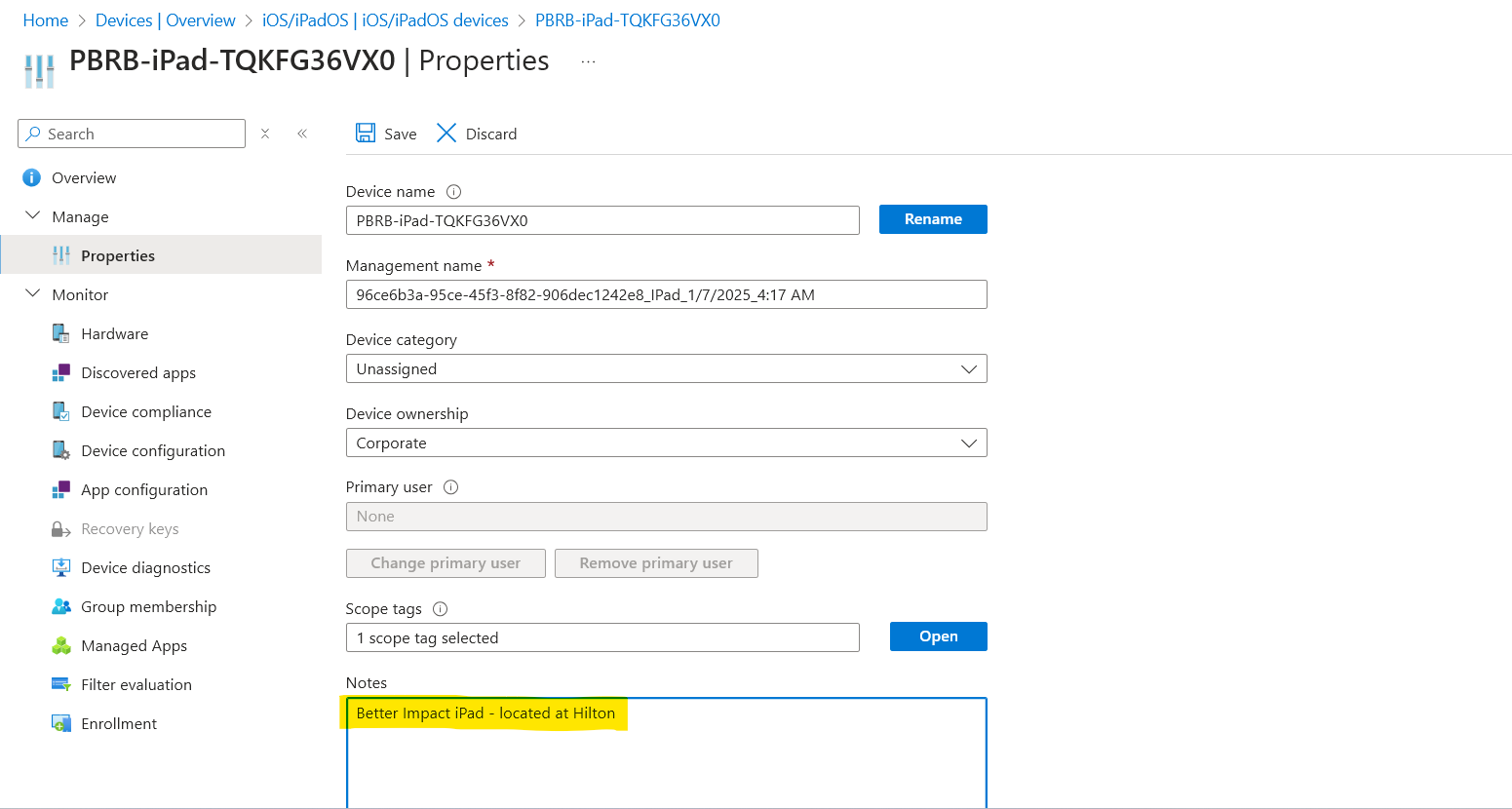](https://bookstack.pbr.org.au/uploads/images/gallery/2025-02/Y36image.png)
**Summary Of Applied Profiles & Policies for Better Impact iPads**
Enrollment Profile
- PBR iPad Profile
Compliancy Policy applied
- iPad Compliance Policy
Configuration Policies applied
- Restricted Apps List
- Better Impact Kiosk Mode
- Better Impact URL
- PBR WiFi - internet
- iOS Updates
Manual Configuration
- Remove Passcode
- Show Safari Bookmarks Bar