Onboarding iOS Devices into Intune
All new iOS devices (iPhones & iPads) at PBR are bring onboarded to Intune
Step 1 - Onboarding Device to Apple Business Manager
- If the device has been reimaged or is new and has not been enrolled by supplier, then start from #
- If the device has been enrolled by the phone supplier, you can skip to **
In order to onboard an iOS device into Apple Business Manager you must first install the Apple Configurator App on your personal phone. This phone must be also connected to Wi-Fi (PBR Corporate Wi-Fi doesn't work with this process) so needs to be connected to Internet Wi-Fi. iOS version of your personal phone and the new PBR phone need to be similar, but not necessarily exactly the same (it worked for me with my personal iPhone on 18.01 and PBR iPhone on 17.7)
Apple Configurator App is available for the App Store, icon looks like 
# If the device has been reimaged or is new and not enrolled by phone supplier then you can start here
- Open Personal iPhone and log into Apple Configurator with PBR Apple Business Manager Username (apple@pbr.org.au) and Password (in 1Password) This MFA's via SMS to the IT Mobile,(messages can be accesses from the Who's On Call App). alternatively if you have a apple administrator account you can use that. Click on settings and ensure that 'Share Wi-Fi' is enabled
- If the phone has been used previously then it must first be erased, once erased or if new proceed with the guided setup until you get to the screen prompting to connect to a Wi-Fi network. (DO NOT CONNECT).
- On your personal phone scan the screen of the new PBR phone and a QR code will appear and then the new phone will go through the process to add to Apple Business Manager.
- Once complete log into Apple Business Manager https://business.apple.com with same creds as above. Navigate to Devices
**If the device has been enrolled by phone supplier then you can start here
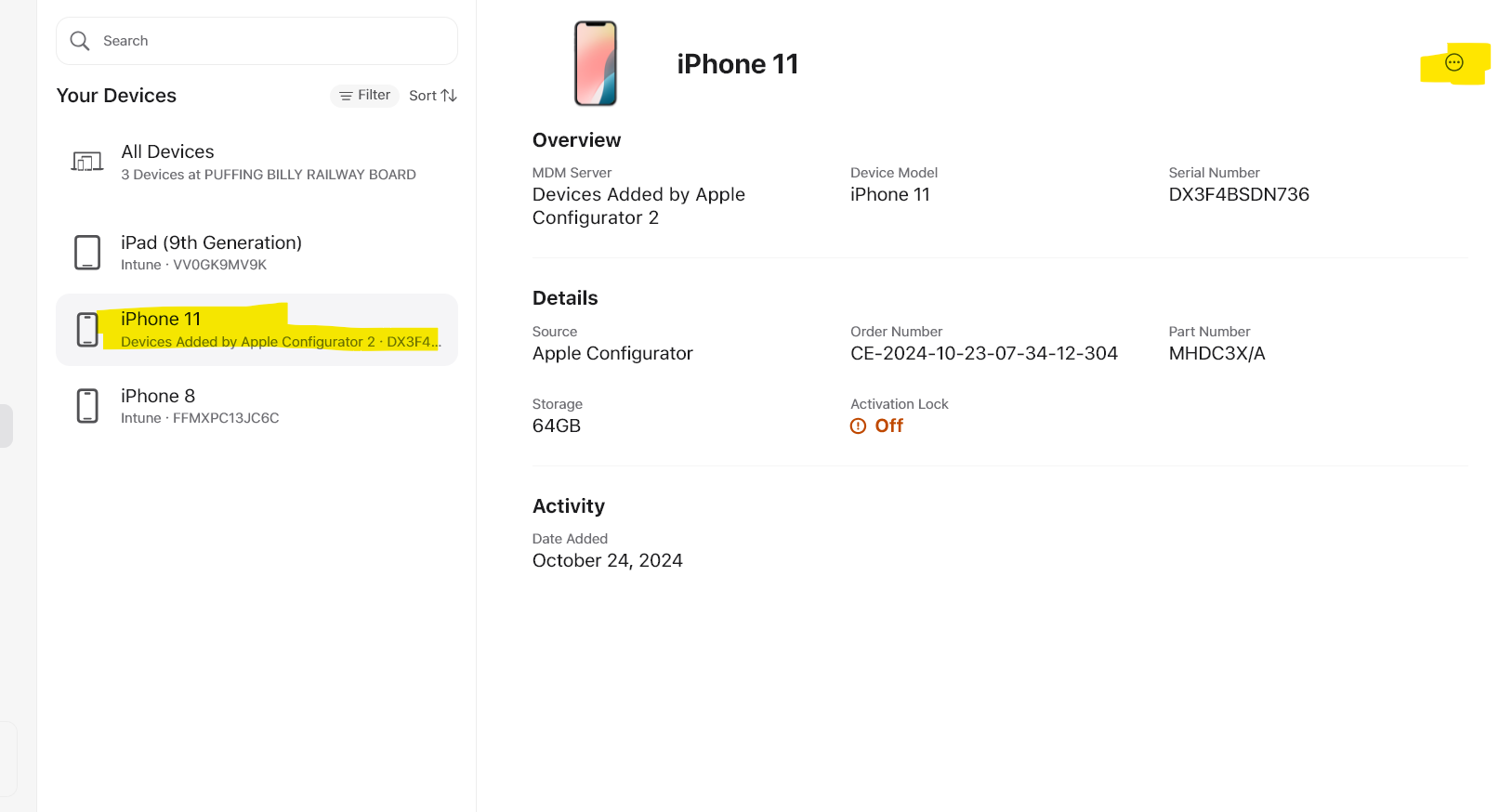
- Select the device you added (best done by serial number) you now need to assign the MDM server to the device, click on 3 dots top right, select edit MDM server and select Intune as the PBR MDM Server.

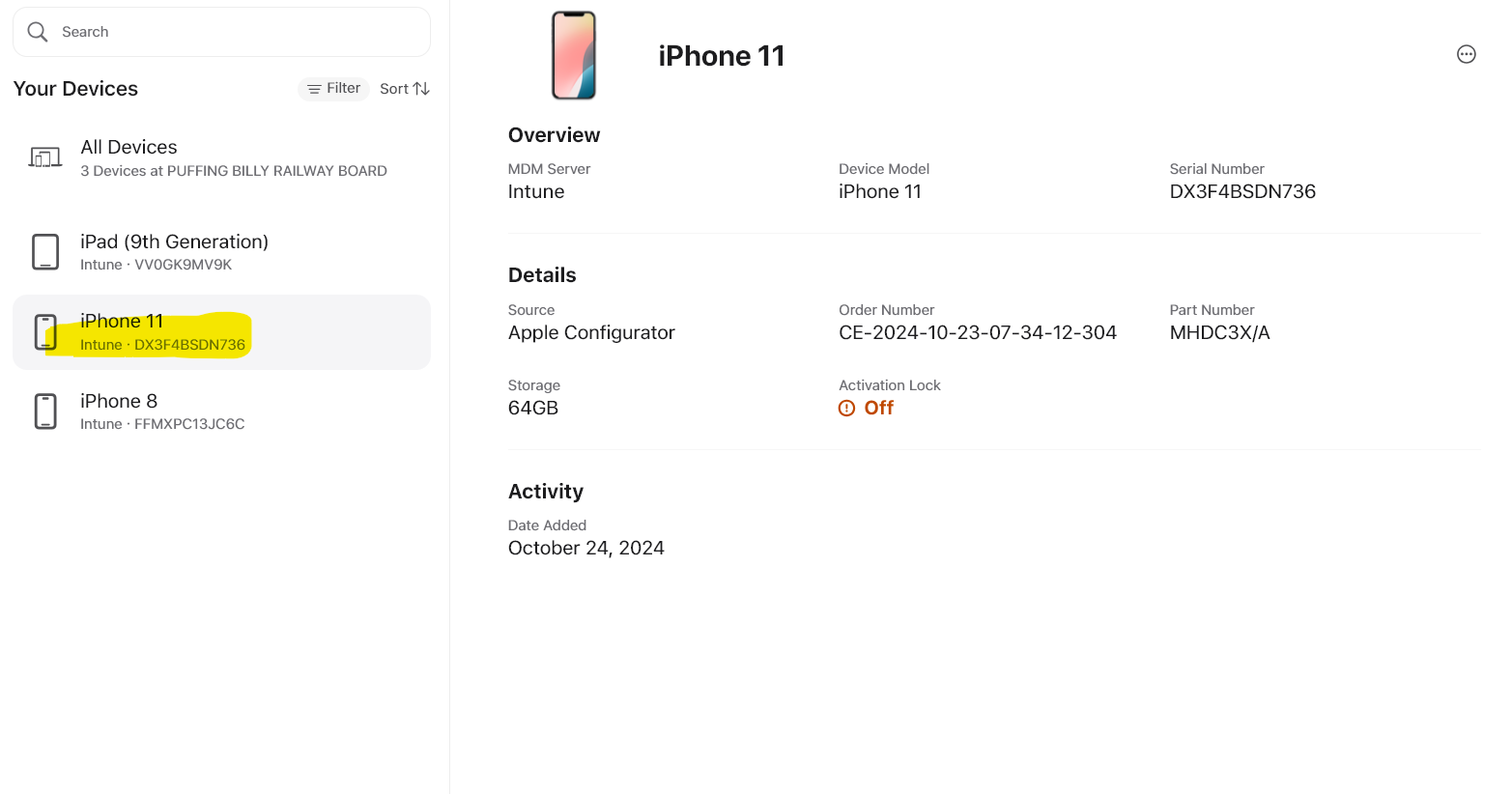
- Now the new device will be updated as per below
 This is all that needs to be done in Apple Business Manager.
Step 2 - Onboarding Device to Intune
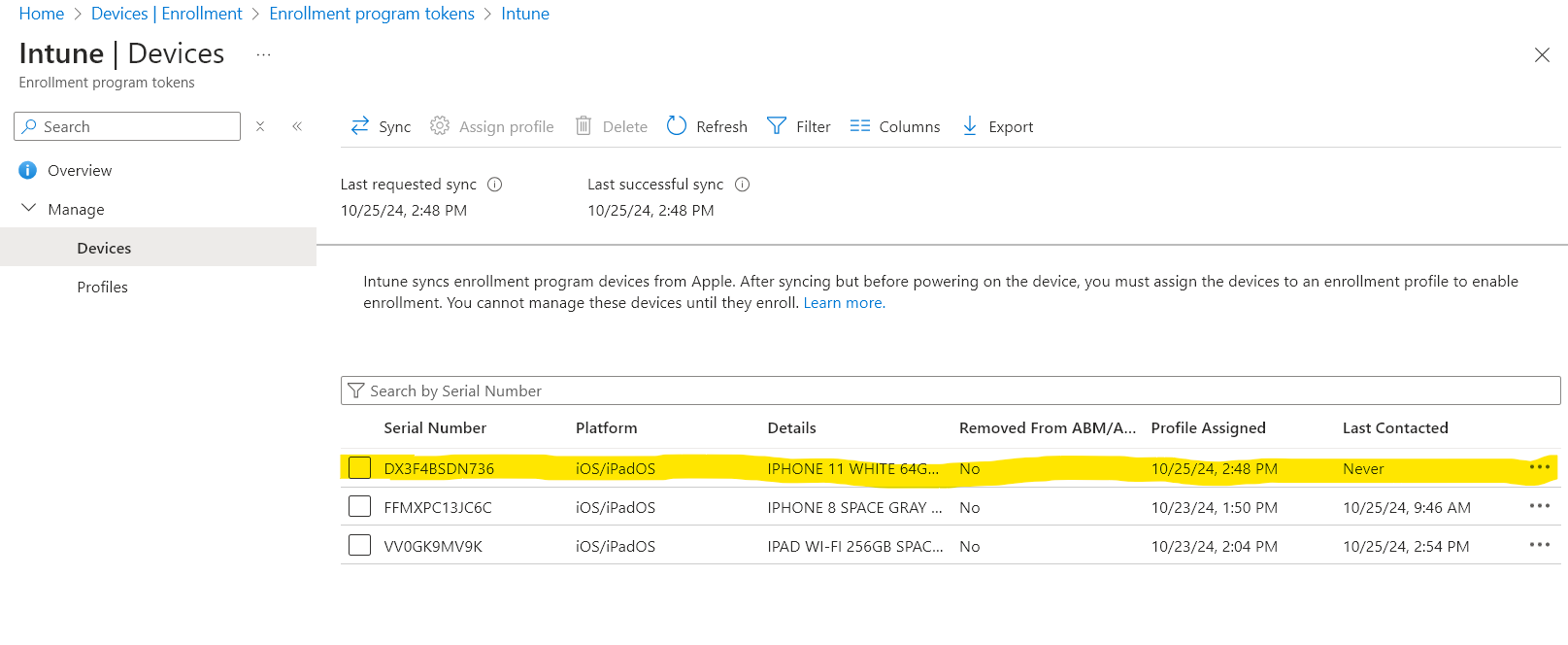
- Log into Intune, navigate to Devices | Enrolment | Apple tab | Enrolment Program Tokens | Select Intune Token | Devices. It can take some time to sync, if its not showing after a few minutes try a refresh and if still not showing try a sync (this will take 15 mins)

-
Once the device is visible in Intune, you need to assign a profile. Select the device and click Assign Profile. Currently there are 3 profiles configured (See below for details of configuration for each profile) -
-
PBR Default iOS Profile - This is for staff that are being assigned a personal iPhone
-
PBR Shared iOS Profile - This is for role based iPhones & iPad's
- PBR iPad Profile - This is for iPads running Survey Legend, Better Impact or Employment Hero
- Fix Profile - Used for resolving issues with devices that are listed as never contacted - Refer Intune iOS Devices FAQ
-
-
Select the required profile and ensure in Intune that click ensure that it has listed 1 ready to enroll before proceeding, if not try a refresh or sync
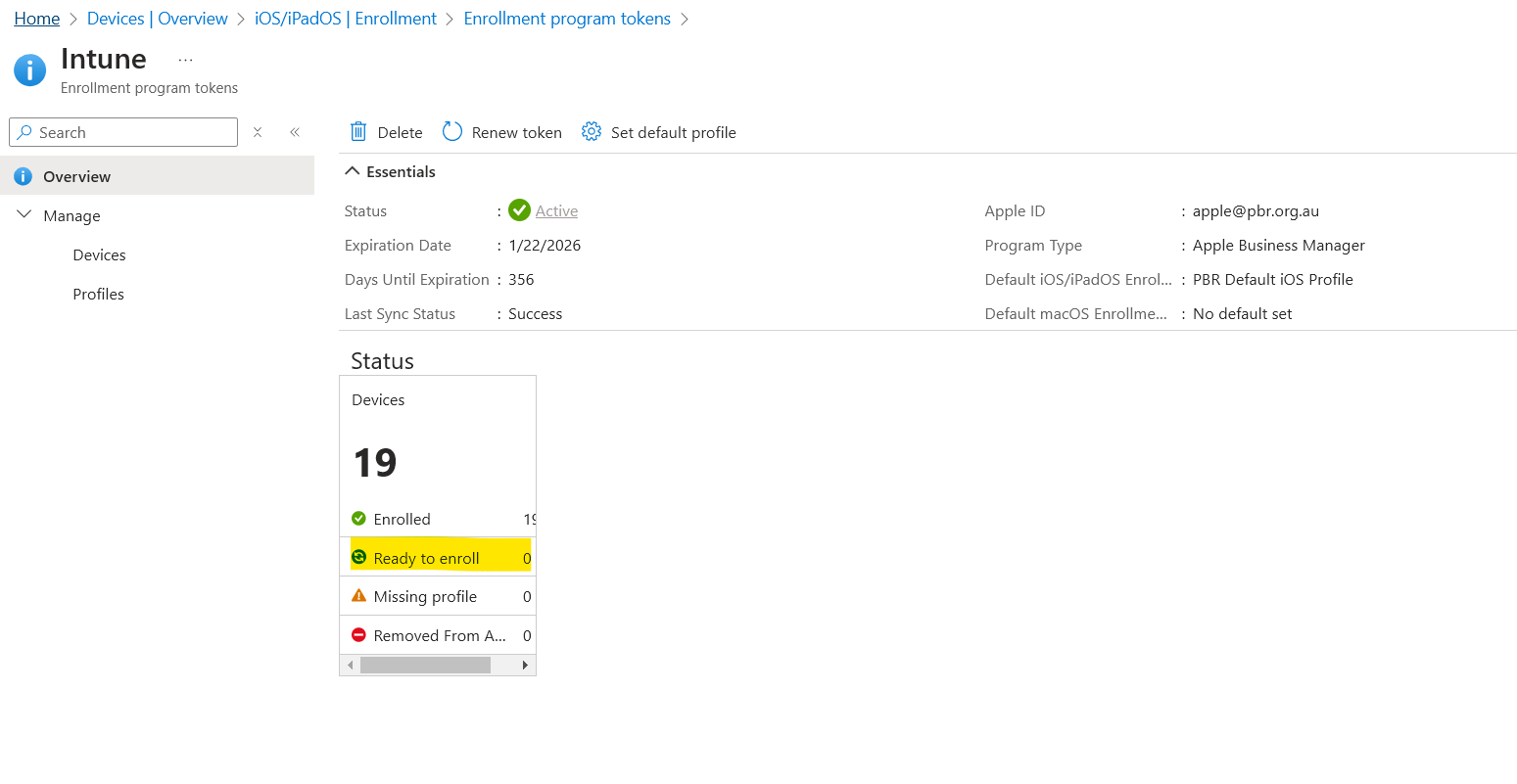
- Return to the iPhone you are onboarding and click Erase iPhone, the phone will then erase and restart
- Once restarted go through the setup prompts, language, country, appearance, quick start (select setup without another device), connect to wifi (choose internet), Remote Management, (choose enroll the iPhone), create a passcode (111111)
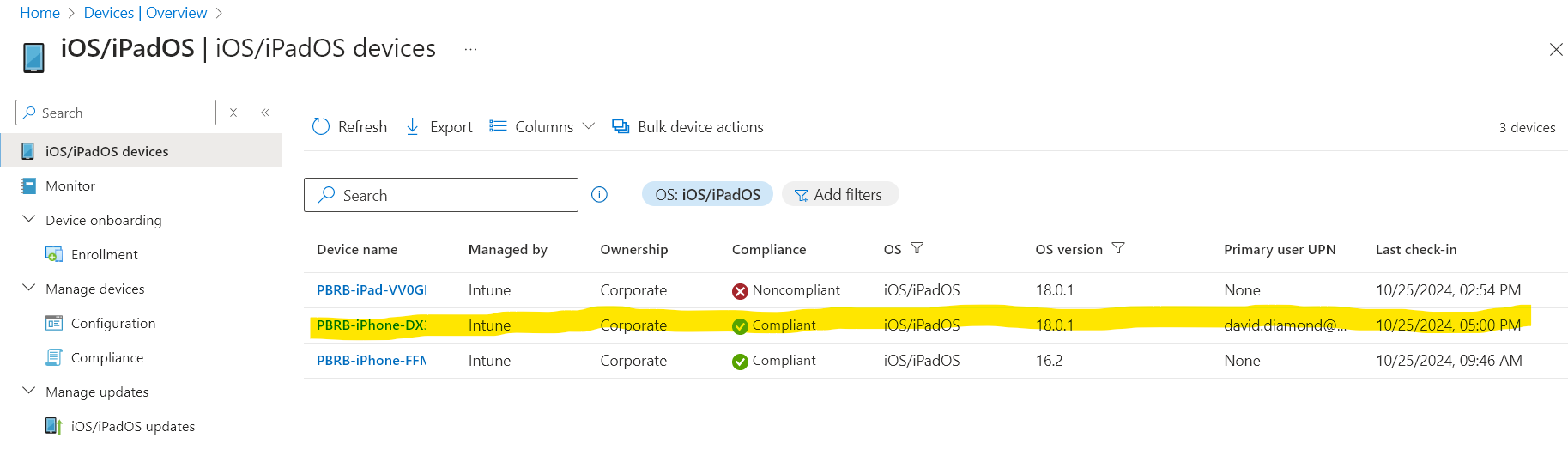
- Once you get to the home screen The device should now be visible in Intune Devices | iOS/iPadOS Devices. Its can take some time (like everything with Intune)

Step 3 - Configuring Device in Intune
- Once visible you need to assign the device (or user) to an AAD group, (this is where the majority of configuration gets applied) there are currently the following groups setup -
- Intune_iOS_iPhones_Individual - User Group
- Intune_iOS_iPhones_Role - Device Group
- Intunue_iOS_iPads_BI - refer separate bookstack on setting up iPad for Better Impact
- Intunue_iOS_iPads_SL - refer separate bookstack on setting up iPad for Survey Legend
- Intunue_iOS_iPads_EH - refer separate bookstack on setting up iPad for Employment Hero
- Intunue_iOS_Default_apps - User Group
- Intune_iOS_Wifi
-
For individually assigned devices ensure the user opens Company Portal App and sign in with PBR User Creds (not needed on iPad's or iPhones that are Role Based) Follow the prompts
Enrollment Profiles - These are assigned to devices as a part of the enrollment process above
-
PBR Default iOS Profile - This is for staff that are being assigned a personal iPhone
- Devices are enrolled with User Affinity
- Company Portal is installed
- Users can log into App store with own account and download apps
- Setup Assistant has all options enabled
- Devices are enrolled with User Affinity
-
PBR Shared iOS Profile - This is for role based iPhones & iPad's
- Devices are enrolled without User Affinity
- Setup Assistant is restricted to passcode
- PBR iPad Profile
- Devices are enrolled without User Affinity
- Setup Assistant doesn't prompt for passcode
AAD Groups and resultant configurations - These are assigned by adding device (or user) to the AAD group)
- Intune_iOS_iPhones_Individual - Devices in this group are configured to -
- Apps are deployed based on user (see below Intune_iOS_Default Apps)
- iOS Update Policy Applied - Set to Latest update and update at next check-in
- Restricted Apps List Policy Applied (Uninstalls TikTok)
- PBR Wi-Fi Policy - connects device to 'internet' Wi-Fi automatically
- Intune_iOS_iPhones_Role - Devices in this group are configured to -
- Get the following Apps automatically deployed
- BOM
- Vic Emergency
- iOS Update Policy Applied - Set to Latest update and update at next check-in
- Restricted Apps List Policy Applied (Uninstalls TikTok)
- PBR Wi-Fi Policy - connects device to 'internet' Wi-Fi automatically
- iPhone_Role_Based_Policy
- Block App Store
- Disable Face ID & Touch ID
- Hide the following built in Apps -
- iOS Native Mail App
- Health App
- Apple TV App
- Podcasts App
- Wallet App
- Weather App
- Home App
- Books App
- iTunes store App
- Fitness App
- Watch App
- Freeform App
- Journal App
- GarageBand App
- Apple Music App
- Apple News App
- Find My iPhone App
- Shortcuts App
- Tips App
- Block App Store
- Get the following Apps automatically deployed
- Intune_iPads_EH - WIP
- Clock Me In Time & Attendance app is installed
- Employment Hero Policy
- Opens Clock Me In Time & Attendance app in Kiosk mode
- Block autolock
- Block screen sleep
- Disable Face ID & Touch ID
- Block passcode modification
- Intune_iPads_BI
- Better Impact Kiosk Policy
- Better Impact URL Policy
- Intune_ipads_forms
- Microsoft Forms Kiosk Policy
- Microsoft Forms URL Policy
- Intune_iPads_SL
-
- Survey Legend Kiosk Policy
- Intune_iOS-Wifi
- PBR Wi-Fi Policy - connects device to 'internet' Wi-Fi automatically
- Intune_iOS_Default Apps - Members of this group get assigned the following Apps -
- Required Apps - installed automatically on the device once the user signs into Company Portal
- Outlook
- OneDrive
- BOM
- Duo
- Optional Apps - are available for download and installation by user from within Company Portal
- Word
- Excel
- Teams
- Employment Hero Work
- Required Apps - installed automatically on the device once the user signs into Company Portal
- Intune_iOS_Finance_Apps
- Required Apps - installed automatically on the device once the user signs into Company Portal
- Optional Apps - are available for download and installation by user from within Company Portal
- CommBiz
Make a group for wifi policy and add individual devices to it
- Assigned Apps will be installed on the iPhone (apps are specified in Intune, Apps | iOS Apps)
Select device and you can manage the device
Wifi policy is attached to a seperate AAD group, to avoid issues with devices in Kiosk mode losing network connectivity when changing policy's.. thiis way a device cabn be removed from its Kiosk Mode group, whislt enabling it to stay connected. I have expereinced issue where you can get locked out of a device if in kiosk mode that gets disconnected from wifi