# How to: Purchase an Annual Pass
#### This is a work in progress, details of this may change as specifics locations for products are placed in publicly accessible locations on the website.
##### BOOKING LINK: [https://apps.customlinc.com.au/puffingbillyrailways/BookingProduct/List/?&category=AP](https://apps.customlinc.com.au/puffingbillyrailways/BookingProduct/List/?&category=AP)
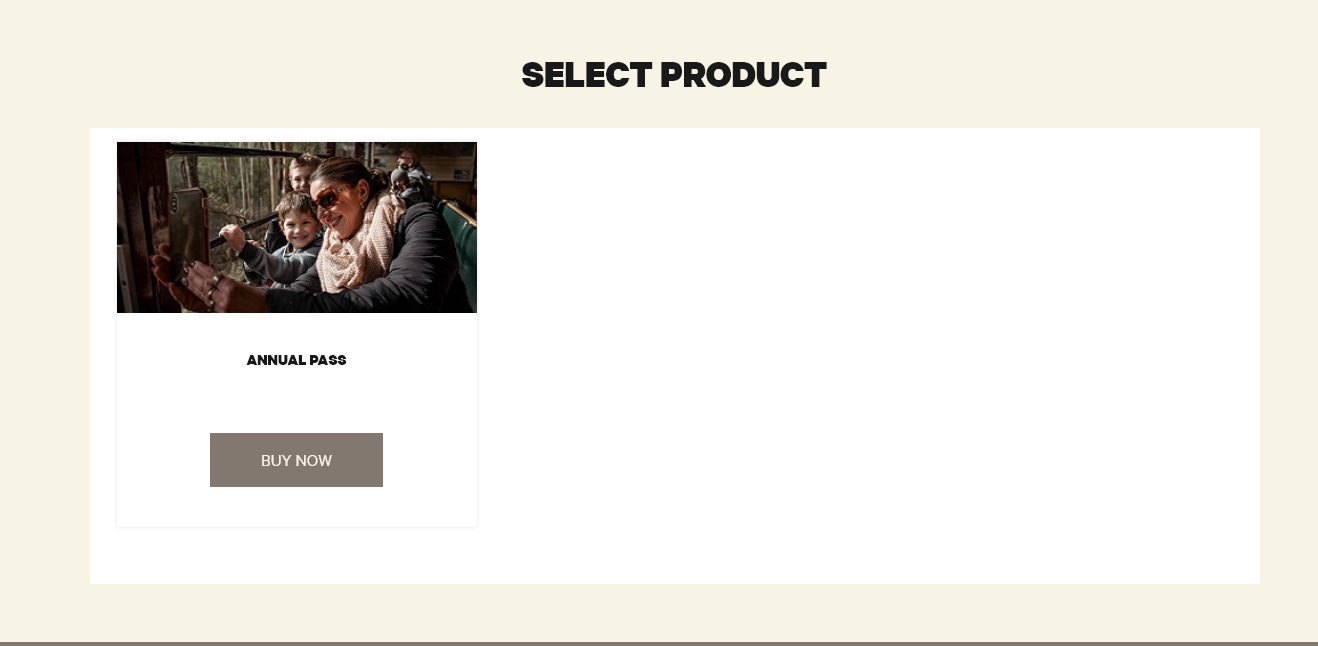
1. Similar to normal bookings they will see a booking frame like below.
[](https://bookstack.pbr.org.au/uploads/images/gallery/2024-05/7Ivimage.png)
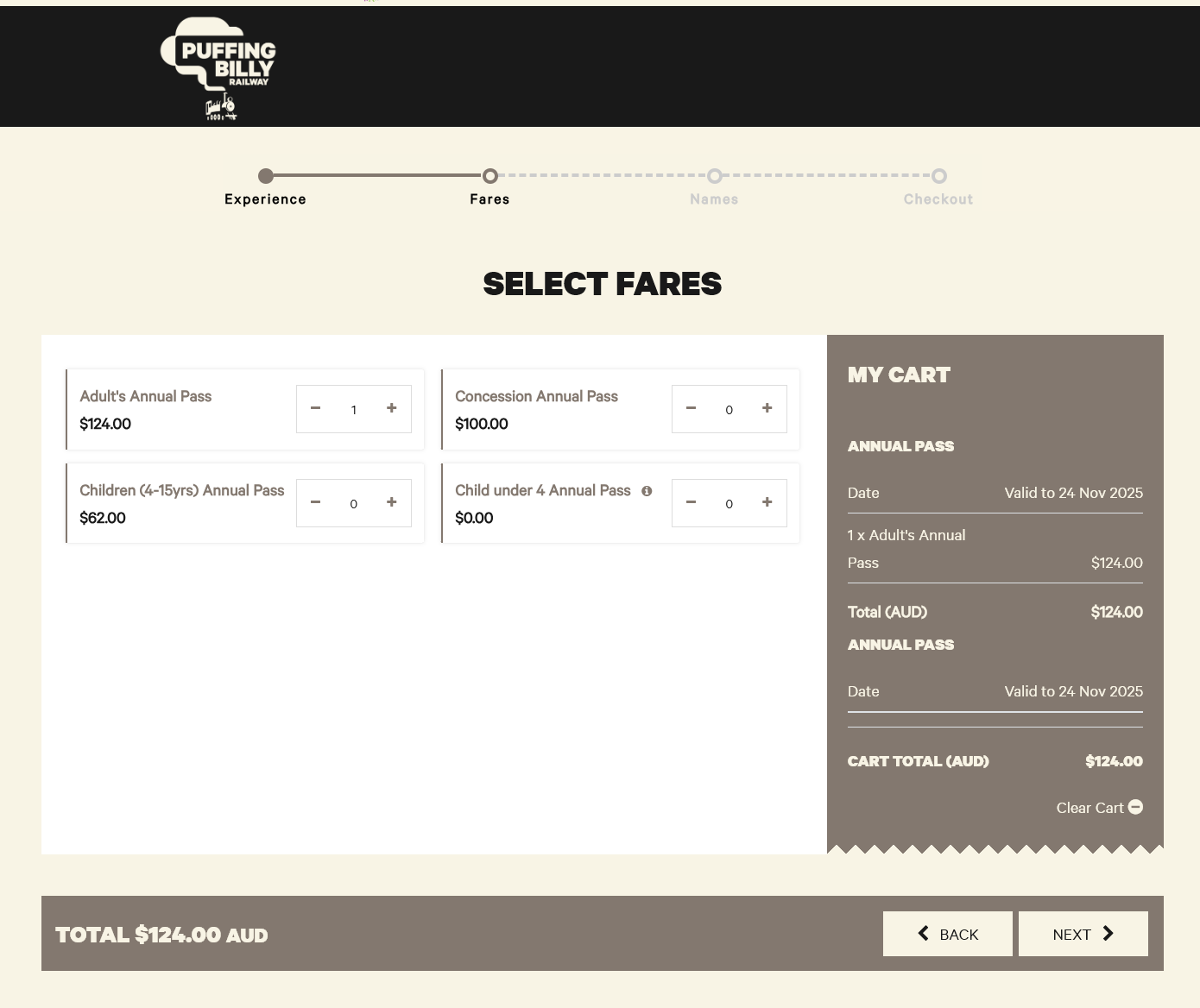
2. They can then select how many annual passes they require.
#### Family/Group discount is currently a work in progress. This section will be updated as soon as these are configured.
[](https://bookstack.pbr.org.au/uploads/images/gallery/2024-11/8Iwimage.png)
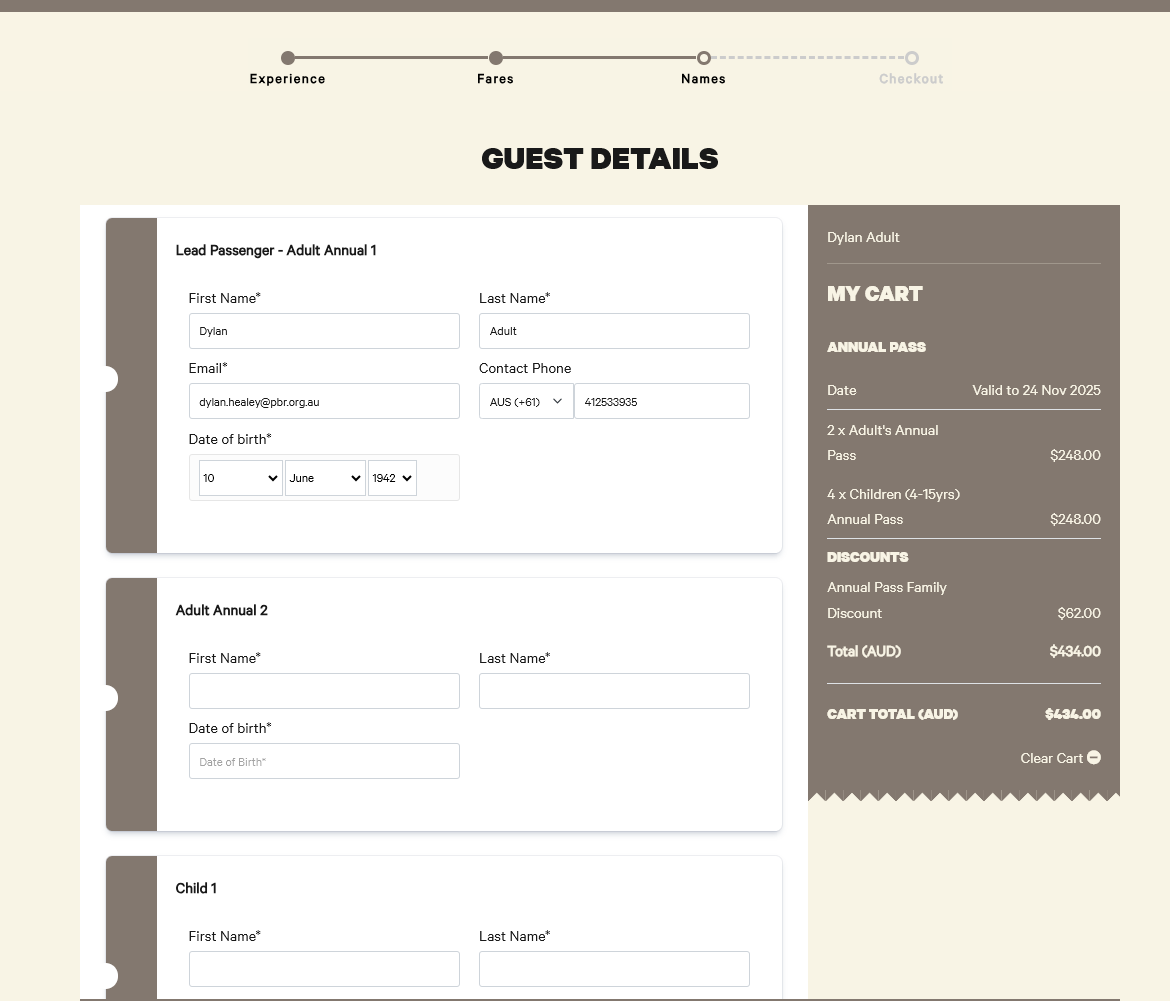
3. They will then need to put full names of each pass holder & the DOB of any children. The **Lead Passenger** will be Annual Pass account holder. These will be the details the user registers their account with.
[](https://bookstack.pbr.org.au/uploads/images/gallery/2024-11/ICRimage.png)
4. Once the transaction is complete a confirmation emails with registration details will be sent to the email provided in the billing contact information.