# How: An Annual Pass Member can make an excursion booking themselves

1. Go to the annual pass portal here: [https://apps.customlinc.com.au/puffingbillyrailways/MemberPortal/Logon/](https://apps.customlinc.com.au/puffingbillyrailways/MemberPortal/Logon/)
2. Use your created credentials to log in. If you are unsure of your password use the *I have forgotten my password* option.   
      
    [![image.png](https://bookstack.pbr.org.au/uploads/images/gallery/2024-05/scaled-1680-/YuXimage.png)](https://bookstack.pbr.org.au/uploads/images/gallery/2024-05/YuXimage.png)
3. If the user has not created their account you can reissue the confirmation email which has the registration details on it.   
      
    You can find a guide [here.](https://bookstack.pbr.org.au/books/customlinc-staff-documentation/page/how-to-send-or-re-send-a-sign-upconfirmation-email-for-annual-pass-customer)
4. Once logged in they should see the Dashboard, from here they need to select **New Booking** [![image.png](https://bookstack.pbr.org.au/uploads/images/gallery/2024-11/scaled-1680-/e2timage.png)](https://bookstack.pbr.org.au/uploads/images/gallery/2024-11/e2timage.png)
5. They can choose the date they wish to book. Similar to the public website.   
      
    [![image.png](https://bookstack.pbr.org.au/uploads/images/gallery/2024-11/scaled-1680-/pj4image.png)](https://bookstack.pbr.org.au/uploads/images/gallery/2024-11/pj4image.png)
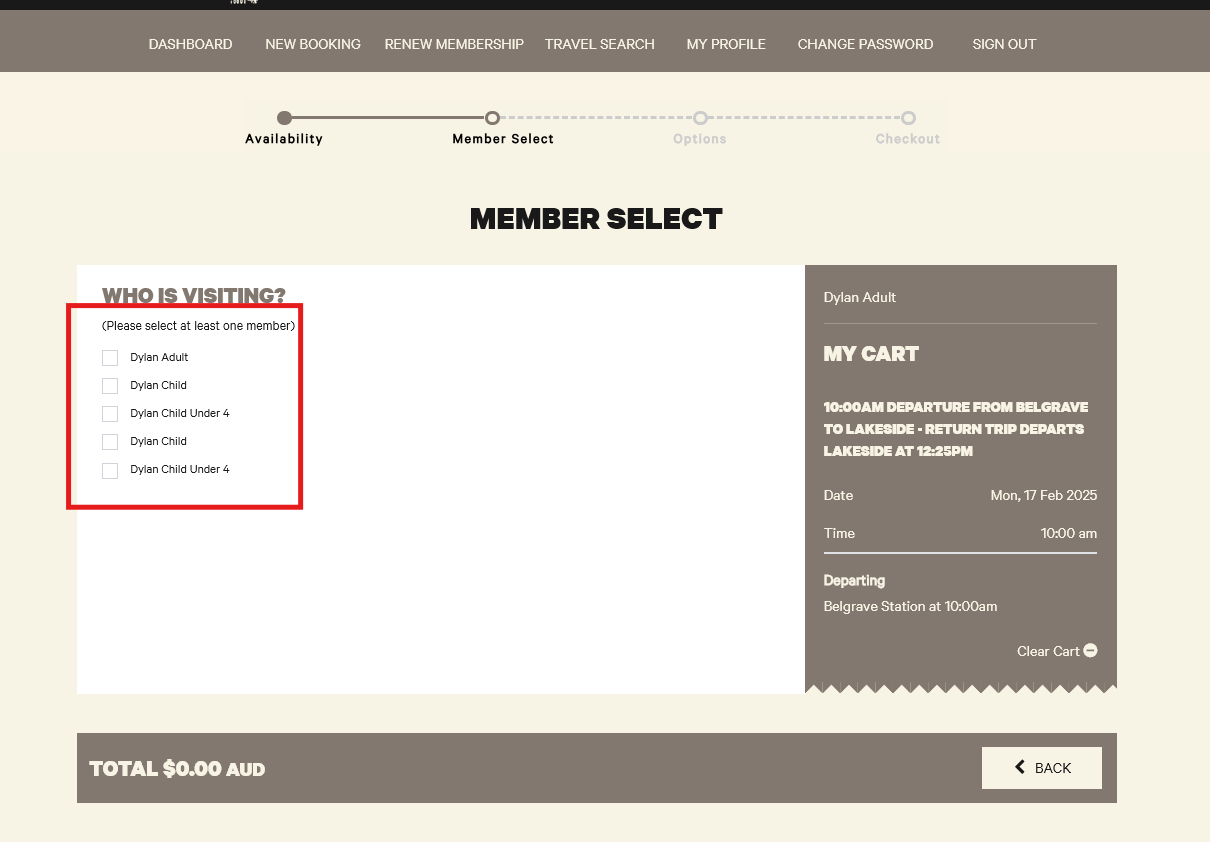
6. Next they need to select who will be travelling, this will be the first and the last name of the member. <p class="callout info">A Child, or Child under 4 member cannot travel without an Adult/Concession also selected. </p>
    
      
    [![image.png](https://bookstack.pbr.org.au/uploads/images/gallery/2024-11/scaled-1680-/rJAimage.png)](https://bookstack.pbr.org.au/uploads/images/gallery/2024-11/rJAimage.png)
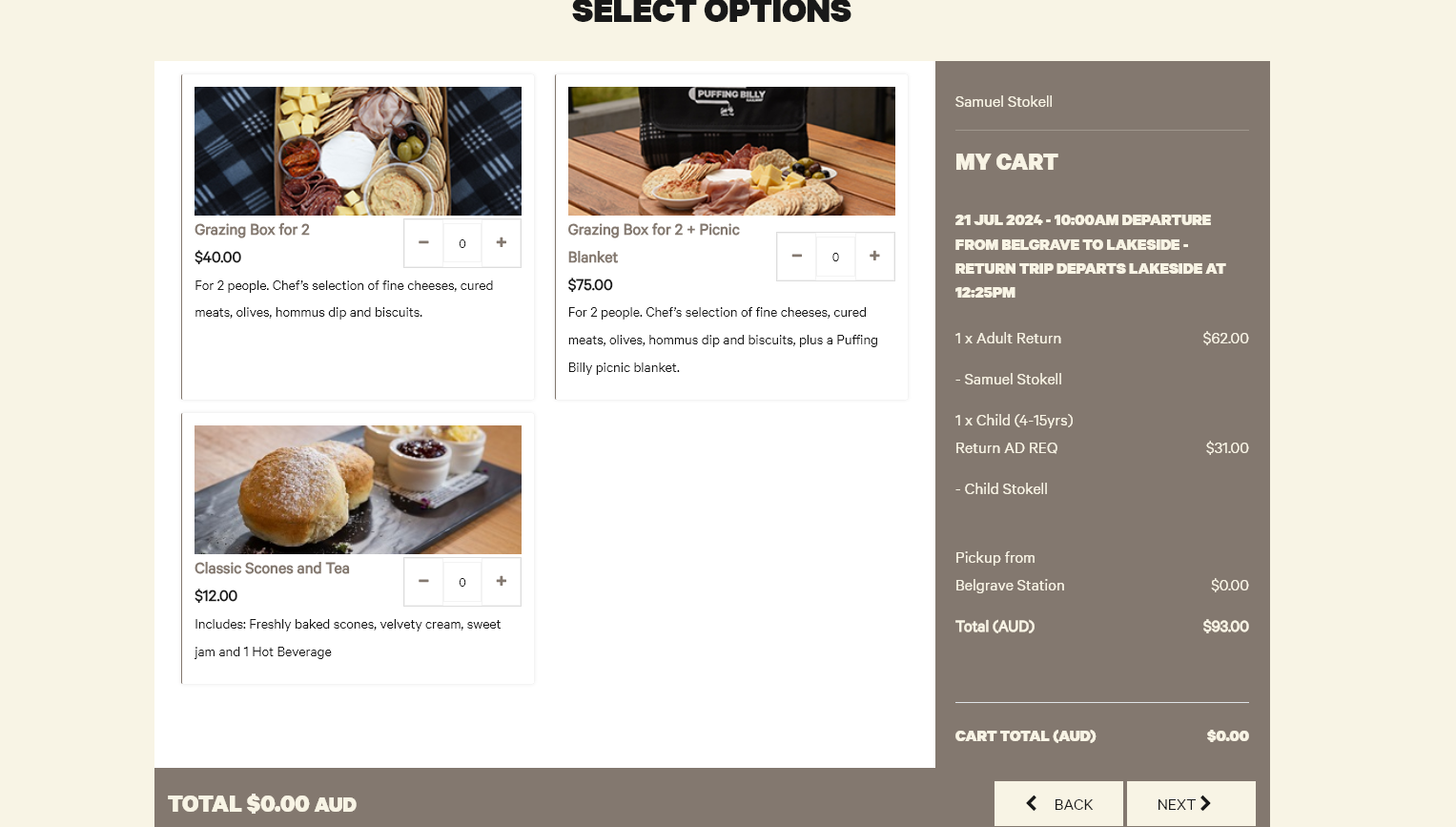
7. They can select if they'd like to purchase any available options.   
      
    [![image.png](https://bookstack.pbr.org.au/uploads/images/gallery/2024-05/scaled-1680-/4EAimage.png)](https://bookstack.pbr.org.au/uploads/images/gallery/2024-05/4EAimage.png)
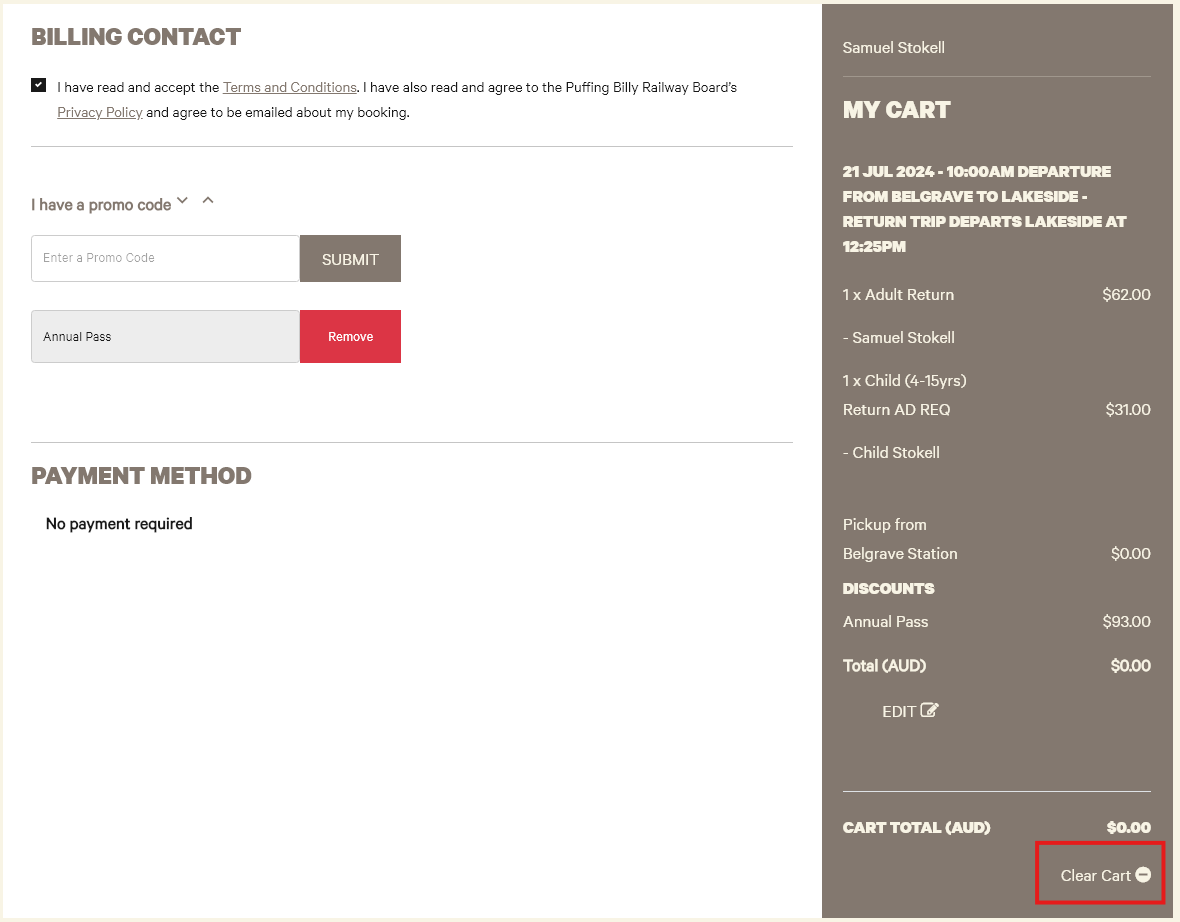
8. The terms and conditions need to be accepted, there should also be an Annual Pass promo code showing as used. <p class="callout warning">If the code is removed it cannot be readded manually. The user will need to clear their cart (see image) and restart the booking process again.</p>
    
      
    [![image.png](https://bookstack.pbr.org.au/uploads/images/gallery/2024-05/scaled-1680-/NzWimage.png)](https://bookstack.pbr.org.au/uploads/images/gallery/2024-05/NzWimage.png)
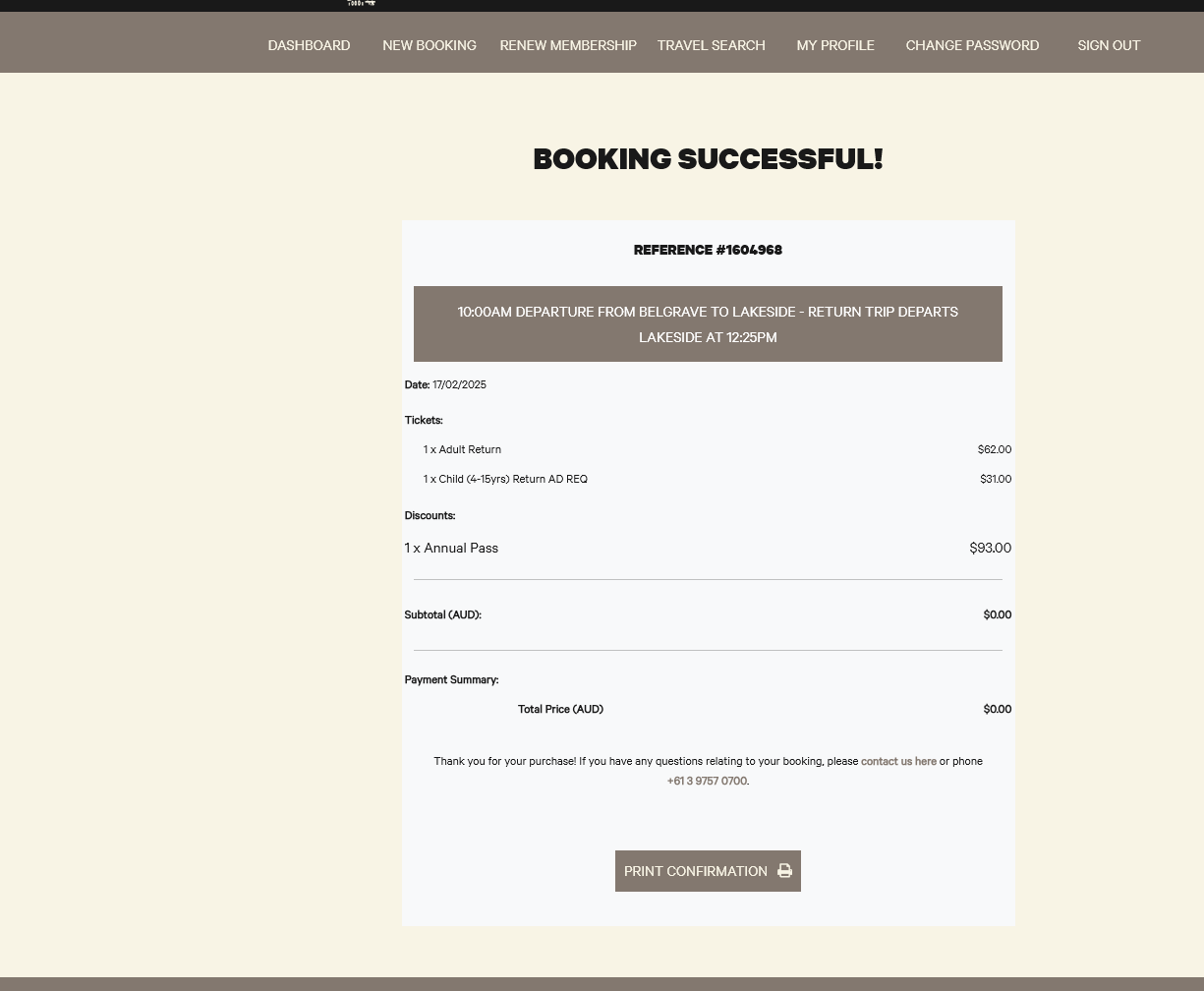
9. They will then be met with a booking successful page.  
      
    [![image.png](https://bookstack.pbr.org.au/uploads/images/gallery/2024-11/scaled-1680-/QINimage.png)](https://bookstack.pbr.org.au/uploads/images/gallery/2024-11/QINimage.png)
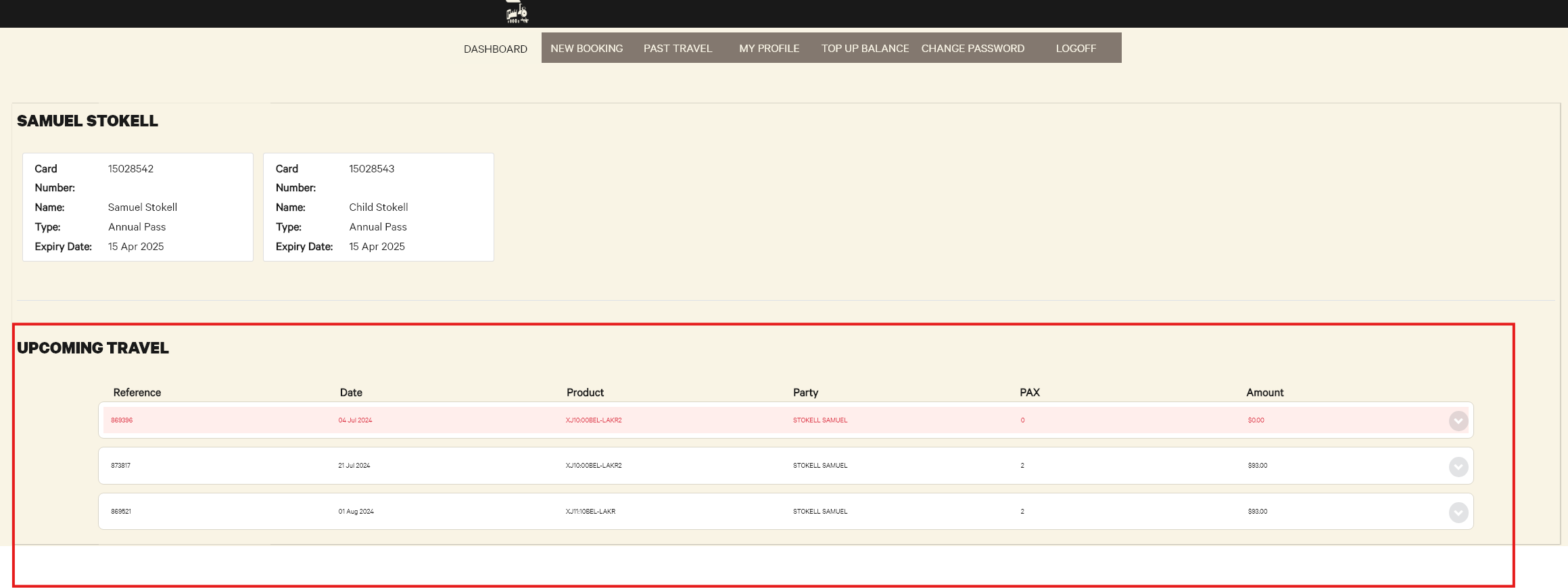
10. They can confirm the booking in the portal under **Dashboard.**   
    [![image.png](https://bookstack.pbr.org.au/uploads/images/gallery/2024-05/scaled-1680-/rAyimage.png)](https://bookstack.pbr.org.au/uploads/images/gallery/2024-05/rAyimage.png)
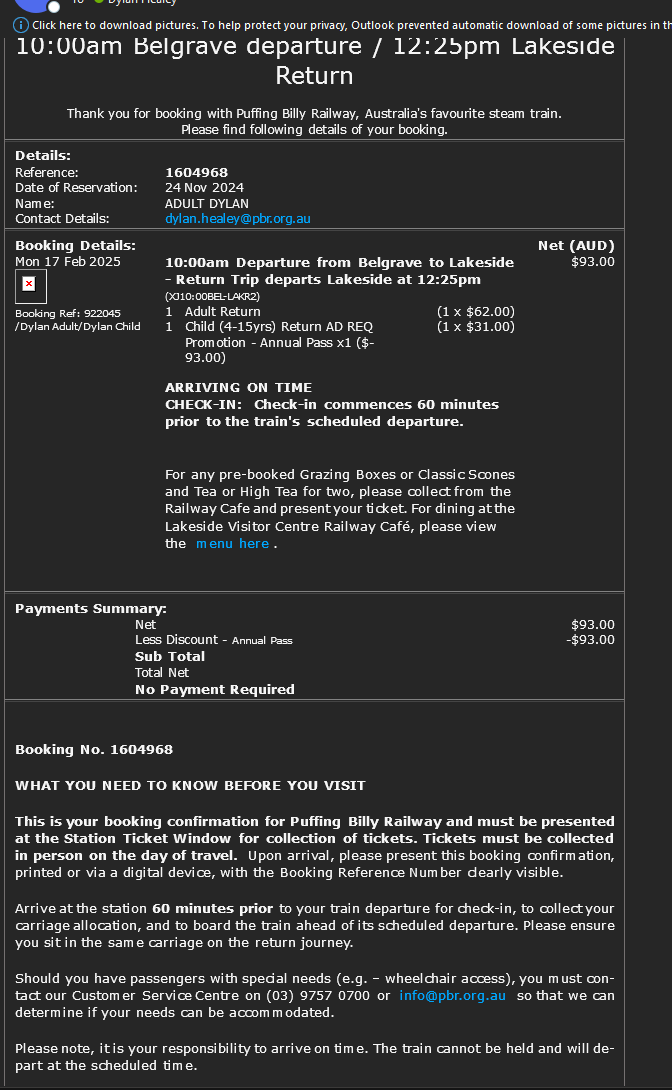
11. Finally they will receive our standard booking confirmation email  
      
    [![image.png](https://bookstack.pbr.org.au/uploads/images/gallery/2024-11/scaled-1680-/nNNimage.png)](https://bookstack.pbr.org.au/uploads/images/gallery/2024-11/nNNimage.png)