If you do not see this screen, you can continue with the booking and edit the details later. [Please click here if you are unsure how to edit the booking Meal Request details.](https://bookstack.pbr.org.au/books/customlinc-staff-documentation/page/editing-or-adding-a-meal-request-to-an-existing-booking)
[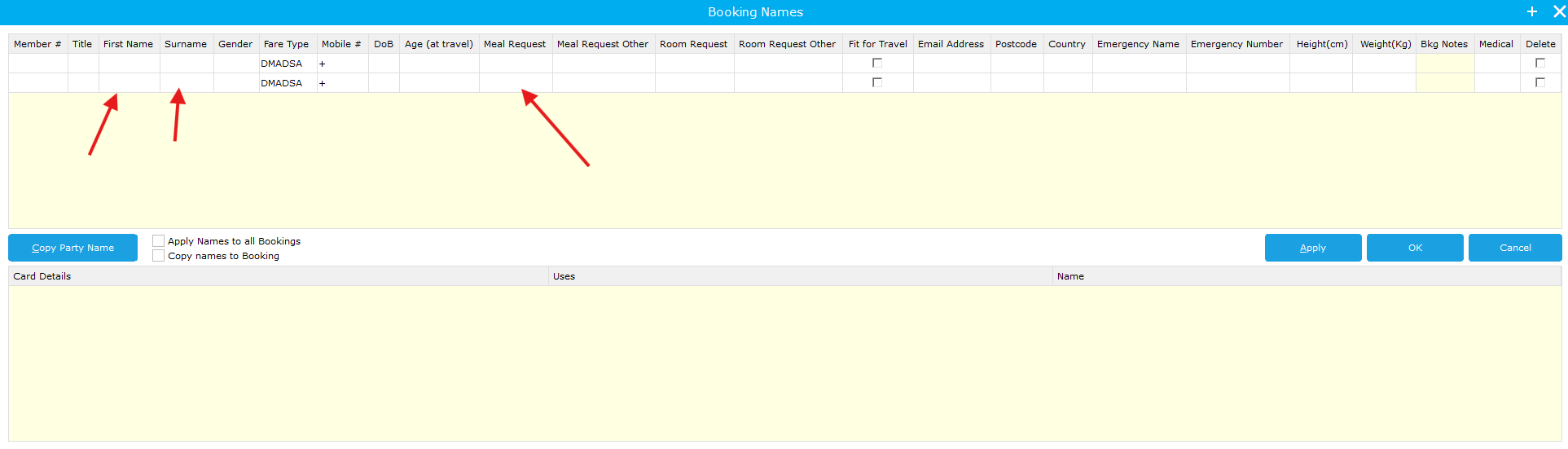](https://bookstack.pbr.org.au/uploads/images/gallery/2024-10/ZRBimage.png) 3. To select a meal request click on the cell and the available pre-filled options will be selectable. When selected the background of the text will be blue. Multiple requests can be selected [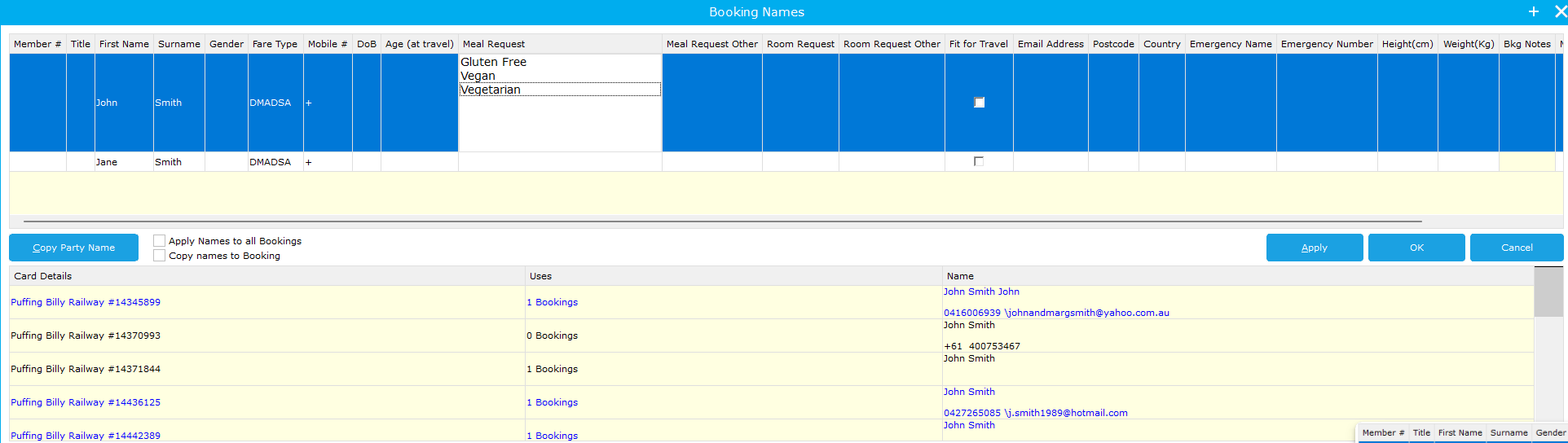](https://bookstack.pbr.org.au/uploads/images/gallery/2024-10/6NIimage.png) In the below example John Smith is Gluten Free and Vegan - [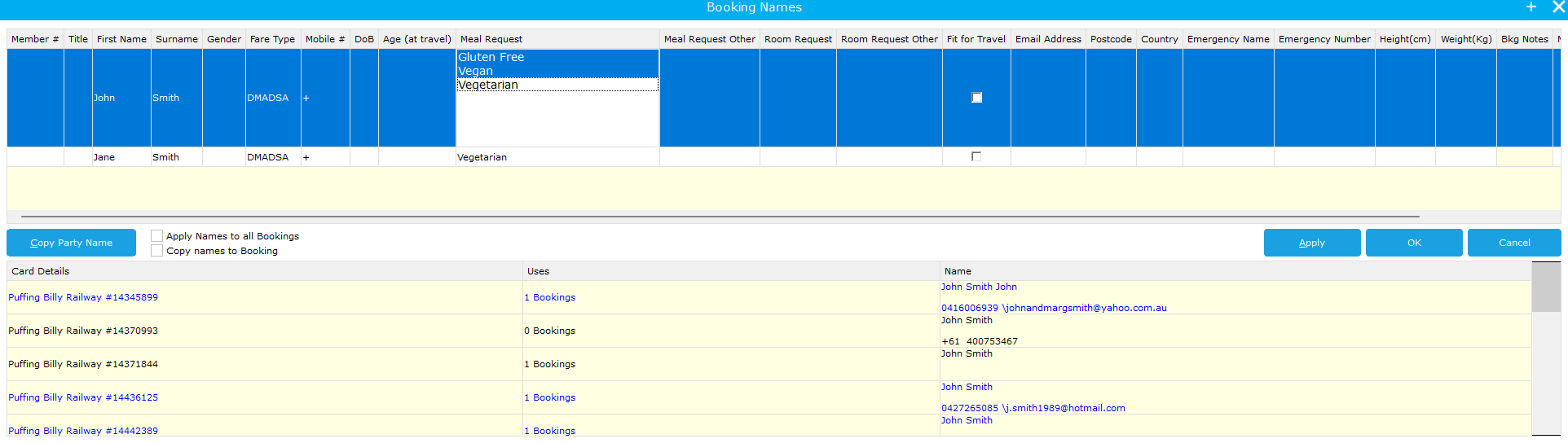](https://bookstack.pbr.org.au/uploads/images/gallery/2024-10/YhMimage.png) You also have Meal Request Other, this is a text field anything can be put into. Any additional requirements should be confirmed with Commercial management. [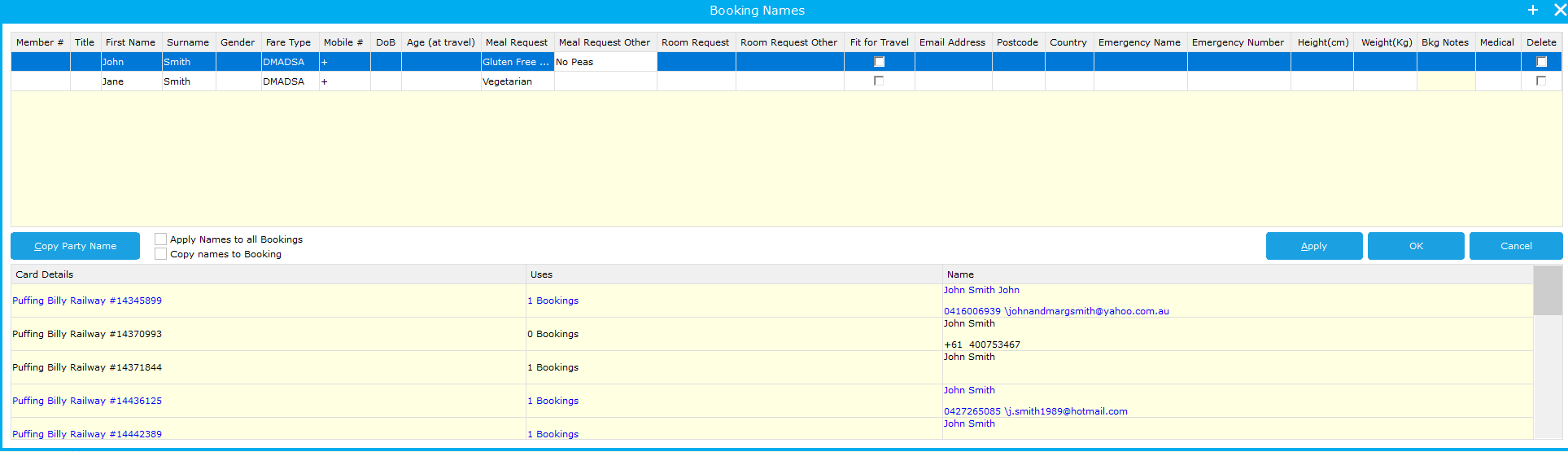](https://bookstack.pbr.org.au/uploads/images/gallery/2024-10/3eiimage.png) 4. You can then select **Apply** then **OK** and you will be taken to the prepayment section for the booking. # Editing or Adding a Meal Request to an existing booking 1. Search for the booking and go into the booking details [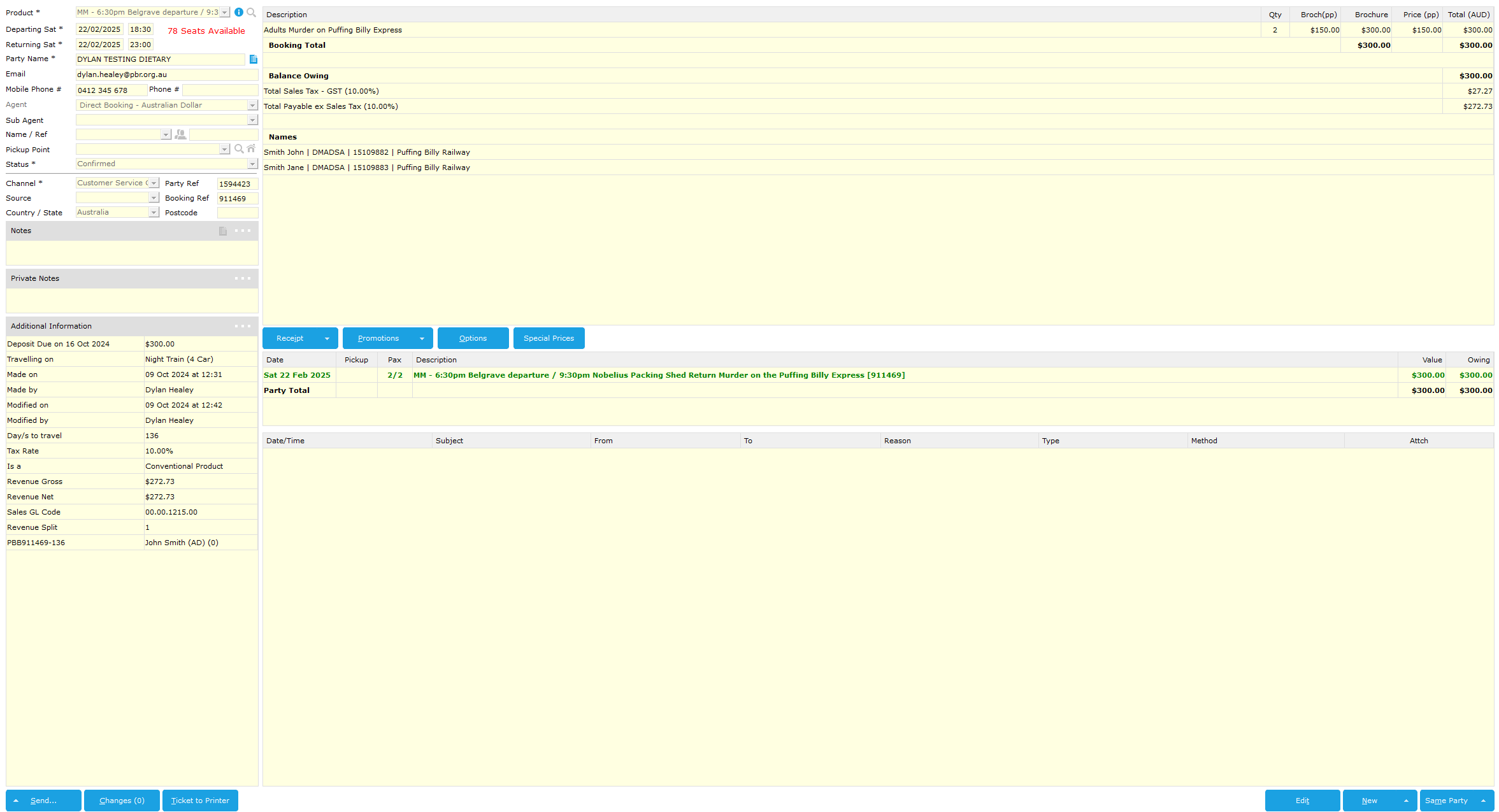](https://bookstack.pbr.org.au/uploads/images/gallery/2024-10/ERCimage.png) 2. On the right of the party name go to click the party details icon (see below) [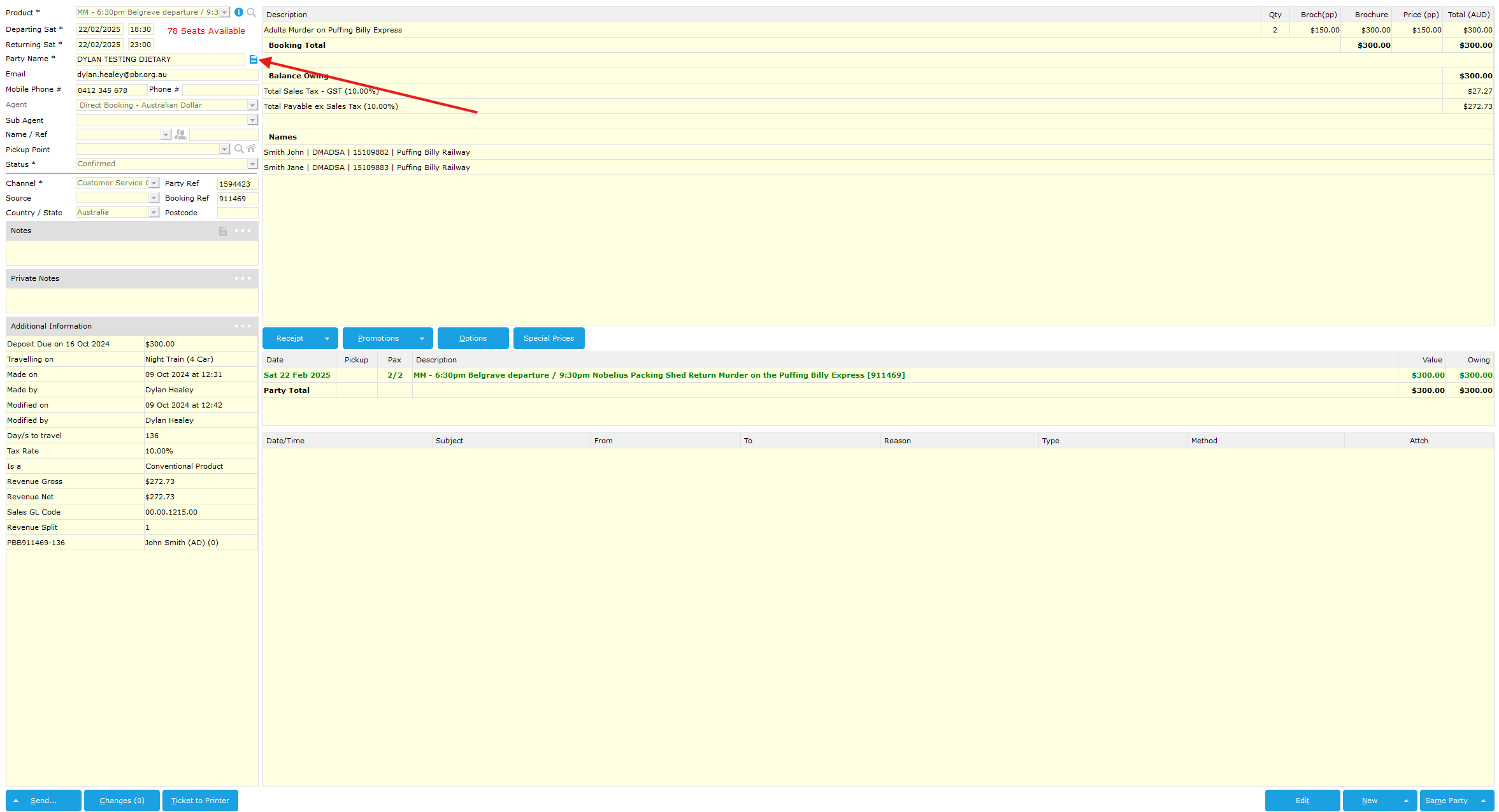](https://bookstack.pbr.org.au/uploads/images/gallery/2024-10/6uCimage.png) 3. From here you can click into the Meal Request Cell and add a Meal Request or deselect an existing option. [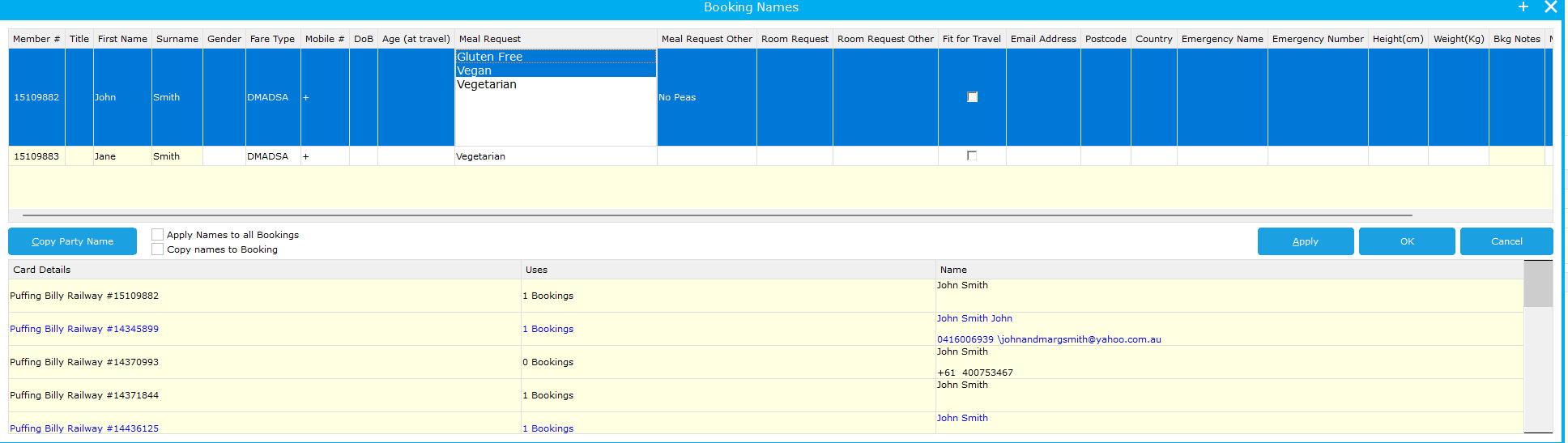](https://bookstack.pbr.org.au/uploads/images/gallery/2024-10/VDeimage.png) 4. For this case I have removed Vegan from John and added Vegetarian [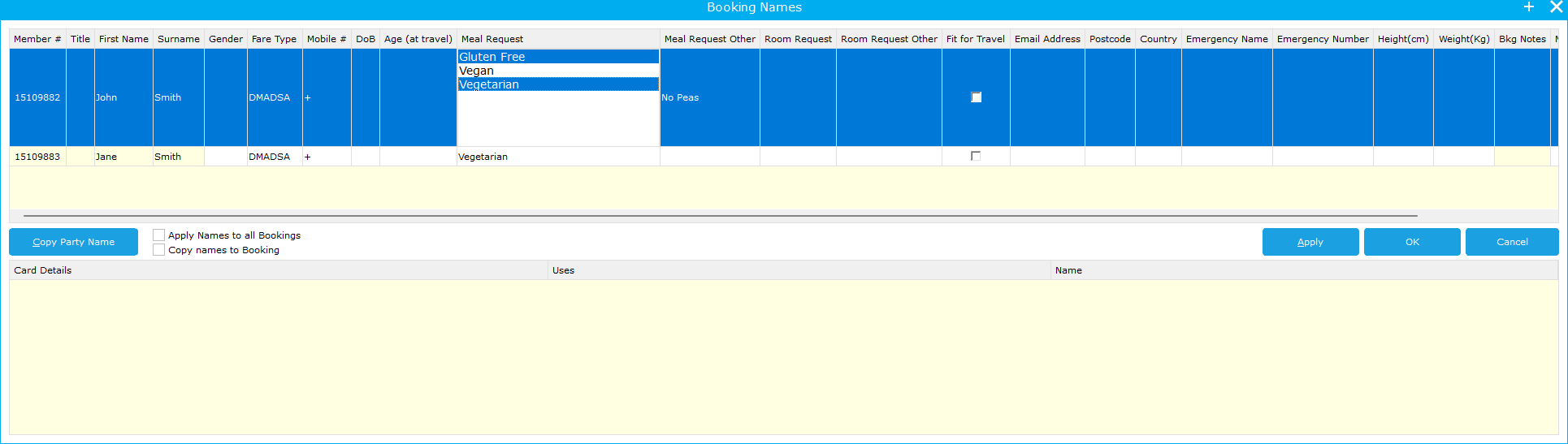](https://bookstack.pbr.org.au/uploads/images/gallery/2024-10/3m8image.png) 5. You can then select **OK** and you have edited the Meal Request details. # How a Customer will make Meal Requests for applicable products.As of 09/10/2024 Meal Requests are only enabled and required on Paint & Sip and Murder Mystery products
1. They will go through the normal webpages and select a product, in this example Murder Mystery.[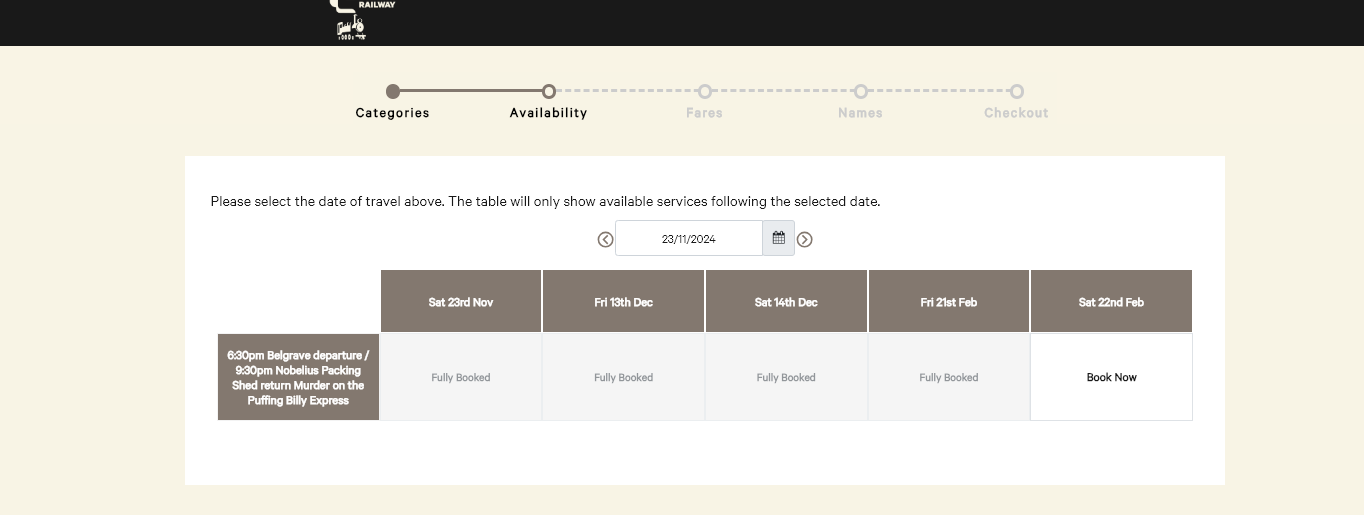](https://bookstack.pbr.org.au/uploads/images/gallery/2024-10/jczimage.png) 2. They will then select what fares and how many they would like as usual. [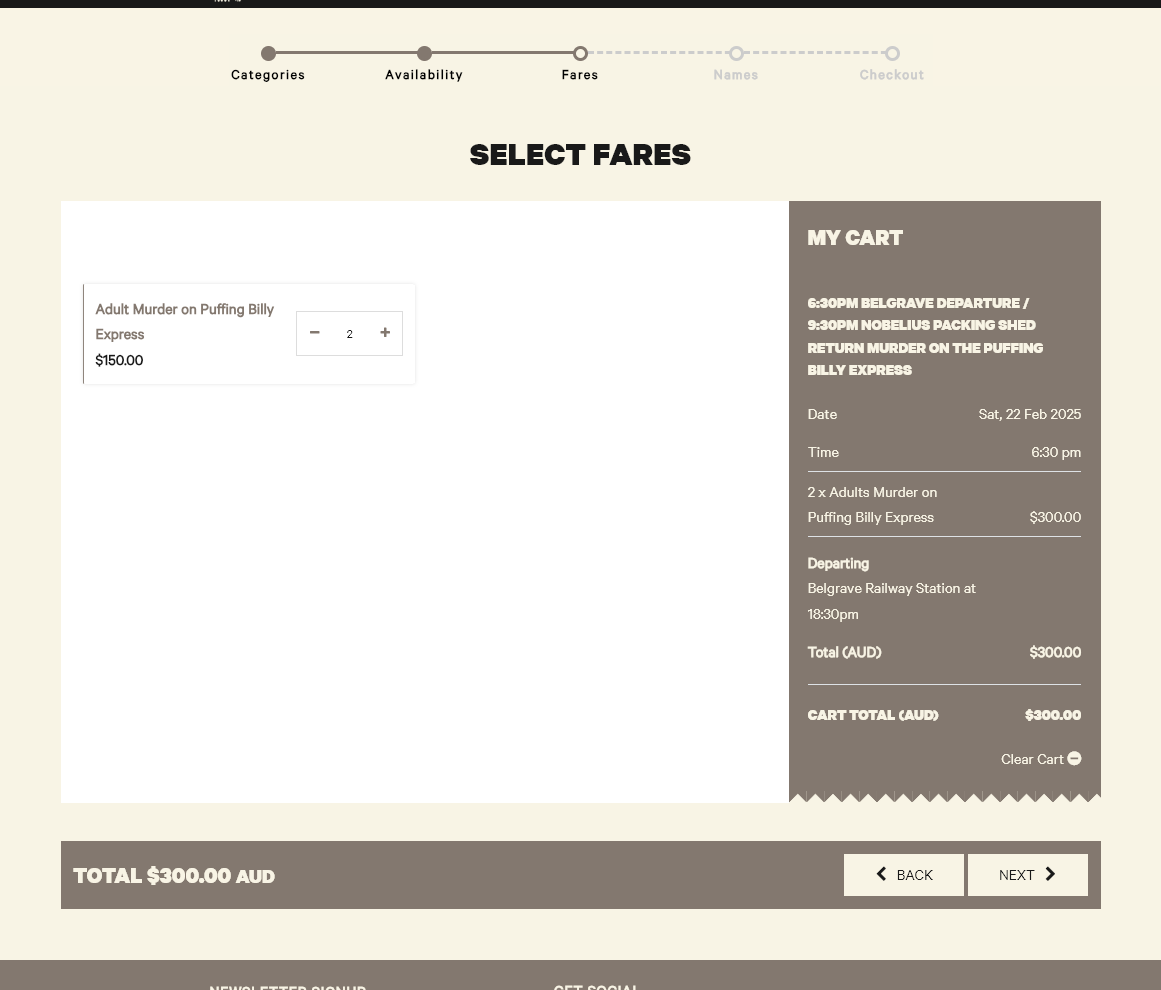](https://bookstack.pbr.org.au/uploads/images/gallery/2024-10/2EBimage.png) 3. If the product they have selected has a dietary selection they will be prompted to fill in the **Name**, and **Dietary Request** for each person they have booked for.As of writing this document both of these fields are **Mandatory.**
[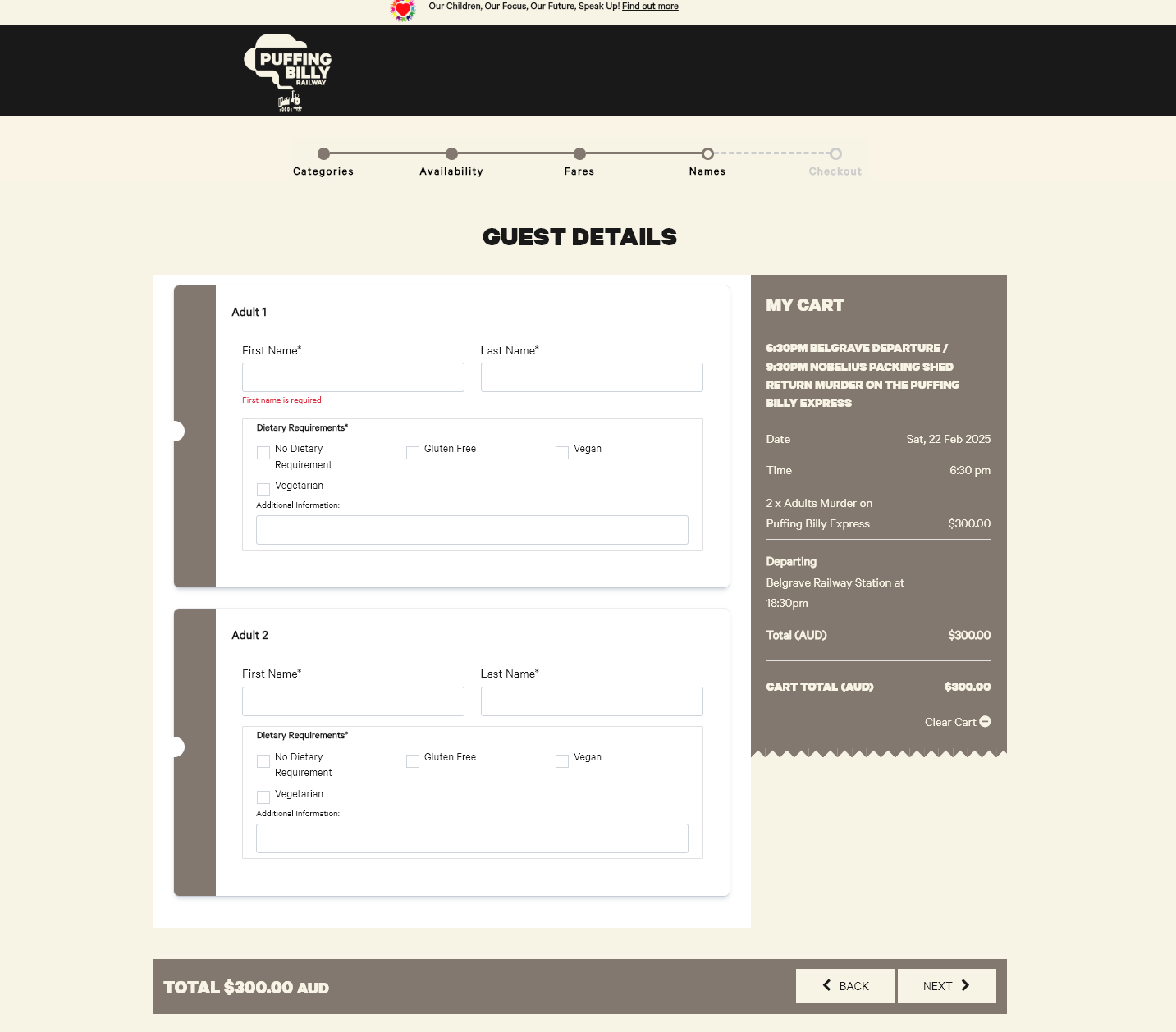](https://bookstack.pbr.org.au/uploads/images/gallery/2024-10/tEJimage.png) 4. They have the ability to select one or multiple options AND can fill in Additional Dietary Information. [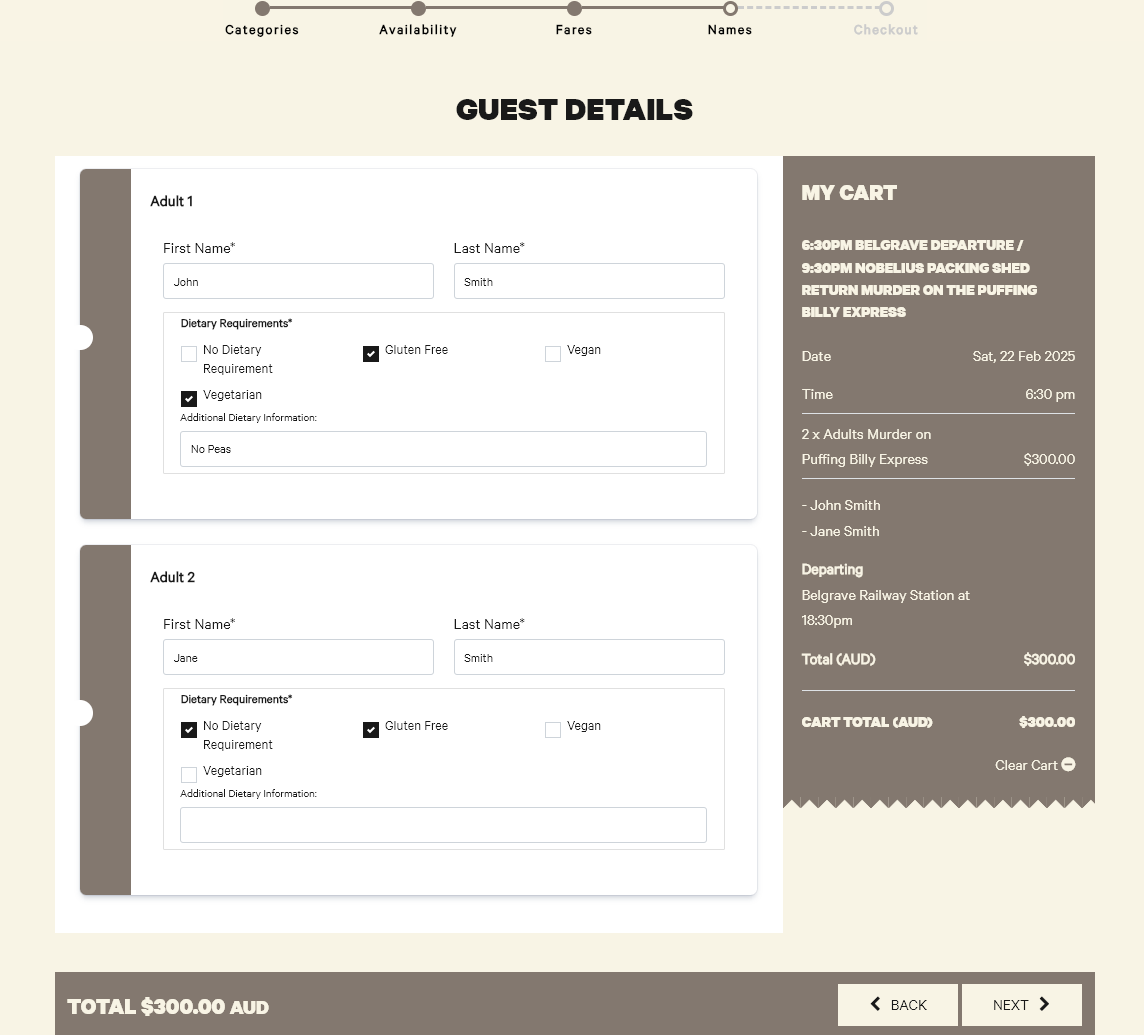](https://bookstack.pbr.org.au/uploads/images/gallery/2024-10/7Zuimage.png) 5. They can then hit next and go through the normal payment process # Dietary Requests on Manifests ##### When a meal request is filled out it shows in the manifest next to each passengers name. In this case you can see **John Smith** has selected **Gluten Free and Vegetarian**, they have also given additional information being **"No Peas".** ##### [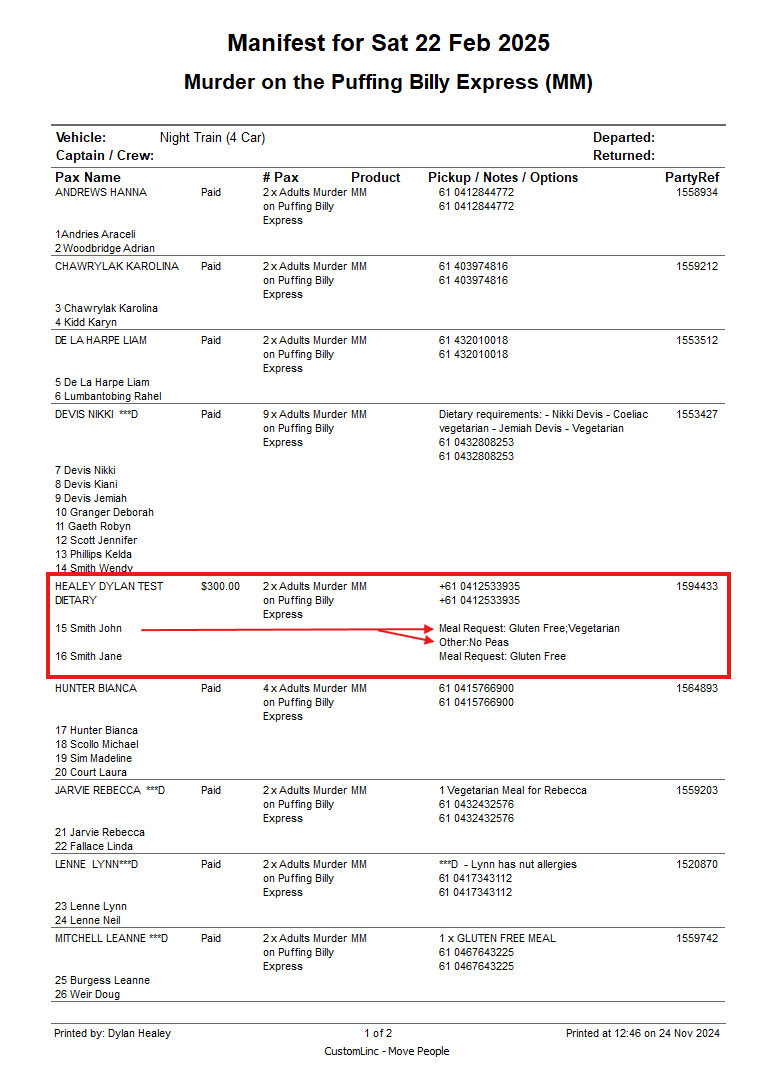](https://bookstack.pbr.org.au/uploads/images/gallery/2024-11/Qhsimage.png) This information is gathered during the booking process from a customer. [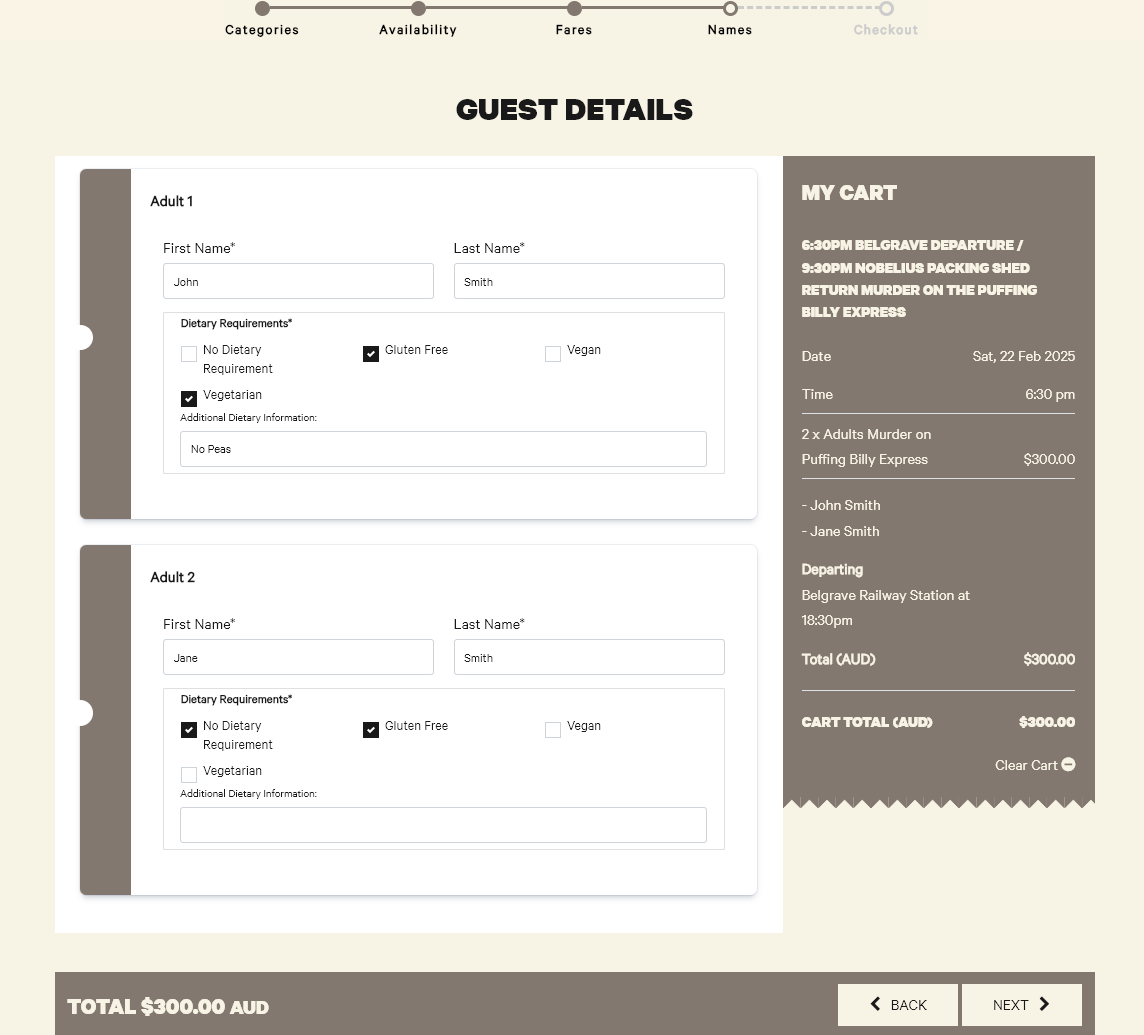](https://bookstack.pbr.org.au/uploads/images/gallery/2024-11/kjMimage.png)