# Adjusting the Belgrave–Gembrook Return Allocation
## Overview
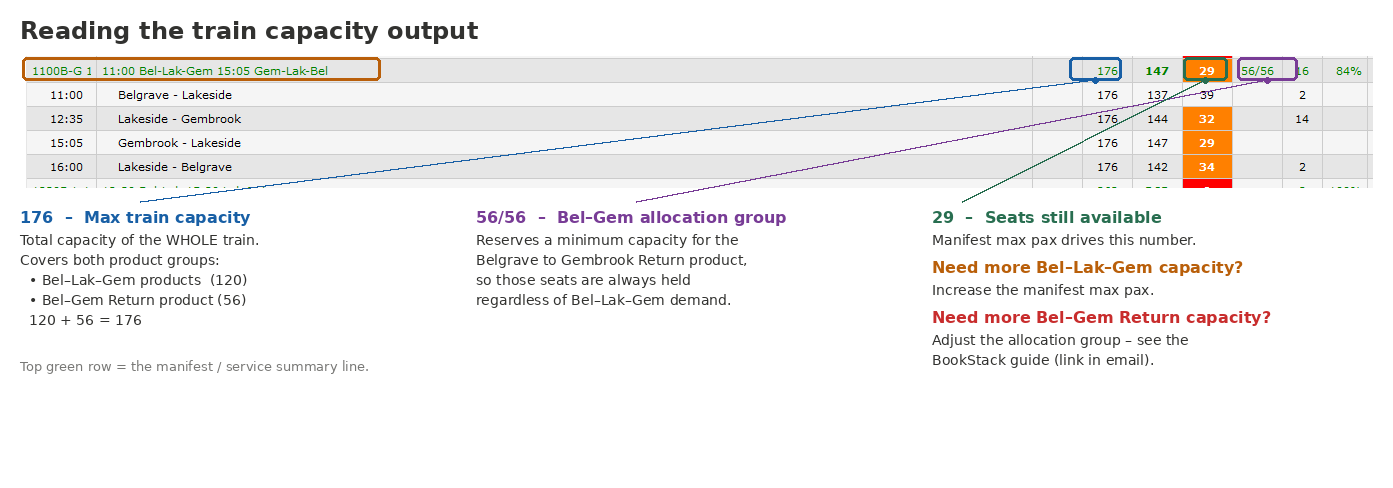
Use this procedure to change the capacity for the **Belgrave – Gembrook Return** allocation — the full return journey product, typically set to 56 seats.
[](https://bookstack.pbr.org.au/uploads/images/gallery/2026-06/Rpbimage.png)
## How Capacity is Structured
Each leg on a Belgrave–Gembrook service has a total capacity of **176 passengers**, made up of two components:
| Component | Capacity | Notes |
|---|
| Bel - Lak & Lak - Gmb Return / single-journey passengers | 120 | Availability works is calculated as this.
Max Pax of Manifest minus Gembrook Allocation Group (below)
Standard is 176 - 56 (120). |
| Belgrave – Gembrook (Return) | 56 | Minimum seats held via Allocation Group (inside Manifest),
Maximum bookings available limited by product. |
| **Total per leg** | **176** | |
##
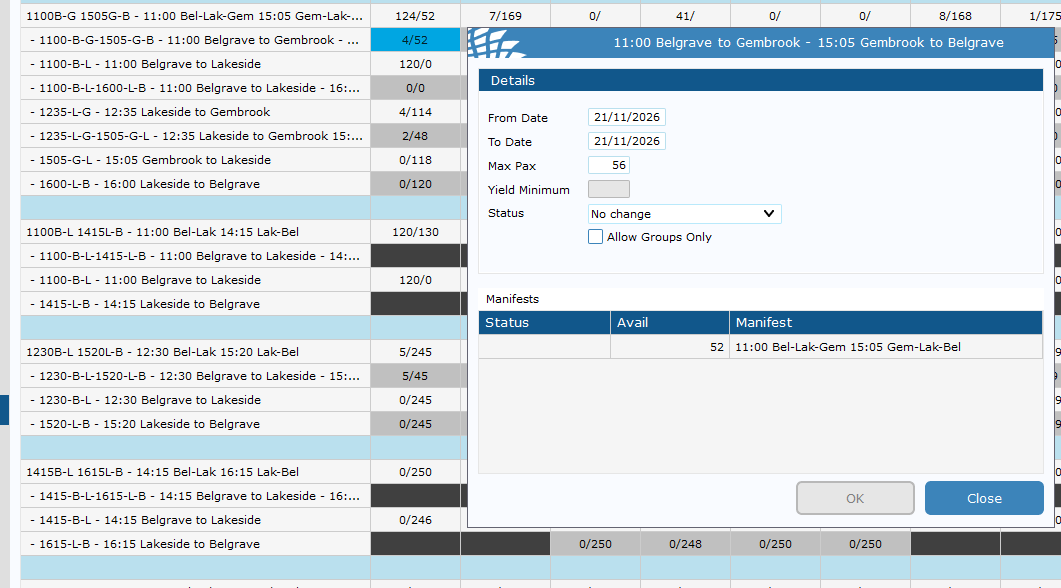
To edit the maximum available of ticket for Belgrave - Gembrook Return product.
1. Go to **Sightseeing** > **Availability**
2. Find you're the **Belgrave - Gembrook Return** product
3. Right Click > **Stop Sell/Max Pax**
4. Change **Product Max Pax** to new amount.
[](https://bookstack.pbr.org.au/uploads/images/gallery/2026-06/i8Simage.png)
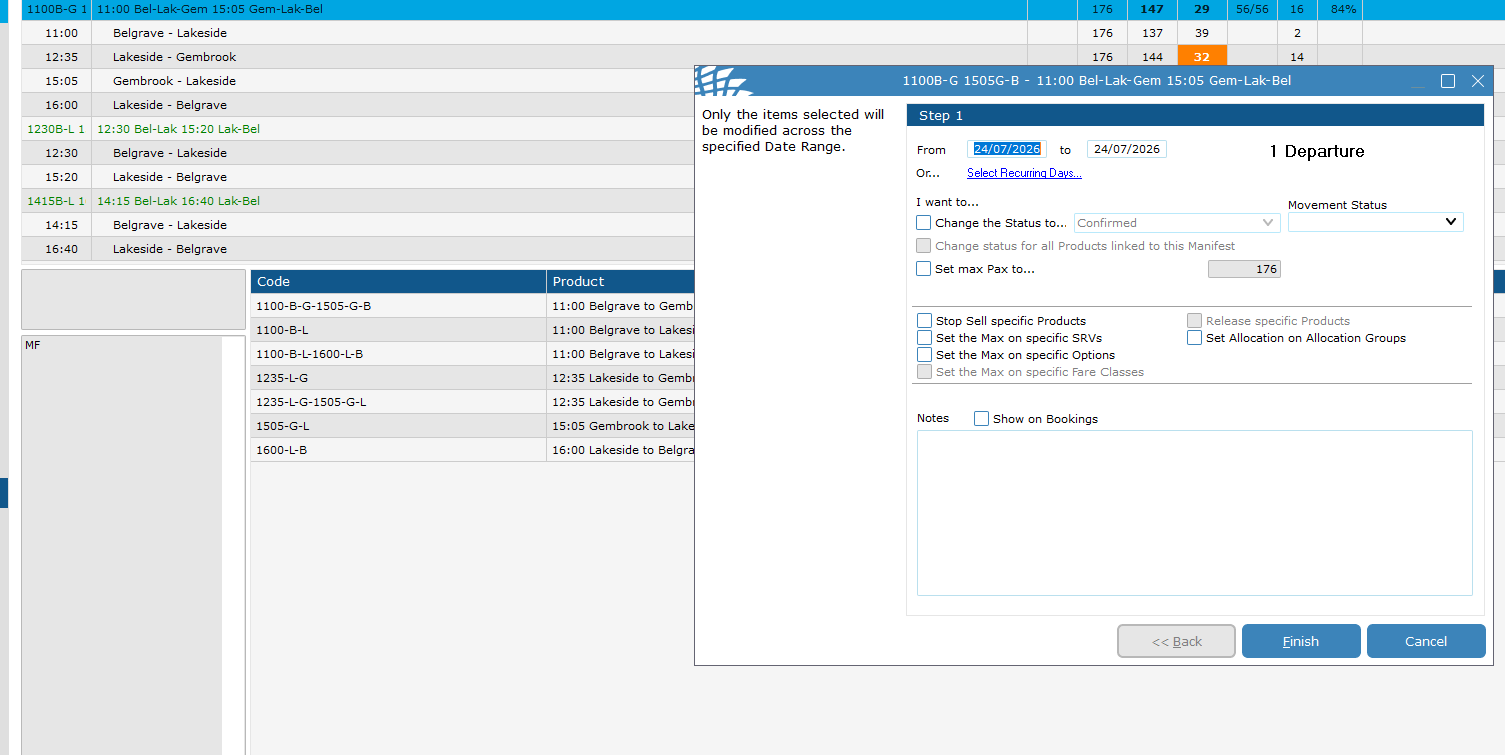
5. If you also need to increase the max capacity of the train (e.g. an extra carriage has been added), go to **Sightseeing** > **Manifest** and change the **Manfiest max pax** to the appropriate number.
[](https://bookstack.pbr.org.au/uploads/images/gallery/2026-06/m8Pimage.png)
## To edit the HELD amount of pax for the Belgrave - Gembrook product.
1. Complete the above guide as well to increase the product availability first. Then:
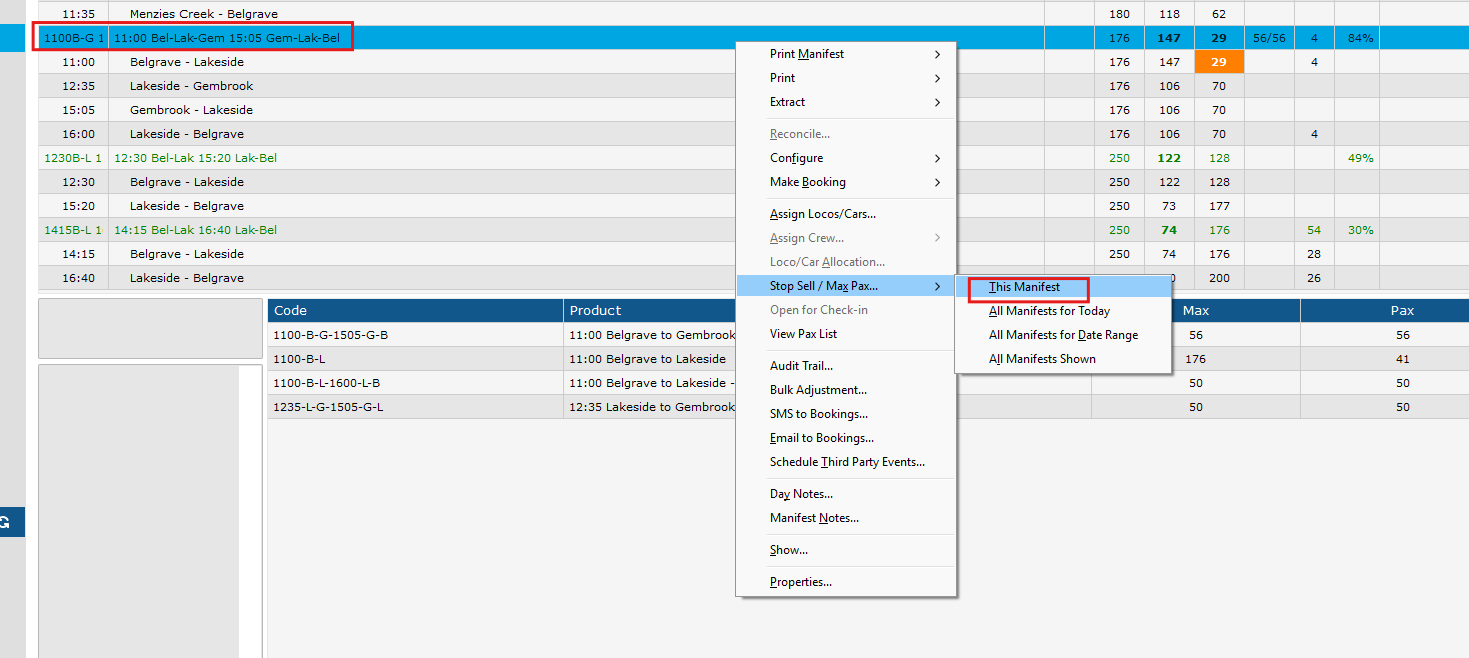
2. In **Sightseeing > Manifests**, locate the relevant manifest.
3. **Right-click** on the manifest > **Stop Sell**/**Max Pax** > **This Manifest**
[](https://bookstack.pbr.org.au/uploads/images/gallery/2026-06/BBHimage.png)
4. In the dialog:
- Set the **From** and **To** date range, or use *Select Recurring Days…* as needed.
- Tick **Set Allocation on Allocation Groups** - this is critical and must not be skipped.
[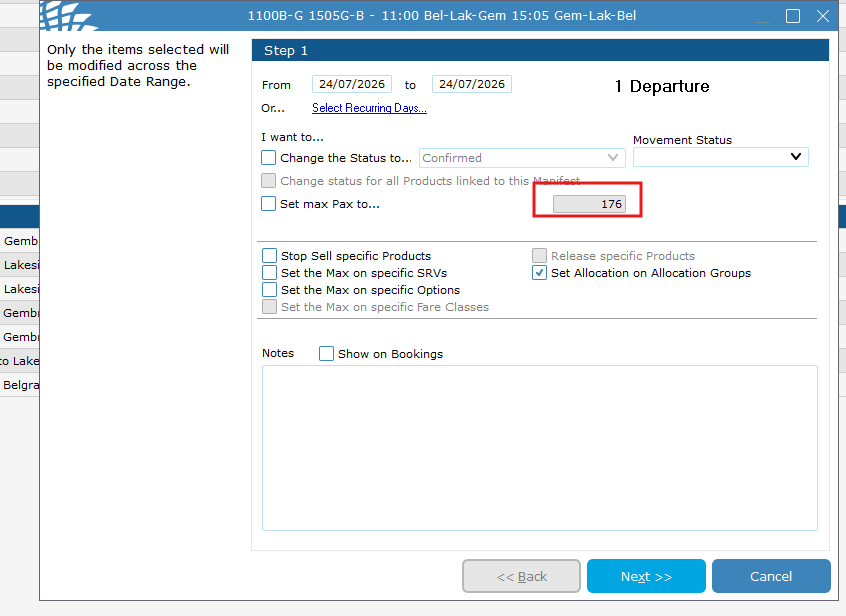](https://bookstack.pbr.org.au/uploads/images/gallery/2026-06/kUlimage.png)
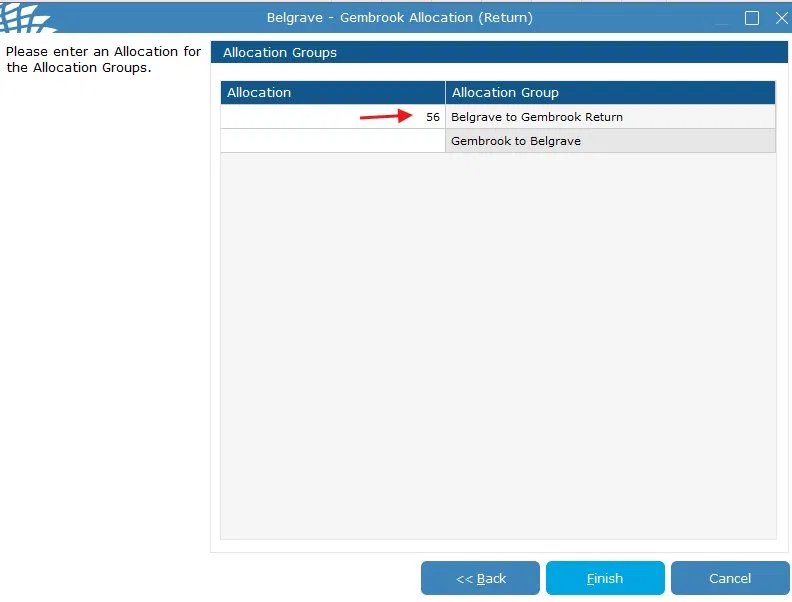
5. Click **Finish**. The Allocation Groups screen will appear.
6. On the Allocation Groups screen, find **Belgrave to Gembrook Return** and set its **Allocation** to the HELD amount of seats for this type of product.
[](https://bookstack.pbr.org.au/uploads/images/gallery/2026-05/jySimage.png)
7. Click **Finish** to save.
8. Change
9. Does the entire train capacity need to be increased because of this?
If yes, please also adjust the manifest accordingly — see the *Adjusting the Main Manifest Capacity* guide.
An example of this would be an **extra** carriage being added to the carriage set specifically for Bel-Gmb.
## Important Notes
- The **"Set Allocation on Allocation Groups"** checkbox must always be ticked when changing this leg. Skipping it will cause a mismatch between the max Pax limit and the reserved seat allocation, which may result in overbooking.
- Only update the **Belgrave to Gembrook Return** allocation group. Leave *Gembrook to Belgrave* blank unless specifically instructed otherwise.
- This leg's capacity does **not** change automatically when you adjust the main manifest — both procedures must be performed independently if both values need updating.