| What you want to change | Where to right-click | Key settings | Extra step? |
|---|---|---|---|
| All Return service (Excl. Bel-Gmb) or single-journey capacity | Green manifest row | Set max Pax to… | No — legs update automatically |
| Belgrave–Gembrook Return capacity *(typically 56)* | Belgrave – Gembrook Allocation (Return) leg row | Set max Pax to… **and** Set Allocation on Allocation Groups | Yes — set Allocation Group to match |
Always right-click on the **green manifest row**, not an individual leg. Right-clicking a leg will only modify that single leg & will stop that leg getting updated max capacities via the manifest.
--- ## Belgrave – Gembrook Return ManagementAdjusting the Belgrave–Gembrook Return allocation is a separate procedure. See [Adjusting the Belgrave–Gembrook Return Allocation](https://bookstack.pbr.org.au/books/capacity-management/page/adjusting-the-belgrave-gembrook-return-allocation).
# Adjusting the Belgrave–Gembrook Return Allocation ## Overview Use this procedure to change the capacity for the **Belgrave – Gembrook Return** allocation — the full return journey product, typically set to 56 seats. [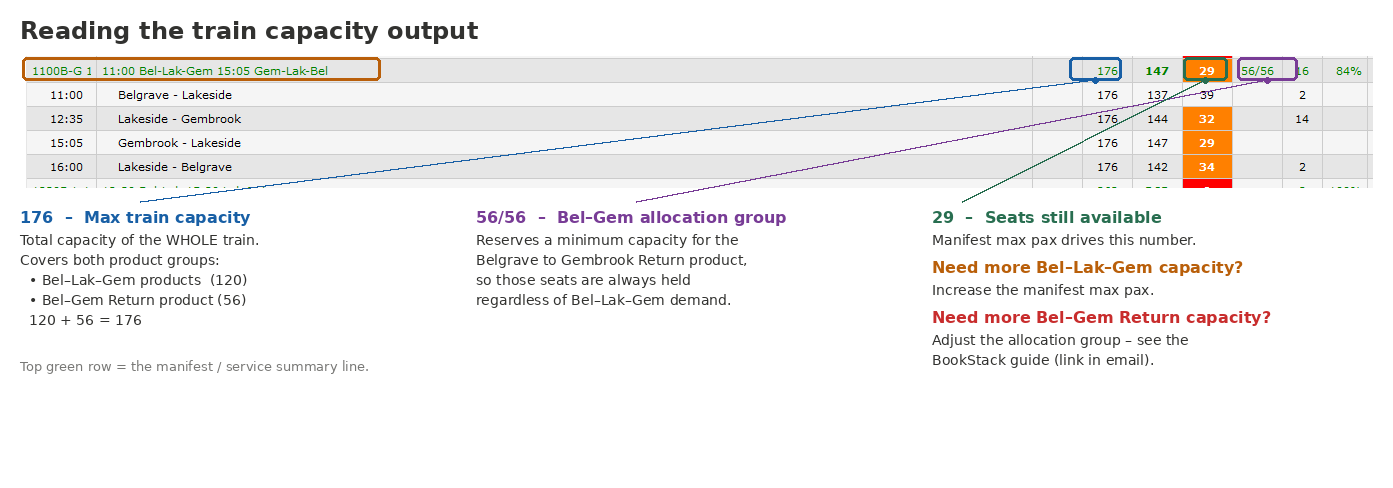](https://bookstack.pbr.org.au/uploads/images/gallery/2026-06/Rpbimage.png) ## How Capacity is Structured Each leg on a Belgrave–Gembrook service has a total capacity of **176 passengers**, made up of two components:| Component | Capacity | Notes |
|---|---|---|
| Bel - Lak & Lak - Gmb Return / single-journey passengers | 120 | Availability works is calculated as this. Max Pax of Manifest minus Gembrook Allocation Group (below) Standard is 176 - 56 (120). |
| Belgrave – Gembrook (Return) | 56 | Minimum seats held via Allocation Group (inside Manifest), Maximum bookings available limited by product. |
| **Total per leg** | **176** |
The **"Set Allocation on Allocation Groups"** checkbox must always be ticked when changing this leg. Skipping it will cause a mismatch between the max Pax limit and the reserved seat allocation, which may result in overbooking.
- Only update the **Belgrave to Gembrook Return** allocation group. Leave *Gembrook to Belgrave* blank unless specifically instructed otherwise. - This leg's capacity does **not** change automatically when you adjust the main manifest — both procedures must be performed independently if both values need updating. # Creating a Special Guest Pass Booking 1. Go to Add Booking > Make a Standard Booking [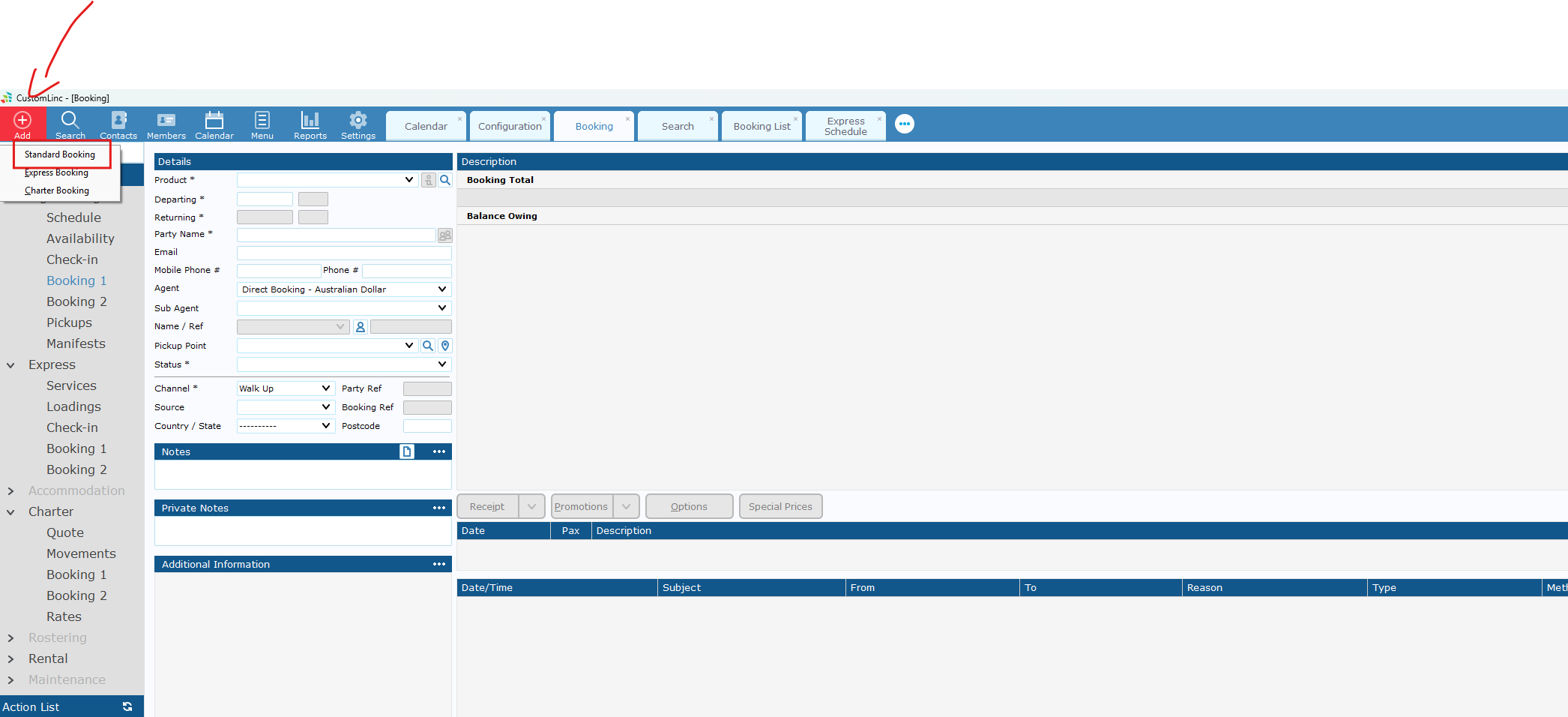](https://bookstack.pbr.org.au/uploads/images/gallery/2026-06/image.png) 2. Select the applicable SGP product, if unsure consult with team. [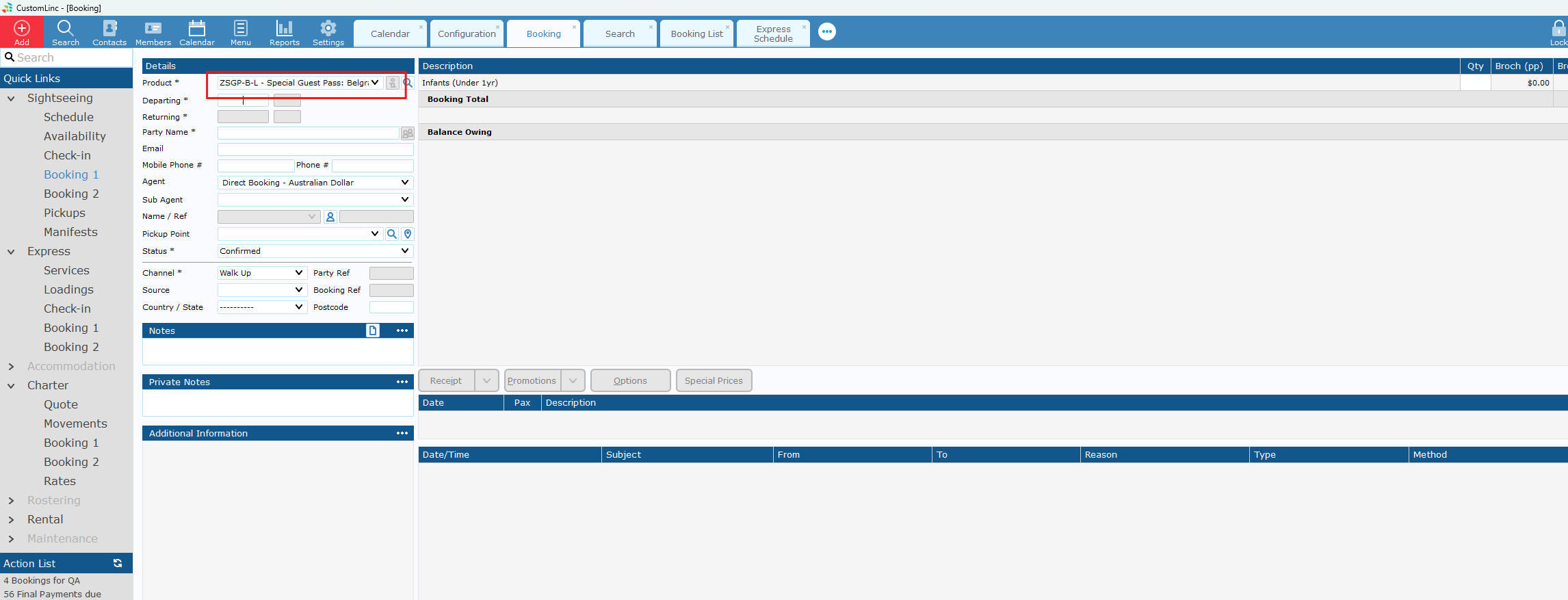](https://bookstack.pbr.org.au/uploads/images/gallery/2026-06/ZiXimage.png) 3. The departure date is the Expiry date of the booking/voucher. If you do not set a date, it will **default** to **1 Year** in the future. [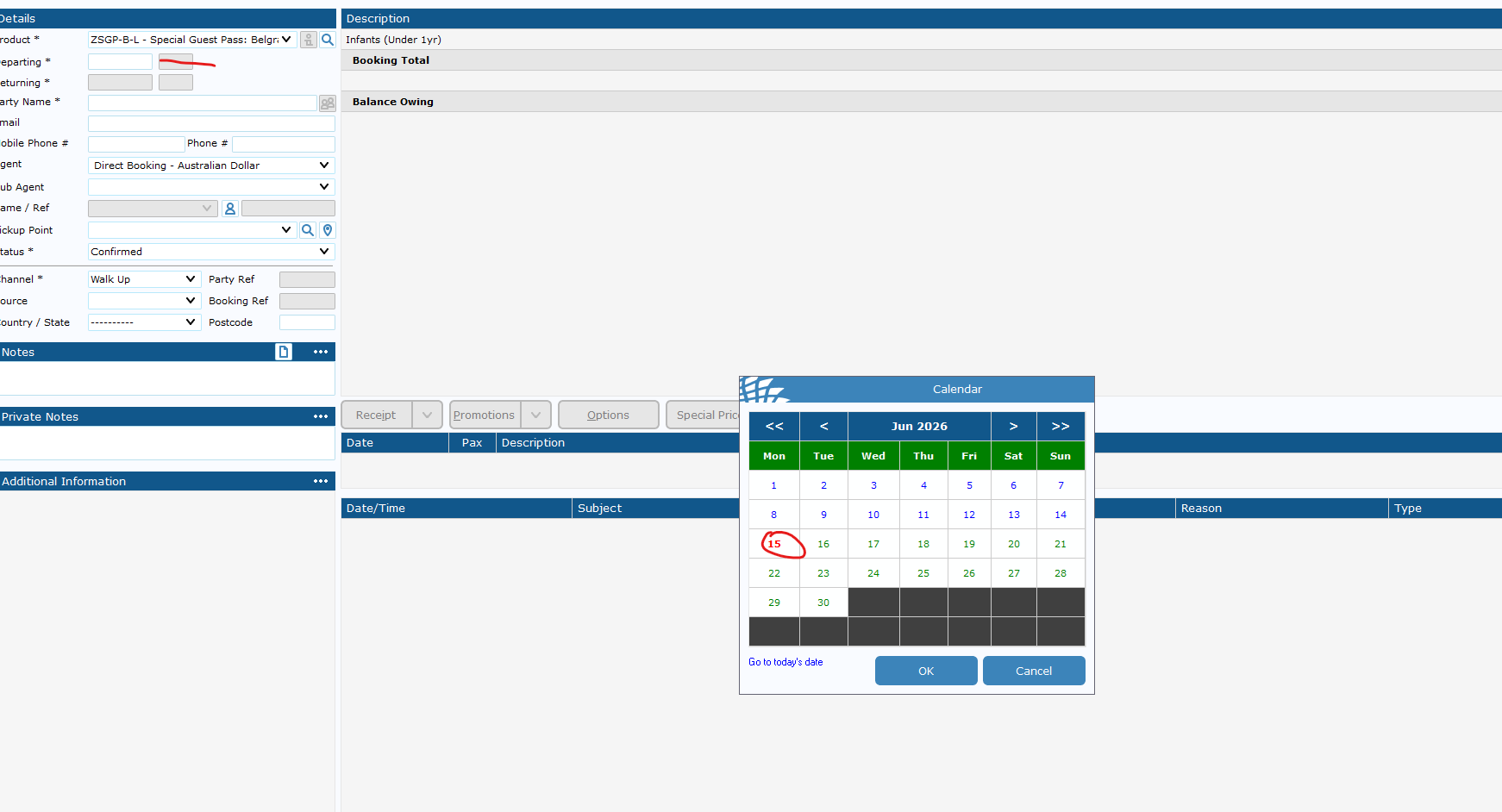](https://bookstack.pbr.org.au/uploads/images/gallery/2026-06/rbVimage.png) 4. Input booking details & fare amounts. [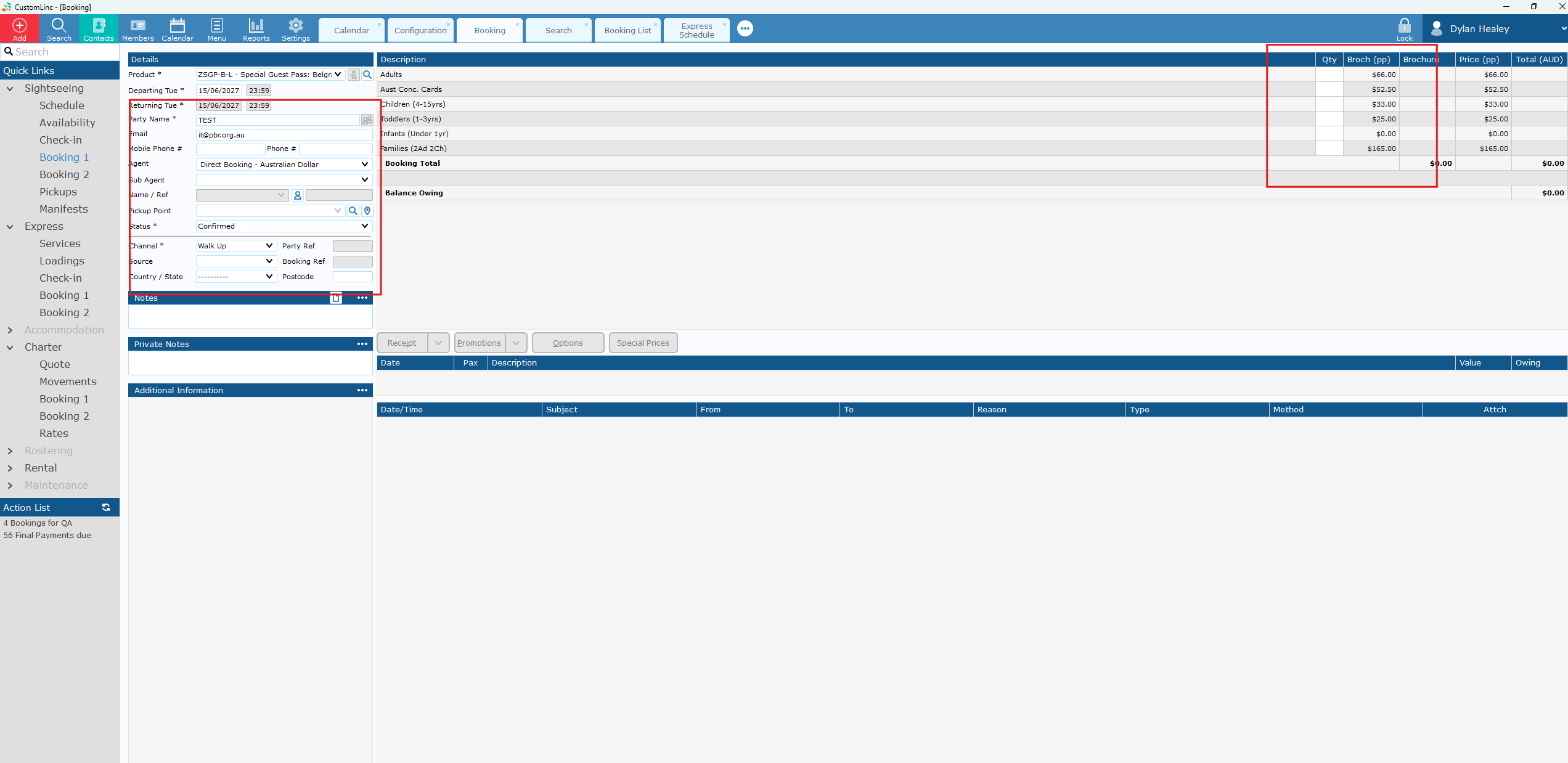](https://bookstack.pbr.org.au/uploads/images/gallery/2026-06/Eerimage.png) 5. The Default Status should be "Voucher confirmed". If it is not please set it to this and contact system configurators to fix. [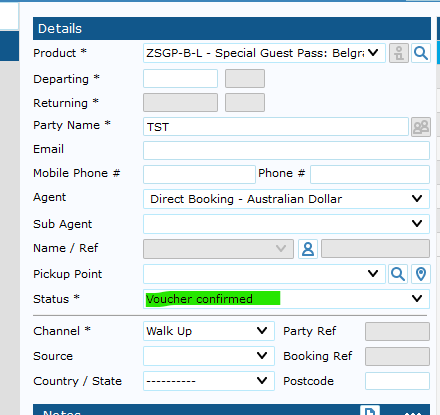](https://bookstack.pbr.org.au/uploads/images/gallery/2026-07/image.png) 6. If you need Special Fares like Free of Charge (FOC). Click update without placing in any fares. You will see a prompt to enter special fares - Click Yes. [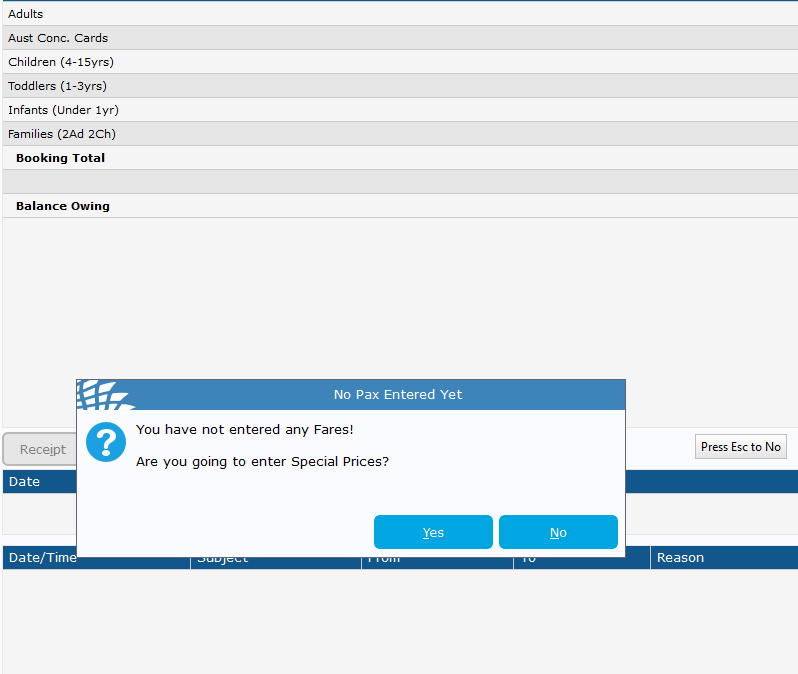](https://bookstack.pbr.org.au/uploads/images/gallery/2026-06/kjuimage.png) 7. Enter amount and reason. [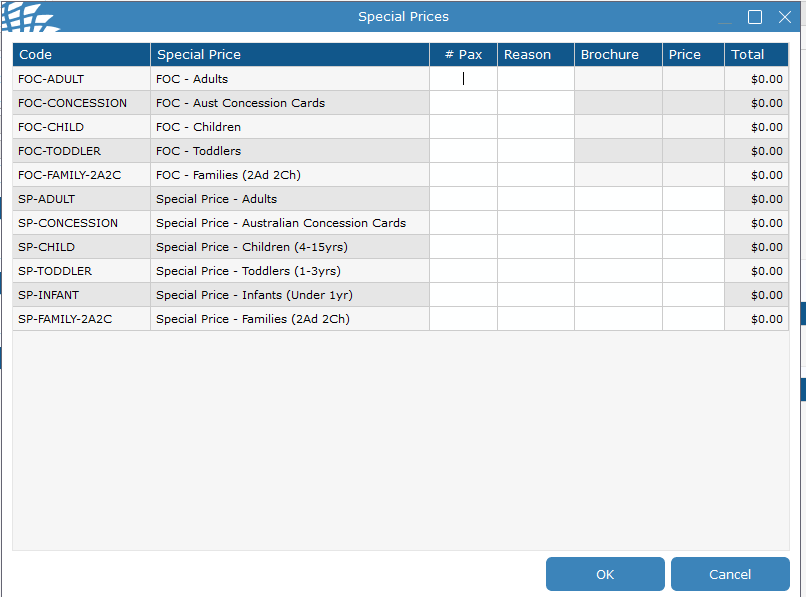](https://bookstack.pbr.org.au/uploads/images/gallery/2026-06/kDTimage.png) 8. Send **Confirmation to Client** to email in booking, or required address [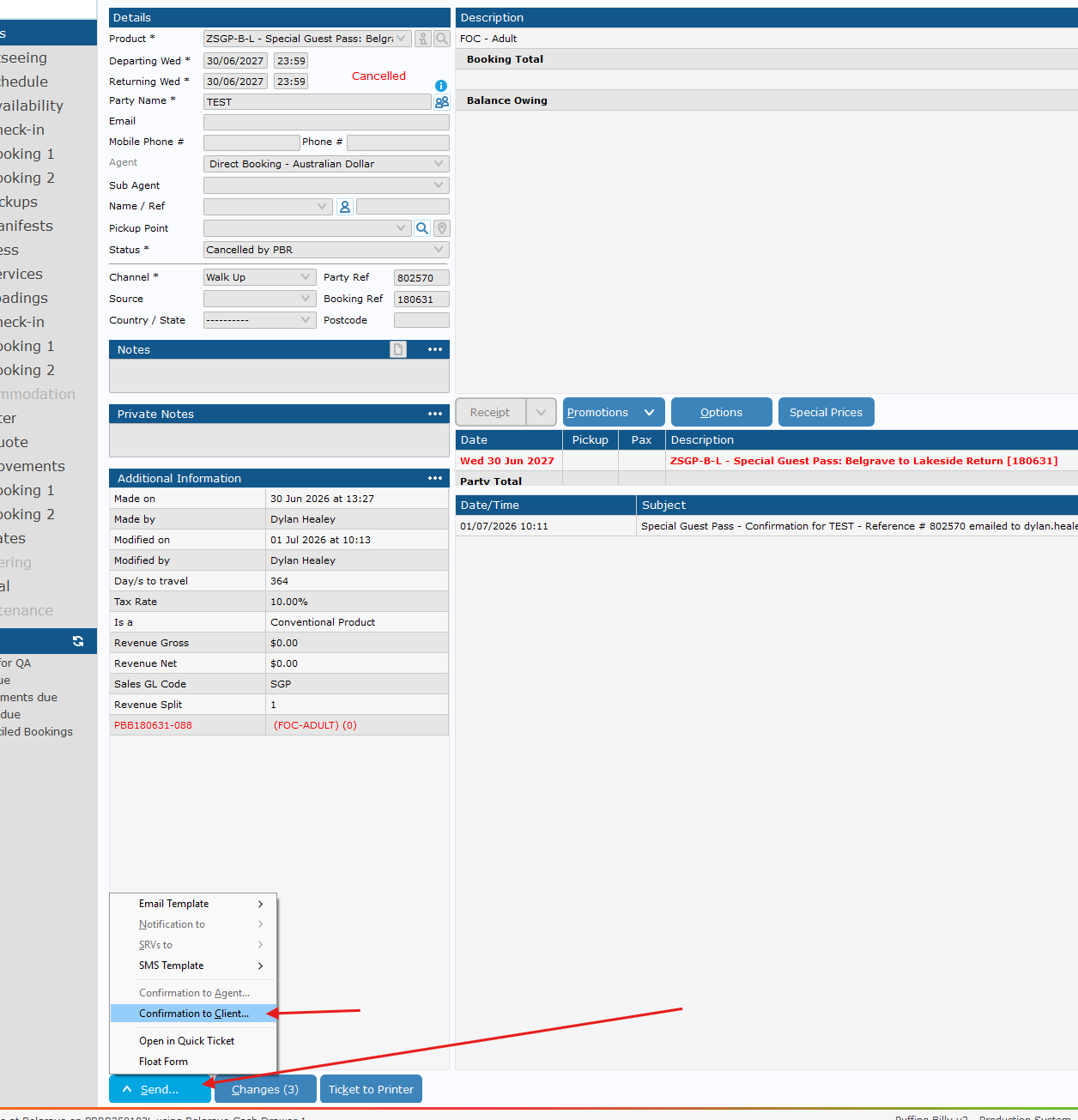](https://bookstack.pbr.org.au/uploads/images/gallery/2026-07/Rp6image.png) If you need to send to a different email address, place the email in the alternate email address area and make sure the button to the left is ticked. [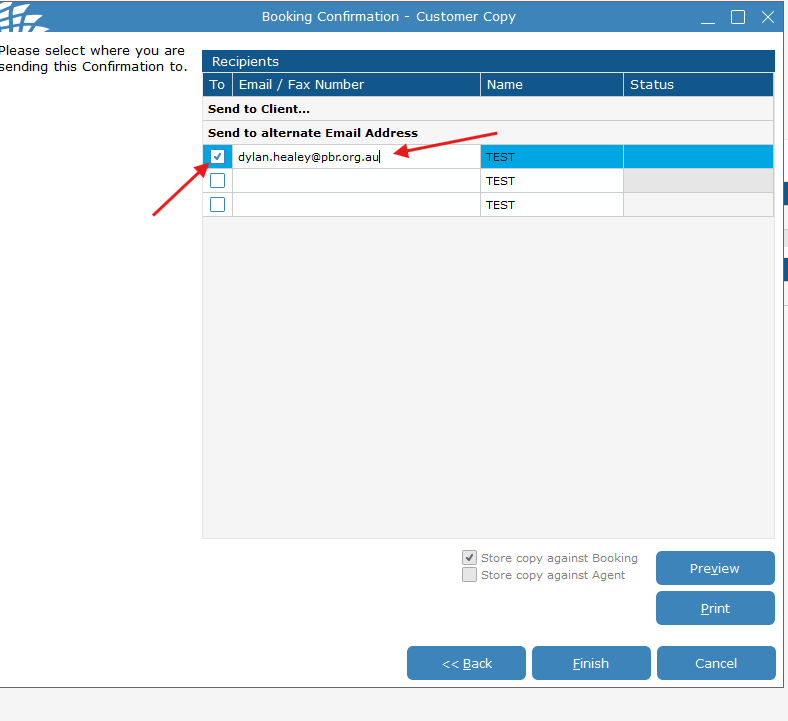](https://bookstack.pbr.org.au/uploads/images/gallery/2026-07/rLIimage.png) 9. Click finish and it will queue an email to be sent - this should be sent within 5 minutes or so. # How to Redeem a SGP or Gift Voucher Booking 1. Request for the Reference number on their confirmation email & Use CL Search to find the booking [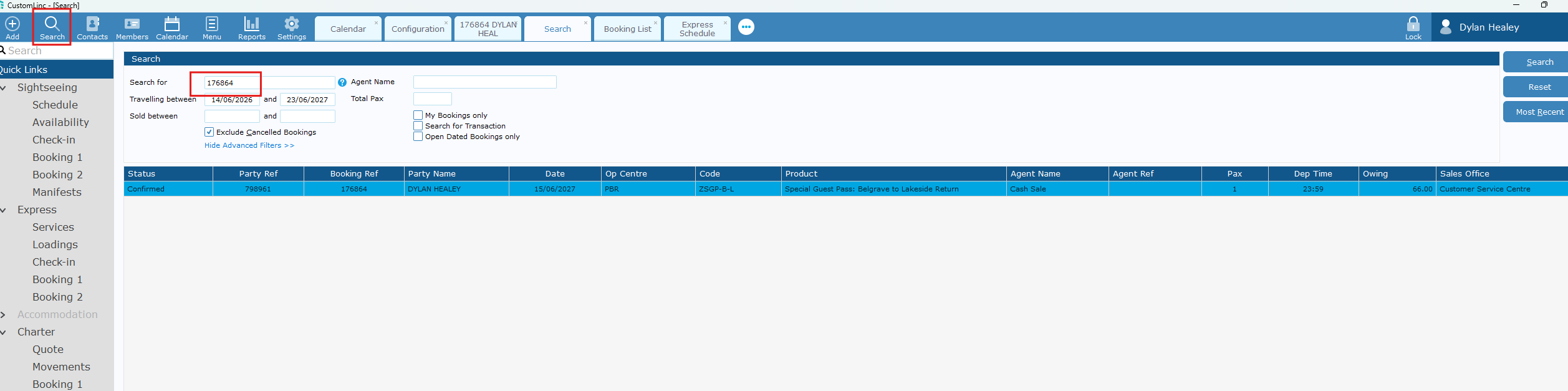](https://bookstack.pbr.org.au/uploads/images/gallery/2026-06/FpPimage.png) 2. Confirm an applicable product and available date with the customer. [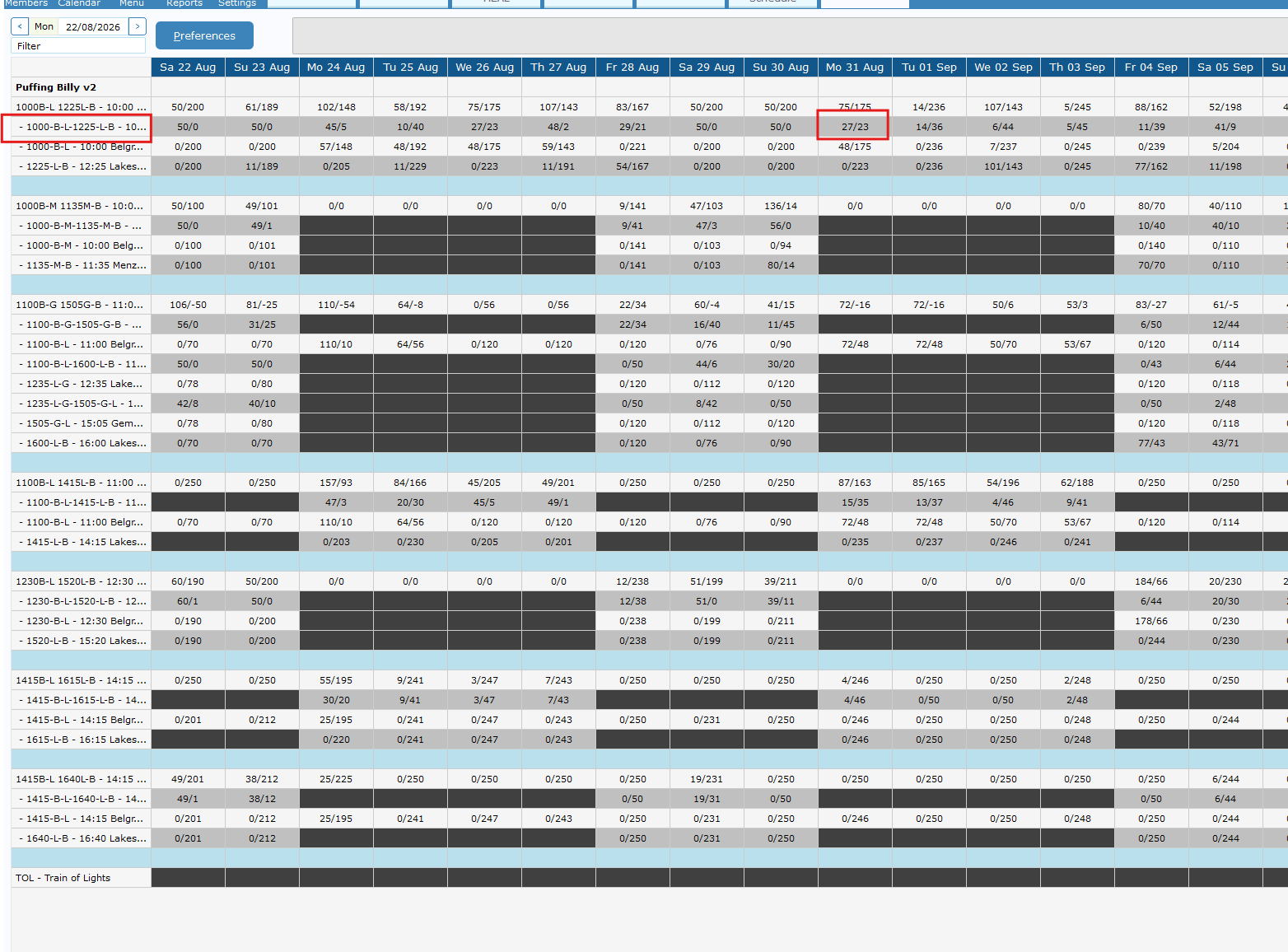](https://bookstack.pbr.org.au/uploads/images/gallery/2026-06/mg3image.png) 3. Click edit on the booking [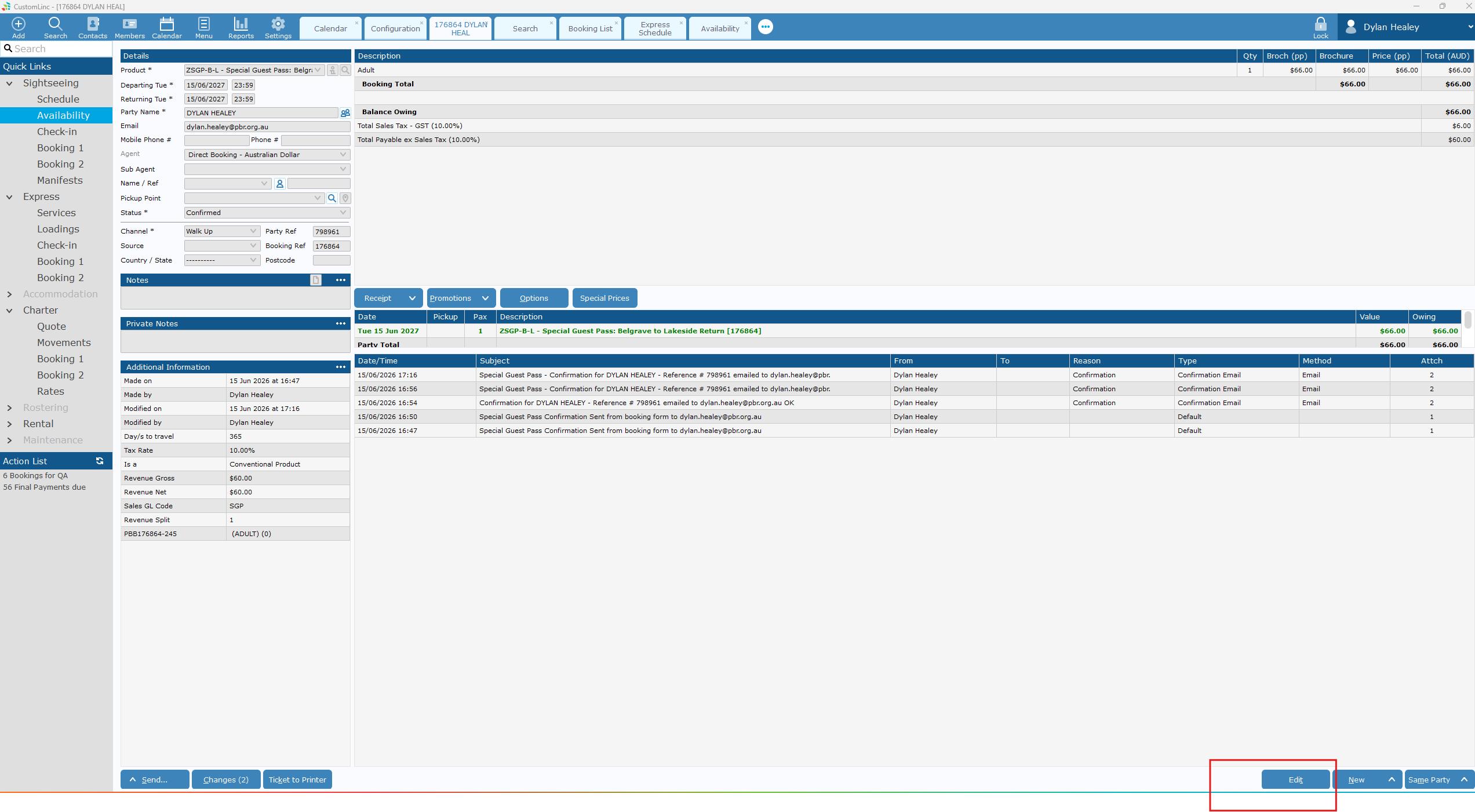](https://bookstack.pbr.org.au/uploads/images/gallery/2026-06/oJuimage.png) 4. Change *Date* **THEN** *Product* to what was select in step 2 [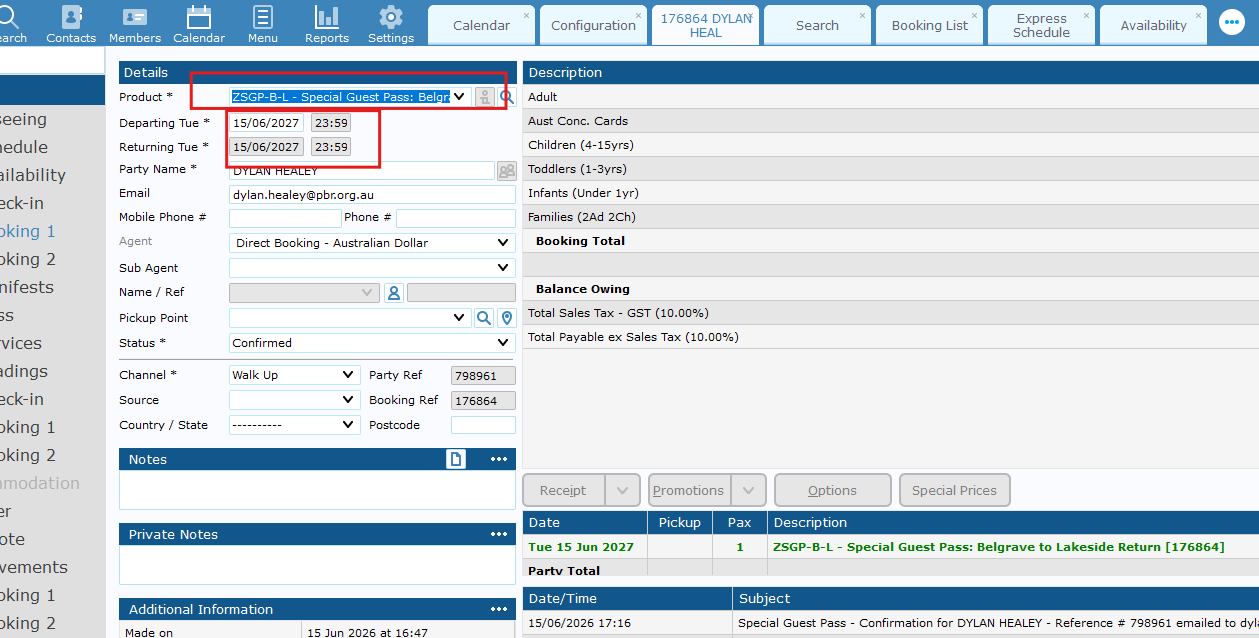](https://bookstack.pbr.org.au/uploads/images/gallery/2026-06/Svhimage.png) 5. Change booking Details if needed to customers name, and email. 6. Click Update. 7. Go to Send > Confirmation to Client. [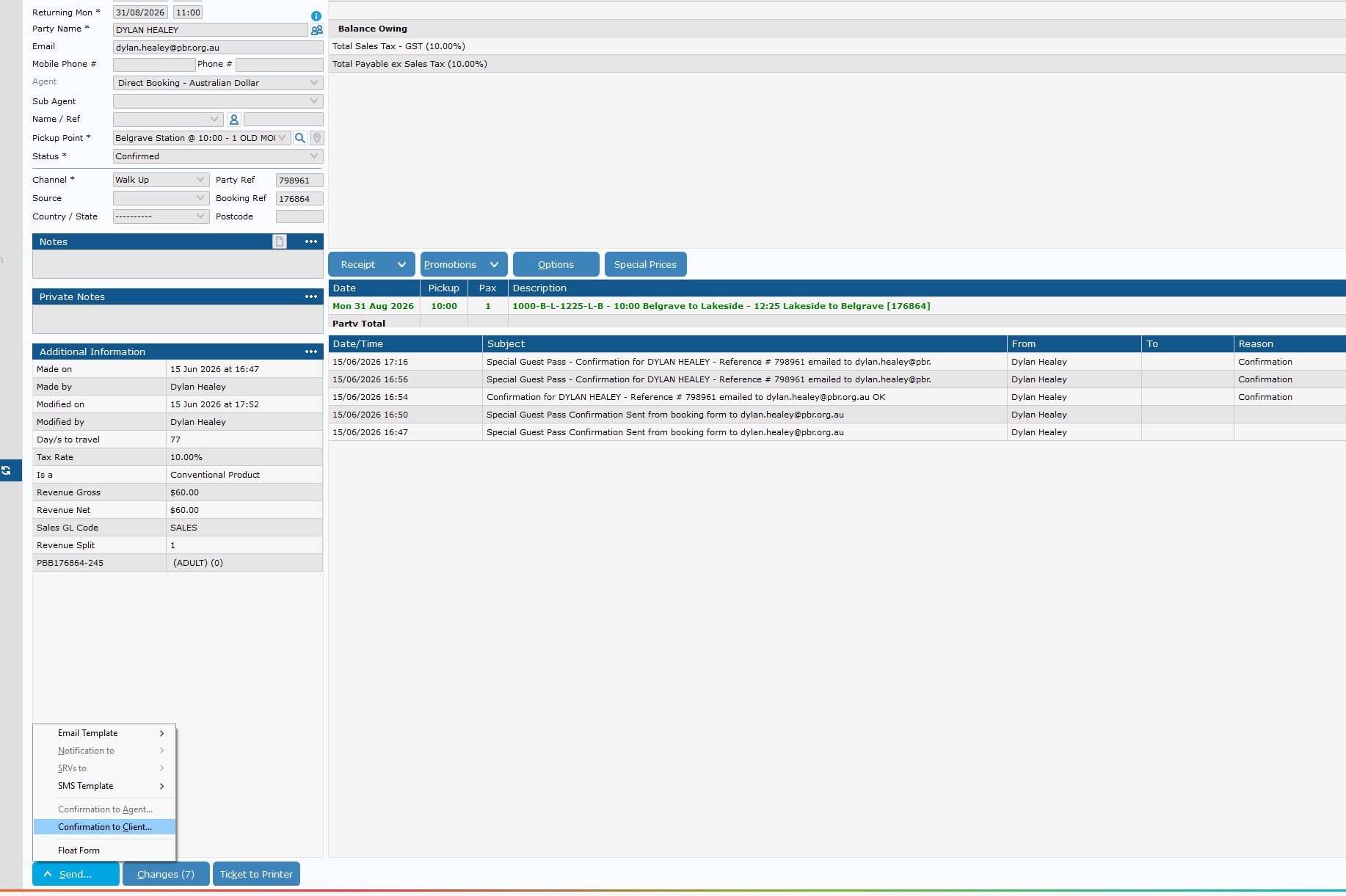](https://bookstack.pbr.org.au/uploads/images/gallery/2026-06/hrNimage.png)