The workstation you are trying to do this from needs to be setup to sell tickets via 'Quick Ticket' if the POS option in step 1 is not visible. Please contact IT and request for access.
**Currently the booking made will not receive a Carriage Allocation. Please confirm there is room on a carriage prior to booking.**
1. Make a booking. 2. Click Receipt and the Receipt Booking window will pop up. [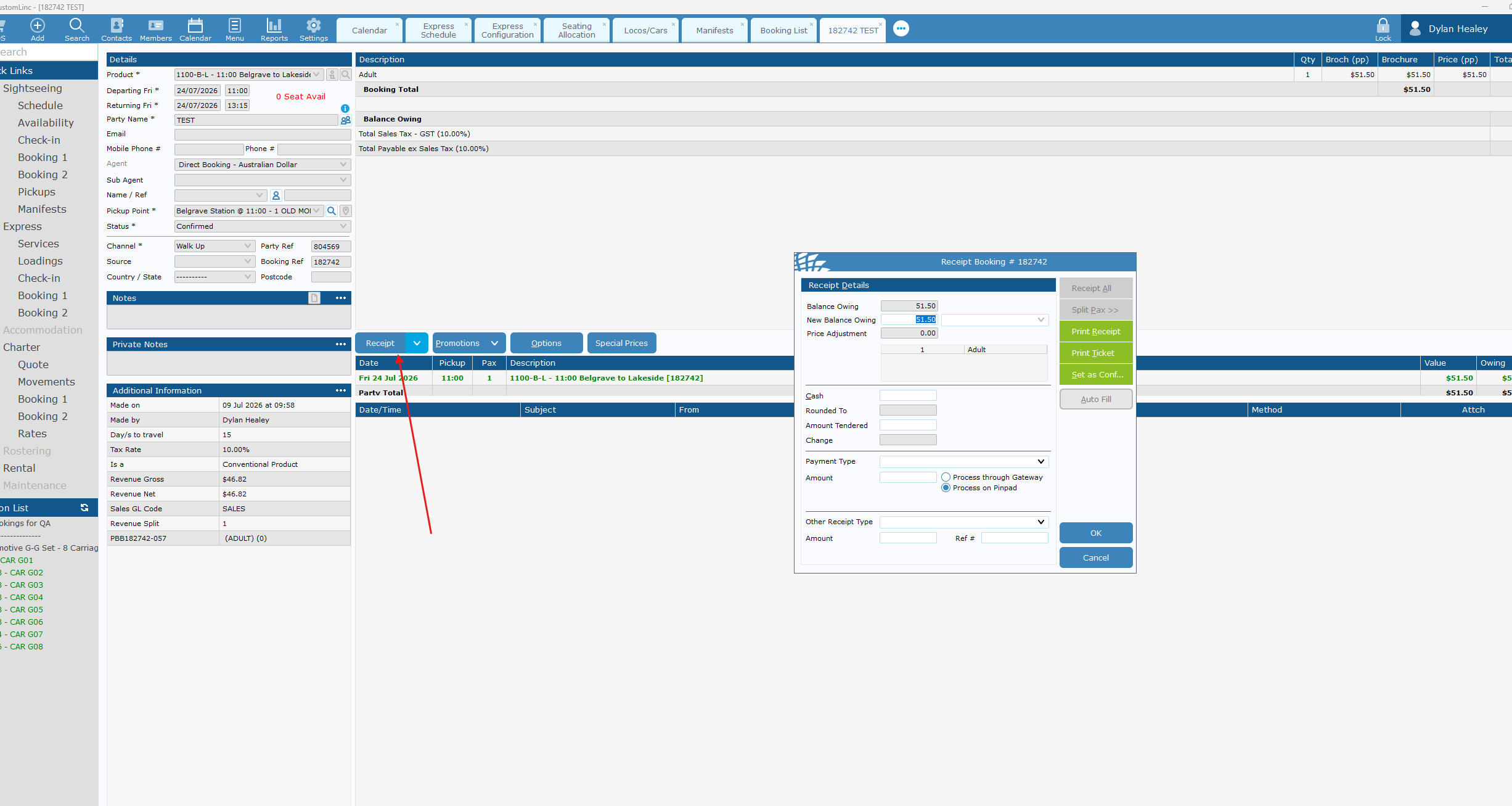](https://bookstack.pbr.org.au/uploads/images/gallery/2026-07/EXpimage.png) 3. Select Payment Type - **Mastercard or Via** and confirm that Process on Pindpad is selected and click **OK**[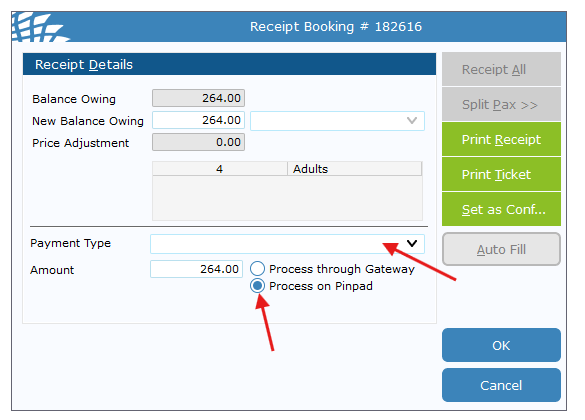](https://bookstack.pbr.org.au/uploads/images/gallery/2026-07/XV6image.png) 4. The connected EFTPOS terminal should now prompt for payment. Complete payment. 5. Once complete, click Ticket to Printer - **The ticket will NOT have a seating allocation on it.**