How to: Make a booking with Quick Ticket (POS)
The workstation you are trying to do this from needs to be setup to sell tickets via 'Quick Ticket' if the POS option in step 1 is not visible. Please contact IT and request for access.
Currently the booking made will not receive a Carriage Allocation. Please confirm there is room on a carriage prior to booking.
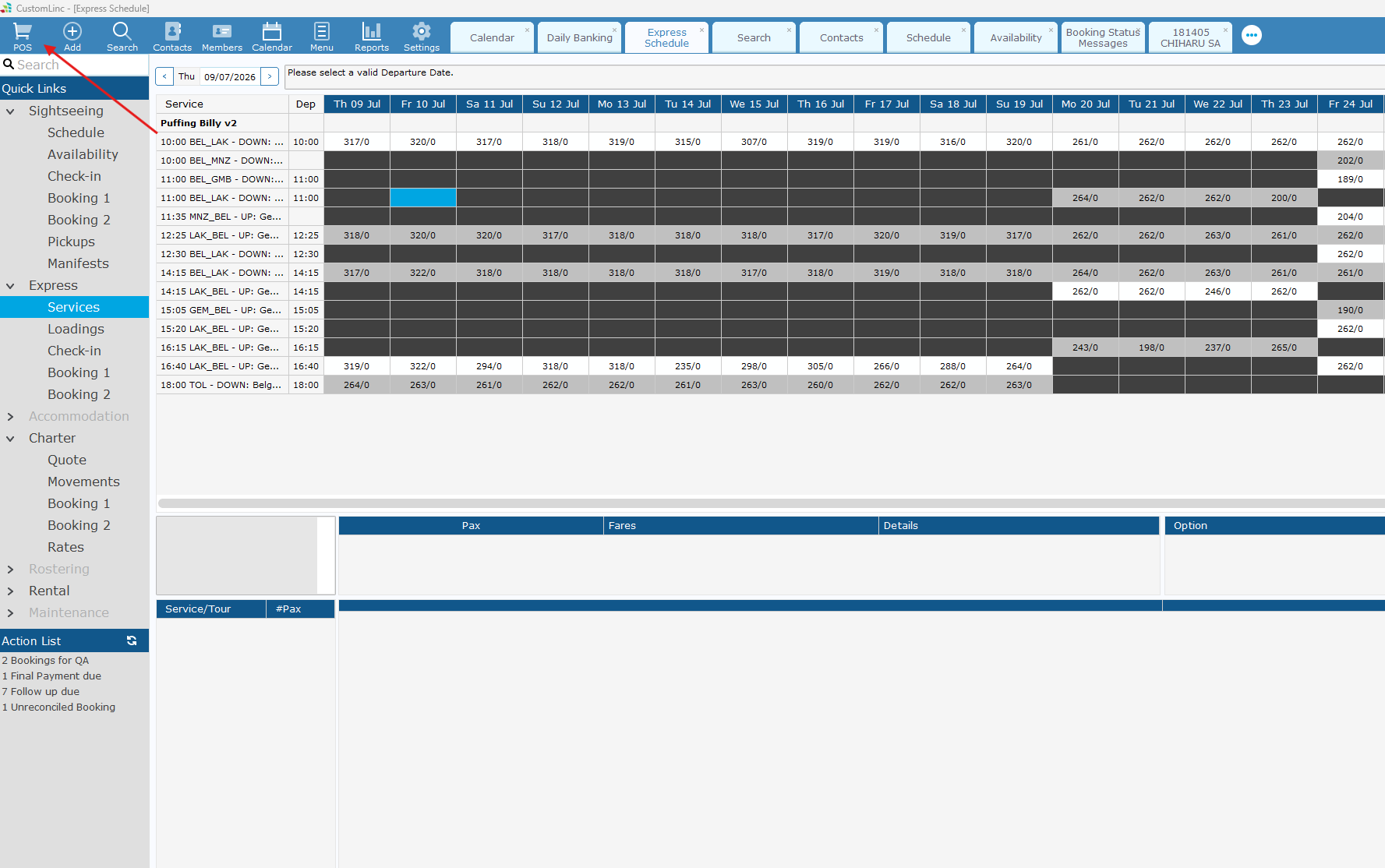
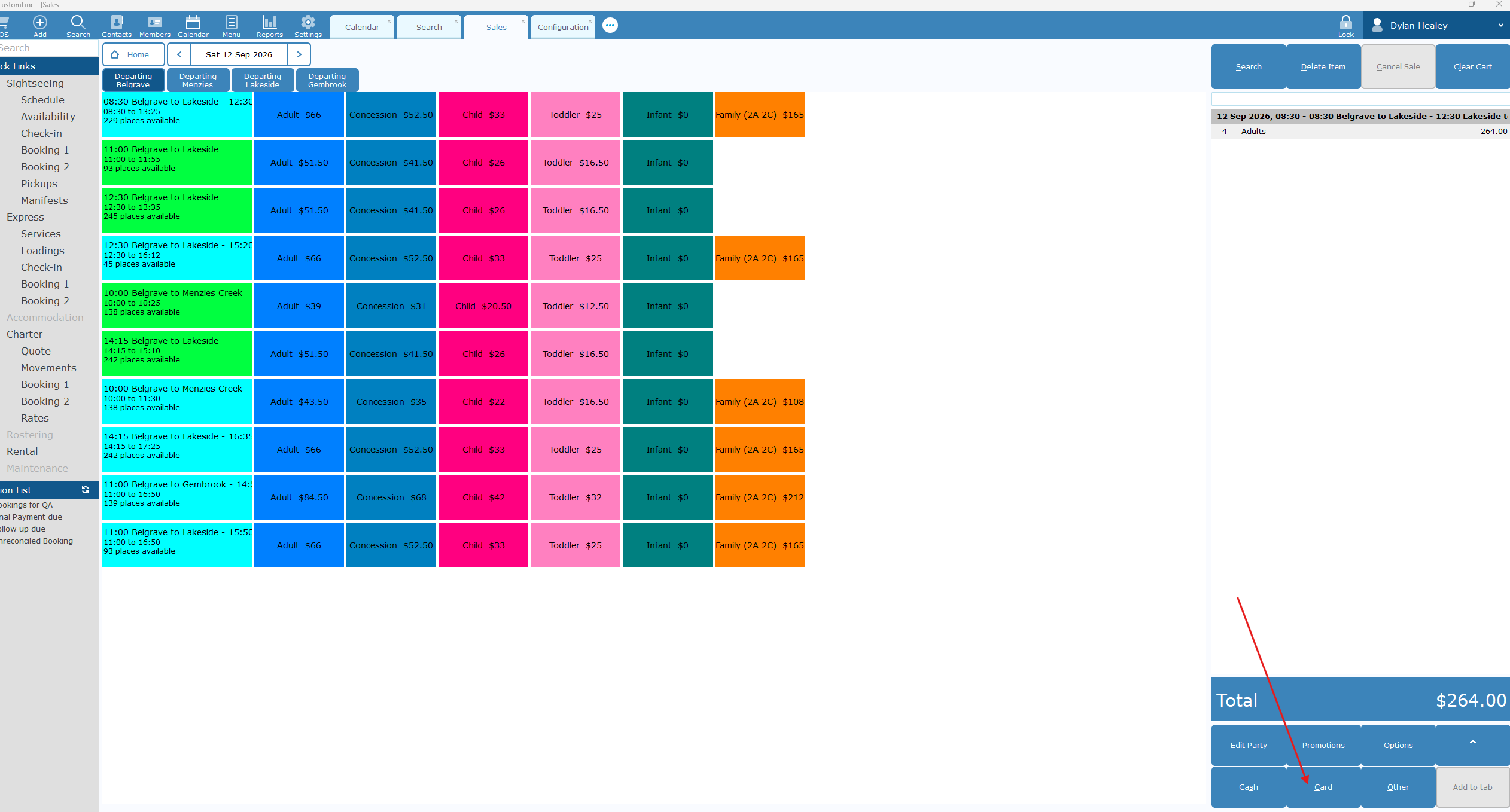
- Open CustomLinc and click POS in the top left.

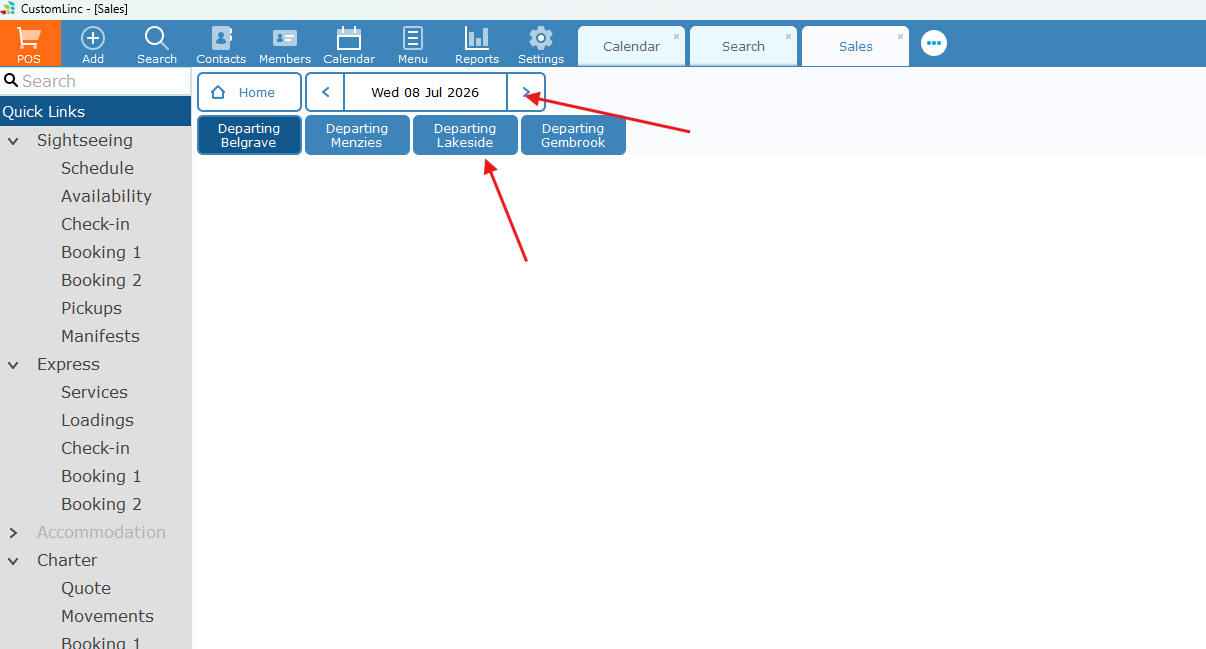
- Select the Date and the Departing Location

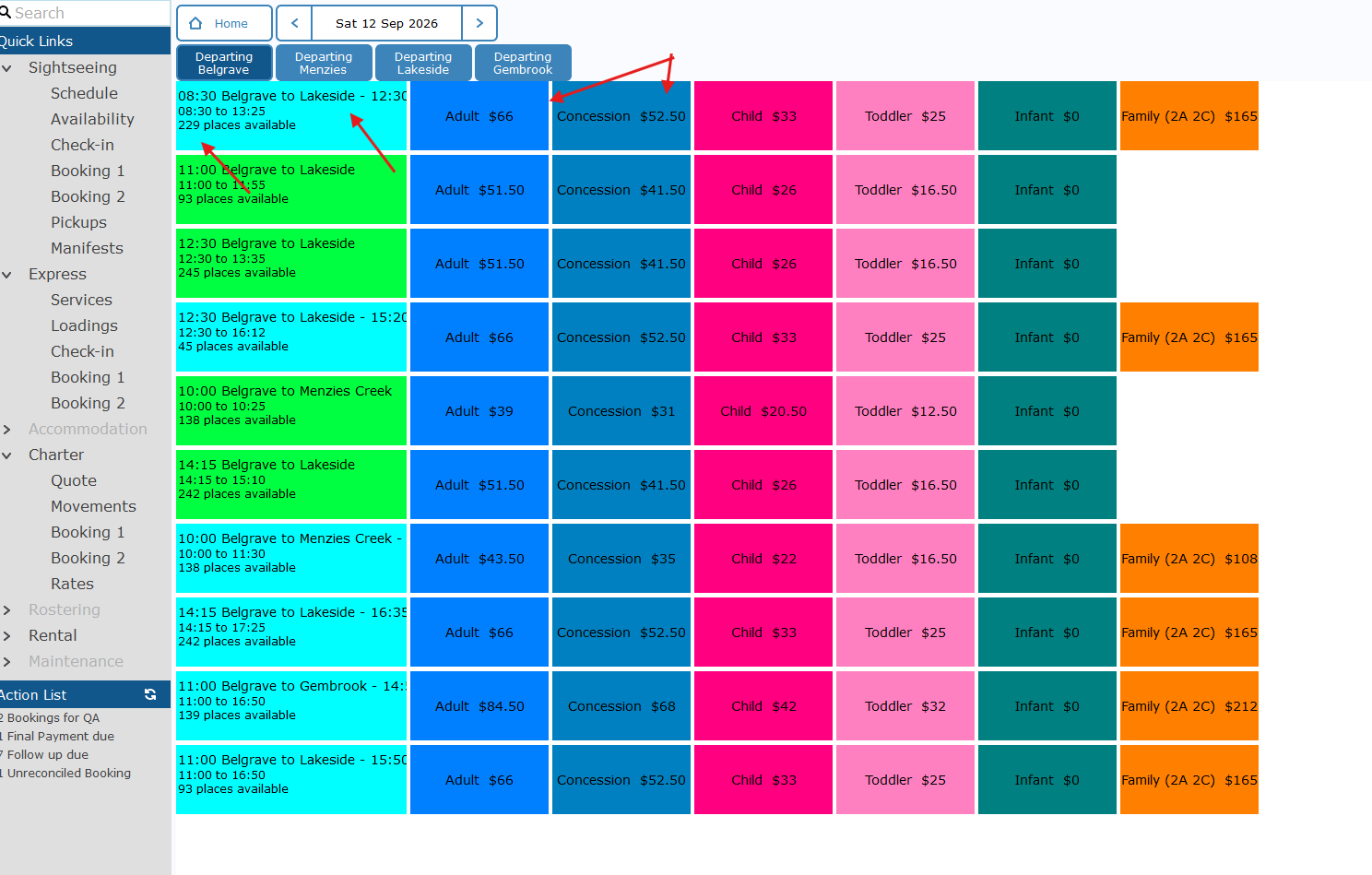
- here you'll see the Type of Journey, The available seats & the fares available.

Currently
Return products are coloured Light Blue
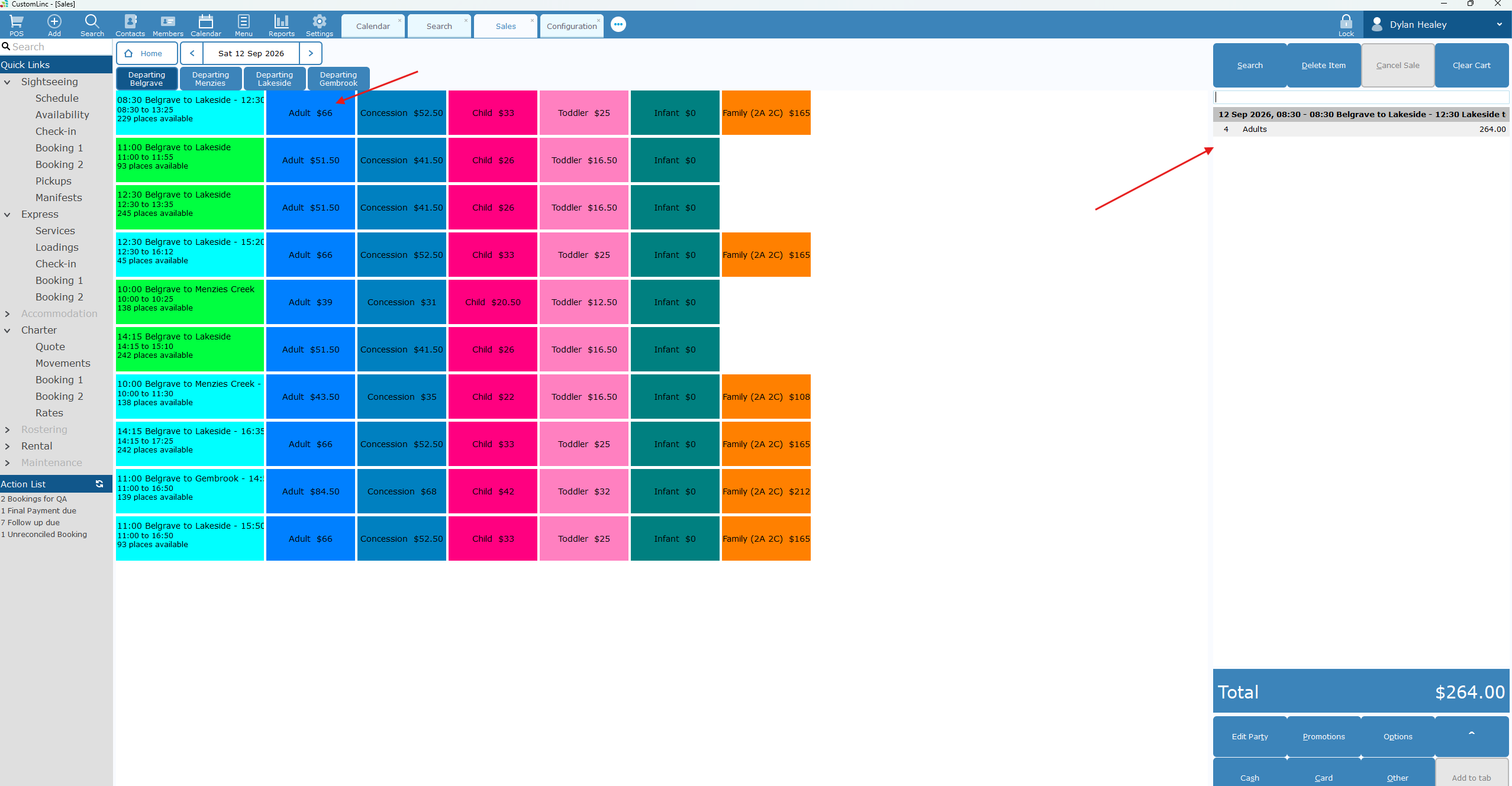
Single Way products are coloured Green - Click on the appropriate fare(s) for the product. You will see it populate the fares on the far-right side.

- Click Card in the bottom right.

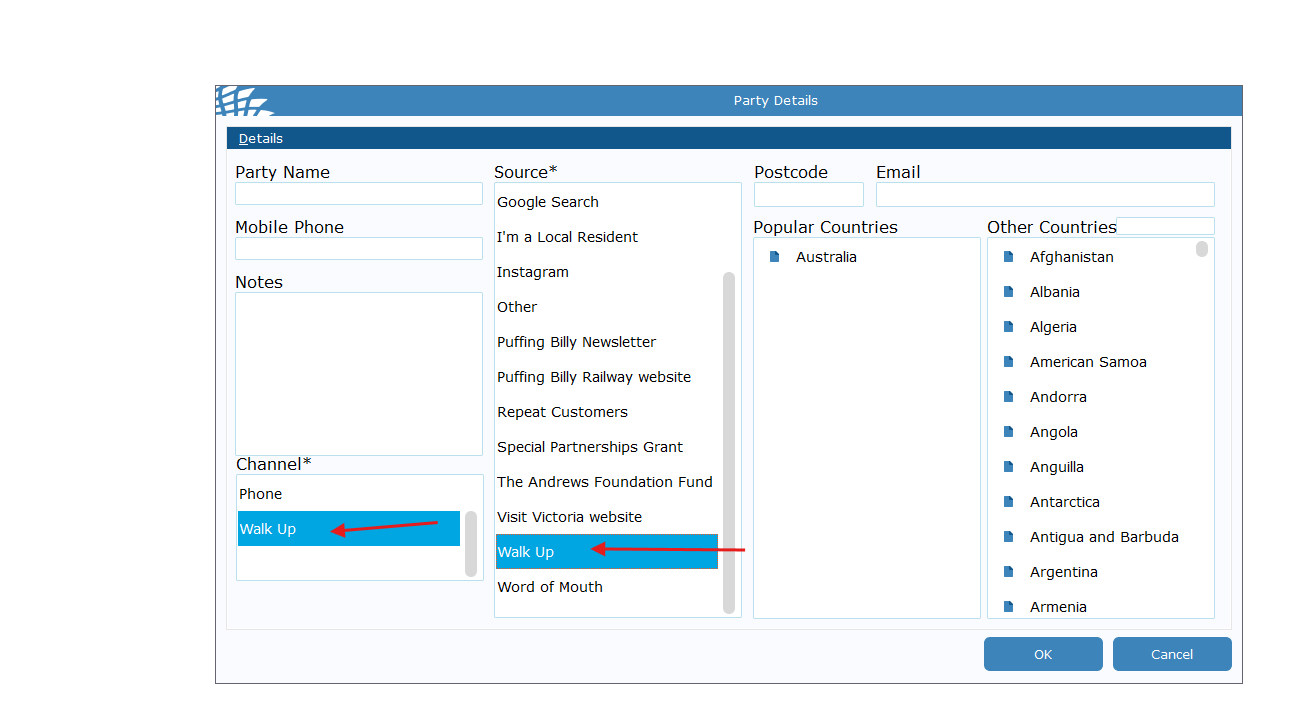
- Select Walk Up for the Channel & Source. Click OK.

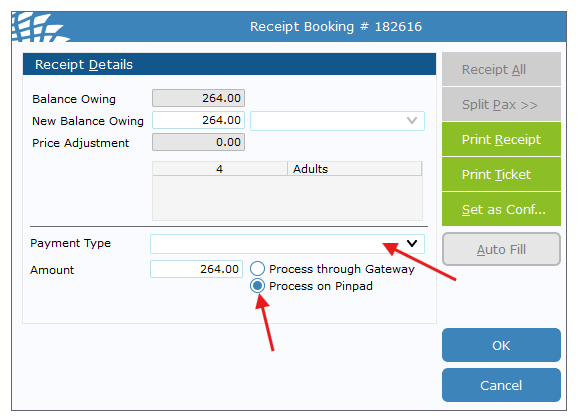
- Select Payment Type and confirm that Process on Pindpad is selected and click OK

- The connected EFTPOS terminal should now prompt for payment. Complete payment.
- Once completed a tax receipt & appropriate tickets will automatically print - The ticket will NOT have a seating allocation on it.