# How to: Make a Booking for a Walk-Up
1. Go to **Sightseing** > **Manifest**
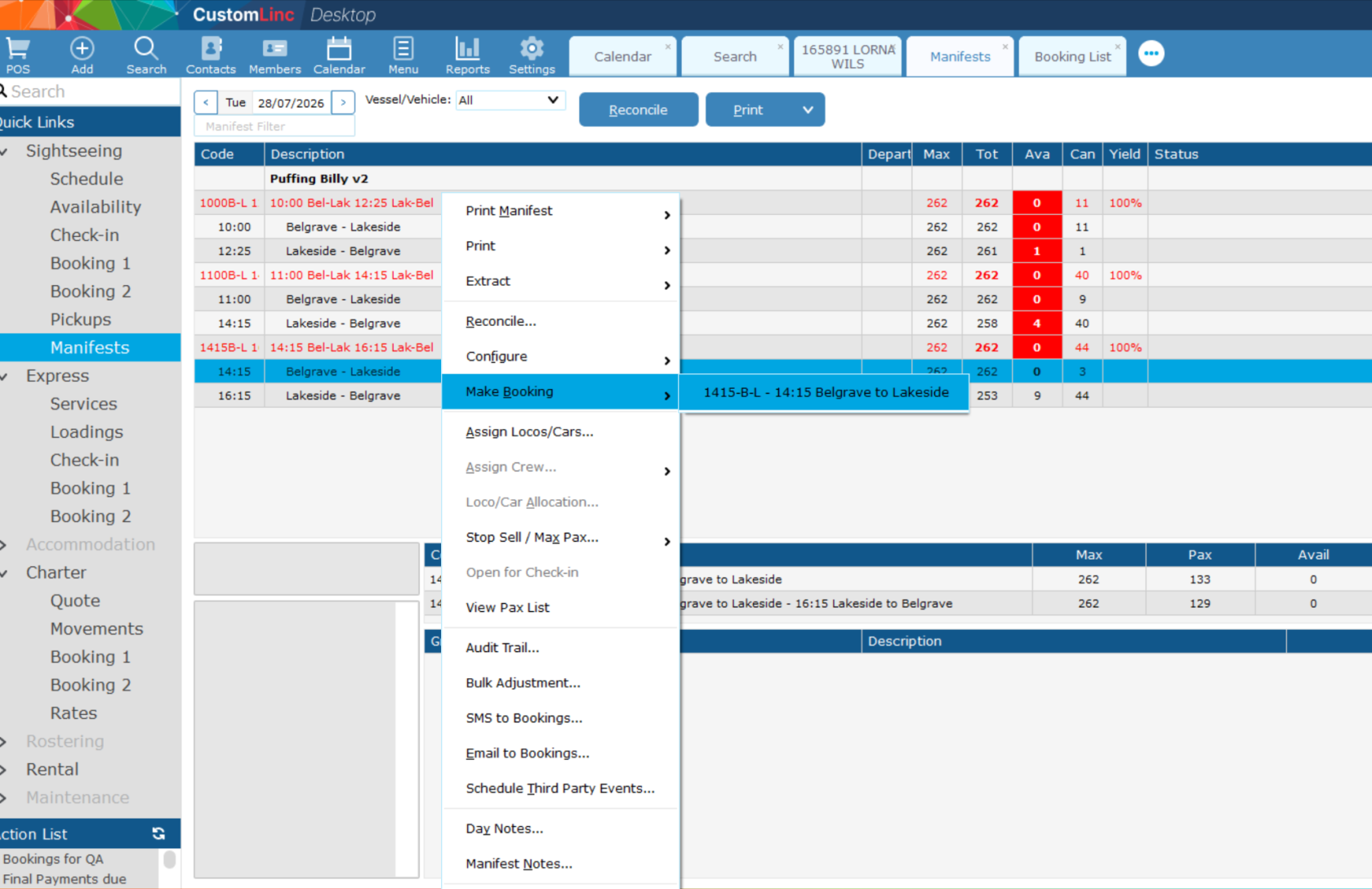
2. **Right click** the **Manfiest** you would like to book a product for. (The manifest will have Green Text)
In this example we will make a booking for the 14:15 Bel - Lak with a 16:40 Lak - Bel Return.
3. Go to **Make Booking**, click on the product you wish to sell.
[](https://bookstack.pbr.org.au/uploads/images/gallery/2026-07/19Aimage.png)
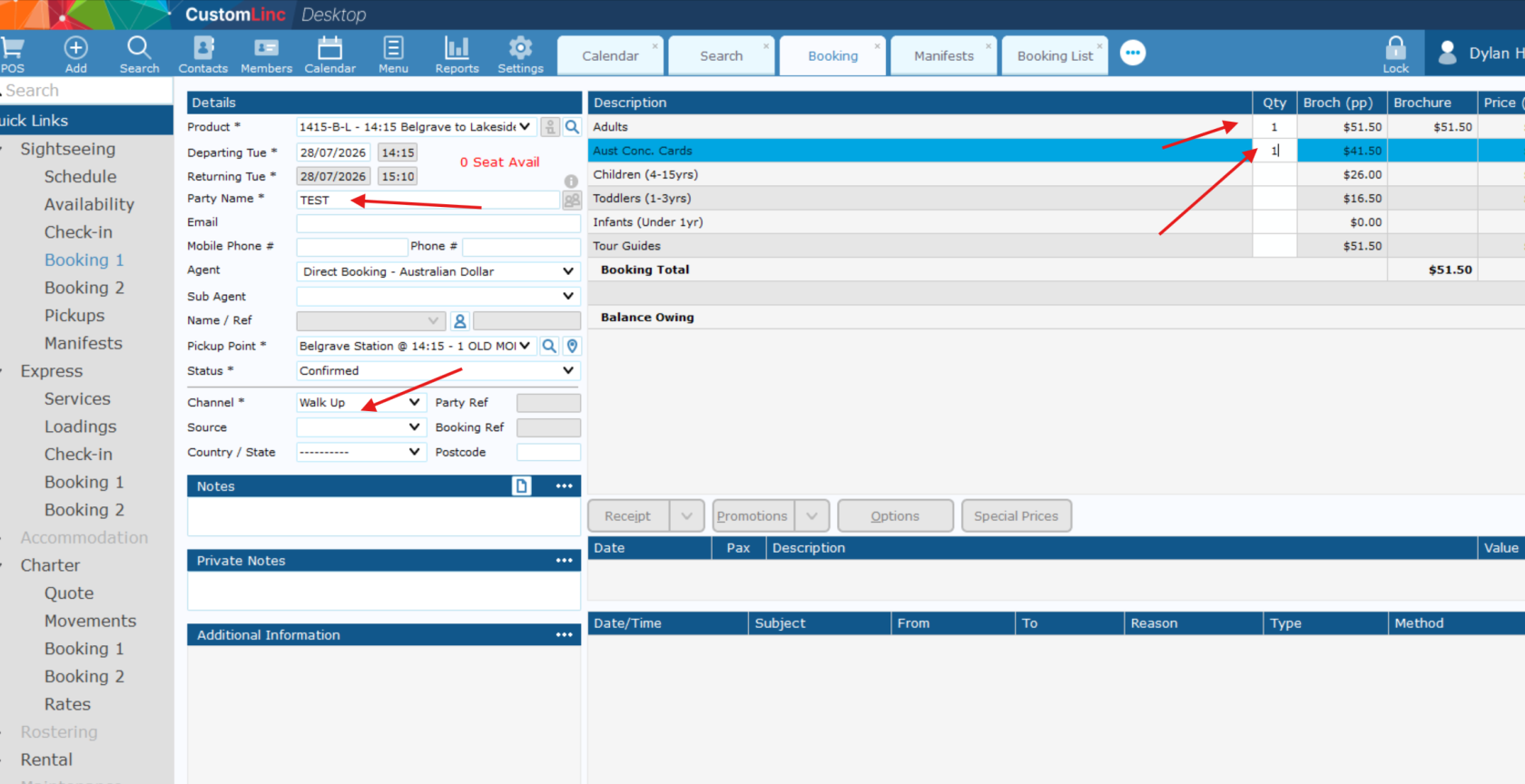
4. Fill in **Party Name**, Select **Walk Up** in Channel and input the **fares** you would like to sell.
[](https://bookstack.pbr.org.au/uploads/images/gallery/2026-07/VtNimage.png)
5. Click **Update** in the bottom right. [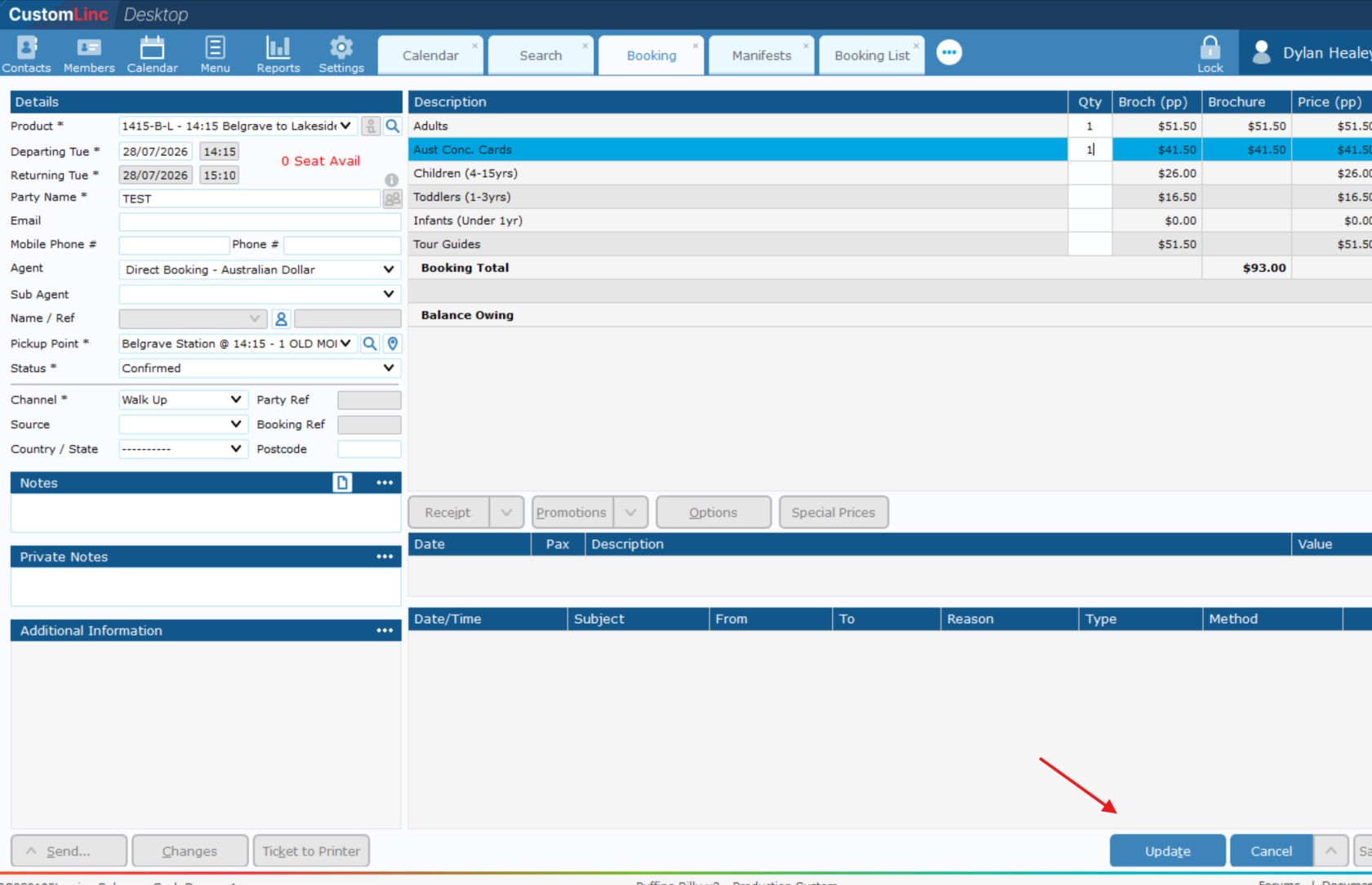](https://bookstack.pbr.org.au/uploads/images/gallery/2026-07/SYFimage.png)
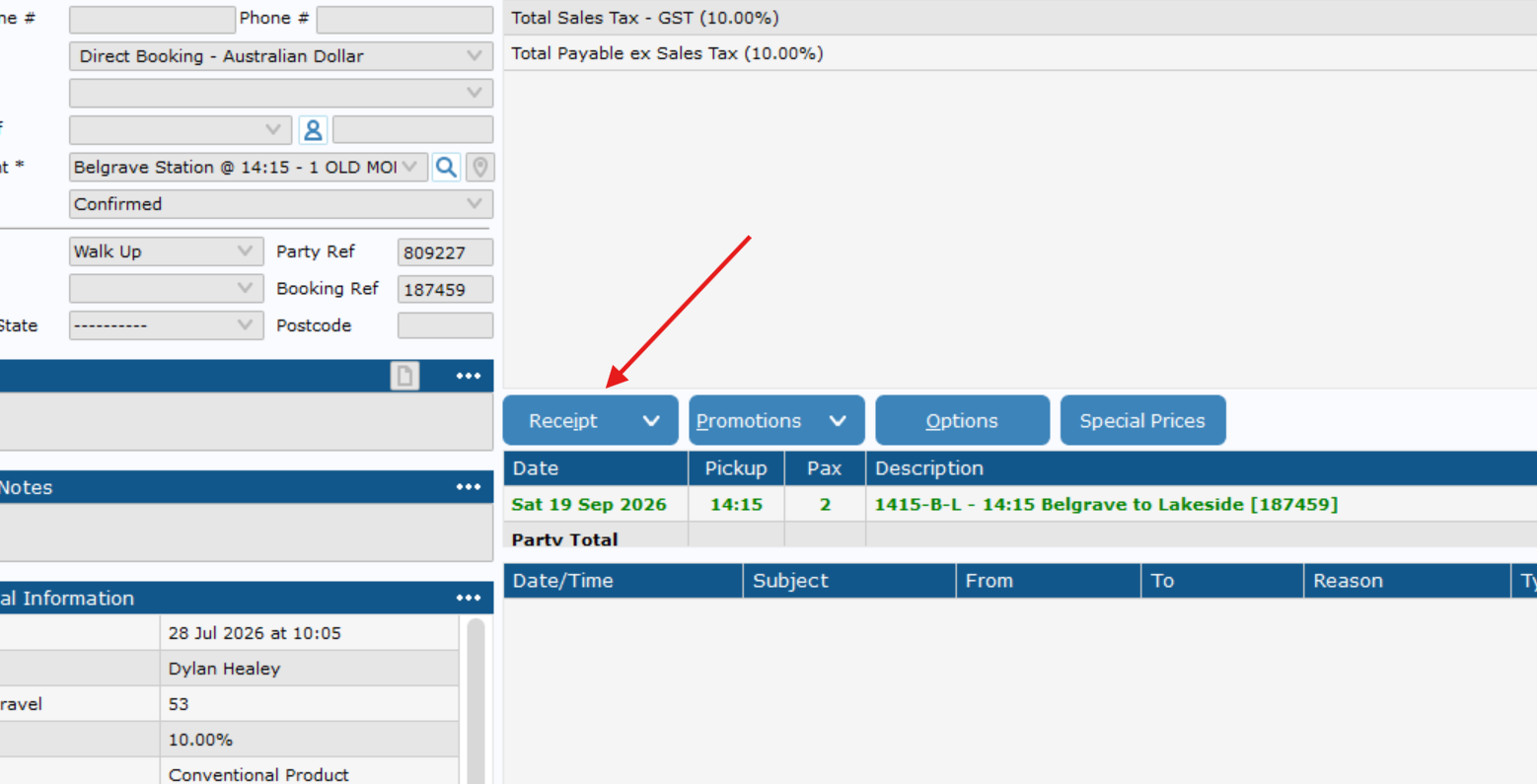
6. Click Receipt
[](https://bookstack.pbr.org.au/uploads/images/gallery/2026-07/Q59image.png)
7. Click the Payment Type dropdown and Select **Visa** or **Mastercard**.
**It does not matter which one you choose.**
[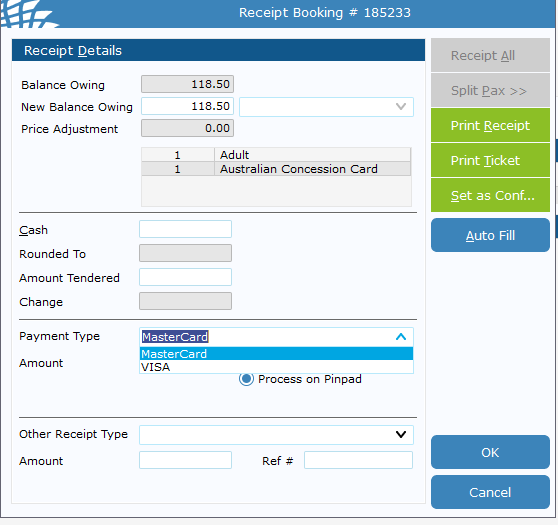](https://bookstack.pbr.org.au/uploads/images/gallery/2026-07/3J1image.png)
8. Double left click the amount, it will auot fill with the total balance owing.
[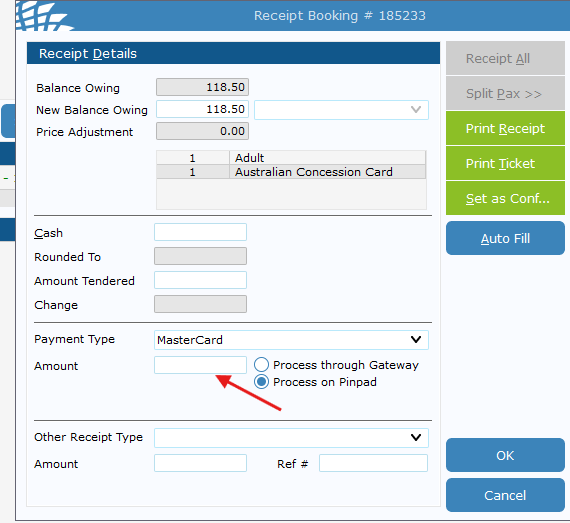](https://bookstack.pbr.org.au/uploads/images/gallery/2026-07/54Rimage.png)
9. Click Ok, then finish the transaction on the EFTPOS machine.
It may take 20-30 seconds the first time of the day to logon.
[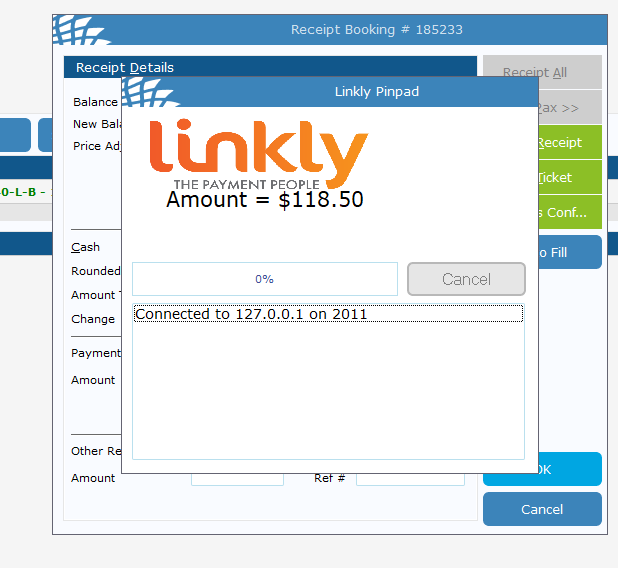](https://bookstack.pbr.org.au/uploads/images/gallery/2026-07/264image.png)
10. Once complete, it should auto exit out. Then you can press Ticket to Printer as normal.