# LVC Conference Room AV Presentation System

This article will assist in using the LVC meeting room conference av system.

**<span style="font-size: 26.0pt; line-height: 107%;"> </span>**

# <a name="_Toc100657070"></a><span style="mso-fareast-font-family: 'Calibri Light'; mso-fareast-theme-font: major-latin; mso-bidi-font-family: 'Calibri Light'; mso-bidi-theme-font: major-latin;"><span style="mso-list: Ignore;">1.<span style="font: 7.0pt 'Times New Roman';"> </span></span></span>Basic operation

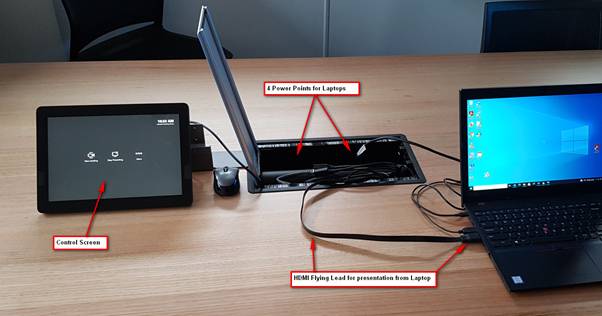
The audio Visual system is controlled by a touch panel sitting on the Conference room table.
<span style="mso-no-proof: yes;">![A picture containing text, indoor, electronics, computer

Description automatically generated](https://bookstack.pbr.org.au/uploads/images/gallery/2025-11/embedded-image-ztco4ain.png)</span>

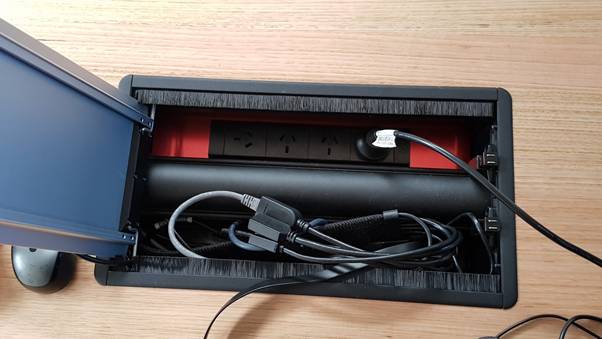
Under the lift up panel in the centre of the table can be found the flying lead to plug into a HDMI port on a Laptop. Also located under the lift up lid is 4 power points for Laptop power.
<span style="mso-no-proof: yes;">![A picture containing text, ground

Description automatically generated](https://bookstack.pbr.org.au/uploads/images/gallery/2025-11/embedded-image-ud6mybex.jpeg)</span>

# <a name="_Toc100657071"></a><span style="mso-fareast-font-family: 'Calibri Light'; mso-fareast-theme-font: major-latin; mso-bidi-font-family: 'Calibri Light'; mso-bidi-theme-font: major-latin;"><span style="mso-list: Ignore;">2.<span style="font: 7.0pt 'Times New Roman';"> </span></span></span>Microsoft Teams Meeting

<span style="color: red; background: yellow; mso-highlight: yellow;">Important: Switch on the Wall TV using one of the Remote controls supplied before proceeding.</span>

The TV source selection is HDMI 1 which should already be selected.

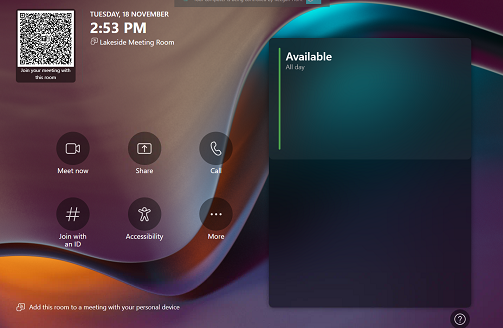
Using the touch panel it is possible to establish a Teams Meeting to one of multiple persons.
<span style="mso-no-proof: yes;">![A screenshot of a phone

AI-generated content may be incorrect.](https://bookstack.pbr.org.au/uploads/images/gallery/2025-11/embedded-image-8ptpkfdz.png)</span>

Using the Touch Screen select **Meet Now** and a selection screen should appear.

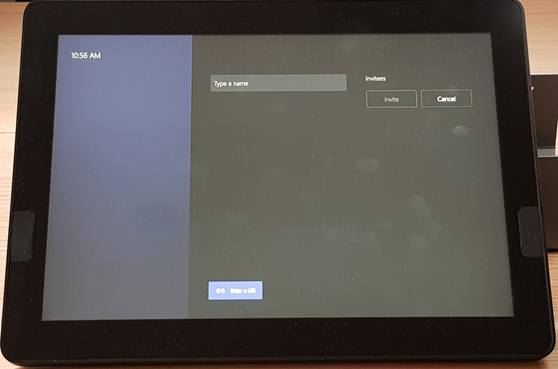
This screen then allows you enter a name of attendee.
<span style="mso-no-proof: yes;">![A picture containing text, monitor, electronics, indoor

Description automatically generated](https://bookstack.pbr.org.au/uploads/images/gallery/2025-11/embedded-image-niwaobxs.jpeg)</span>

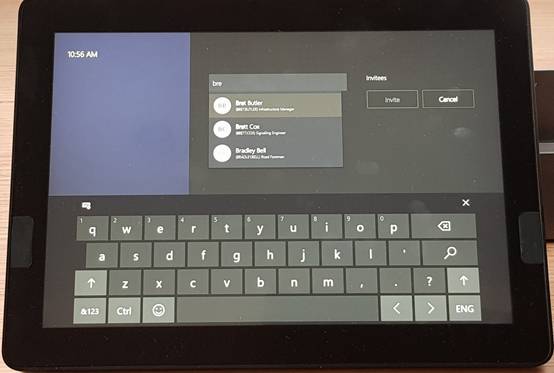
Touch the type a name and a keyboard should appear.
<span style="mso-no-proof: yes;">![A picture containing text, computer, electronics, keyboard

Description automatically generated](https://bookstack.pbr.org.au/uploads/images/gallery/2025-11/embedded-image-2akp2icr.jpeg)</span>

Using the keyboard type in the person you want to select. As you type in the attendee’s name there should be an auto population of the desired persons as shown above. Just select the target attendee.

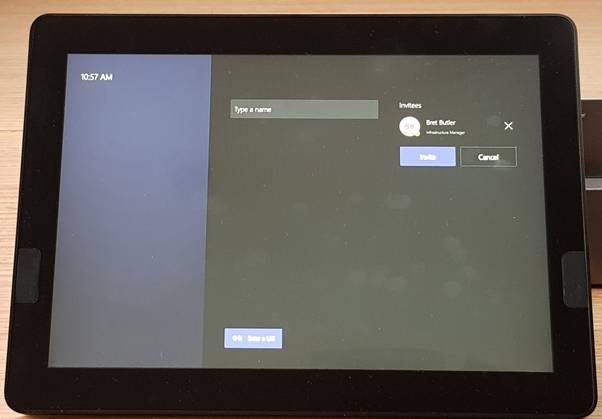
Once the attendee has been selected pressing the invite button should establish a call to the attendee. You can cancel the call at any time.
<span style="mso-no-proof: yes;">![A picture containing text, monitor, computer, electronics

Description automatically generated](https://bookstack.pbr.org.au/uploads/images/gallery/2025-11/embedded-image-qfztqqzg.jpeg)</span>

<span style="font-size: 11.0pt; line-height: 107%; font-family: 'Calibri',sans-serif; mso-ascii-theme-font: minor-latin; mso-fareast-font-family: Calibri; mso-fareast-theme-font: minor-latin; mso-hansi-theme-font: minor-latin; mso-bidi-font-family: 'Times New Roman'; mso-bidi-theme-font: minor-bidi; mso-ansi-language: EN-AU; mso-fareast-language: EN-US; mso-bidi-language: AR-SA;">  
</span>

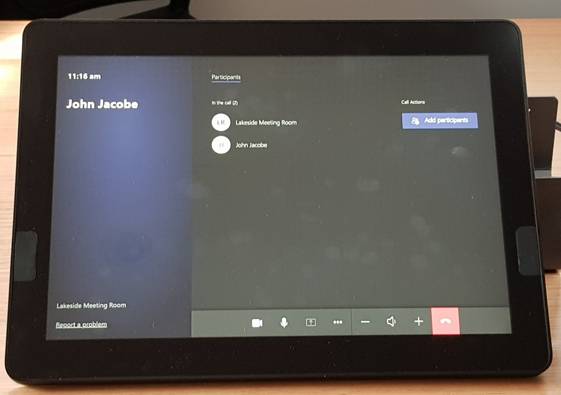
Typical screen when two people are in conversation
<span style="mso-no-proof: yes;">![A picture containing text, monitor, indoor, black

Description automatically generated](https://bookstack.pbr.org.au/uploads/images/gallery/2025-11/embedded-image-ufx9xff9.jpeg)</span>

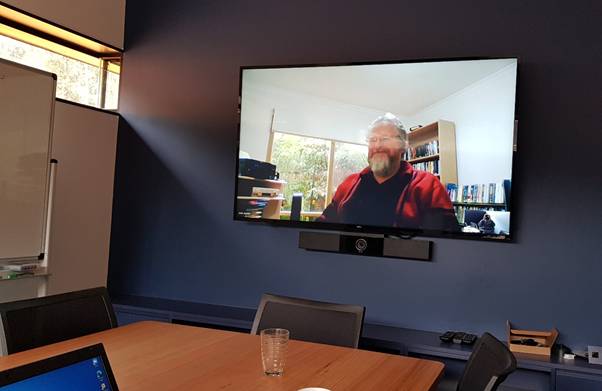
Also the main TV screen displays the attendee
<span style="mso-no-proof: yes;">![A television on a wall

Description automatically generated with low confidence](https://bookstack.pbr.org.au/uploads/images/gallery/2025-11/embedded-image-z7tkpc6g.jpeg)</span>

The Lakeside camera will follow the people talking making it easier to follow a group of people located in the Conference room.

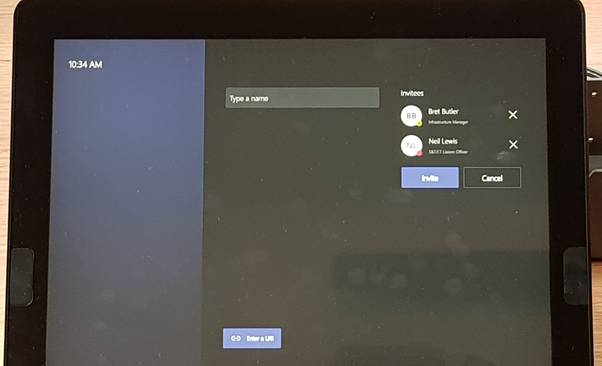
It is possible to select multiple attendees,
<span style="mso-no-proof: yes;">![A screen shot of a computer

Description automatically generated with low confidence](https://bookstack.pbr.org.au/uploads/images/gallery/2025-11/embedded-image-c64bszri.jpeg)</span>

# <a name="_Toc100657072"></a><span style="mso-fareast-font-family: 'Calibri Light'; mso-fareast-theme-font: major-latin; mso-bidi-font-family: 'Calibri Light'; mso-bidi-theme-font: major-latin;"><span style="mso-list: Ignore;">3.<span style="font: 7.0pt 'Times New Roman';"> </span></span></span>Presenting content

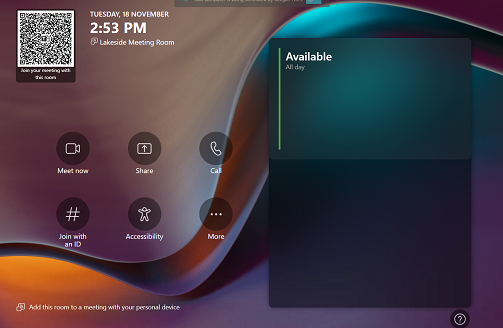
To present content you need to grab the HDMI cable sitting on the table and plug into the laptop giving the presentation.

Connecting the cable to the laptop should automatically start the Television at the end of the room.
<span style="mso-no-proof: yes;">![A screenshot of a phone

AI-generated content may be incorrect.](https://bookstack.pbr.org.au/uploads/images/gallery/2025-11/embedded-image-afbifote.png)</span>

The display of the Laptop screen on the big television can be turned on or off by touching the “Share” Icon on the tablet.

# <a name="_Toc100657073"></a><span style="mso-fareast-font-family: 'Calibri Light'; mso-fareast-theme-font: major-latin; mso-bidi-font-family: 'Calibri Light'; mso-bidi-theme-font: major-latin;"><span style="mso-list: Ignore;">4.<span style="font: 7.0pt 'Times New Roman';"> </span></span></span>Trouble Shooting

## <a name="_Toc100657074"></a><span style="font-family: Symbol; mso-fareast-font-family: Symbol; mso-bidi-font-family: Symbol;"><span style="mso-list: Ignore;">·<span style="font: 7.0pt 'Times New Roman';"> </span></span></span>No Icons on control panel

If the control panel appears blank and the TV does not start when a Laptop Is plugged in, it could be the controlling computer is not switched on. This may happen after a power failure.

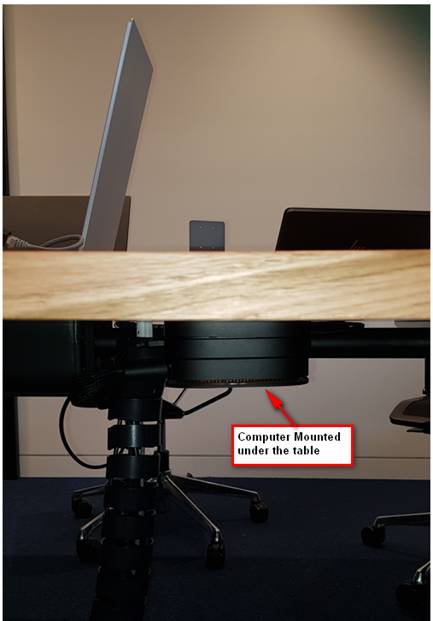
The computer is mounted under the table on the Bus Parking side of the room.
<span style="mso-no-proof: yes;">![A surfboard on a stand

Description automatically generated with low confidence](https://bookstack.pbr.org.au/uploads/images/gallery/2025-11/embedded-image-r3ohpff2.png)</span>

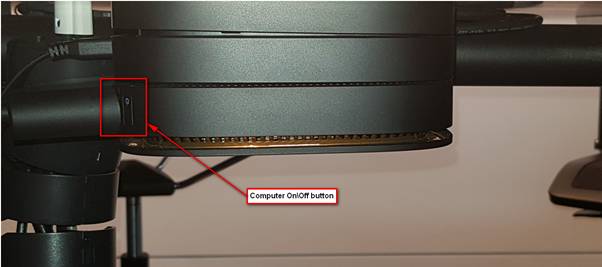
Computer can be started by pressing the On/Off button as below.
<span style="mso-no-proof: yes;">![Graphical user interface

Description automatically generated](https://bookstack.pbr.org.au/uploads/images/gallery/2025-11/embedded-image-coursejl.png)</span>

## <a name="_Toc100657075"></a><span style="font-family: Symbol; mso-fareast-font-family: Symbol; mso-bidi-font-family: Symbol;"><span style="mso-list: Ignore;">·<span style="font: 7.0pt 'Times New Roman';"> </span></span></span>No TV Picture

<span style="color: red; background: yellow; mso-highlight: yellow;"> </span>

Check the Wall TV is switched on using one of the Remote controls supplied before proceeding.

Check<span style="color: red;"> </span>The TV source selection is HDMI 1 which should already be selected.

Check the Computer under the table is switched on as above in section 4

## <a name="_Toc100657076"></a><span style="font-family: Symbol; mso-fareast-font-family: Symbol; mso-bidi-font-family: Symbol;"><span style="mso-list: Ignore;">·<span style="font: 7.0pt 'Times New Roman';"> </span></span></span>Support

All IT issues with this unit to be reported using the normal IT help procedures

<helpdesk@pbr.org.au>

<span style="mso-spacerun: yes;"> </span>