Signing In to 1password
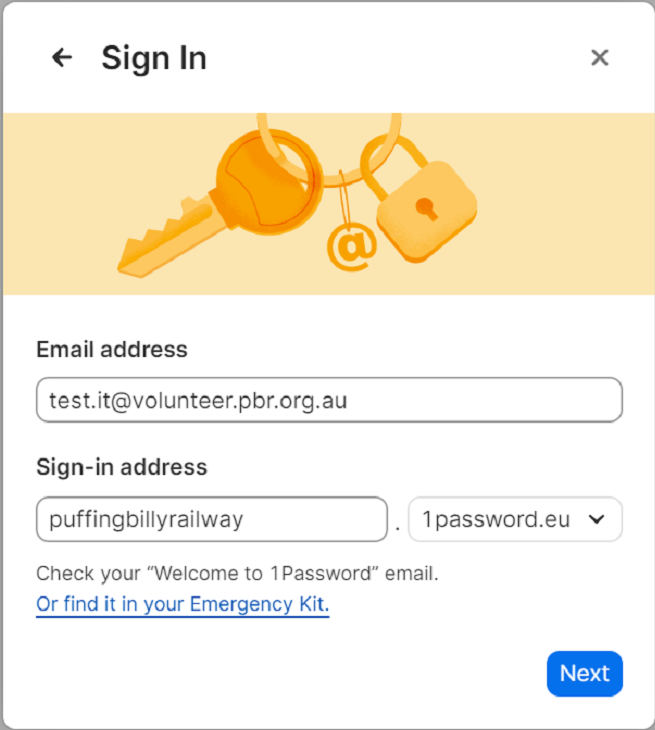
- To sign in on the app, click "sign in" > "Enter account details". Enter the users email address with the sign-in address as below and hit next. You will need to authenticate with duo.

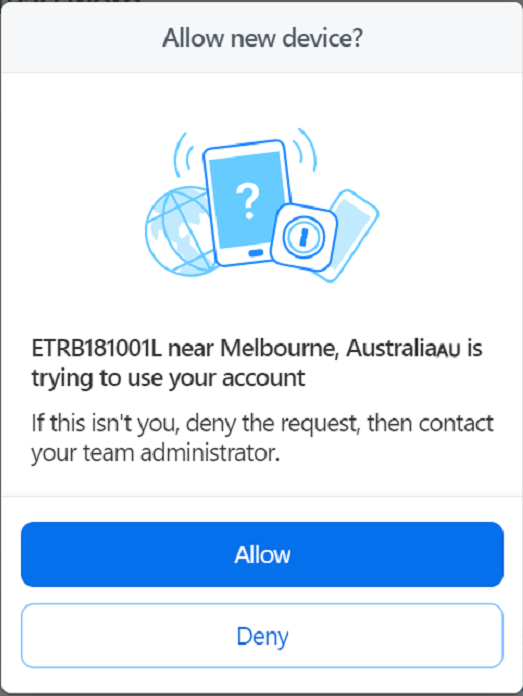
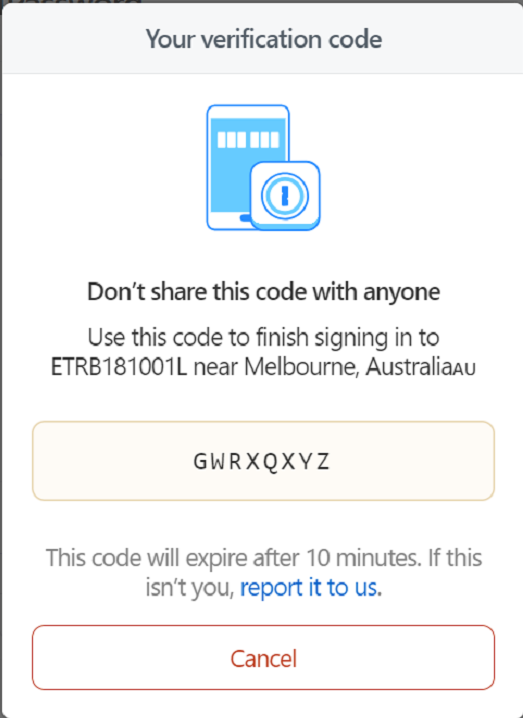
- 1password will then ask to trust the device. You will need to input a code. Go back to the web portal where it will ask you to allow or deny the device. Once allowed it will give you a code to enter in the app version. Once completed the app can then trust the device and the app version can be used.


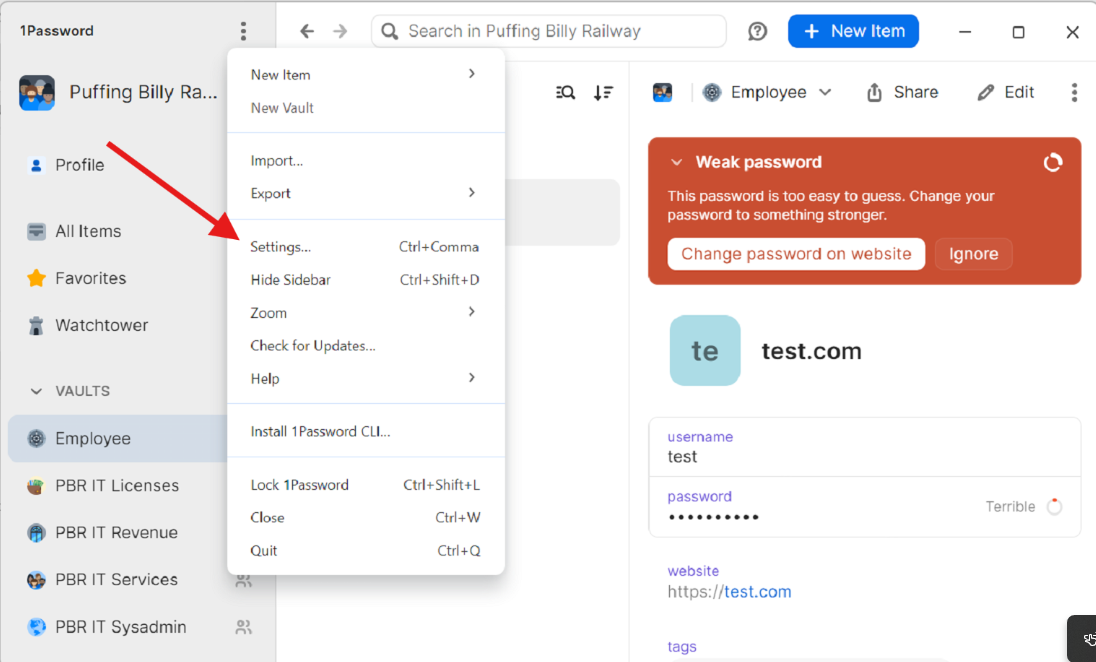
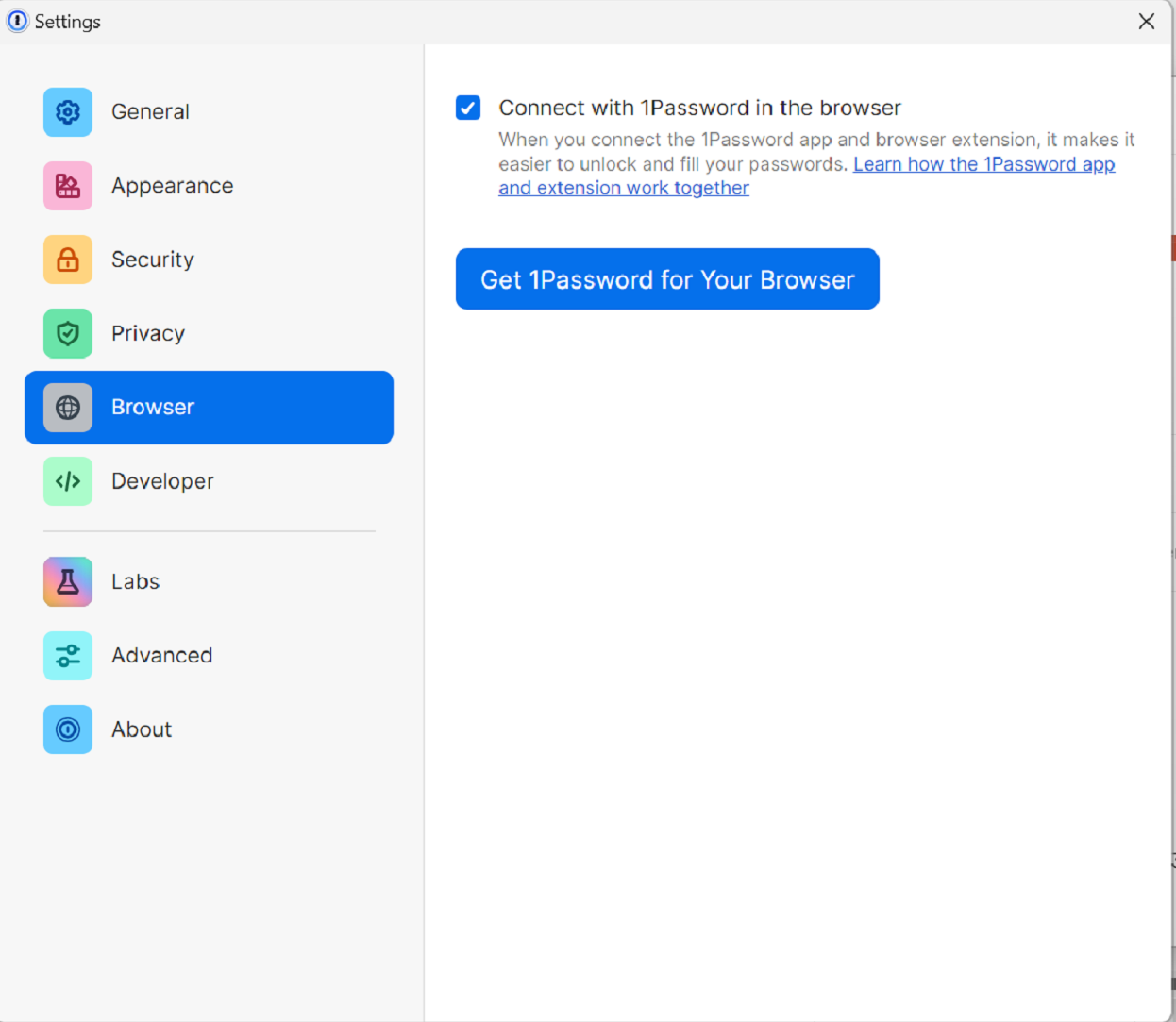
- The web browser extension can also be installed from the app. Click the 3 dots and select settings.

- Select "Browser" and "Get 1Password for Your Browser" (If the link does not work, copy the link and paste it into a new tab)

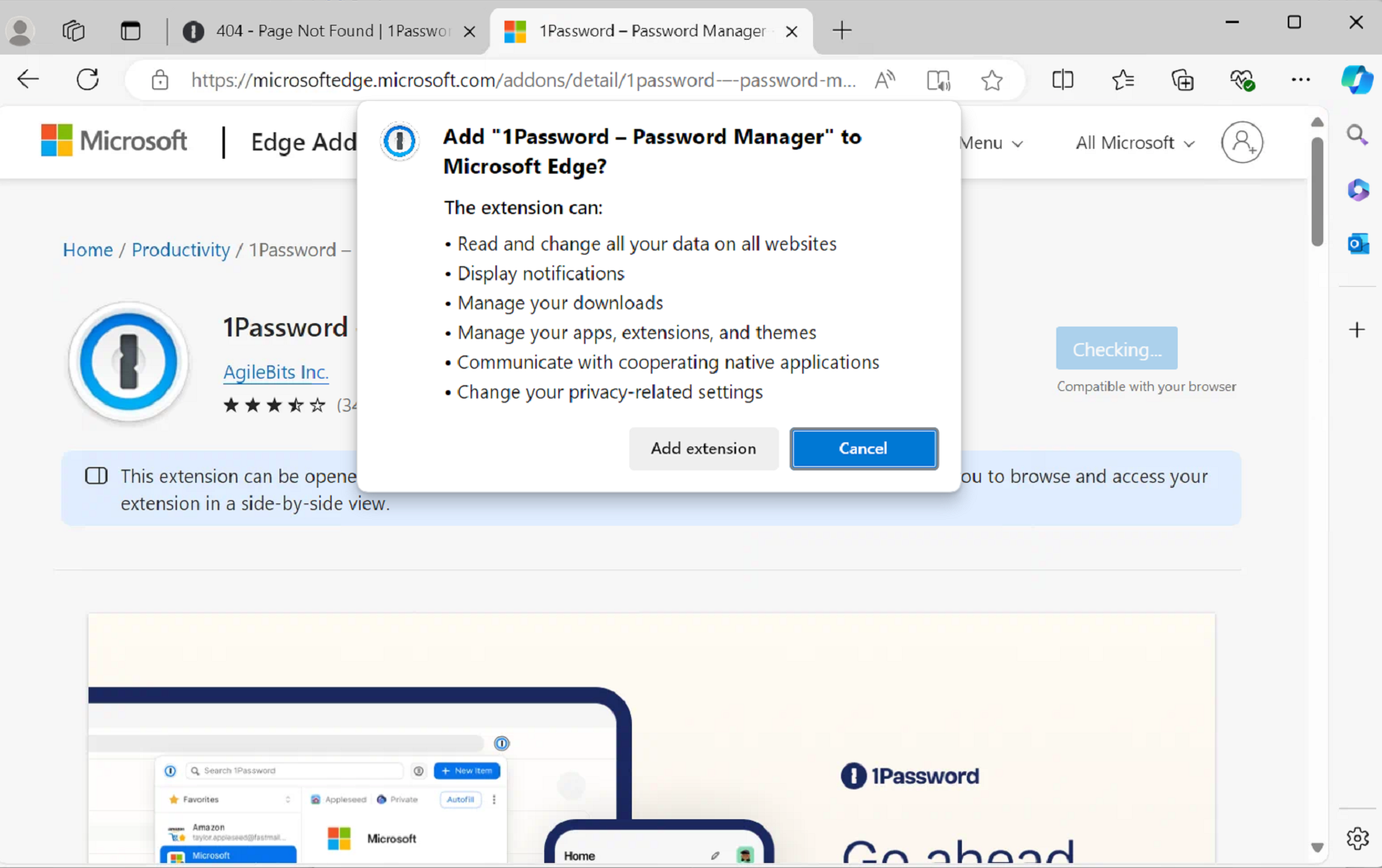
- Select "Get" and "Add Extension"

- Make sure to delete passwords from the browser and disable and browser settings. If you need to import existing passwords from chrome or edge, see bookstack https://bookstack.pbr.org.au/books/1password-pPd/page/importing-password-from-browser-to-1password